
Three different actions: disconnecting, deleting activity, and removing content
Gemini Apps can connect to other applications to respond to requests and, with permission, help carry out actions in those apps. Google gives examples including summarizing emails, creating events, searching content in productivity apps, and playing music through compatible services. Available features depend on the connector and the Gemini app you use.
Disconnecting an app is not the same as deleting data that has already been exchanged with it. Google lets you connect or disconnect apps through Connected Apps, but does not describe that option as a way to remove content already stored in the connected service. To remove a message, file, or other item there, you will need to check that service’s own options.
It is also useful to distinguish Gemini activity from content stored in other apps. Gemini Apps Activity lets you review and delete Gemini activity, while connected services may store and use data according to their own policies. Google says that deleting Gemini activity does not delete data stored in other Google services.
Before changing a setting, identify your goal: stop using a connector, delete a Gemini conversation, or remove content from another app. Each goal requires a different control. Disconnection manages the link to a connector; Gemini activity is managed in Gemini Apps Activity; and external content is managed in the service that retains it. These distinctions are important because the controls do not necessarily have the same effect. A setting that changes whether Gemini can reach an app does not, by itself, determine what happens to copies or records already held elsewhere. If you are unsure where an item is stored, check the relevant app or service before assuming that disconnecting it will remove the item.
How to find and disconnect Connected Apps
For the web, Google says to open Gemini at gemini.google.com, select Customize in the sidebar—or More if it is not shown—and then choose Connectors. The page lists apps available to your account and the Gemini app you are using. Open a connector’s details to see its description, supported actions, and actions it does not support.
To disconnect an app from that page, find it, open More options, select Disconnect, and follow the prompts. Google also documents connecting apps from the same area. These instructions describe the web interface in Google’s help; do not assume every device displays identical controls. The precise labels and available choices may differ depending on the platform and the app you have open.
The list can vary by location, language, device, and Gemini app. Google gives the example that some apps available only in Gemini for Android do not appear under Connected Apps on iOS or on the web. Check the list shown in your account and open a connector’s details to learn what it can do. An app not appearing in one version of Gemini does not establish whether it is available on another platform.
The web-interface instructions cited by Google are intended for personal accounts. People using Gemini with a work or school account should consult the guide for their account type. The documentation cautions that Gemini use in managed accounts may be subject to different terms, without detailing each organization’s rules here. Your organization may also set which services and controls are available, so use the information that applies to the account you actually use rather than assuming that personal-account instructions will match.
What Keep Activity controls—and what it does not
Keep Activity affects whether Connected Apps are available. According to Google, when it is turned off, connectors are unavailable on gemini.google.com, iOS devices, and smartwatches. On Android, Google’s help lists Device assistance, Phone, Messages, and WhatsApp as available.
Availability is not deletion. Turning off Keep Activity limits connector access on the platforms listed, but the documentation does not present this setting as an instruction to erase data already shared with or stored in another app. Connected Apps provides the relevant connect or disconnect control for a specific connector. That distinction matters if your aim is to remove something already present in a connected service: changing availability does not amount to using that service’s deletion tools.
Gemini may also automatically use public information from some Google services. The help names Google Search, Google Flights, Google Hotels, Google Maps, and YouTube, and clarifies that Connected Apps settings do not change this use. Keep Activity must be on to access public information from Flights, Hotels, Maps, and YouTube; Google Search can provide public information even when it is off or you are not signed in. These statements concern the described use of public information, not the removal of content kept in those services.
Turning off Keep Activity also does not mean Gemini stops processing everything you write. Google says it continues to use chats to respond and to help protect Google, its users, and the public. The setting governs particular uses and features; it is not a master switch that stops all processing. Consider that distinction when choosing whether to change it, and review the activity controls separately from controls for content held by other services.
Deleting Gemini chats and managing external data
In Gemini Apps Activity, you can review and delete activity, change the automatic deletion period, and manage other options described in the Privacy Hub. Google also says you can manually delete chats. However, deleting activity should not be understood as immediately removing every related piece of information from every system. The scope of that control is distinct from the data-management tools offered by other services.
Google explicitly says that deleting Gemini Apps activity does not delete data stored in other Google services. Those services may store and use data under their own policies and Google’s Privacy Policy. If an email or file remains in Gmail, Drive, or another service, also review the tools provided by that service. Deleting an entry in Gemini activity does not itself remove the corresponding item from a mailbox or file-storage account.
For third-party services, Google says that they process data under their own privacy policies. The Privacy Hub also warns that Google does not monitor or protect data in third-party custom apps; connecting them may expose data, accounts, or devices to unauthorized access. Connect only apps you trust. Consider the permissions and the service involved before enabling a connection, especially when the connected app may handle information you would not want exposed.
To decide where to act, first identify what you want to delete: a Gemini conversation, a message in a messaging app, or a file stored in another service. These are different items and may have different controls. If the content belongs to a connected app, consult that app’s deletion process and terms. Where the information exists in more than one place, you may need to review each service separately rather than treating one deletion action as a universal removal request.
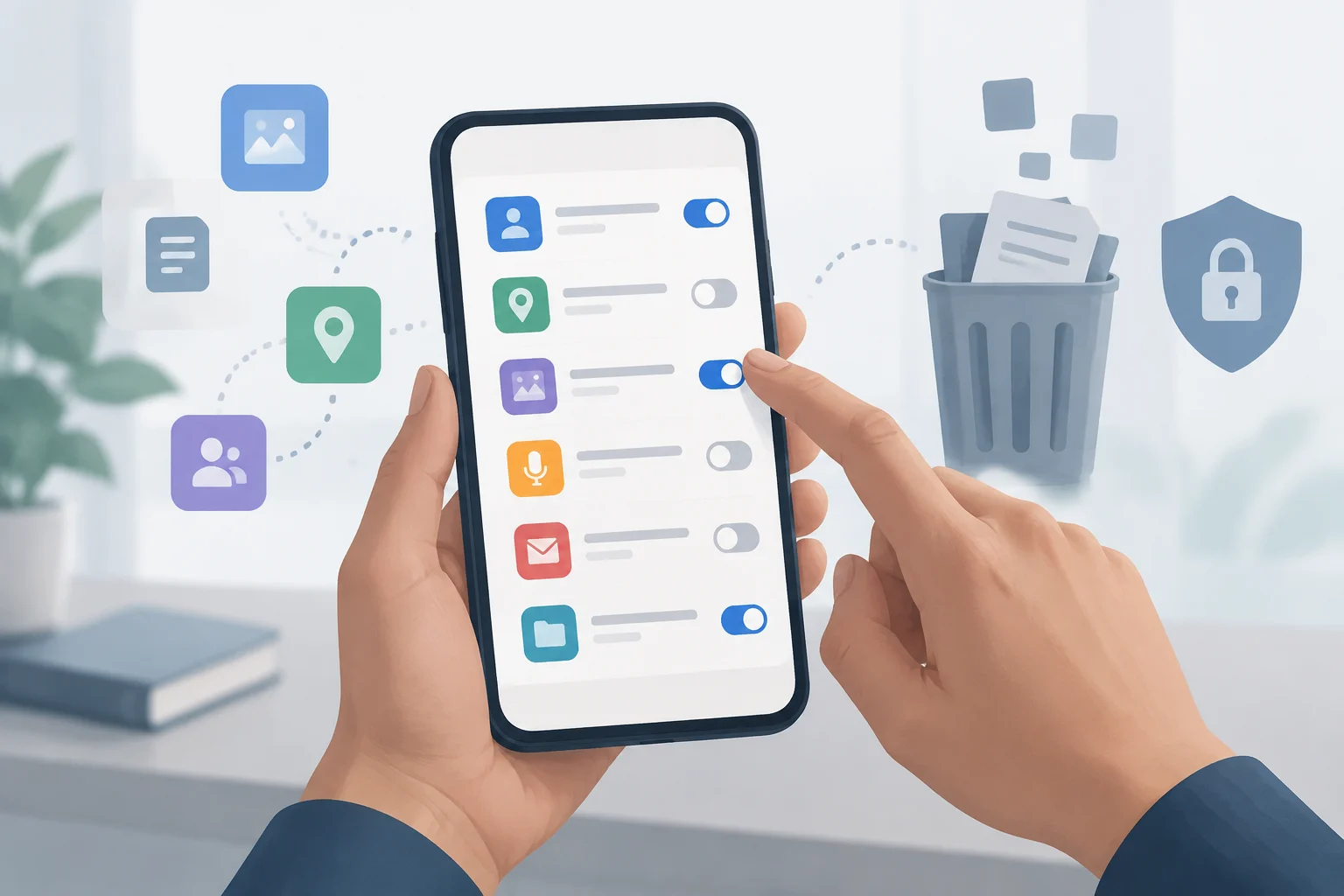
A practical sequence for reviewing your controls
You can review your settings step by step, keeping connector access separate from content deletion:
- Open Gemini using the account and device you use.
- On the web, go to Customize (or More), then Connectors.
- Review the connector details: supported features, limitations, and availability.
- Disconnect apps you no longer want to use with Gemini and follow the on-screen prompts.
- Review Keep Activity and decide whether its effects on activity and connectors suit your preferences.
- In Gemini Apps Activity, review or delete the relevant activity.
- For content kept by another app, use that service’s controls.
Disconnecting does not guarantee that external data will be deleted. Disconnection manages the connector link; Gemini activity has its own controls; and content that remains in another app requires reviewing that service. Google describes these controls but does not guarantee that disconnecting an app automatically removes information previously shared or stored. Keeping those tasks separate helps avoid assuming that a change in Gemini also changes records held by an independent service.
If you cannot see a connector or option, check the account, device, and Gemini app you are using. Availability varies by location, language, device, and app. Work and school accounts have their own instructions, so do not assume the same path or list applies in every case. You can use the available connector details to understand its supported actions, then make a separate decision about whether to delete Gemini activity or content in the connected service.
Retention and limitations to keep in mind
Google says conversations reviewed by people and related data are not deleted when you delete your activity; they may be retained for up to three years. Google also says automatic deletion of Gemini activity can be configured, with the options described in Gemini Apps Activity. Deleting activity does not necessarily delete every related record. The documented retention information is a reason to distinguish the activity control from other data held in connection with Gemini.
Gemini settings do not change other Google settings either. The Privacy Hub mentions, among others, Web & App Activity and search-service history, which may continue to save data when you use those services. If you want to review more than your Gemini conversations, also check the relevant activity controls in your Google Account. Those settings apply to different activity and should not be assumed to be governed by the same switch.
The Privacy Hub cautions that using Gemini with a work or school account may be subject to different terms. That caution does not establish the specific retention periods or controls used by each organization: consult the information that applies to your account and, where relevant, your administrator’s instructions. Managed-account settings can differ from personal-account settings, so use the applicable guidance rather than relying on a route or option that may not be offered to you.
The practical choice depends on the data: disconnect the connector if you no longer want to use it with Gemini; use Gemini Apps Activity to review or delete Gemini activity; and go to the original app if you want to remove content that remains there. The documentation does not describe a single retrospective deletion procedure covering all data and applications. Treat each service’s controls according to the content it holds and the action you want to take.