1. Make the screen easier to read
Open Settings and use its search box to look for “text size”. On Android, it may be under Display or Accessibility. On iPhone, look under Display & Brightness or Accessibility. Try larger text, then open a message to see if it is comfortable to read. You can return to the previous setting if you prefer.
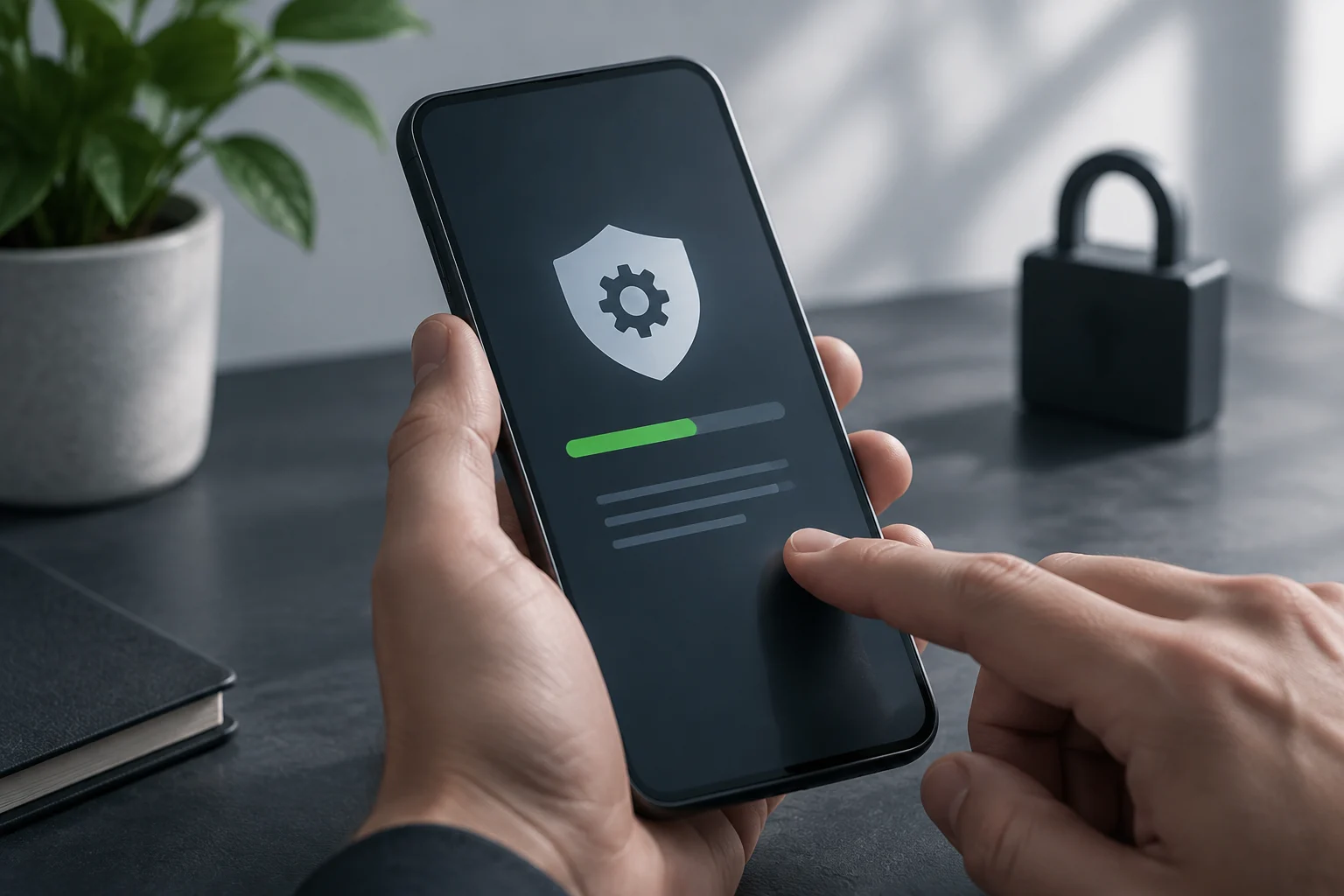
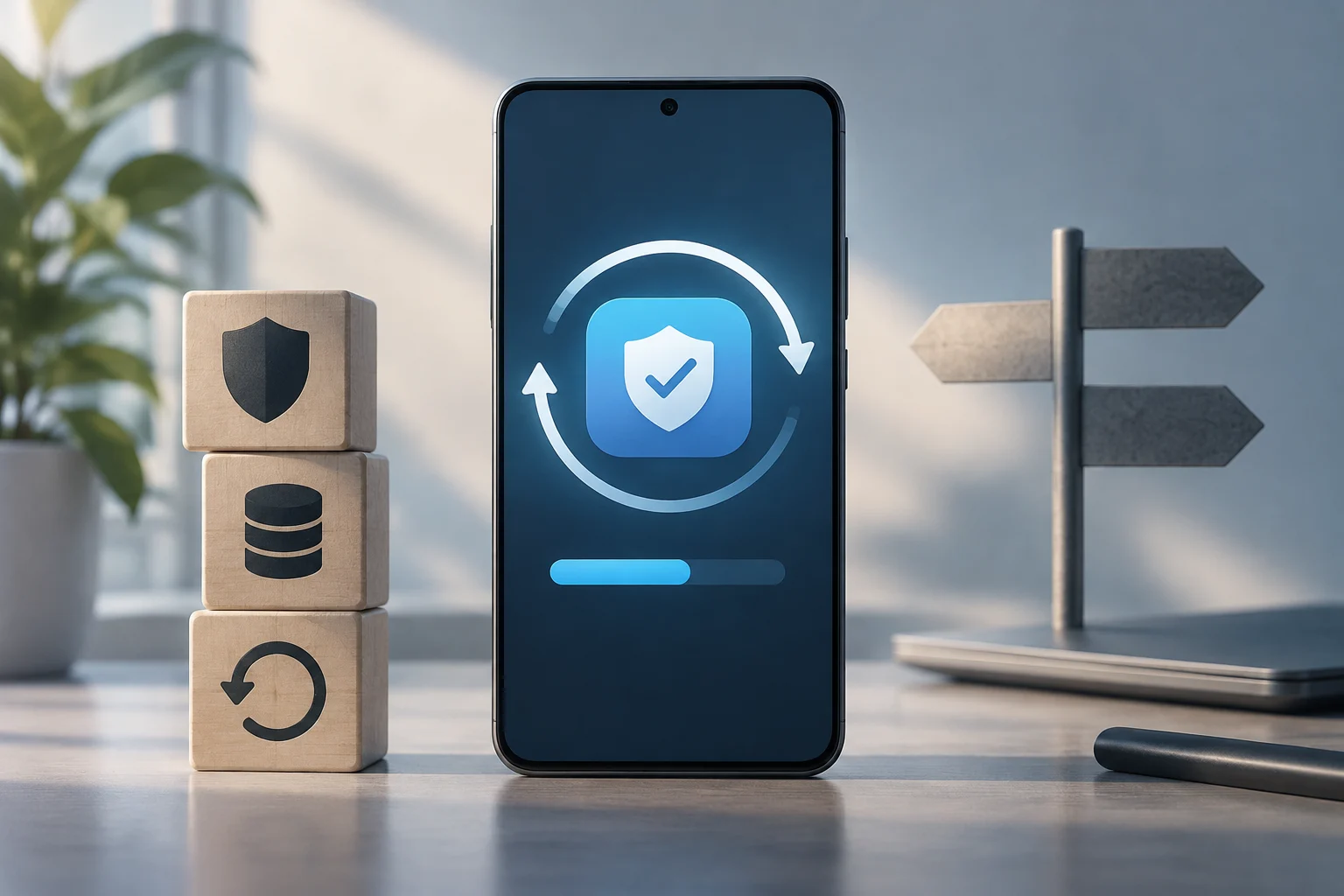
Connect to trusted Wi‑Fi for the exercises. You can also search Settings for “update” and check what is available. Follow the instructions on the phone and keep it charged and on Wi‑Fi before updating. Protect your screen with a passcode you keep to yourself.
2. Save a contact and make a call
Open Contacts or the contacts list in the Phone app. Add the name and number of someone who has agreed to practise. Save the contact and find it again by name. Tap the call button and keep the phone close so you can adjust the volume.
Before you end the call, find the red hang-up button. If two people have similar names, open the contact and check the number before calling.
3. Send a practice message and photo
Open the messaging app you both use. Find your contact, type “This is a practice message” and tap Send. Wait for a reply to make sure you have the right conversation.
Then tap the attachment or photo button and pick a picture with no personal information, such as a photo of a mug. Check the recipient before sending it. If you need to install the app, find it in Google Play or the App Store and check who publishes it.
4. Try a video call
Agree on an app and a time to practise. In your conversation, look for the video camera symbol. If the app requests access to your camera or microphone, grant it only when you are using the app you chose and want to make the call.
Try muting and unmuting the microphone. Switch the camera off and back on. If something fails, end the video call and continue by phone.
5. Open a website at your own pace
Open a browser such as Chrome or Safari. Find the bar where you type addresses and search terms. If you already know a website's exact address, type it into that bar yourself. If you search, check who publishes the page before using it.
Use a public schedule for practice, such as a library’s opening hours. Press Back, then find the schedule again. Save it as a bookmark if you want to return to it often.
6. Spot a suspicious message
Imagine an urgent message tells you to pay a delivery charge or confirm a code. Stop. Leave the link and number in the message alone. Open the app you normally use or call a number you already know to check the request. Keep passwords and one-time codes to yourself, even if the message looks as though it comes from someone familiar.
Use long, different passwords for important accounts. When a service offers a second verification step, set it up and keep its recovery options somewhere safe.
7. Find a public service or health information
In Germany, the Bundesportal helps you find government services and the offices that handle them. Search for a service, select your locality when prompted and check which office is responsible. For general health information, use the federal portal gesund.bund.de. Ask your healthcare provider which official channel it uses if you need to book an appointment or send medical information.
Printable checklist. Tick what you can do on your own: read the screen, make a call, send a message with a photo, join a video call and find an official address. Write down only the step you want to practise next time. Keep passwords, codes and health information off the sheet.