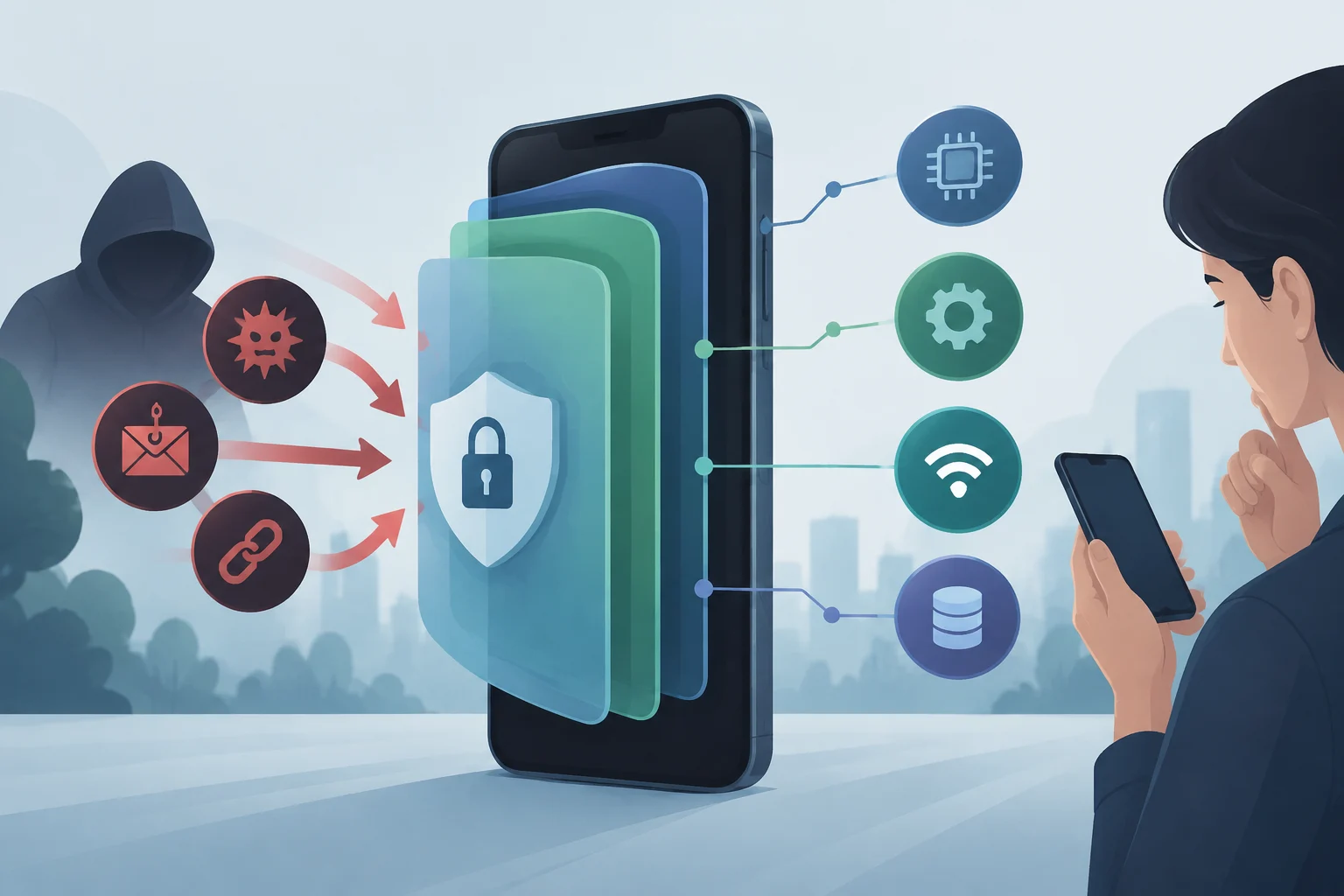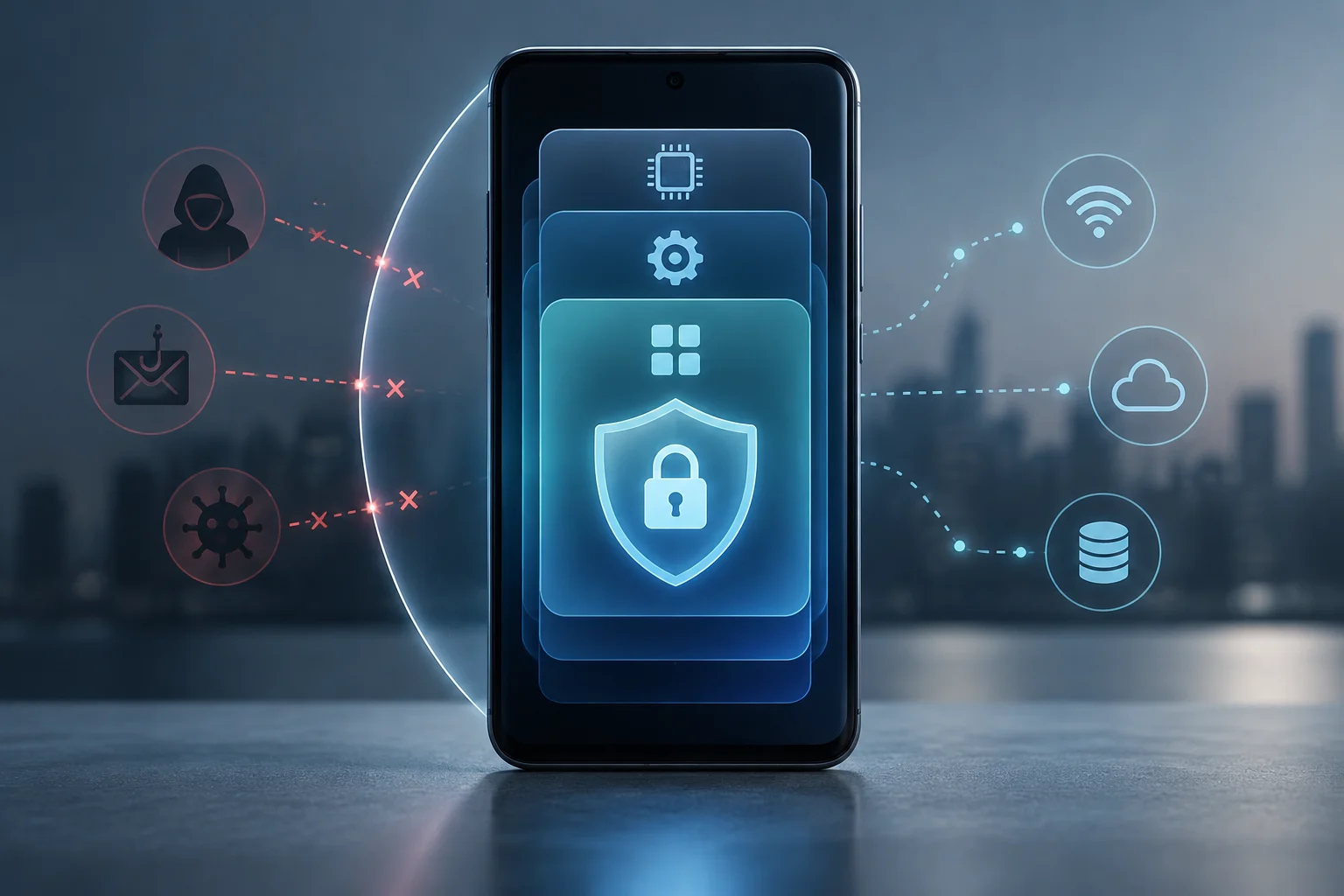
Mobile security includes security features in the hardware, operating system, apps, and services of mobile devices. Apple, for example, documents encryption and security measures for its devices and apps.
Apple’s documentation describes several security measures in its devices: encryption protects user data, apps run in isolated processes, and controls govern their access to data. Google, meanwhile, distinguishes Play Protect certification from Google Play Protect, which protects devices from harmful apps.
These measures serve different purposes. Apple documents encryption to protect user data and process isolation for apps. Google explains that Play Protect certification is separate from Google Play Protect, which protects devices from harmful apps.
Hardware, systems, and apps
The hardware layer provides features that the operating system can use to protect keys, biometric data, or the startup process. For Apple devices, Apple describes Secure Enclave as a security component built into certain chips and links its architecture to data protection and authentication. The name should not be treated as a component found in every phone: implementations depend on the platform and model.
Apple describes the sandbox as process isolation: apps without authorization cannot access user data. Apple also documents additional controls governing apps’ access to that data.
Networks and data management
Apple documents support for standard VPN and Wi-Fi protocols that protect network traffic. Its documentation also describes data encryption and ways to erase a device remotely if it is lost or stolen.
Apple documents encryption features to protect user data and methods for remotely erasing a device if it is lost or stolen.
Consult the manufacturer’s guidance to learn which security options are available on your device. A feature announced for one platform is not necessarily available on every phone or implemented the same way in every generation.
Google distinguishes Play Protect certification from Google Play Protect, which protects devices from harmful apps. Certified devices have passed Android compatibility tests; uncertified devices might not receive Android system or app updates, and some features might not work properly.
Google Play Protect protects devices from harmful apps. Google recommends looking for and installing the latest Android system updates, which often resolve device problems.
Apple documents protections at several levels: secure boot, encryption, and controls over apps and their access to data. On iPhone and iPad, apps run in isolation and the system applies permissions; the hardware architecture includes Secure Enclave on compatible devices. These measures reduce opportunities for attacks, but they do not make iOS immune to phishing sites, deceptive messages, or unknown vulnerabilities.
| Area | Android | iOS and iPadOS |
|---|---|---|
| App verification | Google Play Protect protects against harmful apps; device certification is a separate process. | Apple describes app security controls and process isolation. |
| Hardware protection | Hardware security features depend on the device. | Apple describes Secure Enclave on compatible devices as a basis for protecting data and keys. |
| Encryption and system | Play Protect certification checks Android compatibility; it is not the harmful-app scanning performed by Google Play Protect. | Apple documents encryption, data protection, and secure boot. |
| Lost devices | Google documents Find Hub for finding, securing or erasing a lost Android device. | Apple documents remote erasure of devices in the event of loss or theft. |
Malware is malicious software that can be used for different purposes. Mobile threats also include phishing: messages that impersonate an organization or person to persuade someone to share information or open deceptive links. Device defenses do not replace caution when responding to unexpected requests.
Phishing and social engineering target a person’s decisions, not necessarily a flaw in the phone. A message might impersonate a bank or delivery service to obtain credentials, codes, or payment. Smishing is phishing sent by SMS; attacks can also arrive by email, messaging apps, or social media. Operating-system encryption does not, by itself, identify the intent of a message’s sender.
Apple documents encryption features that protect user data and allow a device to be erased remotely if it is lost or stolen. Remote erasure is a data-protection feature; it does not, by itself, recover files from the device.
Phishing can arrive through text messages, email, or messaging apps. Check who sent the request before sharing information or following a link: messages can impersonate a trusted organization or person.
Technical protections have different scopes. Apple describes encryption to protect data, app process isolation, and controls intended to prevent apps from containing known malicious software. None of these features can, by itself, identify whether a message is a legitimate request.
Play Protect certification checks a device’s compatibility with Android and is separate from Google Play Protect’s scanning for harmful apps. Google warns that uncertified devices might not be secure and might not receive system or app updates.
Google says an unlocked bootloader or a modified Android system are common reasons why a device might fail Play Protect certification checks. Check the device’s certification status in Google Play if you need to know whether it is certified.
Apple documents encryption features that allow a device to be erased remotely if it is lost or stolen. Remote erasure protects data by deleting it from the device; it is not a way to restore files.
To review your phone’s security, check which options your model offers and how to configure them. Google recommends looking for and installing the latest system updates; on Apple devices, software updates are part of the platform’s security measures.
- Find and install system updates offered for your device.
- If you receive an urgent message with a link, do not reply or share information before checking who sent it: urgency can be used to influence decisions.
- If a delivery notice asks you to pay through a link, find the service separately and check the request before acting.
- Google says an uncertified Android device might not receive updates and its backup might not be protected.
Social engineering can use messages impersonating an institution or service to obtain information, money, or access. Urgency is a reason to pause and check the request before sharing data or making a payment.
Google recommends looking for and installing the latest system updates, and Apple documents software updates as part of its platform security. Deceptive messages need a separate check: social engineering seeks to influence people’s decisions.
Five reminders for reviewing your security
Poster 1: Pause and verify before replying
- Do not tap links, open attachments, or share passwords or codes in response to an unexpected request.
- Contact the organization or person through a channel you already know; do not use contact details in the suspicious message.
- If the message appears fraudulent, report it using the service’s tools and delete it.
Act now: Review the latest message asking you to act urgently before replying.
Limit: A convincing message can be fake; checking it reduces risk but cannot guarantee that an account or device is safe.
Poster 2: Use a different password for every account
- Use long, unique passwords; do not reuse your email password on other services.
- Use a password manager to create and store different passwords.
- Protect the manager with a strong master password and enable the recovery options available to you.
Act now: First change any reused password for an important account.
Limit: A manager helps you manage passwords, but cannot by itself prevent phishing, session theft, or every kind of account attack.
Poster 3: Turn on multifactor authentication
- Enable multifactor authentication (MFA) for email and important accounts whenever it is available.
- Choose from the options each service offers and keep recovery methods somewhere secure.
- Never share a verification code with someone who asks for it by phone or message.
Act now: Look for “Security” in an account’s settings and check whether it offers MFA.
Limit: MFA adds a barrier, but does not prevent every scam or replace other account-security measures.
Poster 4: Keep your system and apps up to date
- Install operating-system and app updates through your device settings or its official app store.
- Turn on automatic updates if available, and periodically check for anything still pending.
- If your phone no longer receives updates, check the manufacturer’s support options and consider the risk of continuing to use it for sensitive tasks.
Act now: Check for pending updates to your system and apps.
Limit: Keeping software up to date does not eliminate every security risk.
Poster 5: Lock your phone and plan for what to do if it goes missing
- Review your screen-lock options and consult the instructions for your phone model.
- Review your location and remote-erasure options, and make sure you know the credentials needed to access them.
- Keep a backup of the data you want to preserve.
- If you lose your phone, use another device to lock, locate, or erase it, depending on the options available; contact your carrier if needed.
Act now: Check your screen lock and find your phone’s anti-theft options.
Limit: Erasing a device does not restore deleted files.
For device-specific instructions, see setting a passcode on iPhone, a lost or stolen iPhone, and a lost Android device.