Connecting to hosting does not require a local FTP server
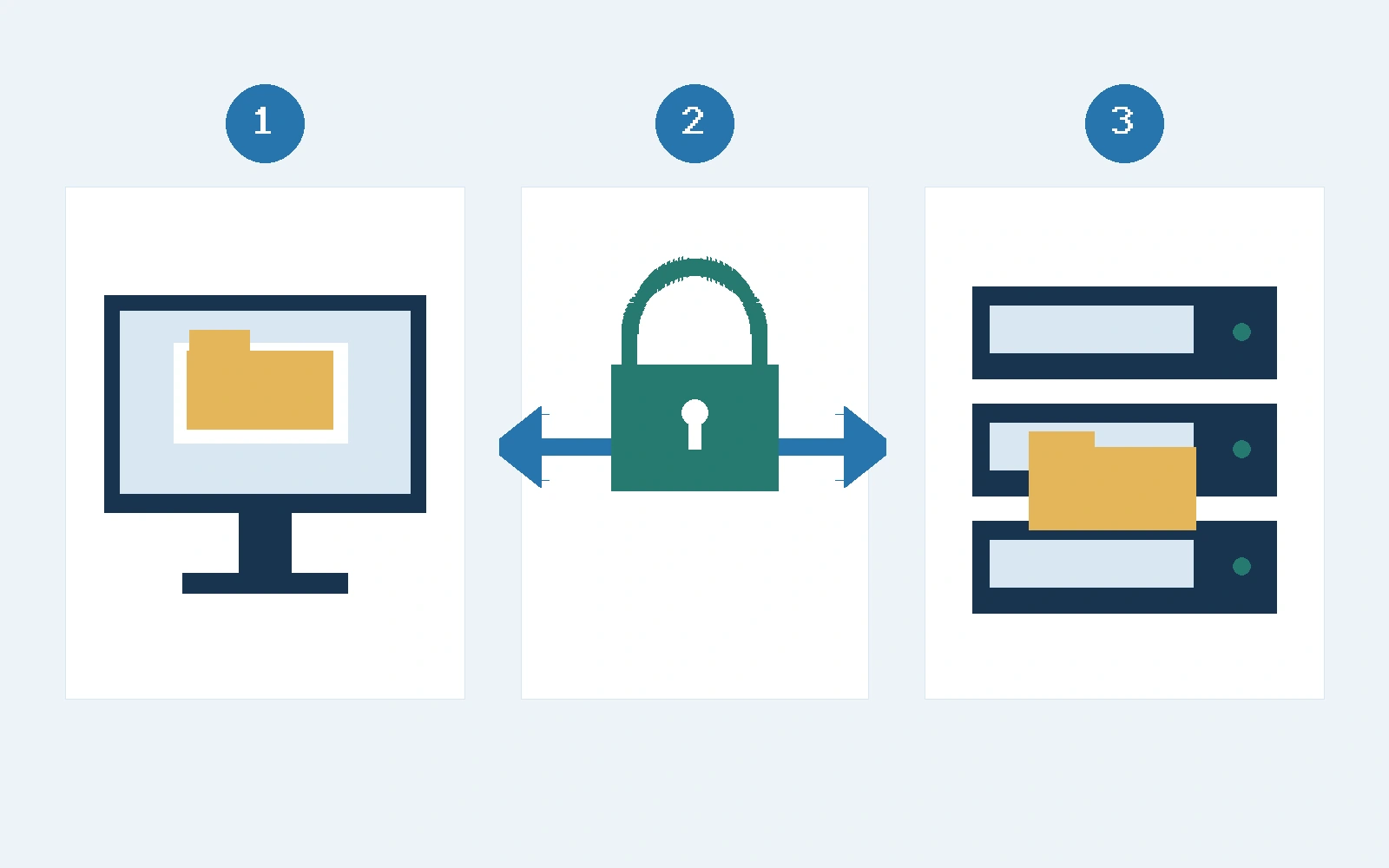
To manage WordPress website files from Windows, you need a file-transfer client that connects to the authorised service on your hosting. Your computer starts the connection; the remote files live on the server hosting the website. Enabling an FTP server on your PC is a different task and is not required here. The diagram separates your computer (1), the SFTP connection (2) and the hosting (3). This guide suggests a connection exercise and a small transfer. Work only on websites you administer or have permission to manage.
Tell FTP, FTPS and SFTP apart
WordPress’s file-transfer documentation distinguishes unencrypted FTP, FTPS, which adds TLS, and SFTP, which runs over SSH. SFTP is not another name for FTPS. Your chosen protocol must be supported by your hosting and match its settings. Do not send passwords over unencrypted FTP for convenience. Ask for an encrypted option if none has been provided. WinSCP’s protocol comparison explains differences between protocols; its performance comparisons do not predict the speed of your particular connection.
Prepare your access and a way back
Before touching the website, obtain the server name, protocol, port, username, authentication method and site directory from your provider. A WordPress login is not necessarily a file-access login. With several sites, establish which environment is the test site and which is public. Keep access details private rather than putting them in support screenshots. WordPress recommends current backups of both files and the database before uploading, replacing or deleting files. Its backup documentation explains why downloading the website directory does not normally include the database. Check how you would restore both parts.
Choose a Windows client
You can use a graphical SFTP client such as WinSCP, explicitly selecting the protocol your provider confirms. Enter the supplied server, port and username, then use the authorised password or key method. An account restricted to the required directory helps define the job’s scope. For terminal users, Microsoft documents OpenSSH for Windows, including SFTP tools. Availability depends on the Windows version and installation of the client component. Do not confuse that client with the sshd server service. This exercise does not require enabling incoming services or opening router ports. Keep your private key under your control and out of support messages.
Verify the server’s fingerprint
A first SFTP connection may display a server host-key fingerprint. WinSCP explains that the client cannot yet know whether this is the correct server. Obtain the expected fingerprint through a trusted provider channel and compare it before trusting the key. If it differs or changes without a confirmed explanation, cancel and contact your host. Do not choose to accept every key or disable checking. The host key identifies the destination; it is not your password or your own private key. FTPS uses the appropriate TLS certificate checks rather than this SSH fingerprint.

Make a small transfer in a test environment
Once connected, distinguish local and remote folders and verify the path before dragging anything. We suggest a reversible exercise in a test environment and directory confirmed by your host: prepare a small text file without personal data or secrets, using a name that does not already exist there. Upload it only to that directory, download it under another name and open the copy to compare its contents. Also inspect the transfer result. This checks one operation, not every website function. Cancel unexpected replacement, synchronisation or deletion and review the destination.
Use the right process for plugins and backups
For a plugin, first consult WordPress’s installation options, including its dashboard. Manually uploading files does not replace the installation or activation steps required by the product. Do not replace whole directories merely because their names match. Follow the provider’s or developer’s procedure, retain a previous copy and test before changing the public site. When downloading files for a backup, retain a database export through its separate procedure as well. Keep credentials and private exports outside web-accessible directories.
Troubleshoot without opening every permission
An authentication error calls for checking the username, access method and protocol. Connection failures may require checking the host, port and service availability with your provider. Do not try someone else’s credentials or switch protocols at random. If you can connect but cannot write, ask the hosting administrator to check the directory, available space and permissions. The official WordPress permissions guide explains that configurations vary and warns against excessive permissions. Do not apply 777 to the whole website or make recursive changes you do not understand. Keep the error message, redacting usernames, sensitive paths and other private information before sharing it.
Finish with a short check
When finished, check which files changed and remove only the practice file you created if it is no longer needed. Close the session and keep a simple record: website and environment, date, directory, intended operation, result and available recovery copy. Before working on production, confirm that you can distinguish uploading from downloading and restore the earlier state. Resolve a missing fingerprint, useful backup, correct destination or authorisation before changing the site. Official links were consulted on 18 November 2026; exact screens and features depend on the client and hosting.