Don’t compare technology names alone
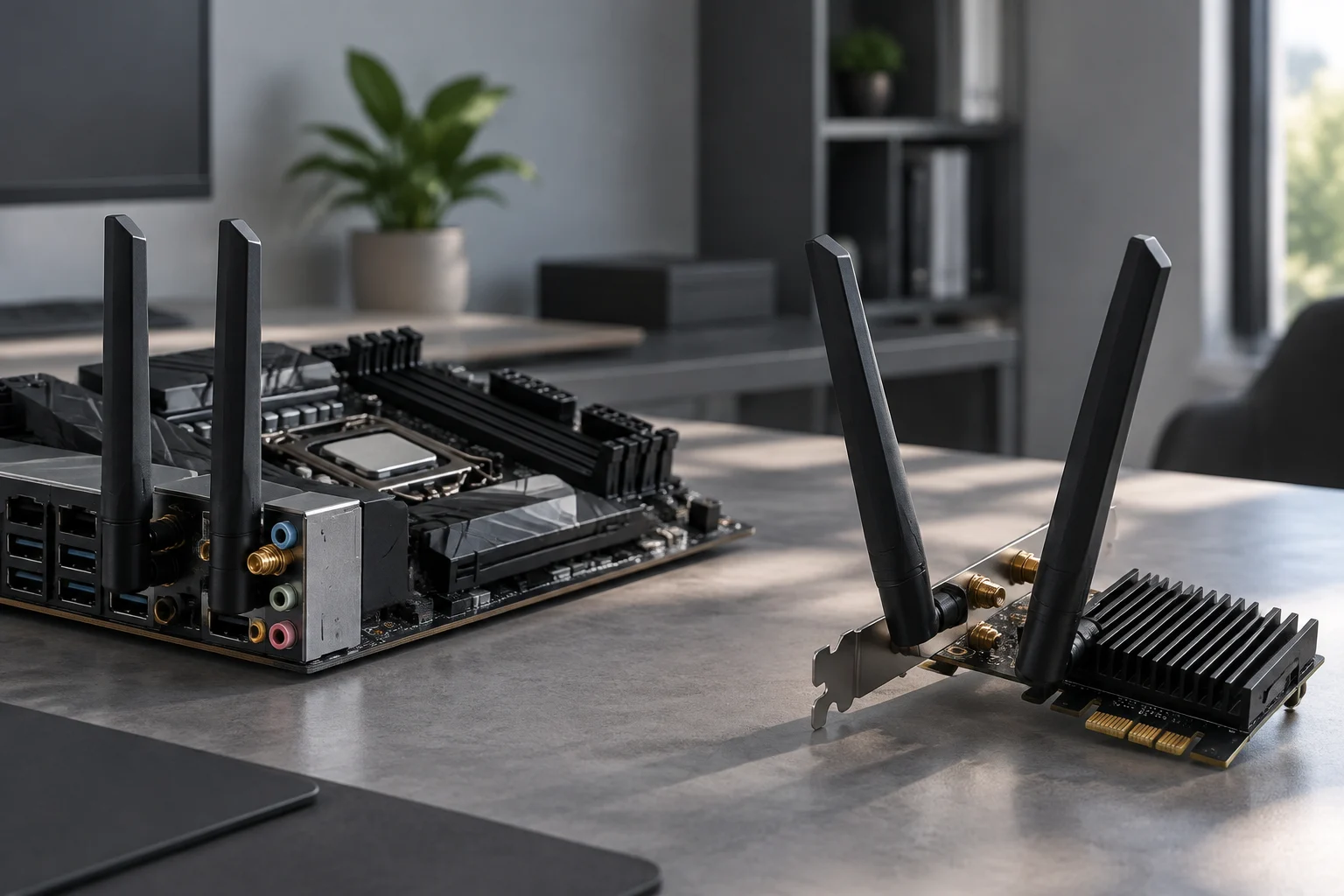
When building or upgrading a PC, wireless connectivity may be built into the motherboard or added with an adapter. The first option means fewer separate components and usually places the antenna at the back of the computer; the second lets you choose an adapter independently and replace it without changing the entire motherboard. Neither option guarantees better range or speed on its own. The right choice depends on the combination of hardware, router, location, and connectivity needs. Start with what the complete setup must do, rather than assuming one format is inherently superior.
The useful starting point is the exact model, not an isolated marketing label. For a motherboard, consult its specifications and manual to confirm that it actually includes wireless connectivity, which standard it lists, which bands it supports, and what antenna it requires. For an adapter, check the same details and also identify the interface used to connect it to the computer. A motherboard with Wi-Fi and one without Wi-Fi are different variants, even if much of their names is shared; do not infer features from the product family or the appearance of the rear panel.
ASUS, for example, advises identifying the motherboard model and checking its specifications to confirm whether it has wireless functionality. This simple check can prevent you from buying a board without an integrated radio because you assumed the series name was enough to confirm it. The general motherboard catalogue does not replace the specifications for the exact model. Whatever the brand, the practical rule is the same: compare the full model number with the official specifications and, if connections or installation are unclear, the relevant manual.
Bands and standards: compatibility before maximum figures
Wi-Fi 6, Wi-Fi 6E, and Wi-Fi 7 are not interchangeable names for the same capability. Available bands depend on the standard and the device: Wi-Fi 6 operates at 2.4 and 5 GHz, while 6 GHz support is associated with Wi-Fi 6E and may also be available with Wi-Fi 7. So seeing “Wi-Fi 6” on a specification sheet does not mean the device will work at 6 GHz. Check that both the adapter or motherboard and the router support the band you intend to use.
The 2.4 GHz band is often useful when broad compatibility or better penetration through obstacles matters. The 5 and 6 GHz bands can offer more capacity in suitable circumstances, but their availability and behaviour depend on the environment, router, and regulations in force locally. This comparison is not a universal promise of range or speed: walls, distance, interference, and configuration all affect the result. A specification sheet describes supported capabilities, not what a particular computer will receive in a particular room.
Write down the standard and supported bands separately instead of treating the generation as a performance guarantee. Also check whether the router supports that generation and band, whether the operating system and drivers are compatible, and whether your network configuration allows you to use them. If the router only provides a particular band, buying a card that supports additional bands will not give you access to them. Those capabilities might be useful after a future upgrade, but their present value depends on the rest of the network.
Antennas, connectors, and PC placement
The type and location of the antenna deserve a separate check. Some motherboards include external antennas that connect at the back of the computer; PCIe adapters may have a fixed antenna or a wired antenna base, depending on the model. Do not assume a particular antenna is included, interchangeable, or adjustable in a specific way: check the included-accessories list and the manufacturer’s instructions. For models with external connectors, allow for the space needed to attach the antennas and keep them accessible.
Where the PC sits can change its reception conditions. A tower under a desk, beside a wall, or inside a cabinet does not have the same surroundings as a computer with open space around it. An antenna behind a metal case or in an awkward position may not be easy to orient as intended. This does not let you calculate a loss in advance; it is a reason to consider the room layout, check the antenna’s position, and avoid treating a theoretical speed figure as a guaranteed result.
ASUS explains that its motherboards can use different types of Wi-Fi antenna and directs users to the specifications page or manual to find out which type applies to each model. The example shows why reading “built-in Wi-Fi” is not enough: you also need to establish which antenna is supplied and how it is installed. For a separate adapter, check the antenna or antenna base’s length and position, whether it is included, and whether its design works with your ports, case, and available space.
PCIe or USB: practical installation and compatibility
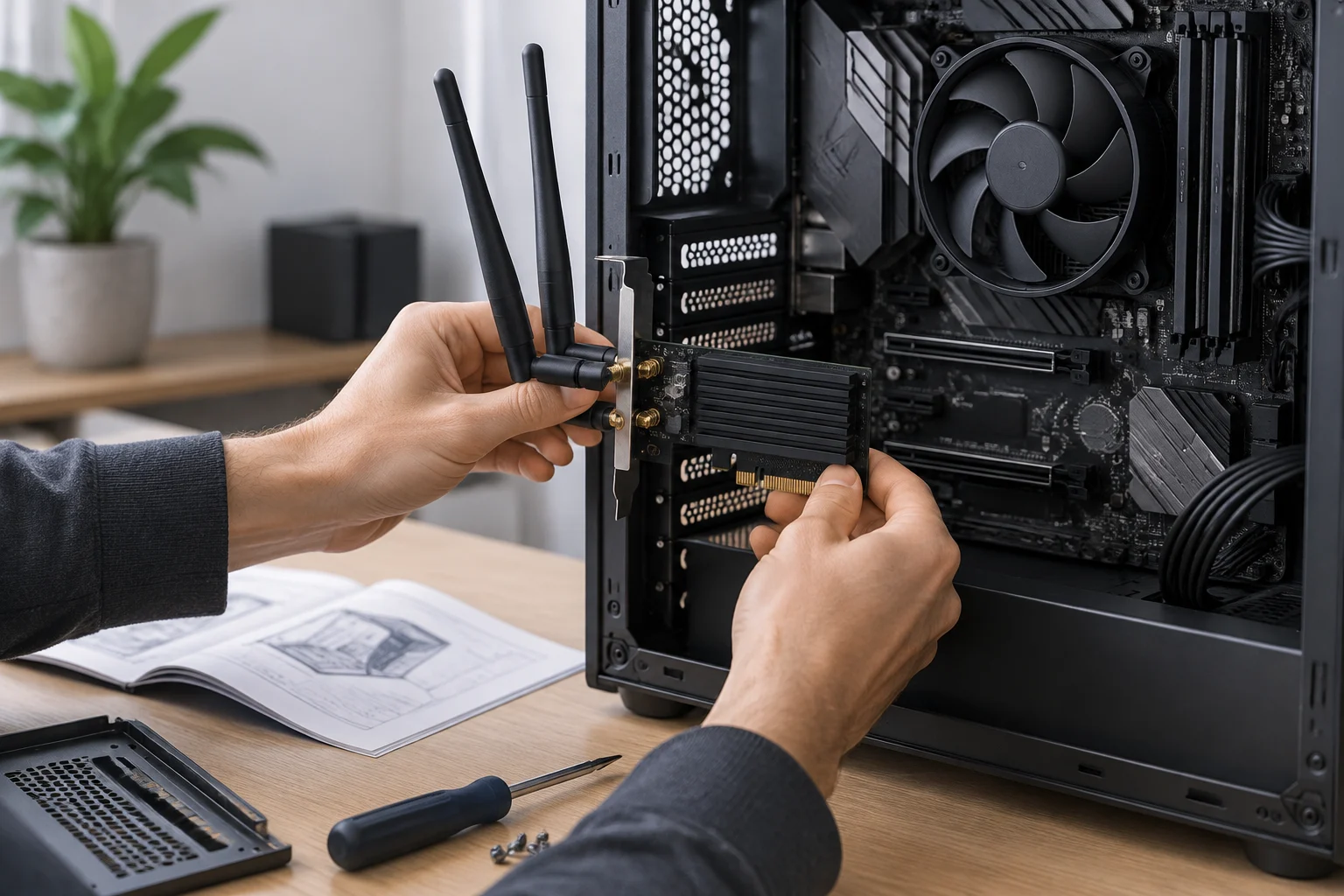
A PCIe adapter requires a desktop computer with a compatible slot and enough room for the card and its external components. Before buying, consult the motherboard manual to locate available slots and check whether a graphics card or another component could make them difficult to reach. You also need to consider any internal connection the manufacturer specifies for additional functions, if the specifications or instructions require one. Do not infer internal requirements from a card’s appearance: the adapter manual is the reference.
A USB adapter can avoid using a PCIe slot, but it must match an available port and may be more exposed to knocks or end up in a poor position. Being able to plug it in does not prove that its antenna, drivers, or performance suit the intended use. For both formats, explicitly check which versions of Windows or other operating systems are supported, whether drivers are available, and what the installation process involves. In some cases, initial setup may require downloading a driver using another device.
Built-in Wi-Fi makes for a more compact installation, but it is not necessarily easier to diagnose if something goes wrong. ASUS recommends checking whether the motherboard really supports Wi-Fi, along with connection settings, drivers, and the network, before blaming one component. If other devices cannot connect either, the router or internet provider could be at fault; if only the PC has a problem, its settings and driver also need investigating. A sound comparison considers installation convenience and support, not just the initial price.
What independent tests can tell you
Comparative tests can help assess performance or range, but only when they describe the computer, router, bands, distance, obstacles, interference environment, and measurement method. A figure on its own cannot be transferred to every home. A test with line of sight and a particular router does not necessarily represent a tower on the other side of several walls; nor does it automatically describe a different model that uses the same standard.
For a useful product comparison, look for tests of the exact model or, at minimum, a sufficiently similar radio, antenna, and configuration. Check whether the tests measure sustained speed, latency, stability, or file transfers, and whether they are repeated in more than one location. These are different indicators: an observed peak speed does not by itself reveal connection consistency, and a range test is not the same as a speed measurement. If an article does not explain its methodology, treat its figure as guidance, not a prediction.
Intel’s documentation provides information about Wi-Fi bands and capabilities, but a manufacturer information page is not an independent reception test of a particular motherboard. Similarly, a product sheet can confirm stated specifications but cannot establish which device will receive a better signal in your home. The research available for this guide contains no comparable independent test results for a specific motherboard-and-adapter pair. Accordingly, it does not claim that either option wins on range, speed, or latency.
Choose according to your computer and use
For a new PC, compare the cost and features of the whole motherboard, not just whether it includes Wi-Fi. If the motherboard that otherwise suits your processor, memory, form factor, and required connections includes suitable Wi-Fi, using it may simplify purchasing and installation. If it does not, an adapter is a way to add connectivity without replacing the motherboard. The decision depends on having a suitable slot or port and on the adapter being compatible with the operating system and network.
When upgrading, first identify the current limitation. If the connection fails in a particular area, changing the adapter may not fix a problem caused by distance, obstacles, the router, or the PC’s placement. If you need a band that your current radio does not support, verify that the router also provides it and that the complete system can use it. If your priority is reducing components and cables, an integrated design may be convenient; if you want to replace only the wireless component, a separate card may offer greater flexibility.
A short checklist can help you finish the purchase without confusing capabilities with results: exact model; standard and bands; included antennas and connection type; required PCIe slot or USB port; operating-system and driver compatibility; and installation conditions where the computer will actually be used. Check each detail against the official documentation for the model. To assess range or performance, add independent tests whose methodology resembles your situation, but keep the limitation in mind: measurements from one environment do not guarantee the same result in another.