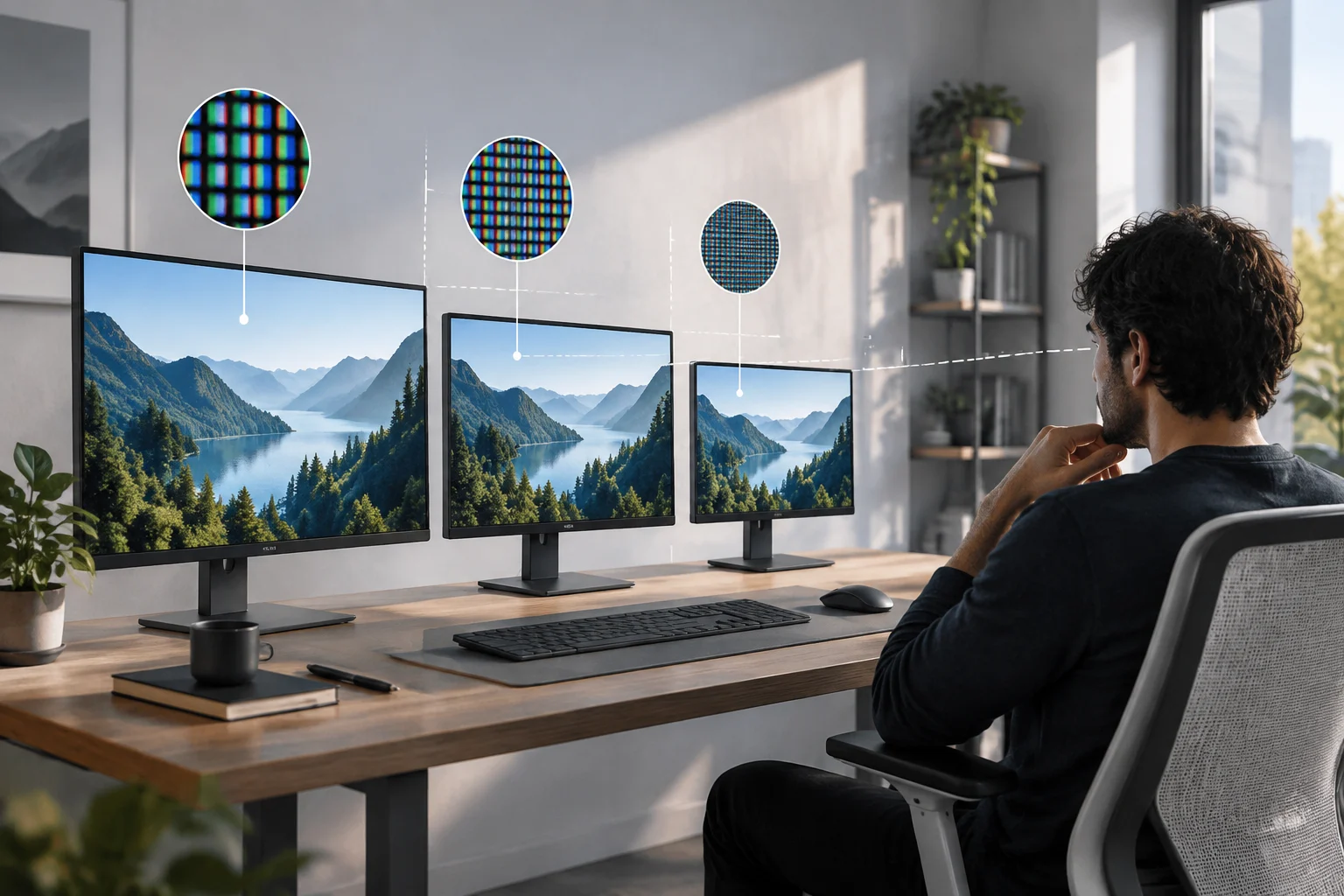
Specifications describe different things
When comparing monitors, it is easy to treat “27 inches,” “QHD,” or “4K” as if they were interchangeable measures of quality. They are not. The diagonal describes the screen’s physical size; resolution indicates how many pixels make up the image; and pixel density relates the two. Each specification answers a different question, so it is best to consider them together rather than use them as an automatic ranking.
Resolution is usually shown as two numbers—for example, 1920 × 1080—which correspond to the horizontal and vertical pixel counts. Multiply those values to find the total number of pixels, but a higher total does not, by itself, guarantee more comfortable text or more useful content on screen. Physical size, the selected scaling setting, viewing distance, and the capabilities of the connected equipment also play a part.
The diagonal, usually given in inches, does not tell you the exact width or height unless you also know the screen’s aspect ratio. Two monitors with the same diagonal can have different shapes and therefore different working areas. Product listings may give dimensions both with and without the stand. If available space matters, check those physical measurements rather than trying to infer them from the diagonal alone.
Pixel density: a comparison you can calculate
To compare how closely packed the pixels are, you can calculate pixel density in pixels per inch (PPI). If the resolution is W × H and the diagonal measures D inches, the formula is: PPI = √(W² + H²) / D. The Pythagorean theorem is applied to the resolution to find the number of pixels along the diagonal, and that result is then divided by the physical diagonal. This is a calculation, not a subjective rating of quality.
As a mathematical example, a 1920 × 1080 screen has approximately 2203 pixels along its diagonal. At 24 inches, the result is around 92 PPI; at 27 inches, it is about 82 PPI. The resolution is unchanged in both examples: the second screen spreads the same pixels across a larger diagonal. These figures are illustrative, not measurements of specific products, and rounding them avoids implying a level of precision that does not help with the decision.
Pixel density helps anticipate the relative size of details, but it is no substitute for looking at the panel itself. The anti-glare treatment, contrast, text clarity, subpixel arrangement, and signal quality also affect how the image appears. Visual acuity and viewing distance vary from person to person, too. PPI is therefore useful for comparing size and resolution combinations, not for setting a universal threshold above which a screen will look “sharp” to everyone.
Scaling: the system determines how much space the interface takes up
A screen can have a high physical resolution and still show text and icons at a practical size through operating-system scaling. In Windows, display resolution and layout are managed in Display settings; Microsoft documents how to review and change these options. Native resolution and interface scaling are separate settings: the first describes the panel’s pixel grid, while the second changes the displayed size of interface elements.
In practical terms, increasing scaling can make text and controls easier to read, but it also reduces the logical space available for windows and content. A lower scaling setting can fit more items on screen, although they may be uncomfortable to use if they appear too small from your usual position. The right choice depends on the person, application, and viewing distance; there is no single percentage that works best for every monitor of the same diagonal size.
macOS also provides system controls for adjusting display resolution, as described in Apple’s documentation. When comparing computers intended for different operating systems, it is useful to check which resolution and display options each offers and whether the software you need works well with them. A number in a specification sheet does not, on its own, prove that every application will present its interface as the user expects.
Viewing distance and tasks affect how a screen feels
The distance between your eyes and the screen affects how much visual space each pixel and interface element occupies. A pixel density that feels comfortable at a desk may seem different when the panel is closer; changing the monitor’s position also changes the apparent size of elements without changing its specifications. Manufacturers of large-format LED displays publish guides relating pixel pitch to viewing distance, but those recommendations apply to particular viewing situations and should not be mechanically transferred to every desktop monitor.
The priorities also change with the task. For reading text for hours, it matters that you can adjust the font size without sacrificing comfort. For image or video editing, it may be important to have enough resolution for the material and tools you use, but the actual workspace also depends on scaling and the application. For gaming, this guide does not assess refresh rate, latency, or graphics performance: these are separate criteria that should be considered alongside resolution, not inferred from it.
Before buying, think about your actual setup: how much desk space you have, how far away you usually sit, whether you can adjust the height or tilt, and whether you need to read several windows at once. A large panel can make a broad presentation easier, but it also takes up more physical space. A smaller one may fit a compact desk better; if the resolution stays the same, its pixel density will be higher. None of these observations establishes the best choice by itself: they describe trade-offs to weigh against your use.
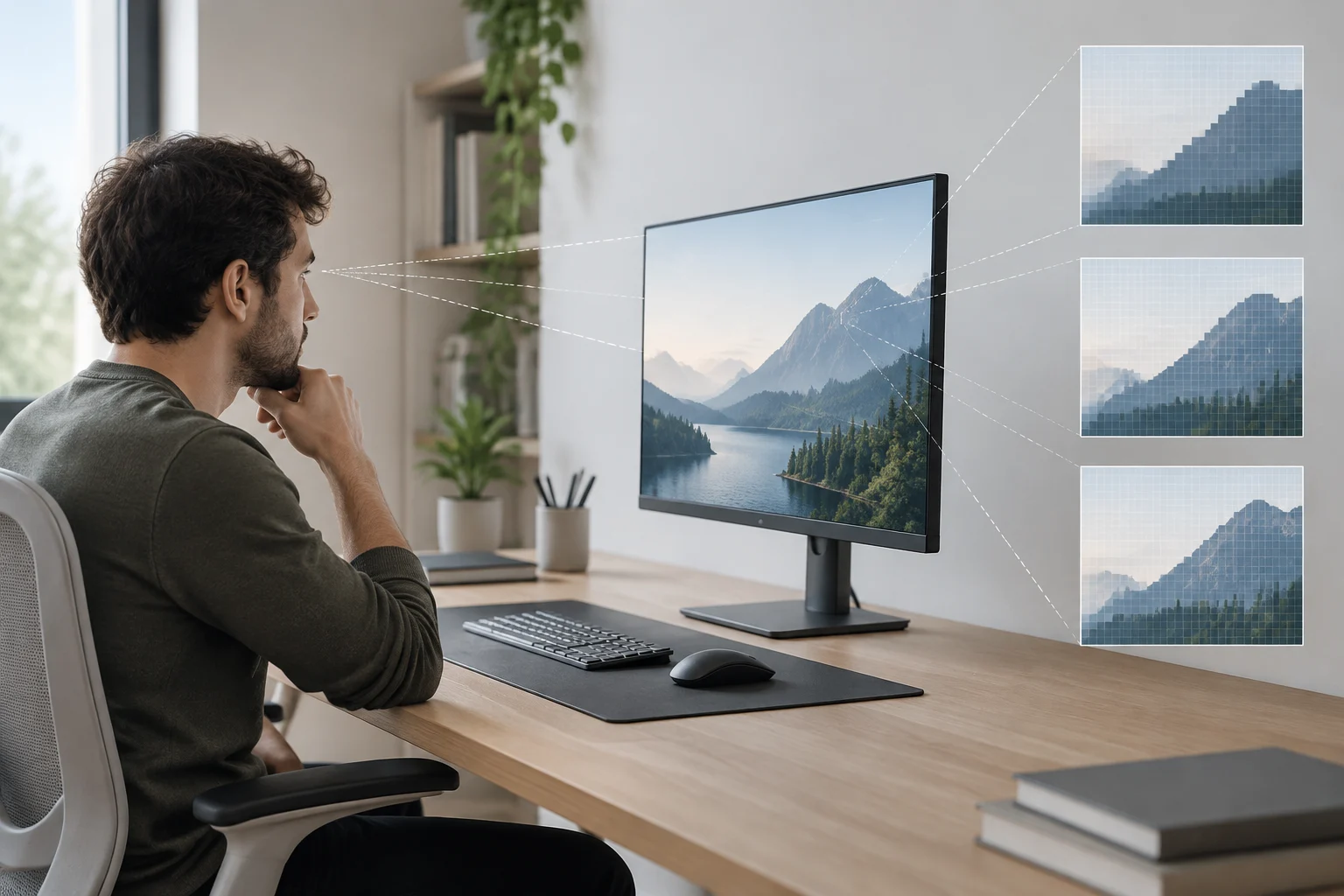
Why “Full HD,” “QHD,” and “4K” are not enough
Resolution labels are useful shortcuts, but they do not identify screen size, pixel density, aspect ratio, or performance. A 24-inch Full HD monitor and a larger Full HD monitor share the same nominal resolution, but not the same pixel density. Likewise, saying “4K” without specifying the size is not enough to calculate PPI; and knowing the pixel density tells you nothing about brightness, contrast, or color reproduction.
There is another practical limitation: the selected resolution must be supported by the monitor and by the connection or equipment providing the signal. Windows documentation explains how to check and change the available resolution, but the list shown on one particular device cannot be used to infer the performance of every other device. Before assuming a product label settles compatibility, check the manufacturer’s stated native resolution and the requirements of the computer, graphics card, and connection.
Catalogue pages can help you find models and collect advertised specifications, but they are no substitute for the manufacturer’s technical sheet or an independent review. No specific commercial model has been verified or panel tests compared for this guide. It therefore explains geometric relationships and how to read specifications; it does not recommend a brand, model, or resolution level as a universal winner.
Checklist before choosing
A sound comparison begins by identifying your needs and ends by confirming the details of the exact model. It helps to distinguish what can be calculated—such as PPI—from what requires documentation or direct assessment, such as panel quality. Listings may also use different commercial conventions, so confirm resolution and dimensions on the manufacturer’s page whenever possible.
Use this checklist to organize your decision:
- Space: Check the monitor’s width, height, and depth as well as its diagonal; distinguish measurements with and without the stand.
- Resolution: Confirm the horizontal and vertical pixel counts and find out which resolution is native.
- Pixel density: Calculate PPI from the stated diagonal to compare different sizes at the same resolution or different resolutions at the same size.
- Scaling: Check the options available in your system and whether the interface is comfortable to read at the text size you need.
- Use and distance: Consider where you will view the screen from and which applications or tasks will take up most of your time.
- Verification: Compare the exact model’s specifications with the manufacturer’s documentation and independent reviews that assess what matters to you.
- Compatibility: Check your computer’s outputs, cables, and the resolution limits supported by the complete setup.
The decision is not about finding the largest number, but about finding a combination that suits your workspace and available equipment. Size, resolution, distance, and scaling work together: looking at any one of them in isolation can lead to a misleading comparison. If two options still seem equivalent, compare features this guide does not cover—for example, connectivity, ergonomics, and panel behavior—using full specifications and independent testing.