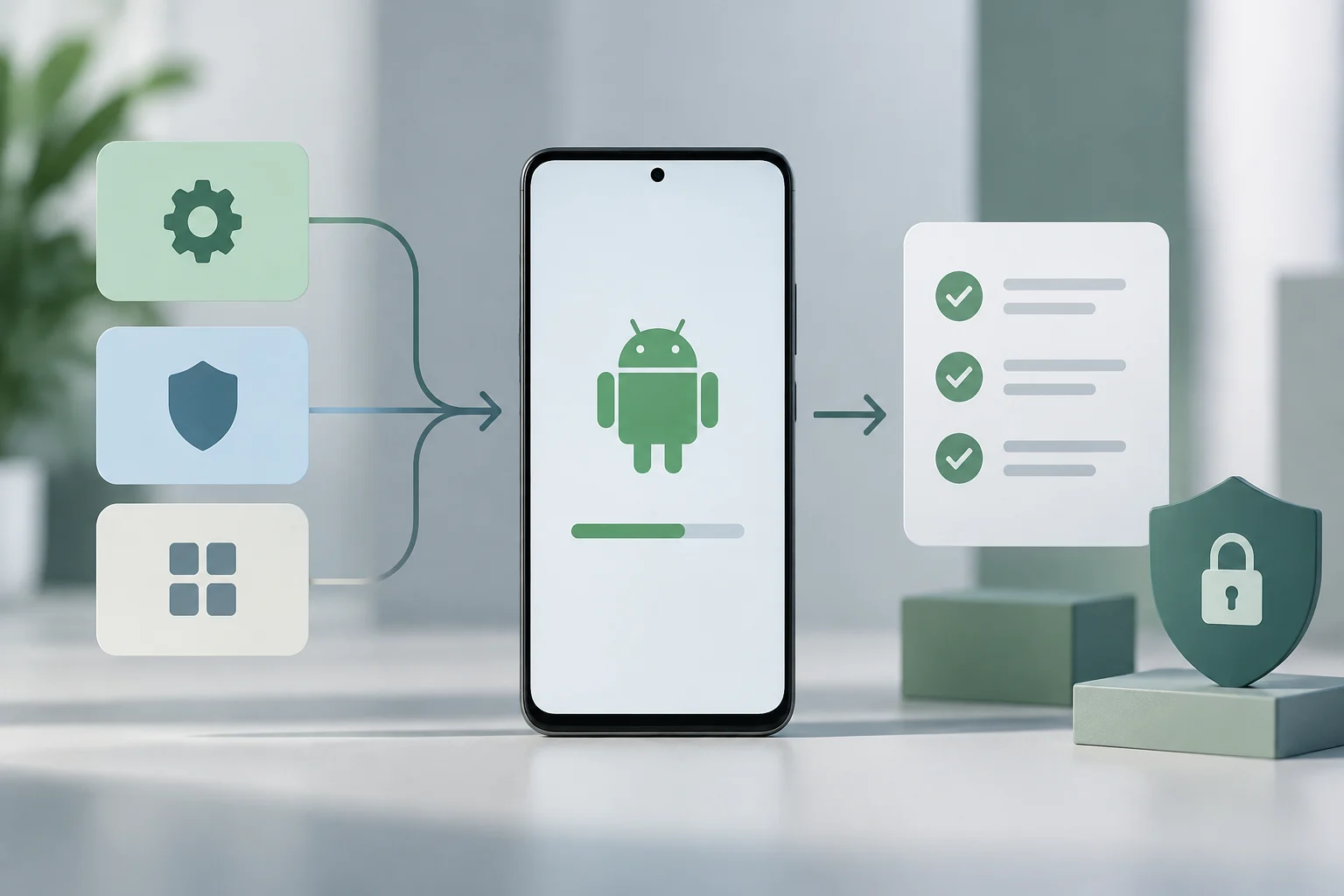
What it means for Android to update
An Android update is a software change distributed to a device. It may modify the operating system, fix vulnerabilities or bugs, or refresh specific components. The word alone does not tell you how large the change is or who delivers it; check which field changes and what package is offered.
The Android version identifies the system version installed. The security patch level, by contrast, indicates the date up to which certain security fixes have been incorporated. These details are related but not interchangeable: a phone can keep the same major version and receive a later patch, or show an up-to-date Google Play status without changing its Android version.
The device information screen may also show the build number, an identifier for a specific software build. Google recommends checking the Android version, security update, Google Play system update, and build number separately. Keeping these details distinct helps avoid concluding that the whole phone is up to date based on a single item.
Three types worth distinguishing
The practical distinction is not simply between a “major” and a “minor” update. A major version may add capabilities and platform changes; a security patch is intended to fix vulnerabilities; and a Google Play system update affects system components distributed through that channel. The exact scope varies by package and device.
| Type | Frequency | Typical content | Where to check | Manufacturer dependence |
|---|---|---|---|---|
| New Android version | According to each device’s schedule and compatibility; there is no universal date for all devices | Platform changes and version features | Settings, under “Android version”; availability is checked under software updates | High: the manufacturer and, in some cases, the carrier are involved in distribution |
| Android security patch | Google publishes periodic bulletins; delivery to phones need not happen at the same time | Vulnerability fixes included for the stated patch level | Settings, under “Android security update” | High for delivery to the device and the support schedule |
| Google Play system update | May arrive separately from a full system update; there is no single schedule for all devices | Updates to components supported by this channel | Settings, under “Google Play system update” | Distributed through Google, subject to device compatibility |
The table describes categories; it does not guarantee that every manufacturer delivers every change at the same frequency. The patch date is not the installation date: it indicates the level of fixes declared by the system, while availability and receipt timing depend on the model and its update policy.
It is also important not to confuse system updates with app updates. An app can update through a store without changing the Android version or patch level. For technical support or fleet management, recording the version, patch date, Google Play status, and build number separately gives a more useful diagnosis than simply writing “updated.” Separate records make comparisons clearer, especially when checking whether two devices have equivalent software.
The three categories can appear close together in Settings, but each answers a different question. The Android version describes the platform release; the patch level reports the security-update status; and the Google Play system update reports the status of components delivered through that channel. A single green or current-looking label should not be treated as a complete inventory of every software layer.
When comparing two phones, use the same fields for each device and note the model and region as well. One phone may have a newer security patch while both still run the same Android version; another may show a recent Google Play system update without having received a new platform release. Compare like with like rather than relying on a general “up to date” description.
How updates are distributed: Google, manufacturers, and OTA
An OTA (over the air) update is delivered to a device over a network, usually so software can be downloaded and installed without connecting the phone to a computer. The term describes the delivery channel, not a type of content: an OTA can contain a system update or a fix, depending on the package.
The usual process includes checking availability, downloading the package, and installing it according to the device’s instructions. Google’s documentation says the phone may notify you when an update is available and that you can also check from Settings. In AOSP implementations, the installation process must validate the package using the configured security mechanisms; operational details depend on the platform and manufacturer.
The manufacturer retains a decisive role: it adapts software to the model, validates hardware compatibility, and organizes delivery of system and security updates. For devices associated with a carrier, distribution may also be subject to that channel. As a result, two Android phones do not necessarily receive the same version or patch at the same time.
Google Play System Update is a different channel from a full system update: its status appears as a separate item in Settings. It should not be treated as an indicator that replaces the Android version or security patch. On managed devices, organizational policies may also affect installation timing or how the process is managed. The channel and the component matter when diagnosing what has changed.
An OTA notification means that an update has been offered to the device through a network, not that every phone will receive an identical package. The package, schedule, and installation instructions may differ by model. If the phone offers an update, read the on-screen details and follow the device-specific instructions rather than assuming that every OTA is a full Android-version upgrade.
The roles of Google and the manufacturer are not mutually exclusive. A distribution channel may involve platform components from Google while the manufacturer handles model-specific validation and delivery. Carrier or organizational requirements can add further conditions in some cases. Responsibility is shared, and the exact arrangement depends on the device and update channel.
What you can check in Settings
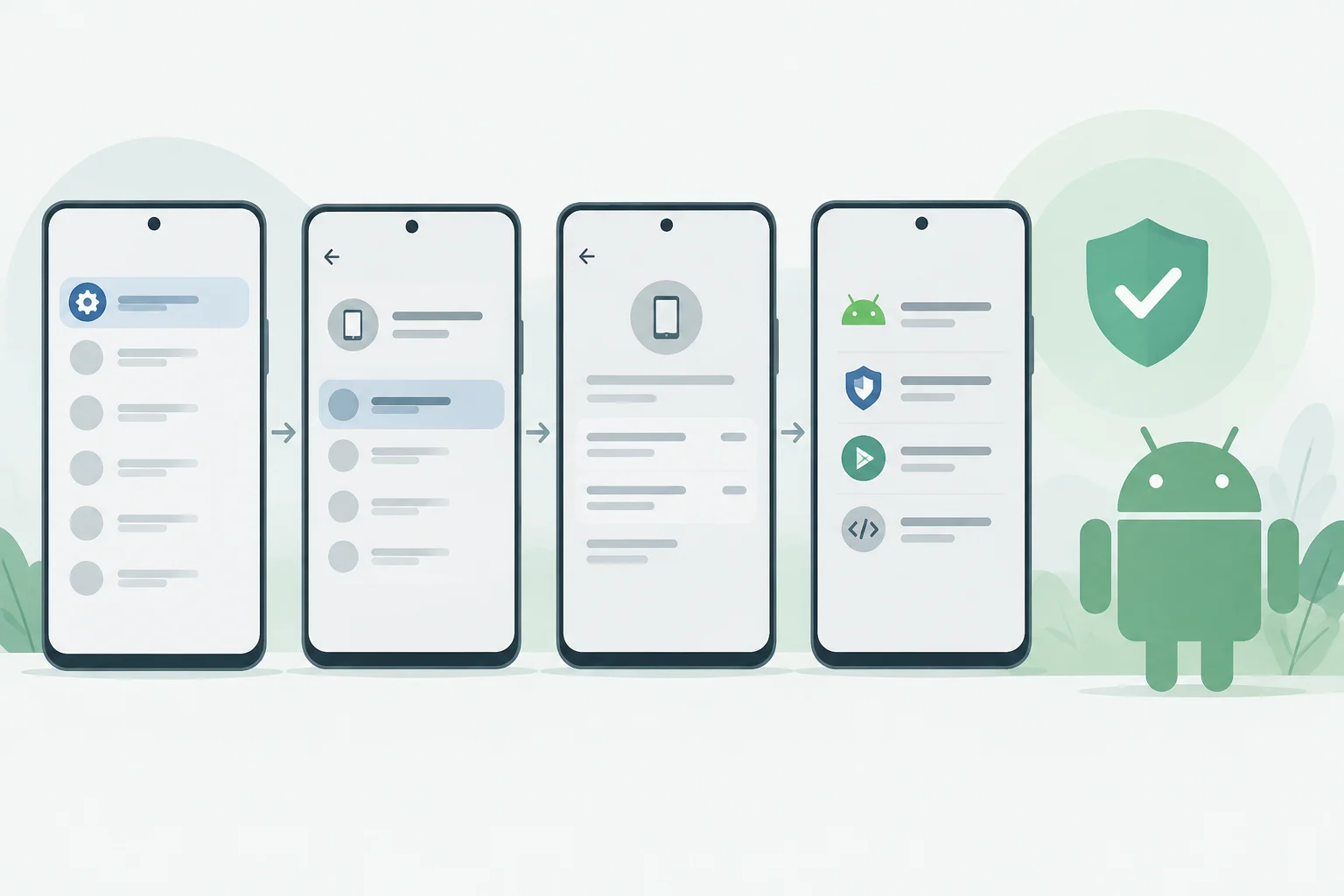
The exact path varies by brand and interface version, but Google’s Android guide suggests checking Settings > About phone or tablet > Android version. This screen may show the version, security update level, Google Play system update status, and build number.
To look for new software, the general path is Settings > System > Software updates; some manufacturers use different labels, such as “Software update.” The screen lets you check update status and follow the instructions available. On Pixel phones, Google says the menu may appear under that label or as “System update.”
A brief diagnosis can follow this order:
- Record the device model and Android version.
- Record the date shown under “Android security update.”
- Check “Google Play system update” and the build number separately.
- Open the software updates section and see whether the device offers a pending download.
- If nothing appears, check eligibility and the schedule on the manufacturer’s support page, rather than comparing with the version on a different model.
A message saying the system is up to date usually means no update is being offered to that device at that time. It does not prove that the model will receive support indefinitely or that it has the newest version available for other phones.
For a clear record, note the date you checked as well as the values shown. Update availability can change, and a status screen describes what the device reports at that moment. If you are reporting an issue, include the model, Android version, patch date, Google Play system update status, and build number; these details make the report reproducible without implying that all software components share one release schedule.
A download being available and an update being installed are also different states. A device may show an offered update that still needs to be downloaded or installed. Read the status and any instructions on the screen, and do not treat a notification alone as confirmation that the installation has completed. Check the installed fields again after the device finishes the update.
Test channels and availability limits
The labels “stable,” “beta,” and “canary” do not describe three universal stages through which every Android update automatically passes. They are names that may be used in specific test programs defined by a manufacturer or project. The available documentation does not establish a common system for switching between these channels on all Android phones, so there is no safe single enrollment or exit path.
Before installing a test release, consult the program’s official terms for the exact model and understand whether changing channels could erase data, require reinstalling software, or stop delivery of the stable release. Do not assume a beta is an ordinary update, or that leaving a program uses the same procedure across brands.
A device may not show an update because it is not eligible, the rollout is gradual, compatibility requirements are not met, storage or connectivity is lacking, or the support period has ended. Google’s guide warns that older devices cannot always run newer versions. Without knowing the model, region, carrier, and installed version, it is not possible to determine which of these explains a specific case.
A gradual rollout also means that owners of the same model may not see an update at the same time. That does not, on its own, establish that one device has a fault or that the other has a different support commitment. Check the manufacturer’s notices and the device’s update screen before drawing conclusions from another person’s phone.
When troubleshooting, distinguish a lack of an available update from a failure to install one. The first can reflect eligibility, schedule, or support policy; the second may involve a download, storage, connection, or installation issue. The device’s exact message and model are needed to narrow down the cause, and the steps can differ between manufacturers.
Test software can also differ from a public stable release in its purpose and conditions. Program documentation may specify eligibility, known limitations, or how to return to another channel. Because there is no single Android-wide process, follow the instructions for the particular program rather than applying steps found for a different device.
Support, security, and key terms
The end of new Android versions and the end of security fixes are separate issues, even though both depend on the support announced for each product. To decide whether a phone remains suitable, check the manufacturer’s official update policy for the exact model and market, then compare that commitment with the patch shown on the device.
A more recent patch date does not necessarily mean the system has received every feature from a major version. Conversely, having a recent major version is not enough to know whether the latest security fixes available for that device are installed. Assess both details together, and consider the separate Google Play status where relevant.
Terms that help you read the screen:
- AOSP: Android Open Source Project, the open-source project associated with the Android platform. AOSP documentation can help explain platform mechanisms, but it does not replace manufacturer support instructions.
- OTA: delivery of an update to a device over a network.
- Security patch level: the date identifying the level of security fixes reported by Android.
- Build number: an identifier for a specific software build, useful for distinguishing versions when diagnosing a device.
- OEM: the equipment manufacturer or provider that adapts and distributes software for a model.
- GMS: Google Mobile Services, a set of Google services and apps; its presence does not make a full system update a Play Store update.
In practice, the useful question is not only “Is my Android up to date?” but which component was updated, on what date, and who supports the device. That precision helps a user decide whether to install what is offered, helps support teams compare equivalent devices, and helps organizations apply policy without confusing an app update with a system update.
Support commitments should be checked for the precise product and market rather than inferred from the Android brand or from another model in the same product family. A manufacturer’s policy is the relevant source for the expected support schedule; the device screen shows the software status currently reported on that particular phone. Policy and installed status answer different questions and are most useful when considered together.
The terms in the list describe different layers and roles, not competing names for the same update. OTA identifies how software is delivered; the patch level and build number identify aspects of installed software; OEM and AOSP refer to different parties or projects; and GMS names a set of Google services. Keeping those meanings separate helps make technical discussions more precise.
When giving a device to support staff or recording it for an organization, capture the same fields consistently: model, Android version, security patch date, Google Play system update status, and build number. This does not predict future support, but it creates a useful snapshot for comparison. A precise record avoids false equivalence between a store app update, a system component update, and a full platform release.