Before you intervene: restarting is not the same as resetting
When a connection drops, the usual impulse is to turn the router off and on or look for the reset button. These are different actions: restarting interrupts and restores power; resetting returns the device to factory settings and may erase the network name and password as well as other custom options. Do not press the reset button as your first step: it could add a configuration problem to the original fault.
Restarting also does not prove what caused the problem or guarantee that it will not come back. If the equipment had a temporary fault, powering it back on may restore the connection; if the issue recurs, observe which devices and services fail, where it happens, and for how long. The goal is to record symptoms before changing settings, so a temporary recovery is not mistaken for a lasting repair.
This guide separates three layers that are often confused: the wireless connection between the device and router, the local network, and the router’s access to the Internet. The Wi‑Fi icon describes only part of the journey. A laptop may be associated with the access point and still be unable to resolve names or reach external services.
1. Isolate the fault: device, local network, or provider
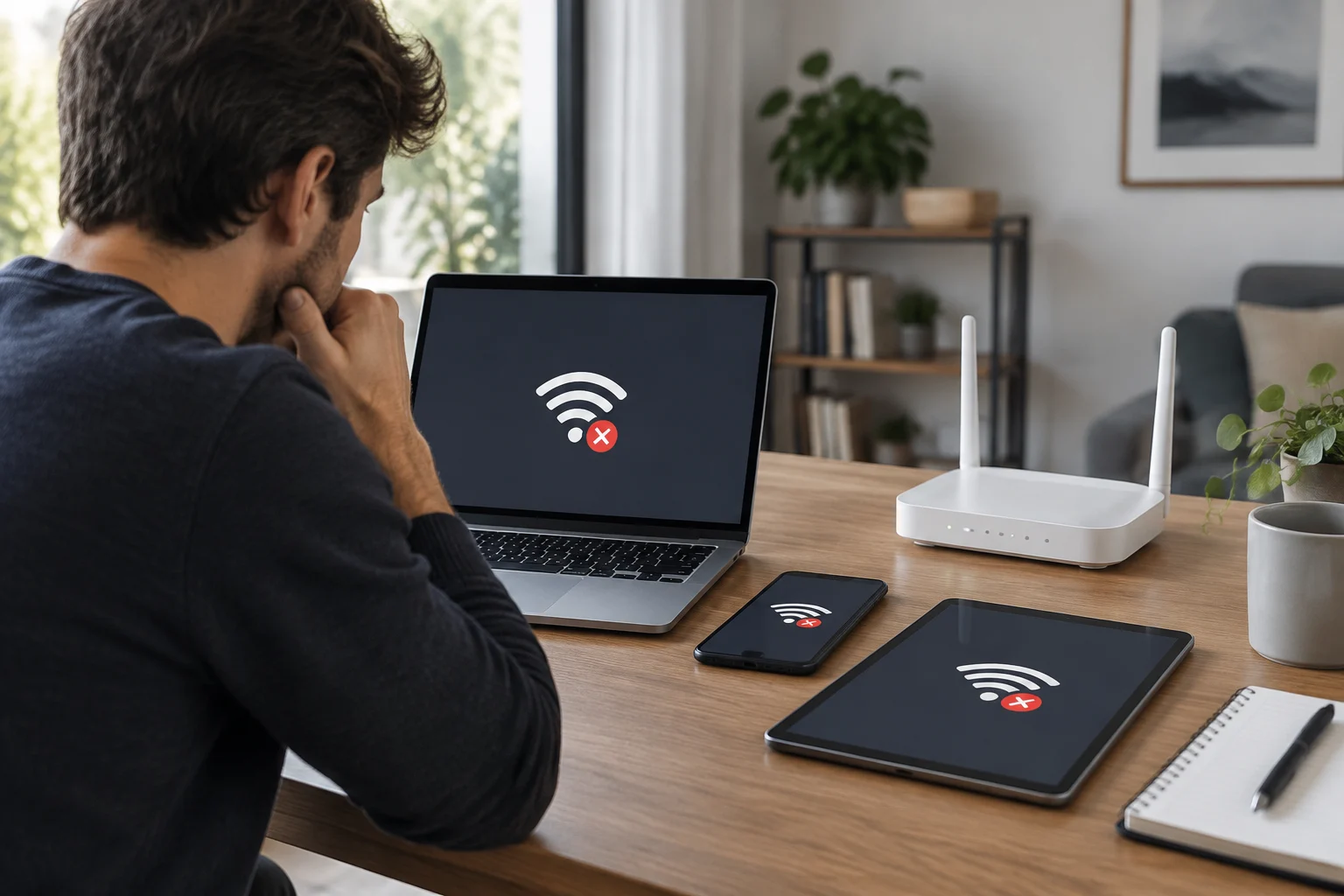
Start with a simple comparison: try another device on the same network and, if possible, try the affected device on a different connection, such as a phone’s mobile hotspot. If only one device fails, focus on its adapter, settings, or software. If several fail at once, the cause may lie with the router, the Internet link, or a provider outage. Comparing results narrows the search, although it does not identify the exact component by itself.
Also check whether the problem affects the whole home or just one room. If the connection improves as you move closer to the router, that points to coverage, obstacles, or radio conditions; if it fails just as badly beside the router and on several devices, a simple dead spot becomes a less convincing explanation. Note the time, location, and whether the issue is continuous or intermittent: this information helps distinguish a pattern from an isolated drop.
Check the local network before calling your provider
If the device shows as connected to Wi‑Fi but pages will not load, try more than one service and application. A single inaccessible page may be a problem with the site, app, or a local filter—not the entire connection. Windows distinguishes between being connected to Wi‑Fi and having Internet access, and recommends using its troubleshooter when you cannot browse.
When several devices are affected, check the router’s indicators and ask your provider whether there is a service outage. If local Wi‑Fi works but external access does not, a speed test alone is not enough to establish the cause: it may confirm that observed performance is low, but not whether the culprit is the provider’s link, congestion at home, or a device saturating the network. Do not blame the ISP before separating these scenarios.
2. Signal and interference: what to check on Wi‑Fi
A weak or fluctuating signal can cause disconnections, but signal strength is not the only variable. Distance and obstacles matter; nearby networks using the same channels may also have an effect. To start, compare the connection in different locations while keeping the same device and activity. If stability changes with location, that is a useful clue about coverage, not proof that the router is faulty.
Wi‑Fi analysis tools can show visible networks, bands, channels, and an estimated signal strength. They can help reveal, for instance, that several nearby networks are on the same channel or that the signal drops as you move farther away. Treat this data as clues about the environment, not as an automatic diagnosis: seeing networks on a shared channel does not prove they caused the interruption, and readings depend on the adapter and measurement location.
Built-in tools and platform-specific limitations
In Windows, first check the list of available networks and the Network and Internet troubleshooter. On macOS, use the wireless diagnostics included with the system to observe the connection and collect information; on Android, the network details screen can help you check which network the phone is connected to and its approximate signal strength. Features and metrics vary by version and manufacturer, so it is unwise to assume every phone or operating system offers the same channel analyzer.
If basic information is not enough, an analysis app may help, but it is not essential for an initial diagnosis. Some tools advertise real-time readings of networks, signal, and channels on more than one platform; these capabilities depend on compatible versions, permissions, and adapters. Before installing an app, verify its source and the access it requests. For a home user, measuring where the problem occurs is usually more useful than collecting graphs without a specific issue to check.
3. IP, DNS, and adapter: check settings instead of guessing
If the device connects to the router but cannot reach services, check whether it received an IP address and a gateway. In Windows, open the terminal and run ipconfig; an IPv4 address, default gateway, and DNS servers help describe the active configuration. If details are missing or the address appears to be self-assigned, there may be a DHCP assignment problem, an adapter issue, or a router fault. Write down the values before changing them, and do not publish private network information.
DNS translates names such as website addresses into addresses devices can use. A name-resolution failure can prevent a site from loading even when there is connectivity to other addresses. However, switching to a public DNS service is not a universal test and is not always advisable: it may not fix a signal or provider problem, and it can affect security controls or filters configured at home. Test one hypothesis at a time and reverse the change if the symptom does not improve.
Also check that airplane mode is off, the Wi‑Fi adapter is enabled, and the device is connected to the expected network. If the problem began after installing a VPN, firewall, or security app, note that change. Disabling protection can reduce security, so any such test should be temporary and controlled, followed by turning protection back on. Do not leave the device unprotected as a permanent fix.
4. Windows: apply fixes in order and leave TCP/IP until later
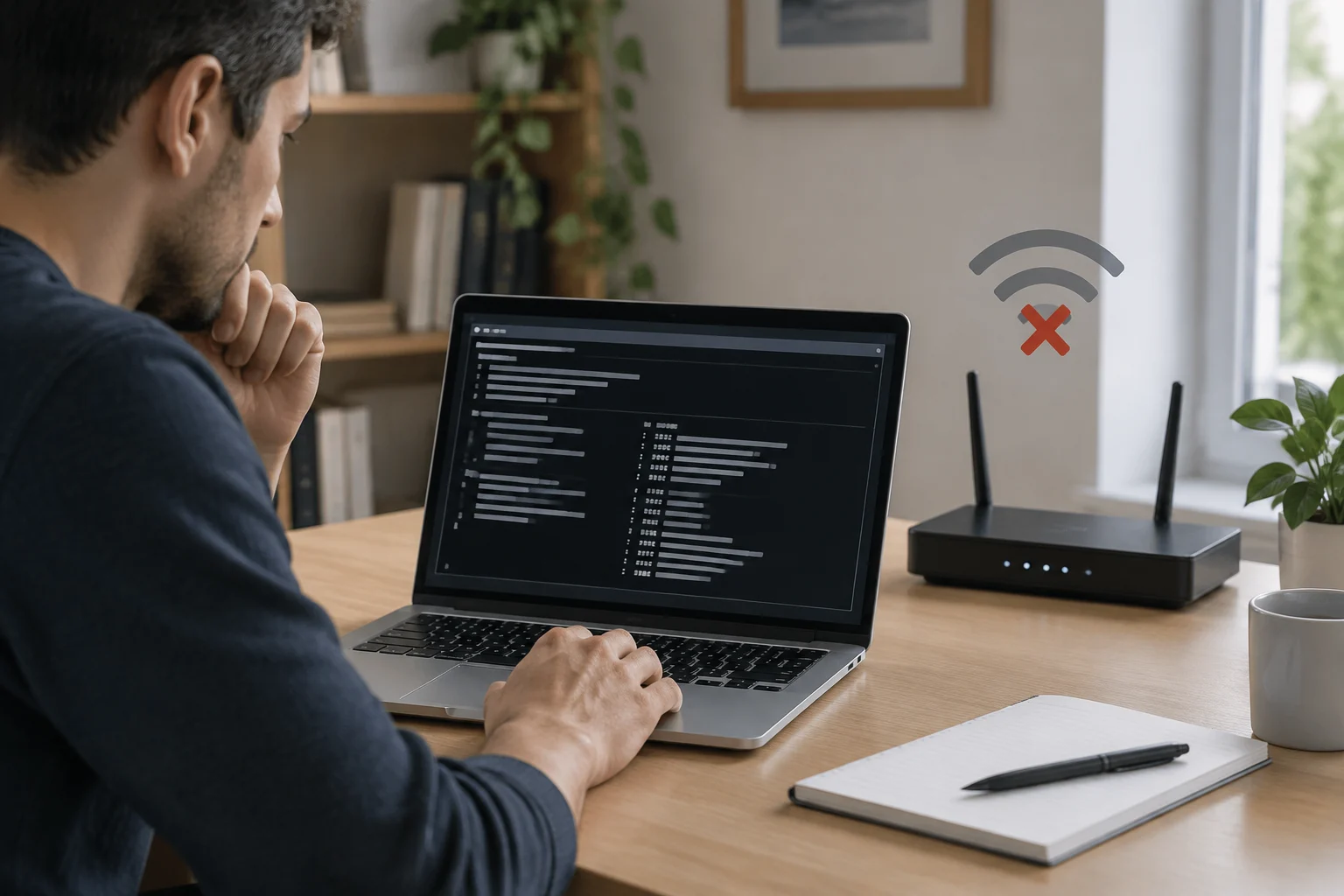
In Windows, start with the Network and Internet troubleshooter in the Get Help app, which Microsoft recommends for Windows 11. Then follow the steps that fit the symptom: confirm Wi‑Fi is on, forget and reconnect to the network if you have the password, and check the adapter. If you change an option, test the connection before proceeding. The order matters because it makes it easier to tell which action helped.
If the fault began after an update or installing network software, check the driver’s status in Device Manager and first look for updates offered by Windows or the computer manufacturer. Do not download drivers from unfamiliar sites. An update should not automatically be assumed to be the cure: if the problem began immediately after an update, it may also be appropriate to check whether the driver can be rolled back, if that option is available.
Reset the network stack only if the evidence points to software
TCP/IP and other network components take part in system communications. Resetting the stack may make sense when local settings are damaged or inconsistent, but it will not improve coverage, fix a cable, or repair a provider outage. In Windows, reset commands require administrator privileges and may require a restart or rebuild part of the configuration. Do not run them as a routine maintenance ritual, and first record any custom settings you may need.
If the checks above do not solve the problem and the evidence points to Windows configuration, Microsoft documents diagnostic procedures and network commands. Apply only those that fit your version, and understand what they reset. Detailed third-party instructions may be useful for guidance, but official documentation should be the reference for system-level steps. When finished, reconnect to the network and repeat the same test that failed: a page, service, or comparison device.
5. When to replace equipment and when to ask for help
There is no universal age at which a router should be replaced. The case for replacement is stronger if recurring failures affect several devices, the equipment becomes unstable even nearby, or tests on another network and with another adapter clearly change the result. Before buying anything, check with your provider: some routers are part of the service, and replacing them may require specific settings or compatibility. One isolated symptom does not justify a purchase.
To distinguish a faulty adapter from poor coverage, compare the same device on another network and another device in the problem area. If the laptop fails on several networks while other devices work, investigate its adapter or settings. If several devices fail only in one part of the home, check placement and coverage before blaming the router. If all devices fail throughout the home and the external connection also drops, gather the evidence and contact the operator.
Ask your provider for help when the router indicates a link fault, several devices lose Internet at once, or the problem persists despite local checks. Share the times, duration, lights observed, affected devices, and comparison results; do not share passwords or sensitive data. If the equipment simply needs to work again, restarting it may be a reasonable temporary measure if you follow the manufacturer’s instructions. A factory reset is a different decision: do it only after confirming the settings and recovery method.
Checklist for the next outage
- Check whether one device or several are affected and whether the problem occurs throughout the home.
- Confirm that the device is connected to Wi‑Fi and can access more than one service.
- Compare the connection near the router, on another network, and, if possible, with another device.
- In Windows, run the Network and Internet troubleshooter; record the IP address, gateway, and DNS before changing settings.
- Change one variable at a time and repeat the test that failed.
- Contact your provider if several devices are affected and the external link appears to be down.
- Avoid a factory reset unless you know how to restore the configuration.
The practical decision depends on the pattern: one affected device suggests starting with that device; several suggest the router or service. Improvement closer to the router points to coverage; stable Wi‑Fi without external access shifts attention to the Internet connection, DNS, or a provider outage. No single clue confirms a cause on its own, but recording and comparing results lets you escalate with evidence instead of repeating random changes.