Start by isolating the symptom
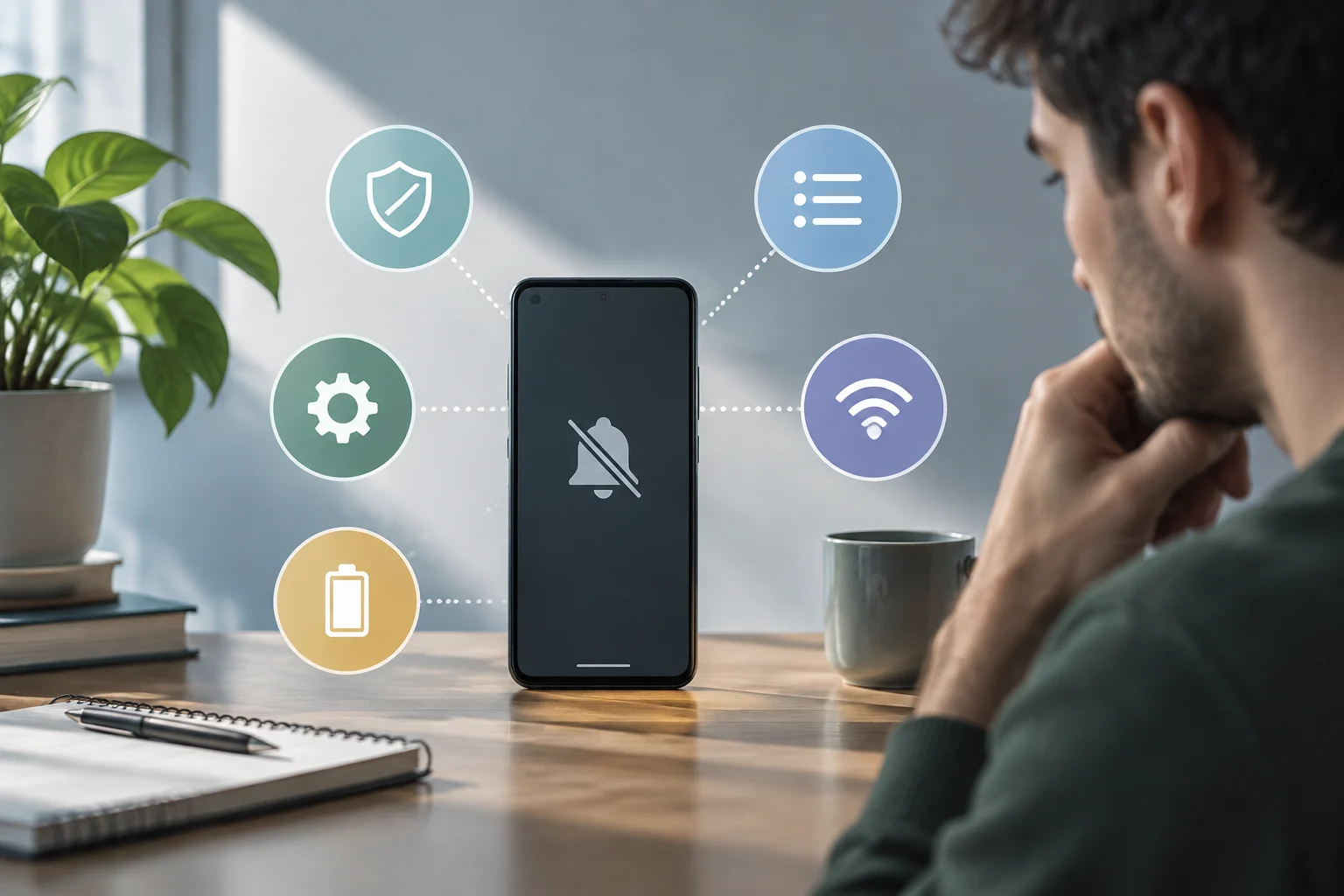
Before changing settings, define what you mean by notifications “not coming through.” Is there no alert at all, does only one category fail, do alerts arrive late, or do they appear only when you open the app? Each pattern points to different causes: a disabled category won’t be fixed in the same way as an unstable connection or a delivery delay.
Note when the problem last occurred, whether the phone was locked, which network you were using, and whether it affects one app or several. Also check whether the service has an activity inbox or an internal history. These details help you compare the time of the event with the time of the alert, without drawing conclusions from a single test.
Begin with reversible checks: confirm the device is connected, temporarily switch between Wi‑Fi and mobile data, and leave the app running in the background. Visualfy’s documentation notes that a missing connection or an unstable network can prevent automatic receipt and recommends trying another connection; this is a general clue, not proof that the network is the cause (https://support.visualfy.com/app/por-que-no-recibo-notificaciones).
Can the app send notifications?
Check the app’s system settings: open Settings, go to Apps, and find the app; then look for Notifications. Names and locations vary by Android version and manufacturer, so use Settings search if you don’t see those labels. Confirm that notifications are allowed and that no general mute option is enabled.
On Android, permission and visible settings are separate controls: allowing notifications doesn’t necessarily mean every type of alert is enabled. Some apps provide categories or channels—such as messages, reminders, and promotions—that can be configured separately. Visualfy documents that disabling a category may block only alerts in that category; if the problem affects only some alerts, check these options before changing global settings (https://support.visualfy.com/app/por-que-no-recibo-notificaciones).
Android requests certain permissions during use, depending on the type of access an app needs. The official guide recommends requesting permissions in context and describes the runtime permission flow; it should not be read as an instruction to grant every permission shown. Enable only relevant access and, if the permission is already granted, move on to the next checks (https://developer.android.com/training/permissions/requesting?hl=es-419).
Channels, lock screen, and Do Not Disturb
If the app receives some alerts but not others, inspect its categories one by one. Check whether each channel is enabled, whether its sound is muted, and whether its importance level allows the alert to appear as expected. A silent notification may appear in the panel without making a sound, so check both the notification panel and what happens while the screen is locked.
Also check Do Not Disturb and any bedtime or focus modes your phone offers. If a schedule is active, the system may limit sounds or interruptions during certain hours. To diagnose this, review the schedule and exceptions; you don’t need to disable the feature permanently. A brief, controlled test can establish whether the mode coincides with the missing alert, without weakening your settings for the rest of the day.
Full-screen alerts are a separate case: only some features need them, and availability depends on the app and system version. Visualfy’s guide includes this setting for its alerts, but that doesn’t mean every app should receive this access. Don’t grant special permissions just because a notification isn’t appearing: first confirm with the developer that the access is necessary for the specific use case.
Battery and background activity
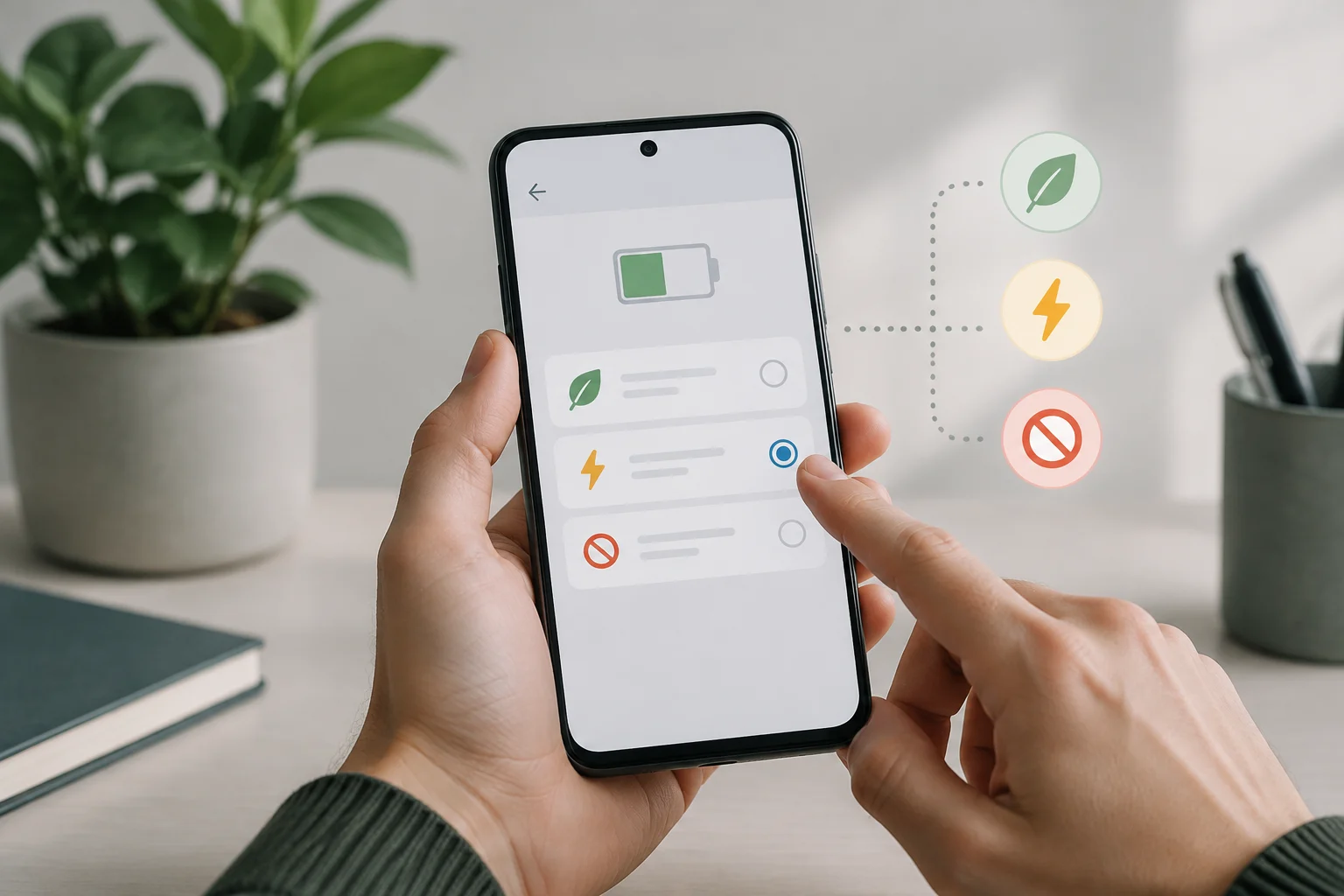
Battery Saver and app-specific restrictions can affect background activity or delay certain sync operations. Options and their effects vary by manufacturer and version, so there is no universal menu path. Look for the app’s battery section and check whether it is listed as restricted, optimized, or unrestricted, without changing it yet.
As a test, change only the battery setting for the affected app and see whether the result changes; you can then restore the previous setting. BlueMail’s help explains that excluding an app from Doze or other battery policies can reduce background restrictions, but warns that allowing unrestricted activity may increase power consumption. Don’t apply this exception to every app, and don’t keep it enabled if it doesn’t resolve the symptom (https://bluemail.me/help/es/exclude-bluemail-doze/).
If an alert appears only when you open the app, that points the investigation toward delivery, synchronization, or background restrictions, but it doesn’t identify the cause on its own. Don’t repeatedly force-stop the app or sign out as a first step: it may need to connect or refresh its status. Compare one test with the app open and another with it in the background, keeping the network and alert type the same.
Distinguish a phone issue from a service issue
Run a reproducible test: request or wait for an alert you can identify, record the time, and check whether it arrives on Wi‑Fi and then on mobile data. If the service provides a history or delivery status, compare it with what the phone shows. Changing one variable per attempt helps prevent an apparent improvement from being attributed to the wrong setting.
On notification platforms, “sent” doesn’t always mean that an alert appeared on screen. OneSignal distinguishes delivery accepted by the push service from confirmation by the device SDK; its guide suggests checking permissions and subscription status before investigating other stages. The provider dashboard and the phone observe different stages of the process (https://documentation.onesignal.com/docs/es/notifications-show-successful-but-are-not-being-shown).
If several apps fail at the same time, first check the connection, system-wide modes, and the device’s notification settings. If only one app fails while others send alerts, check its channels, sign-in status, and service status before assuming Android is blocking it. This is a way to prioritize tests, not conclusive proof: each app may use different services and settings.
Before clearing data or reinstalling
Clearing storage, signing out, or reinstalling can remove local preferences and, in some cases, information that hasn’t synced. Before doing so, confirm that you know your credentials, important data is backed up, and you can set up the account again. Exhaust reversible checks first: permissions, channels, connection, Do Not Disturb, and the app’s battery setting.
Reinstalling won’t necessarily fix a server incident, an outdated notification subscription, or a device restriction. If you decide to try it, note what you changed and check the result before making further changes. Avoid resetting all phone settings as an initial response: it is a broad measure that can cost more than the problem itself and won’t reveal which control caused it.
Contact the developer if the issue persists after the basic checks or if the service history doesn’t match what the phone shows. Share the device model, Android version, app version, approximate time, network type, and steps that reproduce the issue. If the platform requires it, provide technical identifiers only through an official channel and with the minimum scope needed; OneSignal, for example, requests data such as the message ID and subscription ID to investigate delivery, but don’t share passwords or access codes (https://documentation.onesignal.com/docs/es/notifications-show-successful-but-are-not-being-shown).