Identify Your Computer and Operating System
Before comparing camera models, it is essential to identify the exact computer model, operating-system version, and available ports. In Windows, official guidance notes that common problems can result from missing drivers after an update, antivirus software blocking access, or restrictive privacy settings. Recording these details helps you work out what to check and rule out models that do not list support for your specific version.
It is also worth checking which ports your computer has and whether it already includes a built-in camera. This helps distinguish a physical connection problem from selecting the wrong camera in the system or an application. The exact model and operating-system version are more useful than broad descriptions such as “recent laptop,” because software options and connectors vary between computers.
In macOS, how external cameras are managed depends on the system version. Apple provides guides for selecting an external camera in versions such as Ventura and later releases. If your computer is old or runs a macOS version that no longer receives updates, some advanced features on a modern webcam might not be available; others may require additional software that is no longer supported. Check the installed version, not just the system name, against the manufacturer’s requirements.
Read the Webcam Manufacturer’s Official Specifications
The manufacturer’s official specifications are the main reference for determining compatibility. Separate basic compatibility—the system detects the camera and can receive video—from features that rely on the manufacturer’s own software, such as automatic framing, light correction, or digital zoom. This distinction matters because a webcam may transmit an image while lacking the controls that made you choose that model.
Many modern webcams use applications such as Logi Tune or Logitech Sync to enable or manage advanced features. If the application is not compatible with your computer’s operating system, the camera may still work for video, but those options may not be available. So it is not enough for the device to appear on a list of compatible products: check each feature separately and confirm which software enables it.
Seeing an operating system mentioned on the box or retailer’s website does not guarantee full integration either. Compatibility means two elements can operate together, but it does not necessarily specify how many of their features are supported. Review the manufacturer’s support section and look for notes about limitations on particular system versions. Detailed manufacturer information is more useful than a brief retailer description, which may omit the difference between basic video and additional tools.
If the specifications do not clarify a feature, check whether the manufacturer links it to a particular application or requirement. Do not treat silence as confirmation: the absence of an explicit limitation does not prove every control is available. Careful reading lets you compare models based on what they will actually do on your computer, not just the features advertised.
Check the Connector and USB Connection
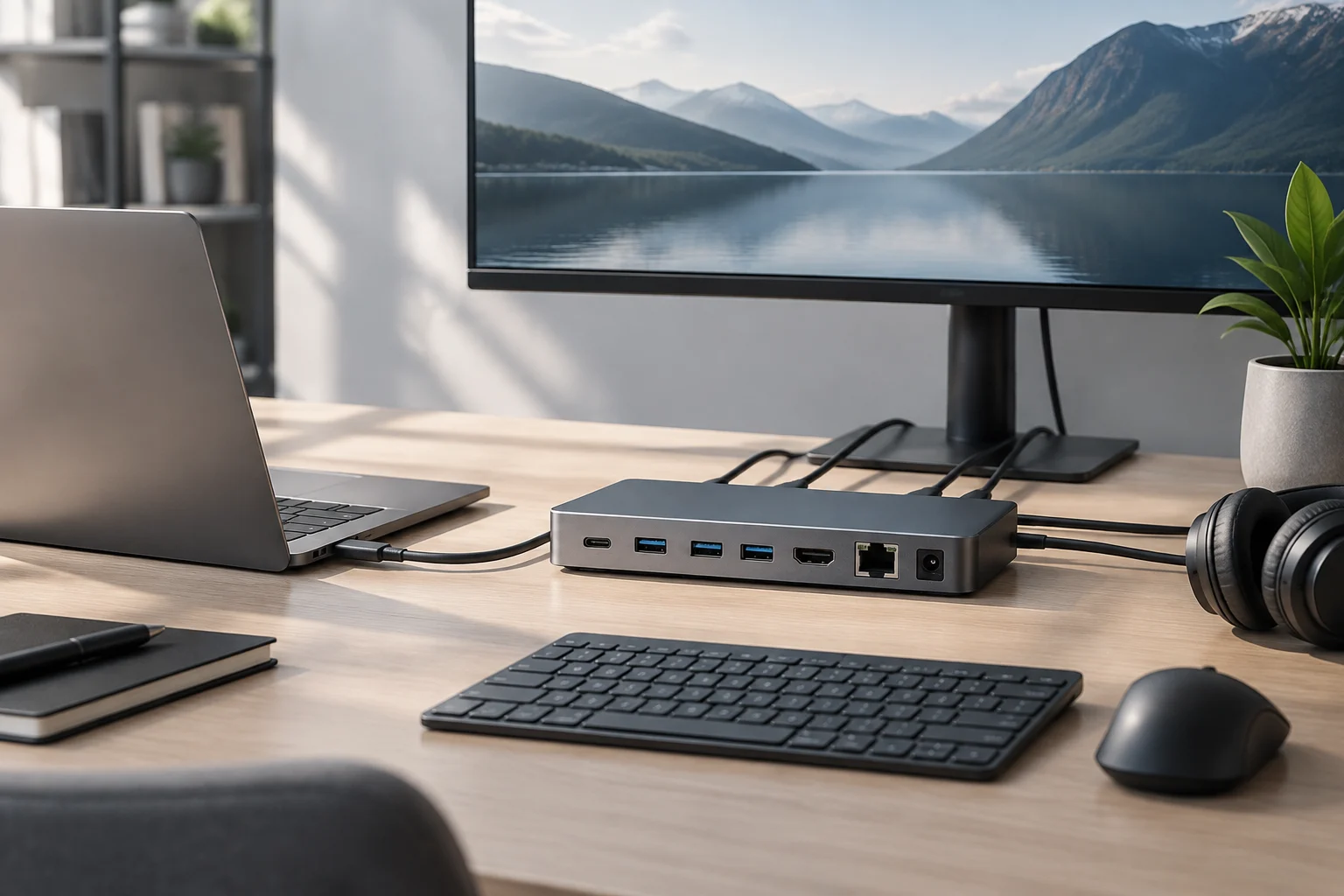
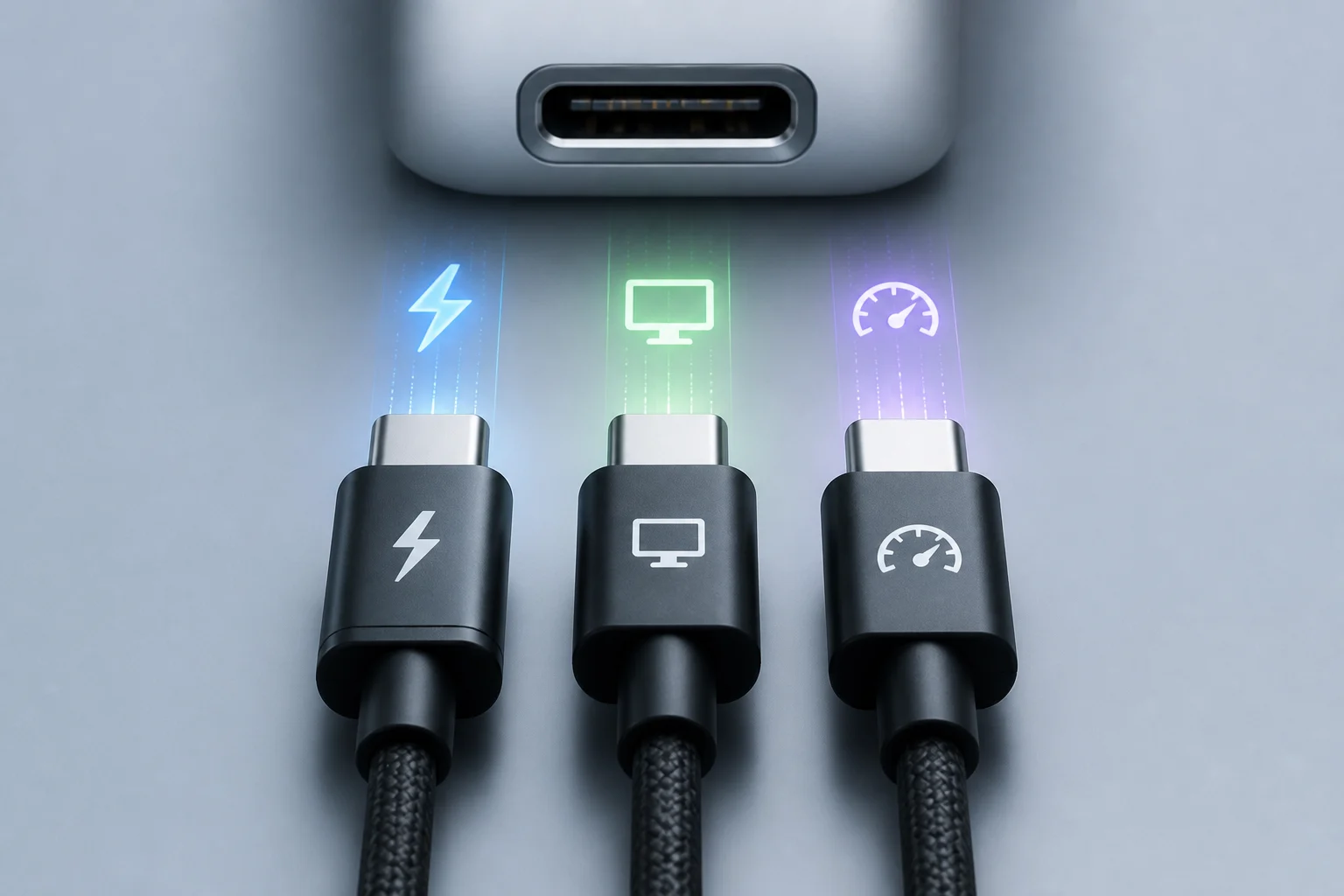
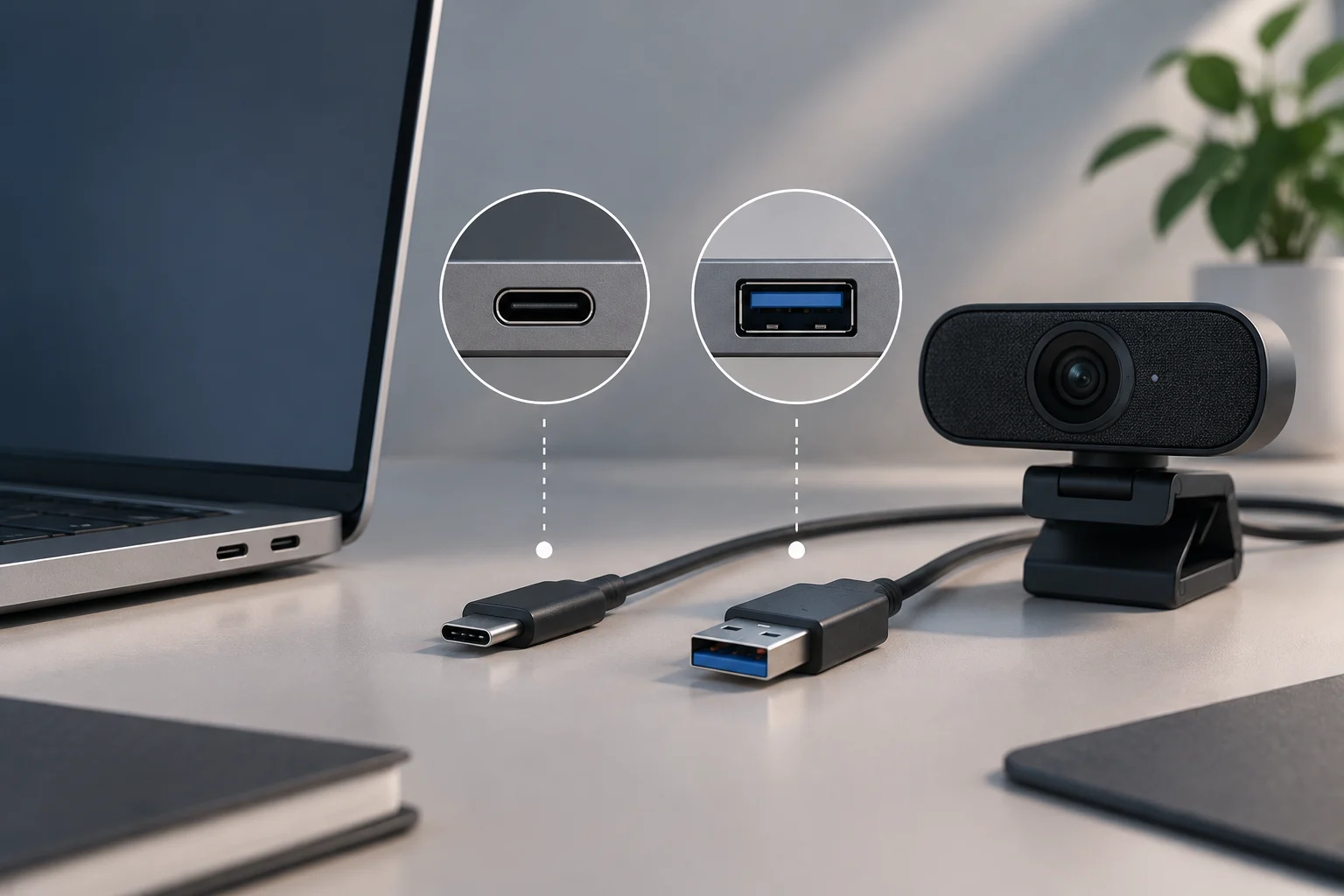
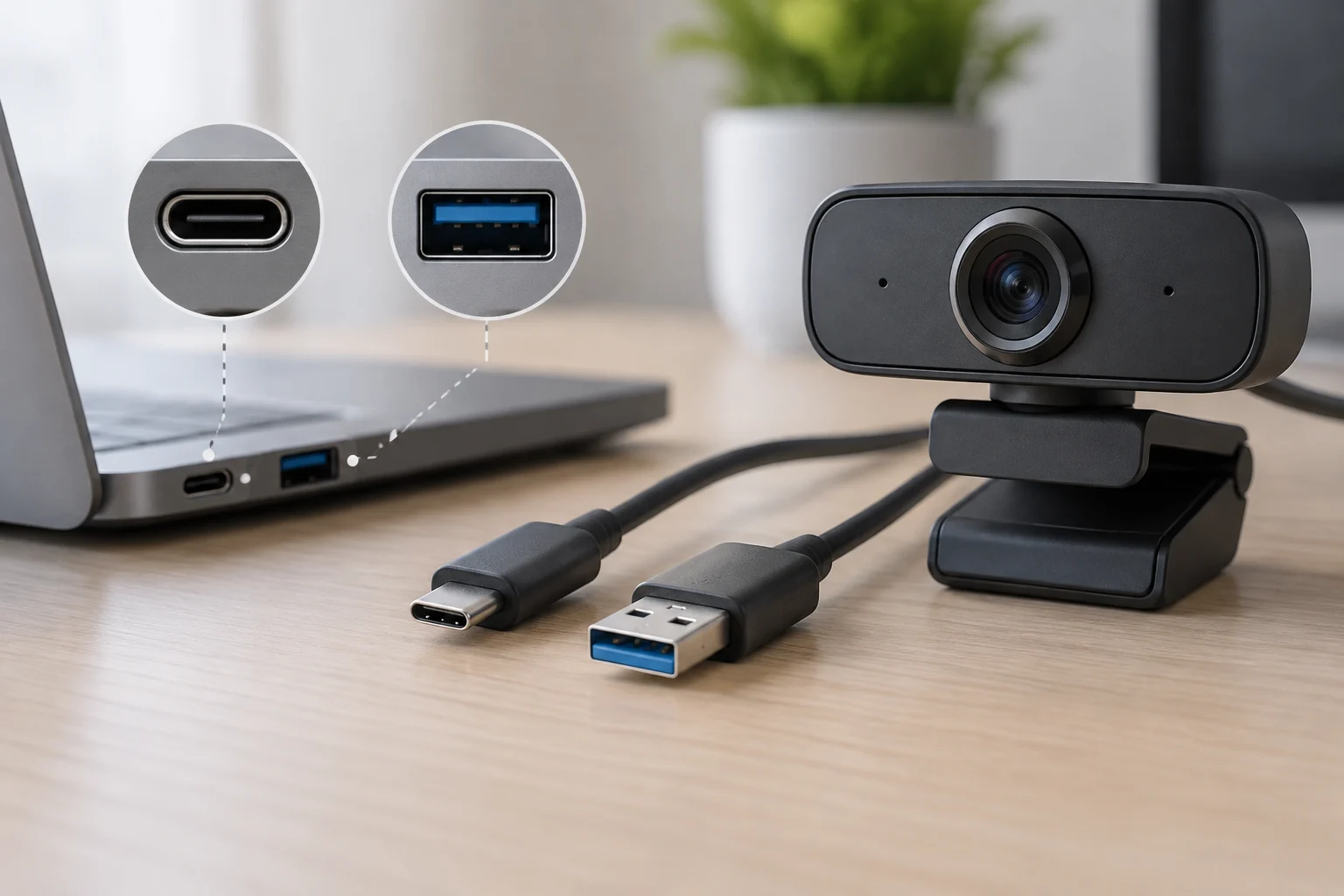
Connector type is an important consideration before buying. Most webcams use USB-A, while many modern laptops have USB-C ports. If your computer only has USB-C, you will need an adapter or a camera with a USB-C cable. The evolution of USB specifications allows higher transfer speeds and power, but it does not make physical and logical compatibility automatic. The connector’s shape is not enough to tell whether the port and device will communicate as expected.
An adapter can resolve a mismatch between the cable connector and the available port, but it does not replace checking the device requirements. Verify both the connection the webcam uses and the manufacturer’s guidance for the system and computer. In other words, a connector fitting physically does not, by itself, confirm that the camera will work or that all its capabilities will be accessible.
In 2026, as USB4 and Thunderbolt 5 adoption expands, operating-system software restrictions are also part of the check. A camera that worked in the USB-C port of an older computer might not work on a new one if its driver is outdated or the system restricts access to uncertified devices. If your computer has no USB-A, look for an explicit statement of USB-C compatibility in the manufacturer’s official information instead of inferring it from the port’s shape.
The connection therefore depends on more than the cable: the port implementation, device, and software involved all matter. If you are unsure about the USB type or using an adapter, check the computer and webcam documentation before buying. That way, you can tell whether the question is purely physical or also affects the compatibility of the complete setup.
Review Resolution and Application Requirements
The advertised resolution and frame rate do not always translate into the same performance on every computer. A 4K webcam may not deliver 4K at 30 fps if the USB port does not provide enough bandwidth or the operating system does not optimize the transfer. Video-call applications also have their own hardware and software requirements: Microsoft Teams and Zoom may each have specific demands. The camera’s advertised capability does not guarantee that every application can make full use of it.
If the application does not support the webcam’s maximum resolution, the image will be scaled automatically and quality may suffer. To avoid surprises, compare the camera specifications with those of the application you plan to use, and consider the complete computer setup rather than only the resolution figure printed in the product details. Frame rate and available bandwidth are part of that comparison too.
The built-in microphone is another feature worth checking separately. Webcams do not all offer the same audio quality, and some require specific operating-system permissions. In Windows, camera and microphone privacy permissions are managed separately. Video does not confirm that audio is available: if desktop-app access is not enabled, the camera may work for images but not sound, or vice versa.
Check which input device the video-call application has selected and whether the system allows that application to access the camera and microphone. This helps distinguish a permissions problem from a hardware limitation. If the product details do not specify audio capabilities, consult the support information before assuming the built-in microphone will meet your needs.
Find Drivers and Firmware in Official Support Resources
The availability of drivers and firmware is an important indicator of long-term compatibility. If the manufacturer does not offer drivers for your operating-system version, the camera may work with generic Windows or macOS drivers, but its advanced features may not. Check support for your exact version, because a general reference to Windows or macOS does not reveal every possible limitation.
In Windows, the camera troubleshooter can help detect and fix driver-related problems. However, it cannot install software the manufacturer does not offer for that system. If you need a management application to configure framing or lighting, verify that it is available for your computer before buying; system diagnostics and support for additional features are separate issues.
Camera management is more integrated in macOS, but advanced features on third-party webcams may require a plugin or management application. If the manufacturer has stopped updating that software for newer macOS versions, the camera may not work properly or may lose features after an update. Software support matters too: it is not enough to confirm that the webcam connects today if the controls you need depend on an incompatible application.
Check the date of the latest firmware and management-software update on the official support page. The date alone does not guarantee that everything will work, but it helps you assess whether the manufacturer maintains the tools required for your model and operating system. Also review the support notes, especially if they specify particular versions or limitations affecting the features you need.
Pre-Purchase Checklist
Before buying, review these four points and look for answers in the official specifications from the manufacturer and the application you plan to use:
- Is your computer’s operating system listed in the webcam specifications?
- Does the webcam connector match your computer’s ports, or will you need an adapter?
- Does the manufacturer provide drivers and management software for your operating-system version?
- Does your video-call application support the webcam’s resolution and features?
Answering these questions specifically helps you spot incompatibilities before paying. If a detail is unclear, do not replace it with an assumption based solely on the device being USB or the retailer describing it as compatible.
If the webcam works only partially, do not mistake a compatibility listing for proof that every feature works. It may connect and show video but lack microphone audio, zoom controls, or light correction if the management software is incompatible. A connection is not the same as full functionality: assess the image, sound, and extra settings you expect to use separately.
If in doubt, contact the manufacturer’s support team before buying and provide the exact computer model and operating-system version. Include the video-call application you want to use and the features you need so the question relates to your specific setup. The response may clarify limitations that are not obvious from a brief product listing.
Compatibility is not a binary state but a spectrum of functionality that depends on the interaction between hardware, software, and the operating system. A camera may be compatible for basic video but not for certain tools; the final decision should therefore be based on the features you need and confirmation that the complete setup supports them.