What a basic check can do
A security check does not mean turning on every available option or making a phone or computer invulnerable. Its purpose is more specific: reducing common oversights, such as leaving software outdated, keeping permissions available when they are no longer needed, or not knowing how to recover an account. INCIBE recommends reviewing device settings and keeping systems and applications up to date.
This guide offers a brief, low-impact manual check. It does not require resetting the device or installing utilities: use the system menus and the manufacturer’s documentation. The result can help identify settings worth reviewing, but it is not an audit and cannot rule out an intrusion, malicious software or an unknown vulnerability.
Menu paths vary by model, system version and language. If an option is not where you expect it, do not guess or change similar settings by trial and error: look up the feature in your device’s official help. The point is to review things thoughtfully, not to finish a checklist at any cost.
Prepare before changing anything
Start by identifying the systems you use: for example, Android or iOS on your phone, and Windows or macOS on your computer. This matters because options and their names are not universal. Also note which devices are still in use and who else can access them; on a shared device, user accounts and permissions deserve particular attention. INCIBE includes account management and backups among basic protective measures.
Before changing a lock or account security setting, make sure you remember your credentials and can access the associated email address, phone number or other recovery method. For an Apple account, a recovery contact can help you regain access with a code, but does not thereby gain access to the account. Recovery must remain available to you, rather than depending on an old number or an address you no longer control.
Back up important files if you do not already have a recent copy, especially before making a change that could affect the device. This check does not require reinstalling or resetting anything; if you find a problem, do not jump straight to those options. Microsoft warns that some Windows recovery options can cause data loss and recommends protecting files before using them.
Check system and app updates
Check whether operating-system updates are pending and whether automatic installation is enabled. INCIBE explains that updates can fix security flaws and advises monitoring update status for devices and applications, and installing updates when they become available. “Up to date” does not mean “the newest version”: a system can receive patches without being the latest version of the entire platform.
Next, review the applications you use, especially your browser and apps that handle sensitive information. Install updates through the system’s usual mechanism or the official app store. Do not follow unexpected links announcing an urgent update or download installers from unfamiliar websites: a fake alert may try to get you to enter credentials or install unwanted software.
If the manufacturer no longer provides updates for a system or application, that lack of support changes the practical decision: consider whether you can stop using it or switch to an alternative that is still maintained. Do not assume that every older device is protected simply because antivirus is active. INCIBE recommends avoiding systems and applications that no longer receive security updates.
Strengthen device access and prepare recovery
Check that your phone and computer require an unlock method when you are not using them. On a phone, review the screen PIN or password and the time before automatic locking; on a shared computer, make sure each person uses their own account when possible. A lock limits casual access, but it does not replace updates or protect an account whose access has been compromised.
Also review the important accounts linked to the device: your main email, system account and, where relevant, financial services. Confirm that recovery methods are current and that you recognise the associated contact details. If a platform offers two-step authentication, check how to set it up in the platform’s official documentation and keep its recovery methods somewhere safe, separate from the device when appropriate.
Recovery is part of security, not a detail to deal with later. Apple documents the option of appointing a recovery contact, who can provide a code to help reset the password but cannot enter the account. If a recovery method is no longer under your control, update it through the service’s official process before relying on it.
Review app permissions
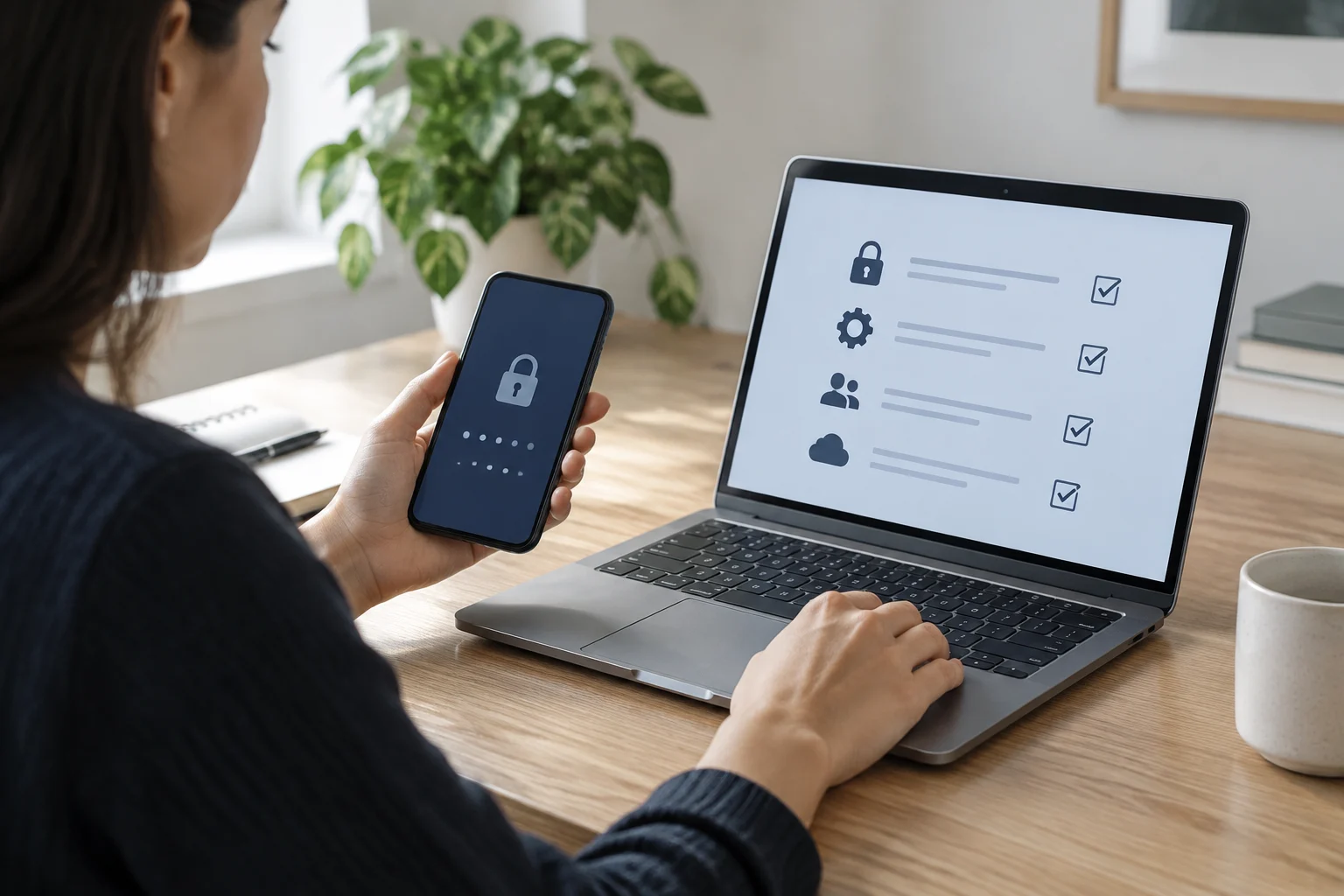
On your phone, review which apps can access your location, camera, microphone, photos, files or contacts. Ask whether each permission is needed for the feature you use and whether it should be available all the time or only while using the app. Removing an unnecessary permission reduces exposure, although it does not prove that an app is malicious or erase data it may already have collected.
On Android, the Privacy dashboard lets you see which apps accessed certain permissions and when. Google’s help says the visible history depends on the version: Android 13 or later may show the previous seven days, while Android 12 shows the previous 24 hours, according to the feature described on that page. Permissions can also be managed from the dashboard. Exact paths may differ by manufacturer and version.
If a permission does not fit the app’s intended use, you can change it in system settings and then check whether the app still works as you need. Do not grant access just to dismiss a prompt without understanding it. On computers, similarly review the privacy permissions provided by the operating system and installed apps; the specific options depend on the platform and version.
Check built-in protections and act carefully
Check that the system’s built-in security protections have not been disabled without a clear reason. For Windows, INCIBE describes Windows 11 security and privacy settings and advises checking options such as AutoPlay for external files and installed apps. Names and availability can change; consult current instructions for your version before altering a setting whose effect you do not understand.
On Android, Google documents a feature called Advanced Protection, which brings together several defences and requires a screen-lock method to activate. It is not a requirement for everyone and does not replace well-maintained everyday settings. Consider whether it suits your situation, and read Google’s stated requirements and effects before enabling it.
If you see an alert you do not recognise, an unexpected app or an account change you did not make, do not treat it as an ordinary routine task. Consult the system’s or service’s official help by typing the address yourself. If you suspect someone has access to an account, change the password from a trusted device, review sessions and recovery methods, and seek specialist guidance if you cannot regain control.
Make the check a useful routine
A simple check works best when it is repeatable and does not become an endless list. You can set a periodic reminder to review updates, recovery methods, apps and permissions; repeat the check after changing phones, installing an app with sensitive access or changing a main account. Regular checks help spot changes, but they do not eliminate every risk or guarantee that a device is free of threats.
To finish each check, note what you changed and what remains to be done. If an option is unavailable, record the model and system version and consult the manufacturer’s guide. Avoid leaving settings half-finished, sharing recovery codes or saving passwords somewhere accessible to anyone who uses the device.
The most important decision may be not to make a change until you understand it. If a setting could lock you out of an account, you do not have a file backup, or the instructions do not match your device, stop and verify first. This guide is for basic maintenance and orientation; signs of unauthorised access, data loss or suspicious activity call for an incident-specific response, not just a periodic check.