Start by identifying what you need to review
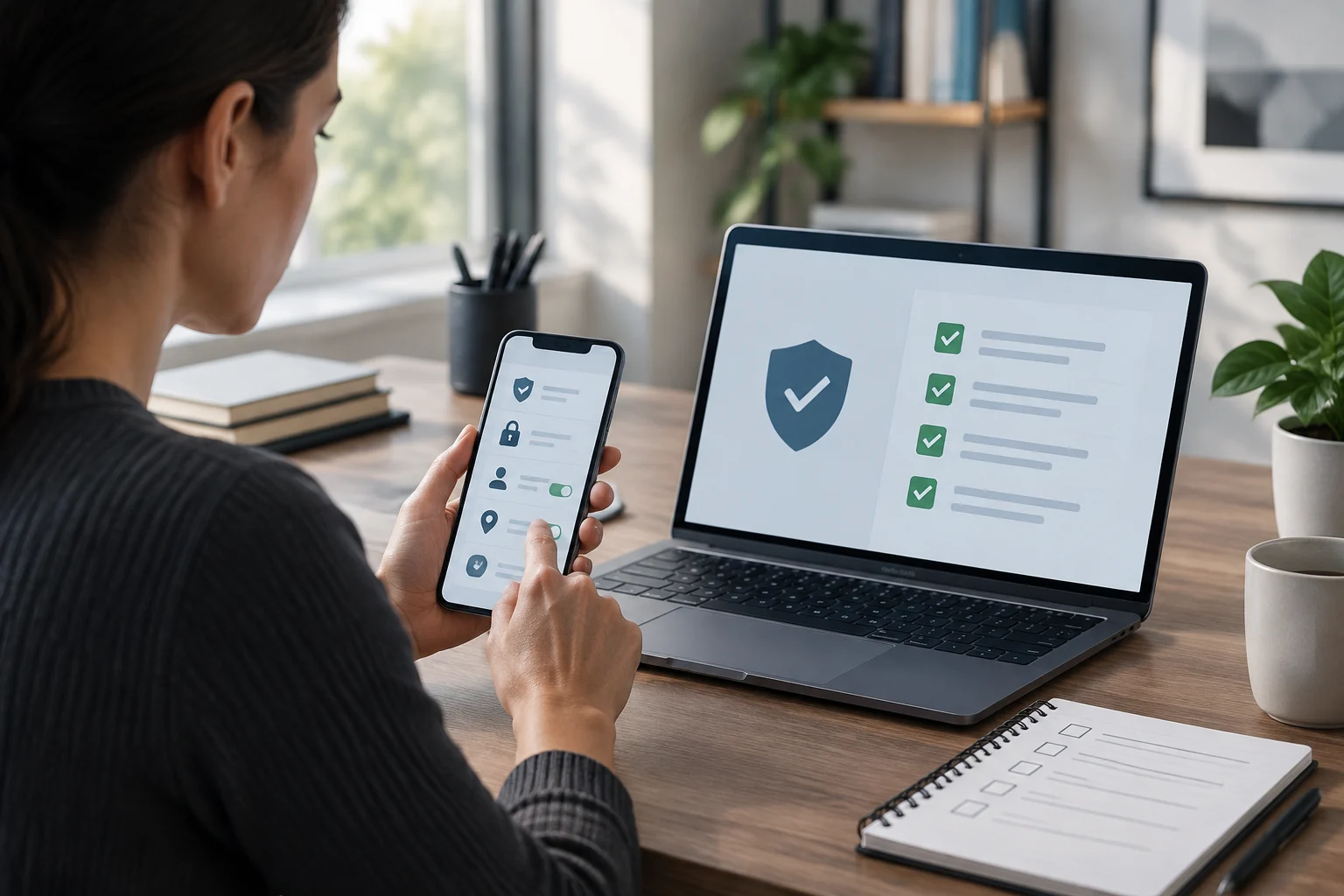
A useful checkup does not begin by switching options on at random; it starts by defining its scope. Make a note of the phones and computers you use, their operating systems and versions, your important accounts, and whether each device is personal or managed by an organization. This inventory helps prevent applying instructions intended for a different system or version.
The goal is not to achieve a universal configuration—there is no setup that suits every use—but to check the controls relevant to each device using appropriate references. Menu paths, setting names, and available features vary by platform and version; consult the relevant official guide before taking action.
Divide the review into specific areas: updates, device access, accounts, app permissions, and backups. You can keep a list with four columns: device, item checked, current setting, and action pending. Recording what you found makes it easier to repeat the process and distinguish an intentional change from an accidental one.
If the device belongs to an organization, check its instructions or contact its support team first. A managed policy may restrict backups, permissions, or updates, and trying to bypass those controls could cause problems. This guide is limited to general checks; it does not replace manufacturer-specific instructions or your organization’s rules.
Check for updates without confusing versions
Review the operating system and apps separately. Systems, browsers, and programs may need updates to fix defects; INCIBE recommends monitoring their status, enabling automatic updates when available, and no longer using software that does not receive security updates. Being up to date does not always mean running the newest version; it means having the fixes the manufacturer publishes for the version compatible with your device.
Open the update section from the device settings or official app store, and check whether an installation is pending. Before installing, confirm that you have selected the correct device and follow the manufacturer’s documentation on requirements, restarting, and connecting to power. If an update seems to be taking a long time, do not interrupt it without checking the official guidance: Apple, for example, advises letting the device complete an update or restore and connecting it to power during a wireless update.
Do not download installers from ads, messages, or websites whose origins you have not checked. If the manufacturer says that a system is no longer supported, take that into account when planning a change, but do not assume that a particular version is still maintained simply because the device works. Support dates and available options must be checked for the exact product and edition.
Record the date of the check and its result, not merely that you tapped “check for updates.” If no update is available, that describes the status observed at that moment; it does not guarantee that the device is immune to vulnerabilities or that every installed app is covered. The review helps identify pending updates and decisions to make; it does not, on its own, certify that the device is secure.
Review access to your device and accounts
Check that your phone or computer has a lock method suited to your use and that it does not rely on an easy-to-guess password. The location and options—passcode, password, biometrics, or others—vary by system, so use the manufacturer’s guide to understand what each one protects. Do not change the method until you are sure you can still get back in and know the recovery options.
Next, review the accounts that can be used to recover other accounts, such as your primary email or the account linked to an app store. INCIBE explains that accounts may contain personal information and be connected to one another, so unauthorized access can affect other services. Check that recovery details are current and that no recovery method is one you no longer control.
If a service offers multifactor authentication, consult its documentation and consider enabling it. The mechanism and backup options depend on the provider; do not assume that all services use SMS codes or that the same configuration is replicated across every account. Store recovery codes or methods somewhere secure, separate from the device when possible, and check how to regain access before losing or replacing your phone.
If the service offers the feature, review connected sessions or devices on the official security page for each account. If you recognize a session you do not use, follow the provider’s process to sign it out and change your password from the legitimate site. Do not open unexpected links in emails or messages: type the known address or use the official app.
Examine permissions and privacy in context
On Android, settings let you view and change app permissions, although the exact paths vary by version and manufacturer. The official help describes permissions for features such as the camera, contacts, location, and microphone, as well as options to allow access only while an app is in use in certain cases. Grant each permission according to the function you actually need, not as a matter of routine.
Android’s privacy dashboard can show which apps accessed certain permissions and when. Google’s documentation specifies that the visible period depends on the version: on Android 13 or later, the cited help says the last seven days; on Android 12, the last 24 hours. That difference matters: a limited history does not represent all past activity. Check the version and the current path on your own phone.
If an app seems to need an unexpected permission, investigate what it does before revoking access. Removing a permission may limit a legitimate feature, while keeping unnecessary permissions increases the access granted. There is no mechanical rule for classifying every permission as safe or dangerous: consider the purpose, developer, and how you use the app.
On iPhone and other systems, consult the official documentation for the installed version to review privacy, permissions, and access. The Apple reference provided concerns App Store settings and restrictions; by itself, it does not establish a complete path for reviewing every iOS permission. Therefore, do not extrapolate that page to controls it does not document. The right check depends on each platform and its specific guidance.

Verify that your backup can be restored
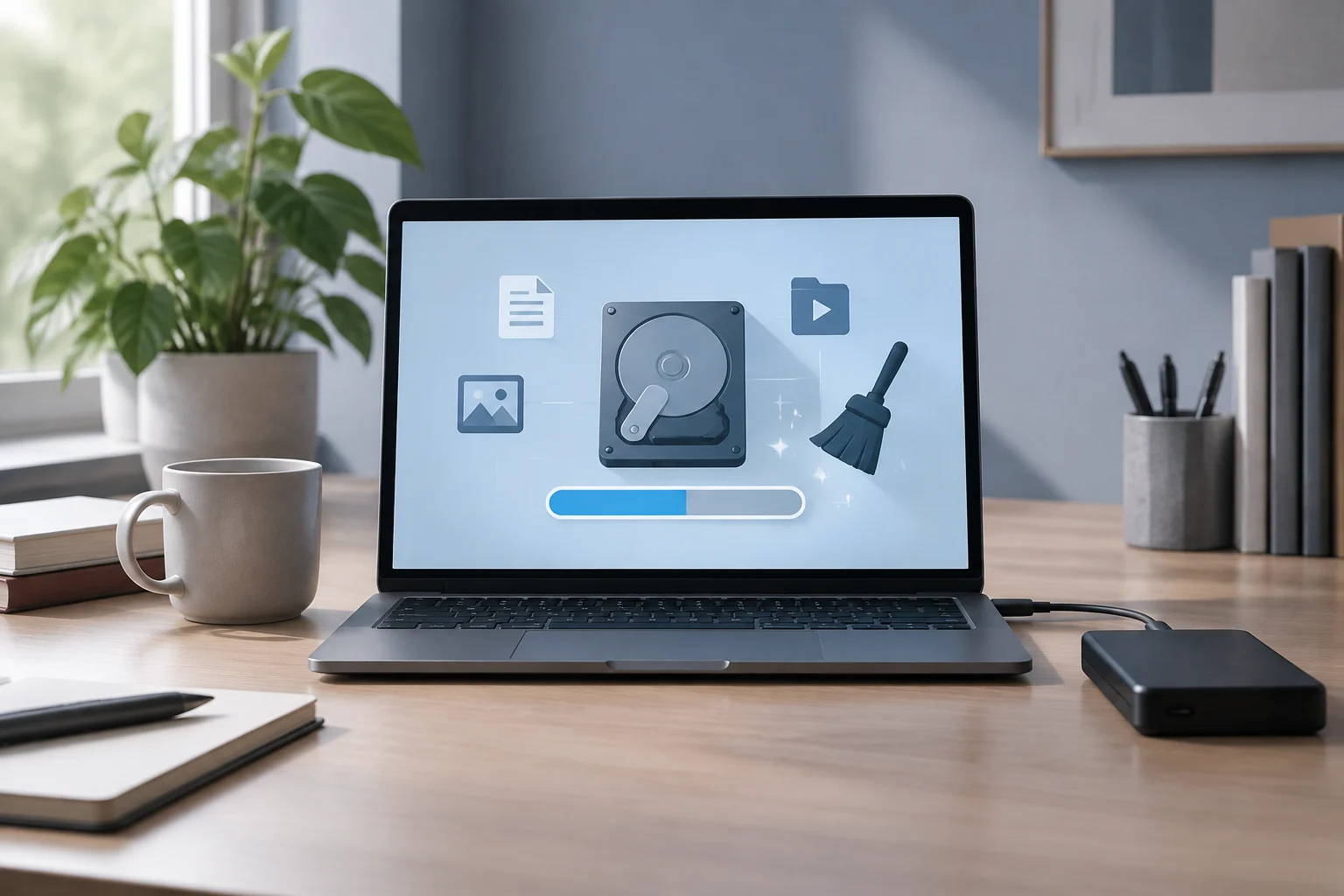
Confirm what data is being backed up, where it is stored, and when the last backup was made. An automatic backup that does not include the photos, documents, or messages that matter to you can create a false sense of security. INCIBE recommends making backups frequently and checking them to ensure the information remains usable; a backup can be stored on external media or in a cloud service.
Windows offers different alternatives, including cloud solutions and backups to external or network drives. The choice depends, among other things, on whether you have an internet connection, how many files you have, and how you want to restore them. A synchronized copy is not always an independent backup: check what the service covers and how files can be recovered if the computer is lost or damaged.
On Android, backup and restore options depend on the version, account, and configuration. Google’s documentation says cloud backups may include photos, messages, files, and settings, and that certain features require Android 9 or later. It also warns that an organization may block backups of work data. Check the actual backup status in settings, rather than merely confirming that the feature is turned on.
A more robust check is to verify that the backup completed and that you know where to find the restore process. Do not start a restore or erase data as an improvised test: follow the official instructions, and if you need to validate a complete recovery, plan it using a safe method. Google’s contacts documentation also warns that a backup from a later Android version cannot be restored to a phone running an earlier version, a relevant limitation when migrating between devices.
Make the review a safe routine
Set a schedule you can maintain—for example, every so often or after a major change—and repeat the same checklist. The sources consulted do not establish a universal interval that guarantees an adequate review for everyone. Regularity helps identify changes and pending tasks; it does not replace installing updates when they appear or paying attention to relevant security alerts.
Record the actions you take, and consult the documentation before changing a setting you do not understand. Make changes one at a time: that makes it easier to identify which one affected a feature. If something stops working, consult the official help for the system or app and use its documented procedure to undo the change, rather than installing unverified maintenance utilities or following instructions from a dubious source.
Short checklist to close each review:
- Do I know the version on each device and whether it receives updates?
- Have I checked the device lock and my account recovery methods?
- Do the permissions granted make sense for how I use each app?
- Is the backup recent, does it include what matters, and do I know how to restore it?
- Have I recorded changes and checked the documentation before applying them?
If you find a concrete sign of unauthorized access, a failed backup, or an unsupported device, treat it as a separate task and follow the manufacturer’s or account provider’s instructions. A general checklist does not diagnose incidents or replace specialist support. The practical conclusion is simple: a methodical review, verification against official sources, and avoiding blind changes give you more control than changing many options without knowing what they do.