Compatibility does not mean just one thing
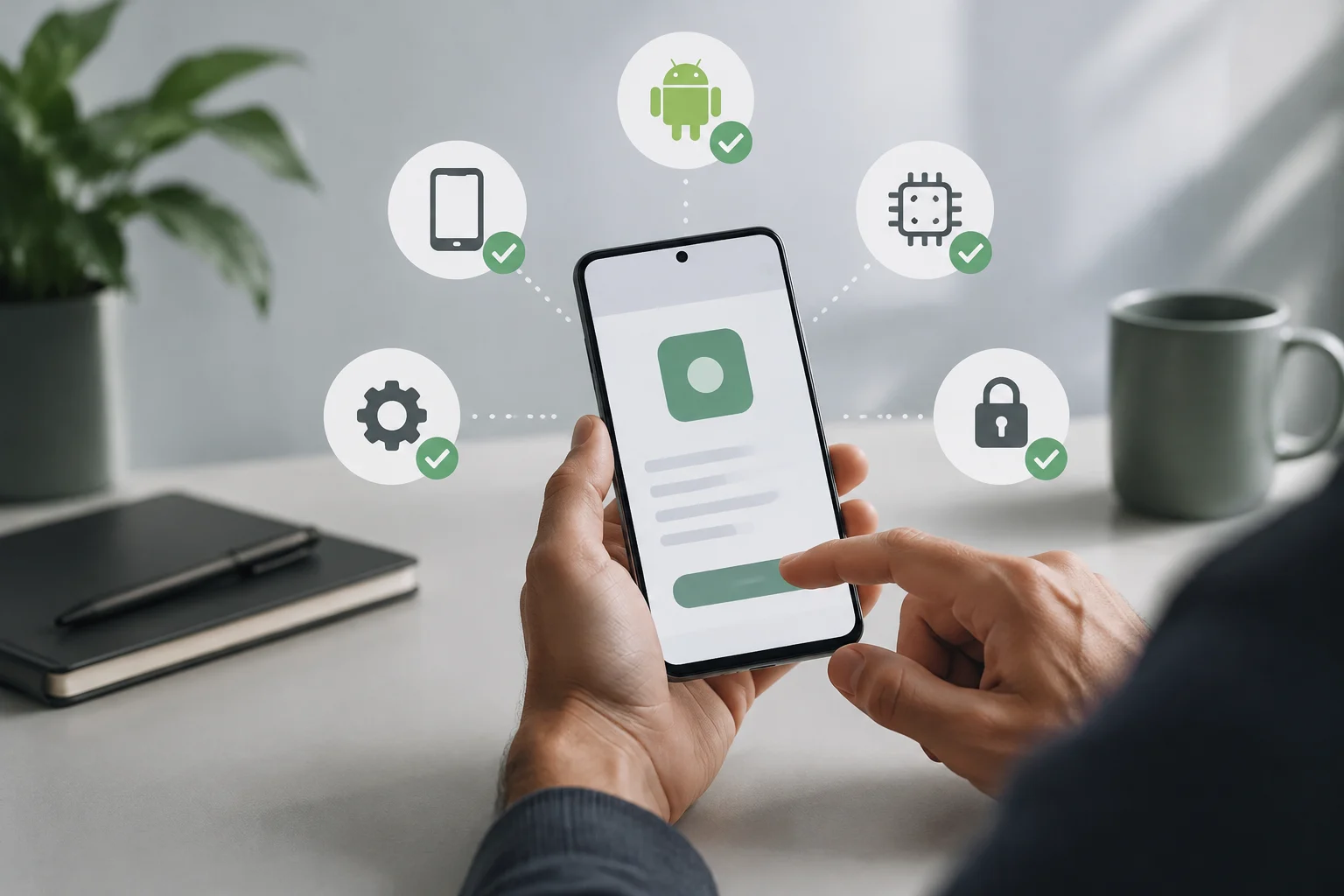
Before downloading, it helps to separate three questions: Can the app be installed? Is it officially available for that device and account? And will it work as you need once it is open? These are different checks: passing one does not automatically prove the others.
In its developer documentation, Android distinguishes between device compatibility and app compatibility. The first describes whether an implementation meets the requirements of an Android version; the second also depends on how the application was built and which devices, configurations, and features it supports. Android Developers
That is why a generic label such as “compatible with Android” is of little help when deciding whether a specific app will work on a specific phone. The operating system may be compatible with the platform, yet the store may not offer a particular app for that model, or the app may include features that do not work well on it. Compatibility is not a guarantee of proper operation.
Start with the Android version and the app’s requirements
Note the exact phone model and the Android version installed. This is usually shown in Settings, under a section such as “About phone” or “Software information”; menu names vary by manufacturer. If you are buying a device, ask for this information for the exact variant and market: a similar product-family name does not confirm that every version has the same software.
Next, look at the app’s official listing for its minimum Android version and any other requirements published by the developer. Compare the minimum with the installed version, not with a version the manufacturer has promised or one that might arrive in an update. If the app requires a later version, do not count on a future update as though it were already available.
The minimum version is only a first filter. By itself, it says nothing about hardware features, regional availability, account restrictions, or the quality of the experience. Android provides mechanisms to adapt interfaces to different configurations and lets developers declare requirements, but the experience depends on each app. Android compatibility overview
Do not confuse the system version with device certification. Google says Google Play supports Play Protect-certified devices and maintains a list of compatible equipment; if a model is not listed, it may be new or may not work with Google Play, and Google recommends contacting the manufacturer. Devices compatible with Google Play Having Android installed does not, by itself, prove that the device is certified.
Check which features the app needs
An application may depend on a camera, GPS, microphone, sensors, a graphics feature, or a software capability. Android’s manifest lets developers declare requirements using <uses-feature>; Google Play can use those declarations to filter the app and exclude devices that do not meet the stated requirements. Documentation for <uses-feature> Look for specific requirements, not just broad marketing descriptions.
A feature declaration can also mark a feature as required or not required. If it is optional, the app may be designed to work without it, perhaps with limited functionality. However, this distinction describes what the developer declares; it does not replace checking how well the app works on a particular model. The Play Store listing and developer information may clarify which features are essential.
Permissions and features are related, but they are not the same thing. A permission may allow the app to access a capability after the user grants it; a feature describes a capability on which the app may depend. Android’s documentation warns that certain hardware-related permissions can affect Google Play filtering and recommends explicitly declaring required features. Documentation for <uses-permission>
In practice, check whether the app needs something your device lacks and whether that feature is central to your use. A video-calling app might open without a front-facing camera, but it will not provide the expected experience; a navigation app may install even though its performance depends on location and sensors. Installing an app is not the same as using all its features. Do not assume a permissions list proves that every feature is available.
What Android’s official compatibility rules say
Android publishes a Compatibility Definition Document (CDD) setting out requirements that device implementations must meet to be considered compatible with a platform version. It is a normative reference for manufacturers and implementers, not a buying guide or a visible certification for every app. Android Compatibility Definition Document
The CDD assesses the device in relation to Android, while an app’s manifest and distribution rules help describe what the app needs. It should not be read as a promise that every application will work identically on all compatible devices. Differences in hardware, manufacturer customizations, updates, and developer decisions still matter.
For someone installing an app, the practical point is that there is no need to interpret every technical requirement in the CDD. It helps explain that “compatible with Android” has a specific meaning within the platform, but deciding whether a particular app will work requires checking its listing, requirements, and Google Play status on that device. Platform documentation does not replace checking the app itself.
Interpret Google Play availability carefully
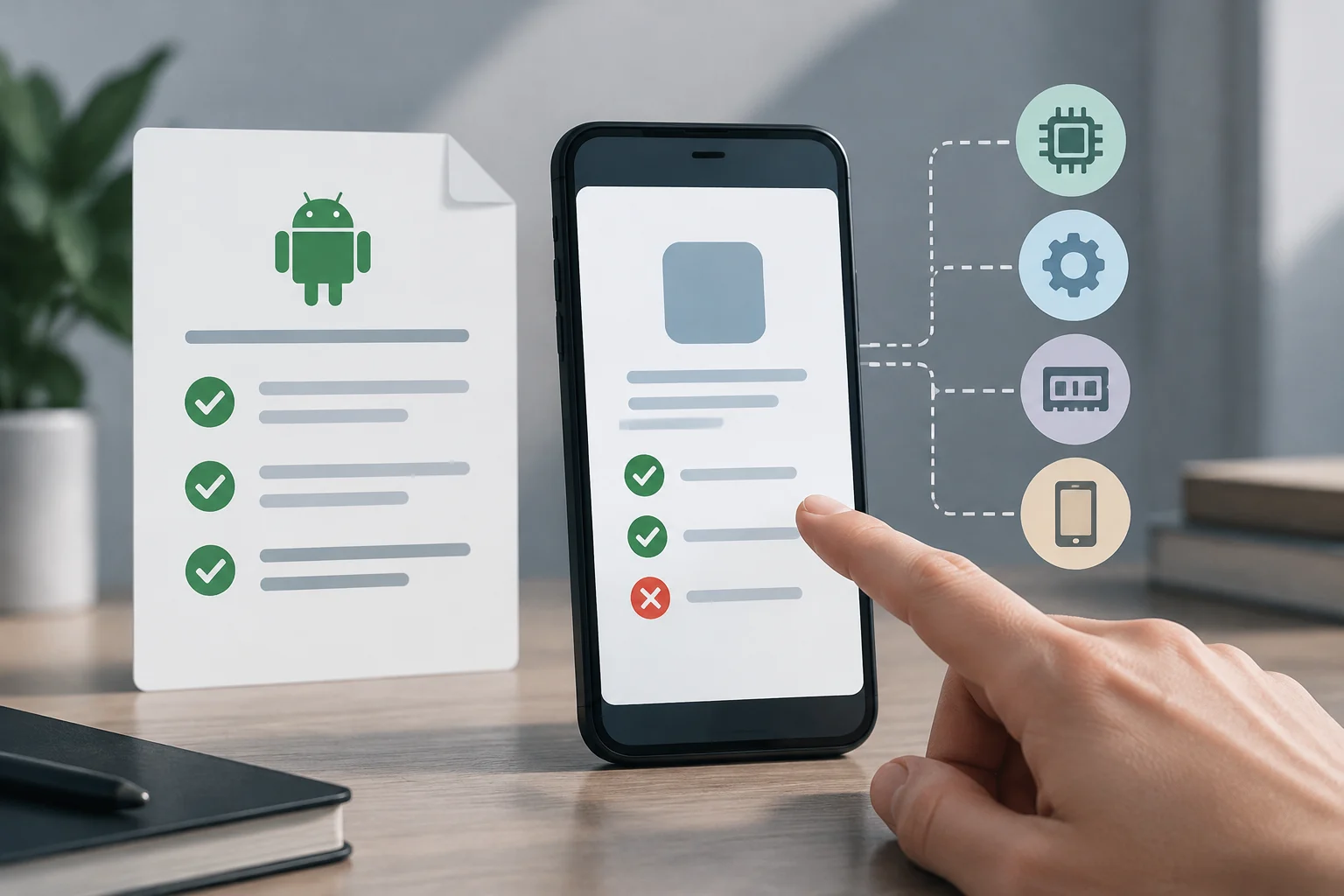
If the app appears in the Play Store on your phone, that indicates the store is showing it in that context; it does not prove that all its features will work correctly or that the developer guarantees support for that model. If it does not appear, its absence alone does not identify the reason: the device, Android version, region, account, or a distribution decision may be involved. The information available to users may not distinguish between these causes.
Google Play filters devices based on declared requirements and distribution criteria. In its documentation, Google explains that developers can view the compatible and excluded device catalog in Play Console, a distribution-management tool rather than a comprehensive diagnostic for consumers. Play Console device catalog Availability also depends on the developer’s settings.
Before changing phones, look up the official app listing on the device you plan to use, not just on another phone or in a browser. Check that you are using the account and country you will actually use, and confirm the model in Settings. If your purchase depends on an essential app and the store marks it unavailable, ask the device manufacturer or app developer before paying.
A store listing is a useful but limited signal. It is not a real-time test of stability, performance, battery life, or accessory compatibility. For critical apps—for work, accessibility, health, or payments—also look for the provider’s support information and, when possible, explicit confirmation for the exact model. The more important the app, the less you should rely on a label alone.
If it meets the requirements but does not appear or fails
First, update Google Play Store and any available system services, restart the phone, and check the listing again. Also verify free storage, connectivity, account, and Play Store country. These steps can resolve general issues, but they do not remove distribution restrictions or add missing hardware features to the phone.
If the app installs but fails, check that Android and the app are up to date and that you have granted the permissions needed for the feature you are trying to use. Do this in the app’s settings and grant only permissions that make sense for its use. A denied permission may explain limited functionality, but it does not prove that this is the only problem.
Note the model, Android version, app version, and error message. Share these details with the developer’s official support team; if the issue affects the store or certification, also contact the manufacturer or Google Play support. Avoid installing an old or modified version to get around a block: it may be incompatible, stop receiving fixes, or come from an unverifiable source. The documentation consulted cannot establish the cause of every individual failure from the outside.
Checklist before installing or buying
Before installing an important app or buying a phone to use it, follow this order:
- Confirm the exact model and the variant sold in your market.
- Check the installed Android version and compare it with the minimum published by the developer.
- Check whether the app requires hardware or software features that the device has.
- Search for the app in Google Play using the device and account you will use; check certification if in doubt.
- Contact official support if the app is essential or the store says it is incompatible.
- If you have already installed it, check for updates and relevant permissions before attributing the failure to incompatibility.
This checklist reduces common mistakes, but it is not an absolute guarantee. Listings may not describe every limitation, rollouts change, and actual behavior may depend on the app version or manufacturer. The strongest verification combines published requirements with confirmation for the specific model; if no such confirmation is available, keep that uncertainty in mind before making a costly decision.
Avoid using APKs from unofficial websites as a shortcut to install an app that Google Play does not offer. Downloading a package outside the store does not change the technical requirements or make an incompatible device compatible, and it adds security and provenance risks that this guide does not resolve. For an app you need, the prudent approach is to contact the developer and ask for an answer covering the exact model, Android version, and market.