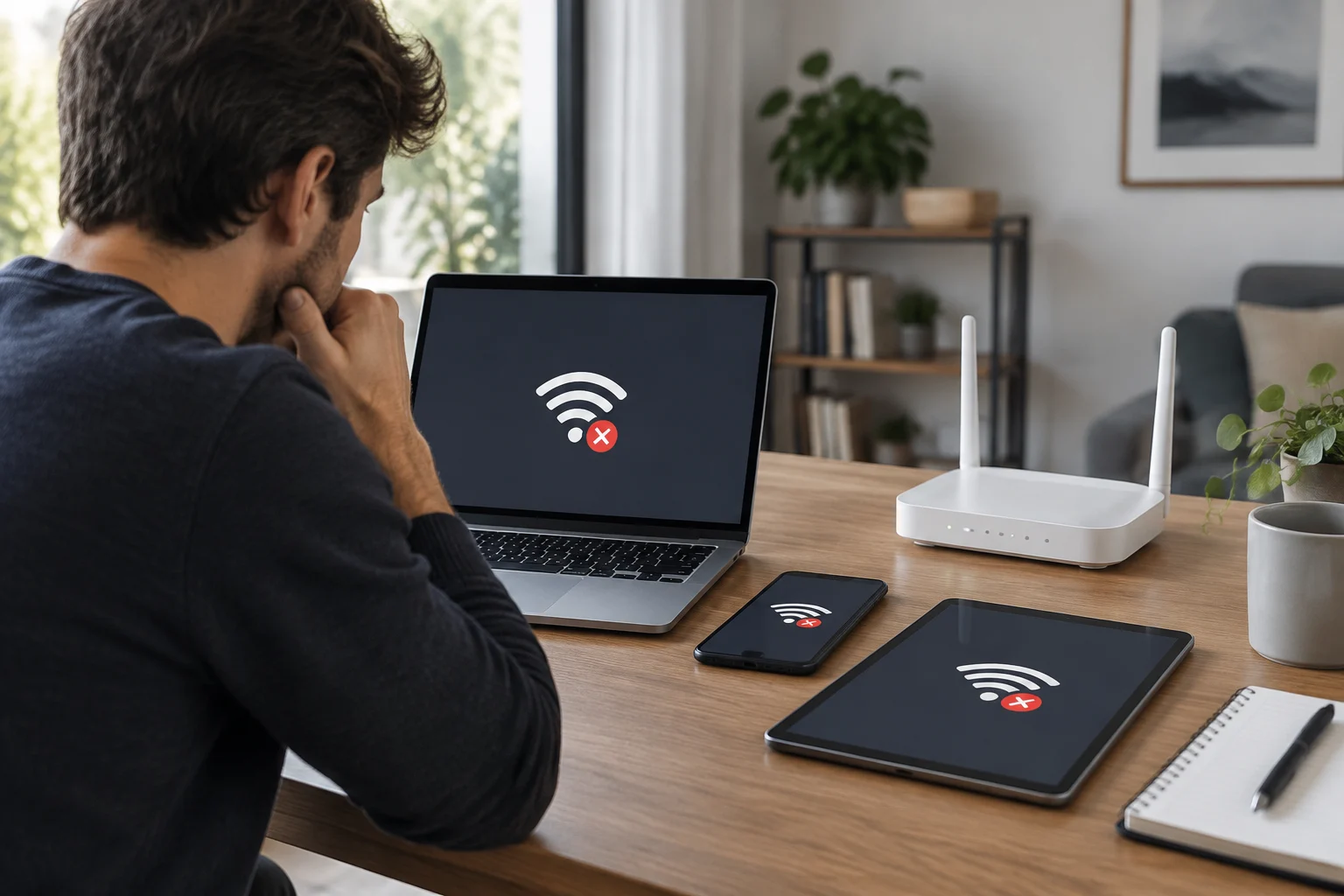
Connecting to a network is not the same as having Internet
The Wi-Fi indicator confirms that your device has established a wireless connection to an access point or router. It does not, by itself, prove that the network has a working route to the Internet. Several parts lie between your device and a website: the local Wi-Fi connection, the router, the equipment that brings service into your home, and the provider’s network. A fault anywhere along that path can stop pages from loading even while your phone or computer continues to show the network name as connected.
The connection may also work only intermittently, certain services may fail, or a page may take a long time to open. That is why it helps to describe the exact symptom: does no site load, does only one app fail, does the connection drop and come back, or does a sign-in page appear? A public or guest network may require you to accept terms on an access page. On a home network, by contrast, if no service works, it is more useful to start by finding out how widespread the problem is than to change technical options at random. Android’s and Microsoft’s guidance recommends checking connectivity progressively, although menu names vary by device and operating-system version.
Before you begin, note whether the problem started after an identifiable change, such as a power cut, a move, an update, or a password change. Do not assume that the change caused the problem; use it as context for ordering your checks. Avoid sharing passwords, access codes, or personal information on public forums. The initial goal is to separate observable facts from theories: the icon saying “connected” is a fact; the provider being down is only a possibility until checked.
This distinction helps avoid two common mistakes: blaming the provider for every interruption and resetting a device’s settings before finding out whether other devices have the same problem. Google’s Android guide covers checking the connection and testing the device, while Microsoft provides Wi-Fi troubleshooting steps for Windows. These are recommendations for their respective platforms, not a guarantee that one cause explains every case. If the device is managed by a company or school, check with its administrator before changing settings, since the network may have its own policies.
This early distinction is useful even when the symptom seems obvious. A device can retain its wireless connection to the router while the router cannot reach the provider, and a provider connection can be working while one device has a local configuration issue. The display therefore tells you something about the link between the device and the access point, but not the complete condition of every link between the device and the website. A careful description of what you see will make subsequent checks more meaningful and help you avoid unnecessary changes.
Find out whether the problem is one device, the local network, or the provider connection
The simplest and most informative check is to compare devices. Try another phone, computer, or tablet connected to the same Wi-Fi network and open more than one familiar service. If only the original device fails, the problem points towards that device or its settings, although it does not yet identify the precise cause. If several devices cannot get online, the router, the home connection, or the provider is more likely to be involved. This is a useful inference for choosing the next step, not a definitive diagnosis: devices may have different settings and may not all use exactly the same services.
If you can do so without using mobile data or incurring a cost, compare with another known connection, such as a mobile network or a different trusted network. If the same device works there, that strengthens the possibility that the problem is tied to the original network; it does not prove the router is faulty. If other devices can browse over the affected Wi-Fi, focus first on the device that fails. Android’s and Windows’ official help provide platform-specific procedures; use the procedure for the relevant version rather than applying generic instructions from another system. A device with a VPN, proxy, or security controls may also behave differently; do not disable work or school protections without permission.
Run an orderly test, changing one variable at a time:
- Confirm that the device is connected to the expected network name and not a nearby network with a similar name.
- Try a different website and app; this helps avoid mistaking a one-service outage for a general disconnection.
- Check another device on the same Wi-Fi and, if available, the affected device on another trusted connection.
- Record each result and the time of the test, without publishing private information.
If a sign-in screen appears, follow the venue’s procedure only if you recognise the network and its terms. If the device connects and disconnects, move to a different spot to rule out weak signal or physical interference, but remember that a stronger signal does not necessarily fix a provider interruption. Comparing devices helps locate the scope of the problem; it does not automatically identify its cause. That limitation matters: a successful test on one device does not rule out a partial problem affecting other devices or services.
Keep the comparison as consistent as possible. Use the same network, test around the same time, and try more than one service so that an isolated app or website issue does not distort the result. If you move the device to another connection, make a note of what changed; a result from a different network is useful context, not proof of what has failed at home. Do not repeatedly change several settings while comparing devices, because that makes it harder to know which condition produced the result. The purpose of these checks is to narrow the likely area of the fault and decide whether the next reasonable step concerns one device, the local network, or the provider.
Try simple, reversible measures first
When the problem seems limited to one device, start with actions that do not erase information or change the network for everyone. Check that airplane mode is off, Wi-Fi is enabled, and the device is still associated with the correct network. Turn Wi-Fi off and back on, or restart the device if it is reasonable to do so. Then test again. Google’s guide for Android connections and Microsoft’s Windows guide include device-focused troubleshooting procedures; available steps and options may vary by version, manufacturer, and configuration.
If only one app is affected, close and reopen it, then try a different service before deleting data or reinstalling anything. An app failure does not prove that the Internet is down. If the network requires an access page, open a browser and check whether the portal appears; avoid entering credentials on unexpected pages. If the device belongs to an organisation, do not remove management profiles, certificates, or security apps: you could lose access or violate that network’s rules. For a persistent problem, the manufacturer’s official resources are preferable to command sequences copied from unknown websites.
People sometimes recommend “forgetting” the network and reconnecting. That may be reasonable if you know the password and are authorised to use it, but it is not the first step: you will need to enter the credentials again and may need special configuration information. Before doing so, confirm the network name and that you can obtain the password from a legitimate source. Do not use a full network reset as an initial test; it can remove saved connections and other settings that may not be easy to restore.
Keep the sequence simple: one action, one new test, and a note of the result. If something improves, you will know which change coincided with recovery; if it gets worse, it will be easier to undo. Android has advanced network options, but their presence does not mean they need to be adjusted for a common connection problem. Do not change DNS, IP address, proxy, VPN, or security options unless you understand the effect or have reliable instructions. If support asks you to change a value, ask how to record the current state and restore it. Android and Microsoft support procedures are platform-specific; there is no universal menu that can be recommended for every phone and computer.
Simple checks are useful precisely because they are easy to reverse and do not assume a particular cause. Check the network name before reconnecting, and make sure that you have permission and a reliable way to retrieve the password if a step will ask for it. Avoid following instructions intended for a different operating system or device model. If the device is managed, a seemingly ordinary setting may have been put in place by an administrator, so checking first can prevent an avoidable loss of access. Once a step has been tried, wait long enough to see whether the symptom changes and then record what happened rather than immediately making several more changes.
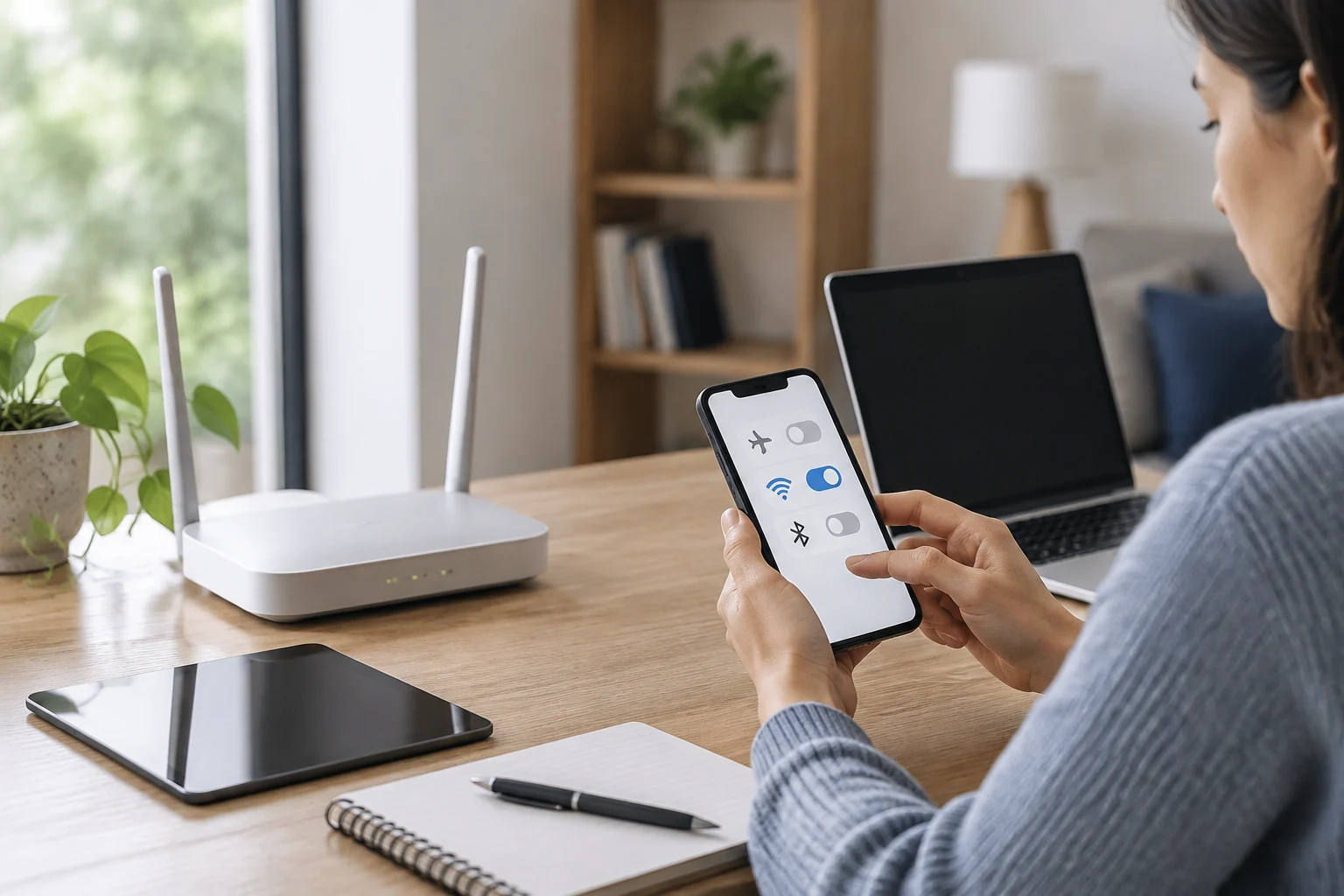
Restart the router only when it makes sense
If several devices in the home fail on the same network, the router or access equipment may need checking. First look at its lights and messages, consult the manual or the provider’s official app, and check whether an outage has been reported. Indicators do not have universal meanings: they depend on the model, so do not interpret a colour without consulting the equipment or provider documentation. Also make sure visible cables are firmly connected and undamaged; do not unplug fibre connections or handle equipment you do not recognise.
A normal restart can help with some temporary problems, but it cannot repair an external outage and does not guarantee a solution. If you decide to try it, use the method recommended by the manufacturer or provider. Network devices may take time to reconnect. If you have telephone service, alarms, remote work, or other services that depend on the equipment, consider the impact before interrupting it. When the router is managed by the provider or an organisation, follow its instructions rather than improvising.
Distinguish restarting from restoring factory settings. The latter may erase the network name, password, and other parameters, and leave you without a connection until the service is set up again. Do not press and hold a reset button or change advanced options such as DHCP, bridge mode, channels, security, or DNS as an automatic response to “connected, no Internet”. Apple’s router documentation, although focused on its Wi-Fi recommendations, illustrates that wireless configuration includes parameters that should be considered deliberately; it is not a list of changes to try without diagnosis.
After an authorised restart, wait until the equipment indicates that startup is complete and test again from more than one device. If the connection returns only briefly, make a note of that; repeated interruptions are useful information for the provider. If you do not know which device is the modem, router, or combined unit, do not unplug equipment at random. Photographing the connections before touching them can help you restore the original arrangement, provided the picture does not show passwords or other sensitive information.
The point of a restart is to see whether a temporary state clears, not to make broad changes to the network. Give the equipment time to start up fully before deciding that the attempt has failed, and check the provider’s own instructions for the model or service. A device may supply more than one household service, so interrupting it can affect more than web browsing. If the equipment is leased, managed remotely, or installed by the provider, its support team may have specific instructions about how to restart it safely. Do not confuse a physical restart with a factory reset: the reset can remove settings needed to restore service and may require help from the provider.
When to contact the provider and what information to have ready
Contact the provider if several devices still cannot get online after the basic checks, if the equipment indicators show a fault according to its manual, or if the service keeps dropping. Check official outage channels first, since there may be a local incident or planned work. The Wi-Fi icon cannot tell you whether the provider is experiencing an outage, the physical link has a problem, or the fault is local: comparing devices and checking the company’s reported status helps narrow it down, but the operator may need to examine the line.
If only one device fails while others can browse, the provider may not be the best first contact. In that case, consult the device manufacturer or operating-system support, especially if the problem continues on different networks. For Windows, Microsoft also documents a wireless network report that can provide information about connections and events; it is a diagnostic tool, not definitive proof that the router or provider is responsible. Avoid sending complete logs through public channels: they may contain identifiers or other information that should not be disclosed.
Before asking for help, gather information that makes the problem easier to reproduce and narrow down:
- Approximate start time and whether the connection fails continuously or intermittently.
- Which devices are affected and which can browse on the same network.
- The exact message shown by the device and the equipment lights, described according to the manual.
- Which checks you performed and the result of each, including authorised restarts.
- The network equipment model and, if known, whether it was supplied by the provider.
Do not send Wi-Fi passwords, verification codes, or payment information through unofficial channels. If support asks for sensitive information, verify that you are speaking to the company through an official route. Stop before making changes that are difficult to reverse: factory resets, manual IP or DNS settings, disabling protections, and security changes are not routine steps for everyone affected. If the problem began after one of these changes, mention it and ask how to restore the previous value. The goal is not to try every option, but to provide clear observations so the next diagnosis is faster and safer.
A concise record can save time because it lets support distinguish a whole-network fault from a single-device issue without asking you to repeat every test. Include what happened, when it happened, and whether the same result occurred on another device; avoid guessing at the cause. If you contacted support previously or followed a specific instruction, note that as well. Share technical records only through a verified support channel and only when requested. Clear observations are more useful than a long list of unexplained setting changes, and retaining the original configuration makes it easier to reverse a change if the diagnosis points elsewhere.