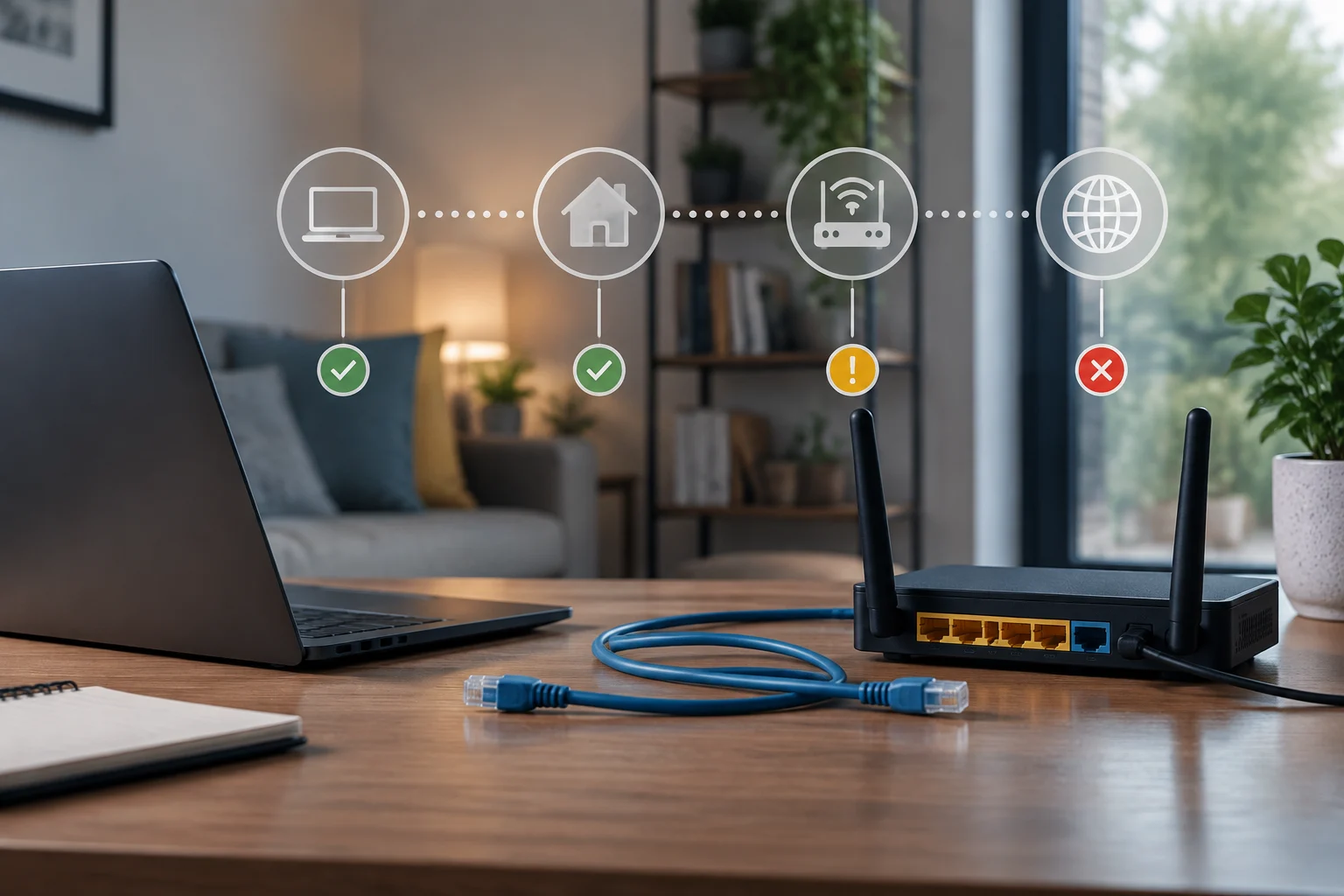
Start by describing exactly what is failing
Before changing any settings, describe the symptom precisely. Does the Wi-Fi disconnect, does the device show that it is connected but pages will not load, does one app work while another does not, or does the connection drop for a few seconds? These are not equivalent situations: losing a wireless association points to a different part of the connection path than a particular website that does not respond. Also note when it happens, how long it lasts, and whether it affects a particular activity, such as video calls or downloads. This turns an impression—“the Internet is bad”—into something you can compare across tests.
A home connection consists of several links: the device, its connection to the router, the local network, and the provider’s access service; after that, traffic crosses other networks on its way to its destination. The Internet is an interconnection of networks, not one device that a test can declare healthy or faulty. The purpose of this procedure is therefore not to certify the entire service, but to narrow down which part is worth investigating first. Work from nearby parts of the connection to more distant ones, and change one variable at a time: if you restart equipment, change settings, and switch networks all at once, it will be harder to interpret the result.
Also distinguish between reachability and certainty. A device connected to the router does not prove that external access is working; a page that will not load does not prove that the provider has lost its connection. An app, server, or domain name can fail independently. The absence of a signal is not always a sign of a fault: some networks and devices do not respond to every diagnostic request.
Compare devices and connection types
Try the same activity on another device connected to the same network at a similar time. If only one device fails, a problem local to that device, its configuration, or the app in use becomes more likely; that does not confirm it. If several devices show the same symptom at once, a shared problem—such as Wi-Fi, the router, or Internet access—becomes more plausible, but this still does not identify which one. Avoid comparing different tasks: a lightweight web page and a video call do not place the same demands on a connection.
When possible and safe, compare Wi-Fi with Ethernet. A stable result over a cable and a problem over Wi-Fi points the investigation toward the wireless link, coverage, or interference; it does not, by itself, prove which of these is responsible. If both connections fail in a similar way at the same time, the problem could be farther along the path, although a cause shared by the router or devices may still be involved. If your laptop has no Ethernet port, do not buy adapters just to complete this diagnosis: use only equipment you already have and know how to configure.
Record the site or service tested, the device, the connection type, and the time. Repeat the comparison more than once rather than turning a brief observation into a conclusion. If the problem occurs only in one room, move near the router and repeat the test without changing devices; if it improves, that points to wireless conditions in that location, but it does not automatically identify a particular source of interference. Do not change channels, credentials, or advanced settings yet.
Check the local link without changing settings
Look at the network status shown by the device’s operating system and confirm which network it is connected to. Apple documents how to check network status in System Settings on macOS; its Wireless Diagnostics tools can also help examine Wi-Fi problems. This provides clues from the device; it does not certify that the provider’s connection is working. On other systems, menu names and the information shown vary by version and manufacturer.
If you already know how to check your device’s router or gateway address, you can test whether it responds on the local network. Do not guess addresses or open the administration panel to change options. A local response indicates communication with that point at that moment, but not that the router has Internet access. If there is no response, do not immediately conclude that it is faulty either: the device may use a different configuration, the router may not answer that kind of test, or the device may be connected to another network.
Keep the test as controlled as possible: check one device, confirm the network, and repeat in the same place. If the device loses its wireless connection or can no longer see the network, note that separately from a page taking a long time to load while Wi-Fi remains connected. These are different symptoms. Do not publicly share passwords, public IP addresses, network names, or screenshots that might reveal information about your home.
Use ping and tracert as clues, not verdicts
An ICMP Echo Request—commonly called a ping—can help check whether a destination responds to that type of message. In PowerShell, Microsoft documents the Test-Connection cmdlet as a tool that sends ICMP Echo Requests to one or more computers. A response means that the destination answered that test at that moment; it does not, by itself, measure overall service quality or guarantee that a web page, game, or app will work. If the test fails, the destination or an intermediate device may not respond to ICMP even though other kinds of traffic can get through.
In Windows, tracert can be used to examine the route a connection takes to a destination using ICMP messages, according to Microsoft’s documentation. You can first test a relevant destination and save the complete output along with the time. If the route displays intermediate hops, the results describe what responded to the test, not necessarily every component the traffic passes through. An asterisk or a timed-out request at one hop is not enough to identify a break there: routers may not respond to these messages or may give them lower priority.
Interpret results comparatively. If one destination responds and another does not, the second may have a different policy; this does not automatically mean there is a general outage. If several destinations fail from one device, repeat the tests from another and compare Wi-Fi with a cable, if available. Repeating and comparing tests provides more information than a single screenshot, but these tools still do not amount to a comprehensive measurement. Review results before publishing them if they contain identifying details.
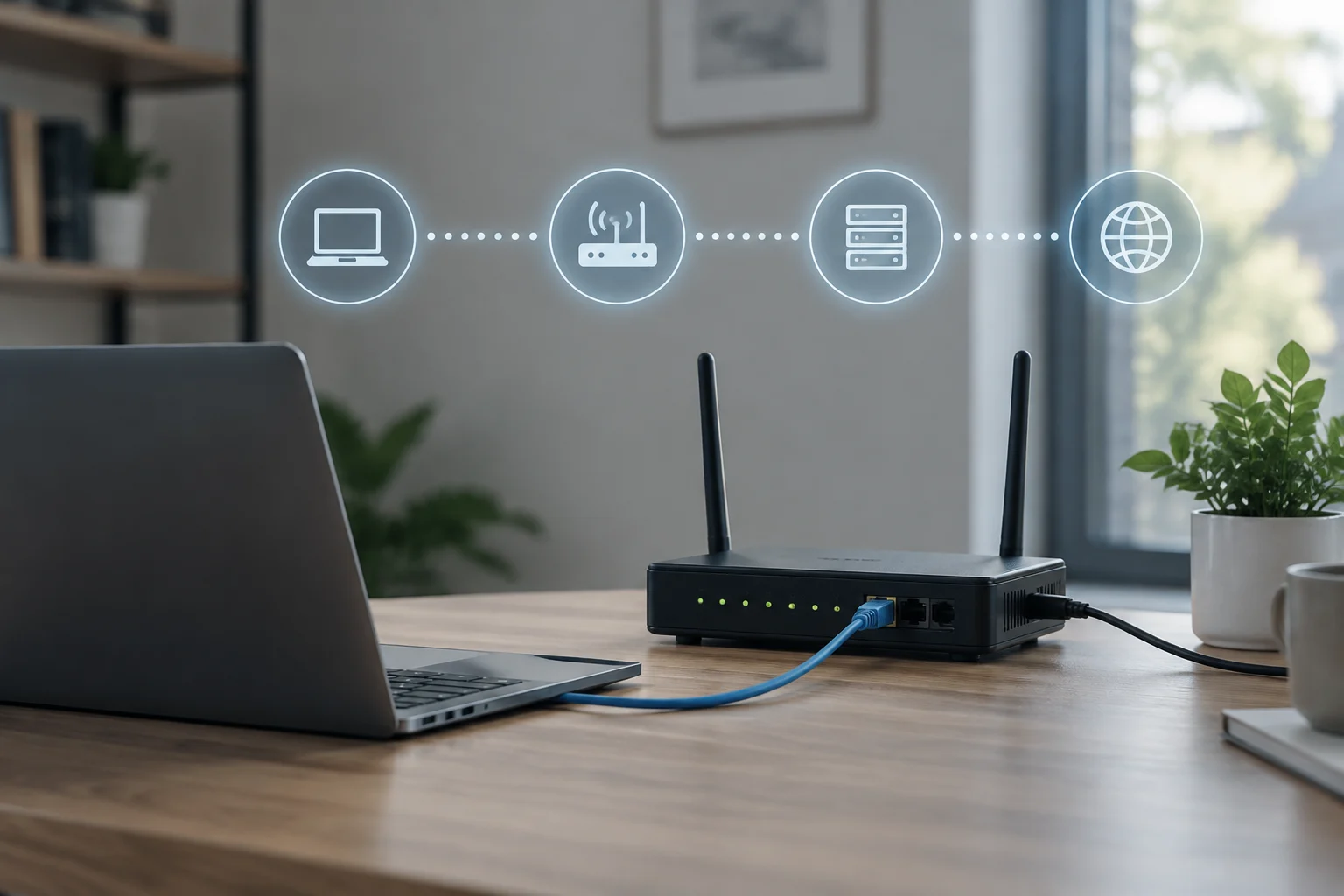
Distinguish a wider outage from a destination-specific problem
Try more than one known service that does not depend on the same app, provided you do not have to sign in to a sensitive account. If only one website fails while others work, first consider whether the incident may be limited to that site, its domain name, or the route to it. If different services fail at the same time, the problem appears broader, but it could still be with the device, router, provider’s network, or another shared part of the path. This is a way to organize possible explanations, not a definitive identification.
When possible, check whether another device in the home reproduces the same failure, without assuming that both devices use the same logical route or configuration. A VPN, security filter, proxy, or device-specific settings can cause traffic from one device to take a different route. If you suspect a security app is involved, make a note and consult its documentation; do not disable protections indiscriminately. Apple’s documentation for Wi-Fi problems on Mac includes checking the router and security software among the possible checks.
Do not use a speed test as your only diagnostic. A low result may be consistent with a slow connection at that moment, but it does not identify the part of the path where the problem began or distinguish a temporary incident from a service limitation. For this guide, first establish whether the symptom is reproducible and shared. If you measure speed, record the time, device, connection type, and service used, and avoid comparing results obtained under very different conditions.
Prepare a useful report before contacting your provider
Before restarting the router, record the symptom and the time; restarting may remove the opportunity to observe what was happening. If you then decide to restart it, follow the provider’s or manufacturer’s instructions and note the exact time. Do not restore factory settings: that could erase a configuration you need and is not an initial test. If there is a known outage, the provider may have information about it that is not available from your device’s tools.
Provide a brief summary: when the problem started, whether it affects one or several devices, whether it occurs over Wi-Fi, cable, or both, which services are affected, which tests you ran, and their results with timestamps. Also say whether the fault is continuous or intermittent. Do not present a guess such as “hop three is broken” as a fact just because tracert shows a line with no response. Instead, describe what you observed and the conditions under which you observed it.
This method does not replace the operator’s measurements or, by itself, prove that a home or external network is free of problems. It narrows down where it makes sense to start investigating and helps avoid unnecessary changes. If only one device fails, also contact its manufacturer; if several devices lose access at once and the problem persists, contact your provider with the observations you gathered. If the incident affects a work or critical service, use the relevant support channel rather than relying solely on home tests.