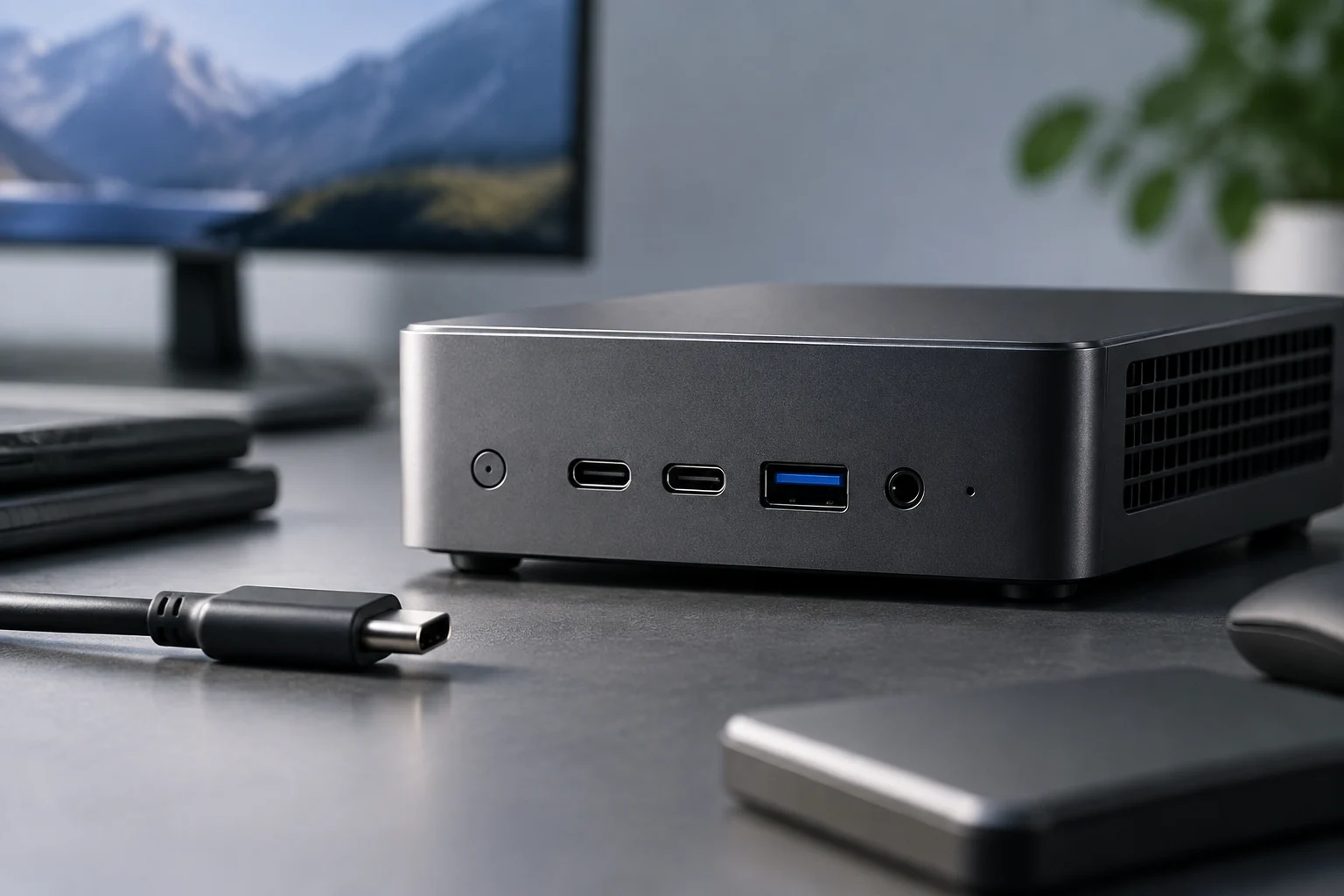
USB4 identifies a technology, not every capability of the computer
USB4 is a specification for connecting devices through USB Type-C. However, seeing “USB4” on a product page does not, by itself, tell you all the capabilities of that port: performance and available functions depend on how the computer implements the specification and on the connected devices. When comparing mini PCs, treat the name as a starting point and look for the specific information the manufacturer publishes for the exact model. The connector’s shape is not a technical specification.
The USB-IF describes several speeds associated with USB4, including 20 and 40 Gbps in its USB4 naming guidelines, and its USB4 specification page mentions operation at up to 80 Gbps on cables certified for 80 Gbps. That does not mean that every USB4 port, cable, or mini PC supports the maximum speed cited. Nor does a USB-C connector’s appearance tell you which version, speed, or functions have been implemented. Always compare the computer port’s stated capability with the peripheral’s requirements rather than transferring the standard’s general maximum capabilities to the computer. USB-IF: USB4 naming guidelines and USB-IF: USB4 specification.
To avoid confusion, separate three questions: what physical connector the mini PC has, what protocol or speed is stated for that port, and what functions the manufacturer advertises. A specification sheet may list USB-C and a USB generation without detailing video output, charging, or compatibility with a particular dock. If the sheet does not provide a detail, its silence does not prove that the function is either present or absent. The rigorous conclusion is that information is missing, so consult the manual, the manufacturer’s support team, or a reliable test of the exact model.
Read the specifications and manual for the model, not just the product-family page
Start by finding the exact model number and the revision or configuration you are considering. On the official specification sheet, look for the port table and terms such as “USB4,” “USB Type-C,” transfer speed, DisplayPort output, power delivery, and Thunderbolt compatibility, if listed. Then cross-check those details against the matching manual: a short product page may not describe every condition or difference between ports. MINISFORUM’s official support pages, for example, collect manuals and documentation for its mini PCs, but that general page does not verify the capabilities of any particular model. MINISFORUM Support.
Write down which physical port corresponds to each function; do not assume all the USB-C ports on the case are equivalent. If the manufacturer publishes different limits for front and rear ports, record them separately. If the information says only “USB4” and omits a speed, do not fill in the blank using the processor version or capabilities advertised for the platform. The accurate wording is “the specification sheet lists USB4,” not “the port necessarily reaches X” or “it supports every USB-C function.”
Also distinguish the computer’s specifications from operating-system features. Microsoft documents USB4 Connection Manager functions in Windows and explains its role in enumerating, configuring, and managing the USB4 domain. That information helps explain the software, but it does not replace the manufacturer’s hardware documentation for the mini PC. The presence of USB4 tools or support in an operating system does not, by itself, confirm that a particular port supports display output, a specific speed, or a particular peripheral. Microsoft: Introduction to the USB4 Connection Manager.
Video over USB-C: verify the output you need
USB-C describes the connector; it is not a universal guarantee of video. To connect a display through that port, look for an explicit mention of DisplayPort output over USB-C, DisplayPort Alt Mode, or an equivalent function described by the manufacturer. Then check whether the documentation states the resolution, refresh rate, and conditions such as how many displays can operate simultaneously. If, for example, you want a high-resolution monitor at a particular refresh rate, the specification sheet or manual must support that combination; a generic mention of USB-C is not enough.
Do not extrapolate the capabilities of a full-size HDMI or DisplayPort connector to a USB-C port on the same mini PC. They are different outputs and may have different limits. The official ASUS PN61T page, for example, describes support for two simultaneous displays through configurations that include USB 3.2 Gen 1 Type-C and configurable ports, or USB 3.2 Gen 1 Type-C and HDMI. That example shows why you need to consult the description of the specific model: it is not evidence that all USB-C ports, or all mini PCs, provide the same video output. ASUS PN61T.
Check the entire connection chain as well: mini PC, cable or adapter, dock if used, and display. Each link must support the required connection and video mode. If a dock lists a maximum resolution, that does not prove that the mini PC can deliver that signal from the chosen port; if the computer specifies video over USB-C, that does not show that every USB-C cable is suitable. If the specification is incomplete, ask the manufacturer to confirm the exact resolution, refresh rate, and configuration you need. Possible compatibility is not the same as verified compatibility for your specific combination.
External storage and docks: compare the complete connection path
For external storage, distinguish the speed advertised for the port from the speed the drive can achieve. Real-world results may depend on the drive, its enclosure, the cable, the connection protocol, and other system limits. Do not turn a standard’s maximum figure into a promise of sustained transfer speed: an interface figure is not a performance measurement of the device you plan to buy. If the mini PC manufacturer does not specify the port speed, there is no sufficient basis for assigning one by inference.
With an expansion dock, check every function you intend to use: video, additional USB ports, networking, storage, and power delivery to the computer, if applicable. A dock can connect physically yet still fail to provide every function or the performance you want. The USB-IF page on cables and connectors lists power-capacity labeling requirements for certain categories of USB-C-to-USB-C cables; this information helps you assess the cable and power, but it does not automatically certify data transfer or video for a particular setup. USB-IF: Cables and Connectors.
Do not interpret the presence of a dock or adapter in a photograph as proof of certified compatibility. Check which interface the accessory needs and what the computer requires. If you plan to connect an external GPU or another specialized peripheral, the USB4 name alone does not prove that the setup will work or indicate its performance. Microsoft’s documentation says that its USB4 Connection Manager handles connections and protocol tunneling in Windows; that describes system behavior, not compatibility testing for every accessory available. Microsoft: USB4 Connection Manager.
Pre-purchase checklist
First, confirm the mini PC’s exact name and consult an official source that matches the configuration. Second, identify which port is USB4 and what speed the manufacturer states; if no speed is stated, record that documentation limit rather than assuming a figure. Third, for video, look for explicit support and the parameters you need: resolution, refresh rate, and number of simultaneous displays. Fourth, verify that the cable and the display or dock support the selected function. These checks turn a broad label into verifiable questions and help you avoid deciding based only on the connector’s shape.
Fifth, for external drives and docks, compare the accessory’s requirements with the published information for the port, cable, and system. Sixth, check whether the specification sheet distinguishes between ports or imposes usage conditions. Seventh, when an important detail is missing, consult the manual or official support and request an answer for the exact model and configuration. Keep the link or passage that confirms each function; it is more useful than a generic retailer claim or a description of another computer in the same product family.
Official documentation can confirm what the manufacturer states, but it does not, on its own, demonstrate the real-world performance of every combination of computer, cable, dock, and peripheral. That requires independent tests using the exact components and a clear methodology. The evidence available here does not provide such tests for specific current models and does not support recommending one particular mini PC. The prudent choice is to require specific evidence for the functions you need and leave anything the specification sheet does not resolve as unknown.