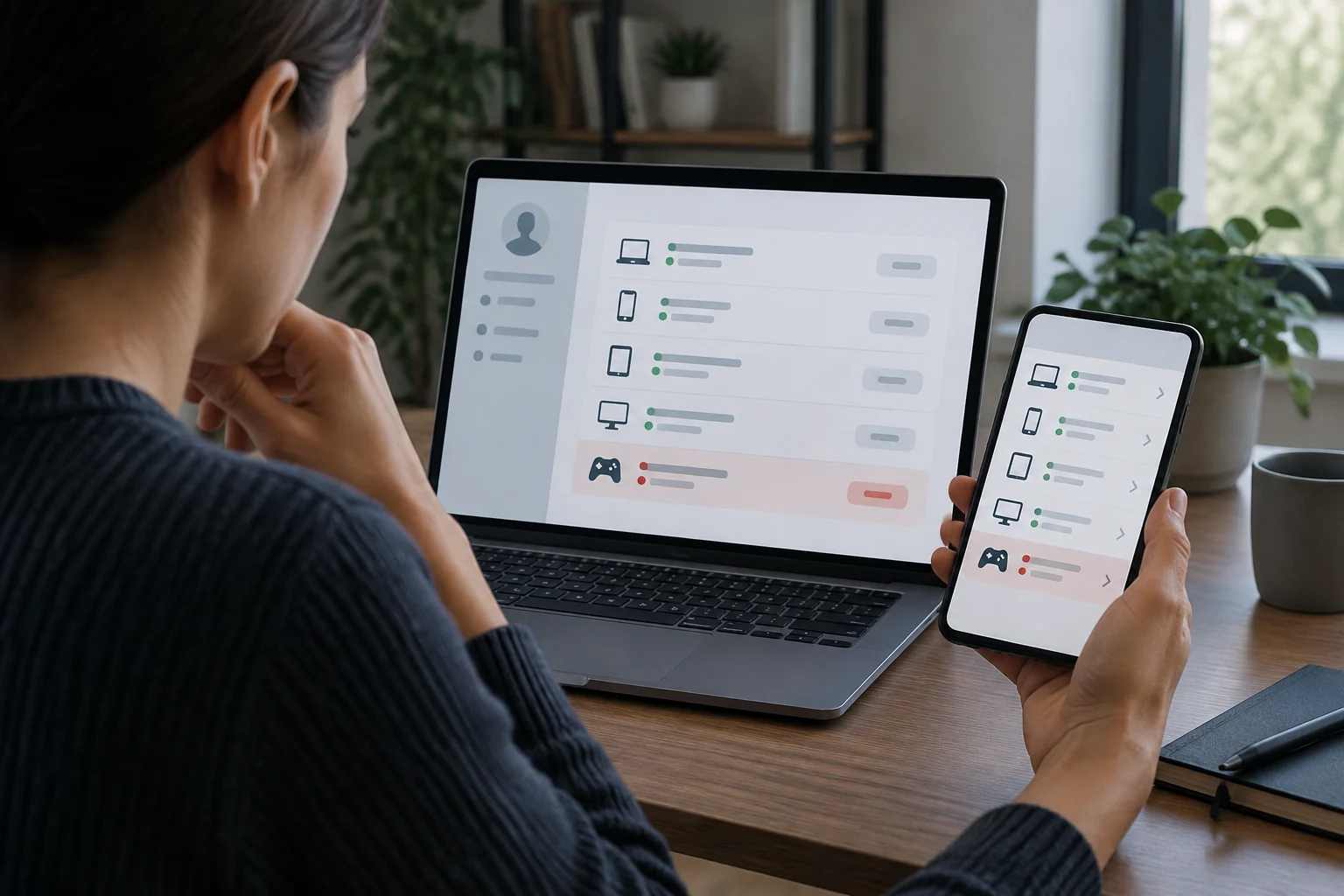
Device lists don’t all show the same thing
Reviewing the devices linked to an account is useful when you lose a phone, sell a computer, or replace a tablet. But begin with an important distinction: a page might show devices with access to an account, recent activity, or devices associated with a profile. These categories are related, but they are not equivalent to a definitive list of active sessions and do not, by themselves, prove that somebody else accessed your account. A listing is information to assess, not an automatic security verdict.
An account can also be used from several browsers or apps on the same device. Conversely, an old entry may remain visible even when you no longer use that device. Interpret each item alongside the information the platform provides—such as device type and last activity, when available—and what you remember. The absence of an alert is not a substitute for checking your security settings. If the page is unclear, consult that provider’s current instructions rather than assuming that an associated device represents an open session right now.
Google: review access and sign out of anything you don’t recognize
Google Account Help lets you check which devices have access to your account and review activity associated with each one. Manage this from the account’s Security section; Google also provides a devices page. If an item looks unfamiliar, open its details and check the information available before deciding what to do. Google’s documentation says that you can use this management tool to sign out of devices that should no longer have access. See Google’s guide and the devices page.
An imprecise device label is not enough to conclude that somebody else accessed your account: a browser session, a shared device, or activity you do not remember may need more context. If you confirm that a device should no longer be connected, use the sign-out option available for that entry. Then review your account security and change your password if you have a specific reason to think someone knows it. Do not share verification codes or follow unexpected links that claim to resolve an alert. Take action through the official account page or app, and distinguish between signing out and simply removing a device from a list.
Apple: check devices where you’re signed in
Apple explains how to review the devices where you have signed in with your Apple Account. The list helps you identify devices linked to the account and, in device management, select one you no longer want associated with it. Apple warns in its guide that removing a device can sign it out of Apple services on that device and prevent it from appearing again until someone signs in once more. Check the current instructions in Apple Support. The available controls and their wording may vary, so use the provider’s current guidance when deciding how to manage an entry.
If you lost the device, you cannot check what is happening on it directly, so also review the security and location options available for your account. If you sold or gave it away, removing it from the list does not replace properly erasing your data before handing it over. If you see a device you do not recognize, first check whether it belongs to a family member or is a device you set up with the same account. The list lets you manage the device’s association with the account; it is not a forensic investigation into who used it. Treat it as one useful account-management tool, not as proof of a person’s identity or actions.
Microsoft: distinguish associated devices from sessions
Microsoft provides a page for managing devices used with a Microsoft account. Its documentation describes managing devices associated with the account, a feature that can help keep the list organized or review a device you no longer use. The official support page explains how to view and manage those devices: Manage devices used with your Microsoft account. This is a device-management tool; its purpose should not be confused with showing every browser session that may be open at a particular moment.
Do not automatically interpret a device listed there as a browser session that is currently open. The page covers associated devices; other sessions or services may require different controls. If you want to close a specific session, check that the available option says it signs you out rather than merely removing the device from a list. For work or school accounts, some actions may depend on the organization’s administration. Use the official help for the specific account and do not apply instructions intended for administrators to a personal account. If you are unsure what a control does, consult the relevant account guidance before using it.
What to do if you find an unfamiliar device
An unexpected entry calls for a check, not a rushed conclusion. Review the device name or type, any activity or date shown by the service, and whether another authorized person may have used the account. Labels can be general, and the time or name shown may not identify a particular person conclusively. If you still do not recognize the device, sign out of it or remove it when the platform offers that option. Consider the entry alongside what you know about your own devices and account use.
If there are other signs—for example, changes you did not make, messages sent without your knowledge, or sign-in alerts you do not recognize—protect the account: change your password using the official website or app, review recovery methods, and turn on two-step verification if available. Also check whether there are connected apps you no longer need. If you cannot sign in, use the official recovery process; do not give your password or codes to supposed agents who contact you. A suspicious listing is a reason to review your security, but it is not, on its own, proof that an intrusion occurred.
Practical checklist when selling, losing, or replacing a device
Review each important account separately: email, Apple, Google, Microsoft, and any other service used on the device. Checking just one list is not enough, because platforms manage activity, sessions, and associated devices differently. Before selling or handing over a device, sign out of your accounts and follow the manufacturer’s instructions to erase your data and unlink the device. Removing a device from an account list is not the same as securely clearing the information stored on it.
As a final check, follow these steps: 1) open the official page by typing its address or using the legitimate app; 2) identify entries you recognize and those that need review; 3) sign out of sessions or remove devices using the appropriate feature; 4) change your password and review recovery methods if you have signs of access by someone else; 5) check the account again after taking action. Menu names may change depending on the version, region, or account type, so follow the provider’s current guide. Keep the distinction between device management and session management in mind throughout the process.