How Android Backups Work
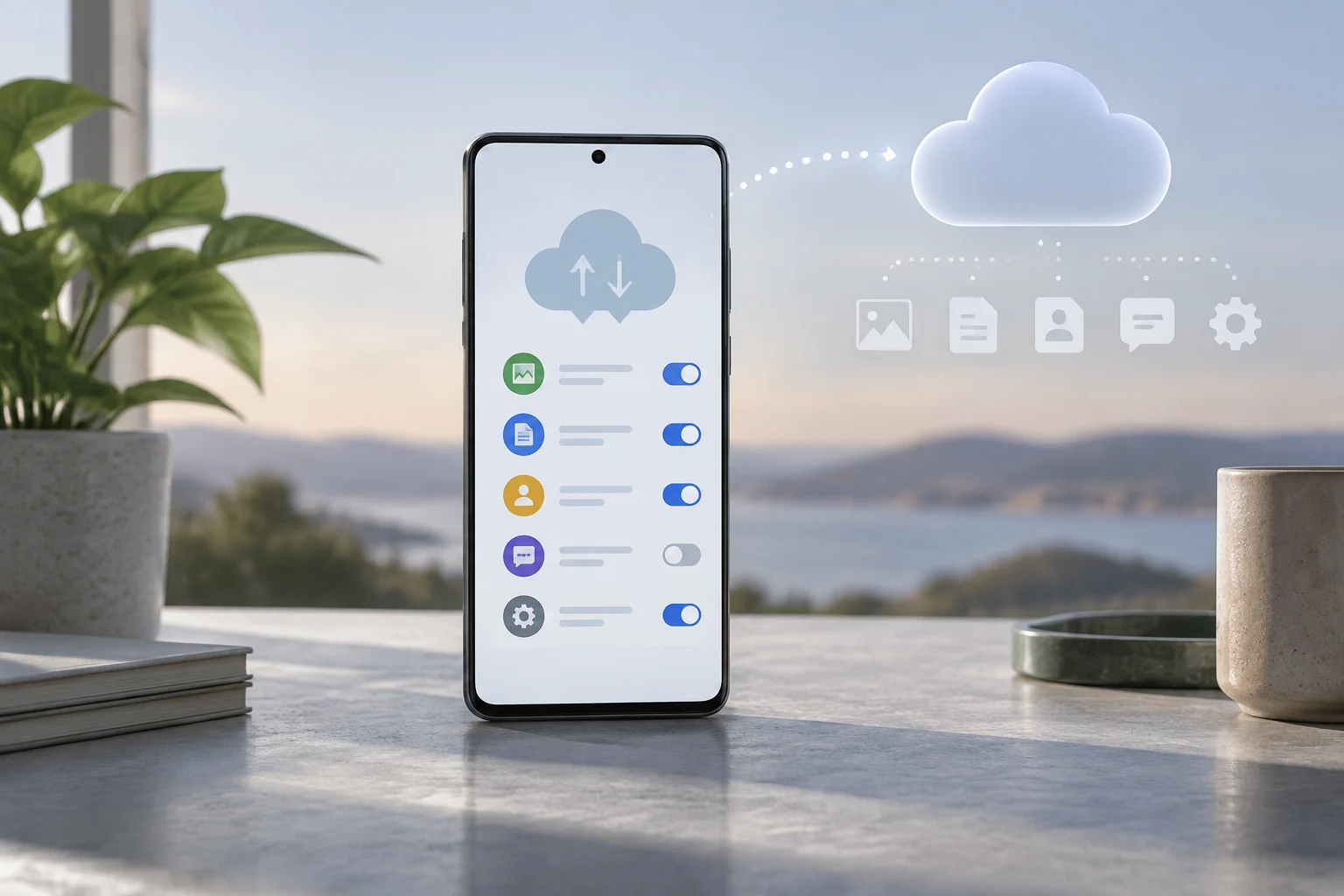
Google's support documentation clarifies that Android devices can create backups of content, data, and settings directly to a Google account. This process allows users to restore information on the original phone or transfer it to other Android devices. Backups are stored in Google's cloud, and the service provides up to 15 GB of storage at no cost, with additional capacity available through Google One subscriptions.
A critical aspect of this system is data encryption. According to Google, all data, including photos, videos, and messages, is encrypted during transfer between the device, Google services, and data centers. Furthermore, specific data types are end-to-end encrypted using the device's screen lock method, such as a PIN, pattern, or password. However, this additional encryption does not apply to photos and videos in Google Photos or MMS media content received from carriers.
What Data Is Included
The documentation specifies that automatic backups include applications, app data, call history, contacts, device settings, and SMS/MMS messages. When using specific Google apps, additional data is backed up, such as RCS messages from Google Messages and call settings from Google Phone. Not all applications support full backup and restoration of their settings and data, which depends on the developer's implementation.
Users can manually trigger a backup through the device settings by navigating to Google services and selecting "Create backup now." The completion of a Google One backup can take up to 24 hours, after which the status will show as "Enabled" under the selected data types.
Transferring Data to a New Device
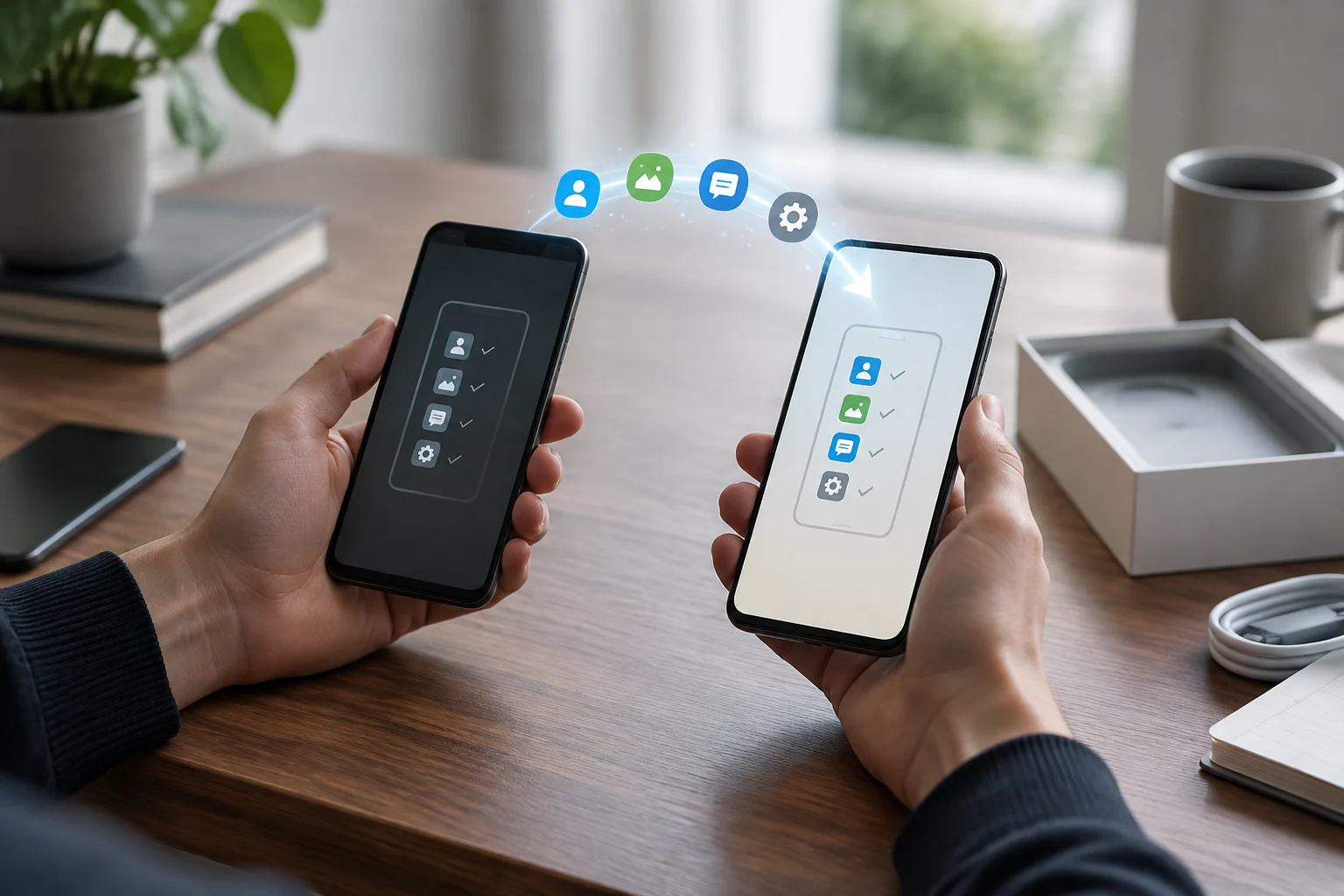
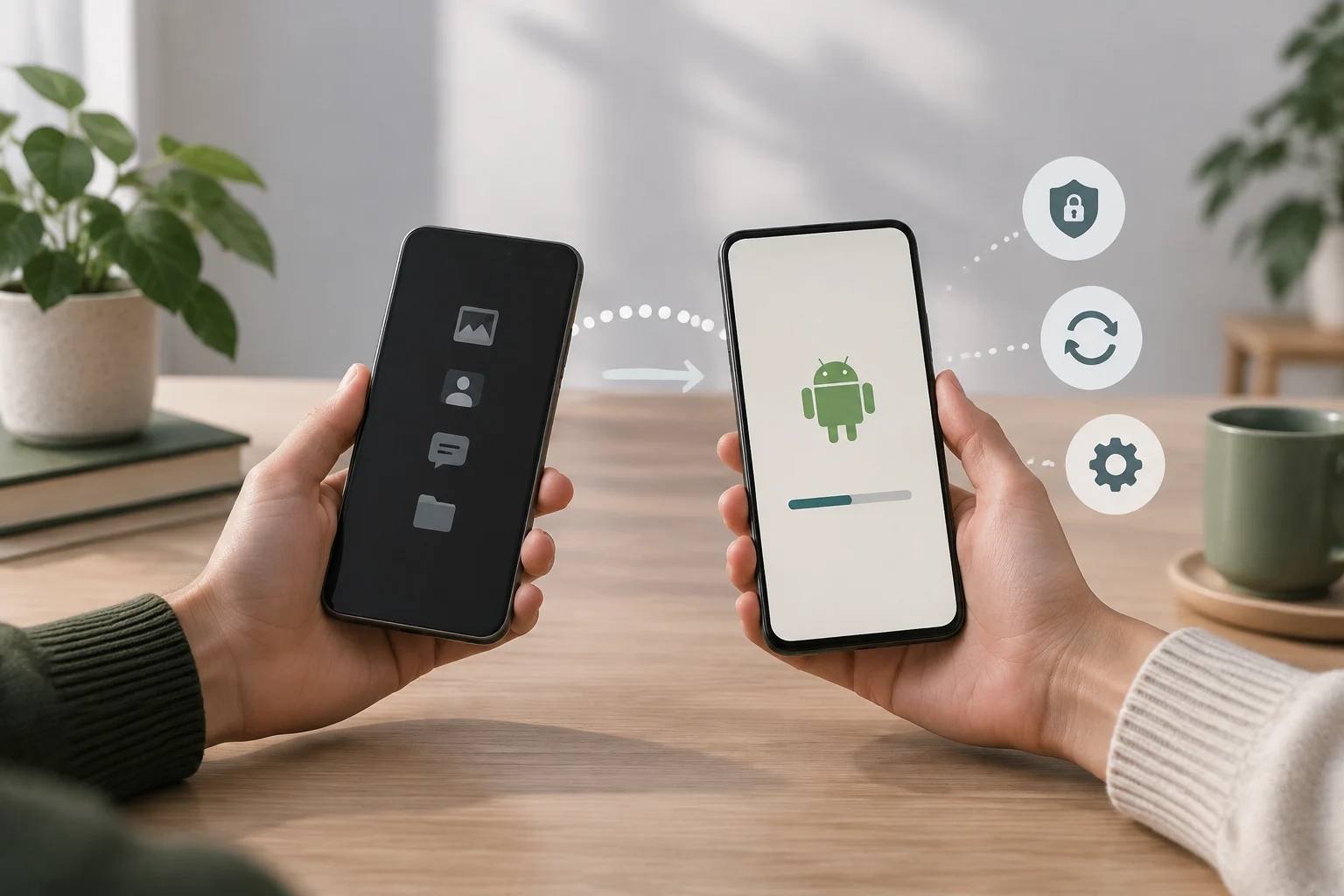
When setting up a new Android device, users can transfer data from an old device using either a cable or a Wi-Fi connection. Both methods support the same data types, including apps, music, photos, videos, contacts, and text messages. The process is recommended to be performed during the initial setup, as the option may not be available later.
The transfer requires an internet connection, and Google recommends connecting both devices to Wi-Fi for stability. If using a cable, the user must ensure the connector fits both devices, potentially requiring an adapter. The transfer can only be performed once, and the duration varies from minutes to hours depending on the amount of data.
Data Exclusions and Limitations
Certain data types are not copied during the standard transfer process. These include downloads like PDF files, media stored in hidden folders, apps not downloaded from the Google Play Store, and data from apps that do not use Android backup. Additionally, non-Google accounts and their associated data are not transferred, nor are contacts and calendars synchronized with services other than Google.
Version compatibility is a significant factor in data restoration. If a backup was created on a device running a newer version of Android, it cannot be restored on a device running an older version. Both devices must have the same version of Android, or the new device must have a newer version to ensure the transfer completes successfully.
Managing and Disabling Backups
Users can manage their backups through the Google account dashboard, where they can view active backups for services like Google Drive and WhatsApp. It is important to note that deleting data from the dashboard may permanently remove data from the device and associated apps. To disable backups, users can navigate to the Google services settings and turn off the Google One backup toggle.
For work or school-managed devices, the ability to create backups may be restricted. Users with a work profile or devices owned by an enterprise may not be able to create personal backups, highlighting the distinction between personal and managed Android environments.