Three Different Ways to Listen to Audio at Home
A stereo pair, a Sonos room group, and an AirPlay stream can all play audio on more than one speaker, but they do not describe the same function. A stereo pair combines two compatible speakers in one room; a group brings Sonos products together to play the same content; AirPlay sends audio to one or more compatible devices.
Choose the option according to the result you want: stereo separation, synchronized playback in several rooms, or streaming from an Apple device. Instructions and requirements depend on the system: a function documented for Sonos does not, by itself, establish how products from other brands behave.
The available sources describe creating and placing Sonos stereo pairs, grouping rooms and adjusting their volume in the app, and streaming with AirPlay. They do not describe Bluetooth behavior across multiple speakers or allow its latency to be compared with these alternatives.
Sonos Stereo Pairs: Compatibility and Setup
Sonos says speakers of the same model can be paired for stereo; it also notes that products with a microphone can be paired with SL versions of their model. Its documentation lists an exception involving the SYMFONISK Floor lamp and SYMFONISK Table lamp (Gen 2), which it treats as related models for this use.
In the Sonos app for iOS or Android, open Settings and, under “Your System,” select one of the speakers you want to use. Then choose “Set Up Stereo Pair” and follow the app’s instructions. If you are setting up two speakers of the same model for the first time, Sonos says the option to create a pair appears during initial setup.
A stereo pair appears in the app as a single room. If the products have already been added to the system, Sonos’s guide lets you begin pairing from settings; for the S1 Controller app, it provides a different route from the “System” tab. Follow the instructions for the app you use rather than assuming that the labels are identical in both.
Placement: Distances Recommended by Sonos
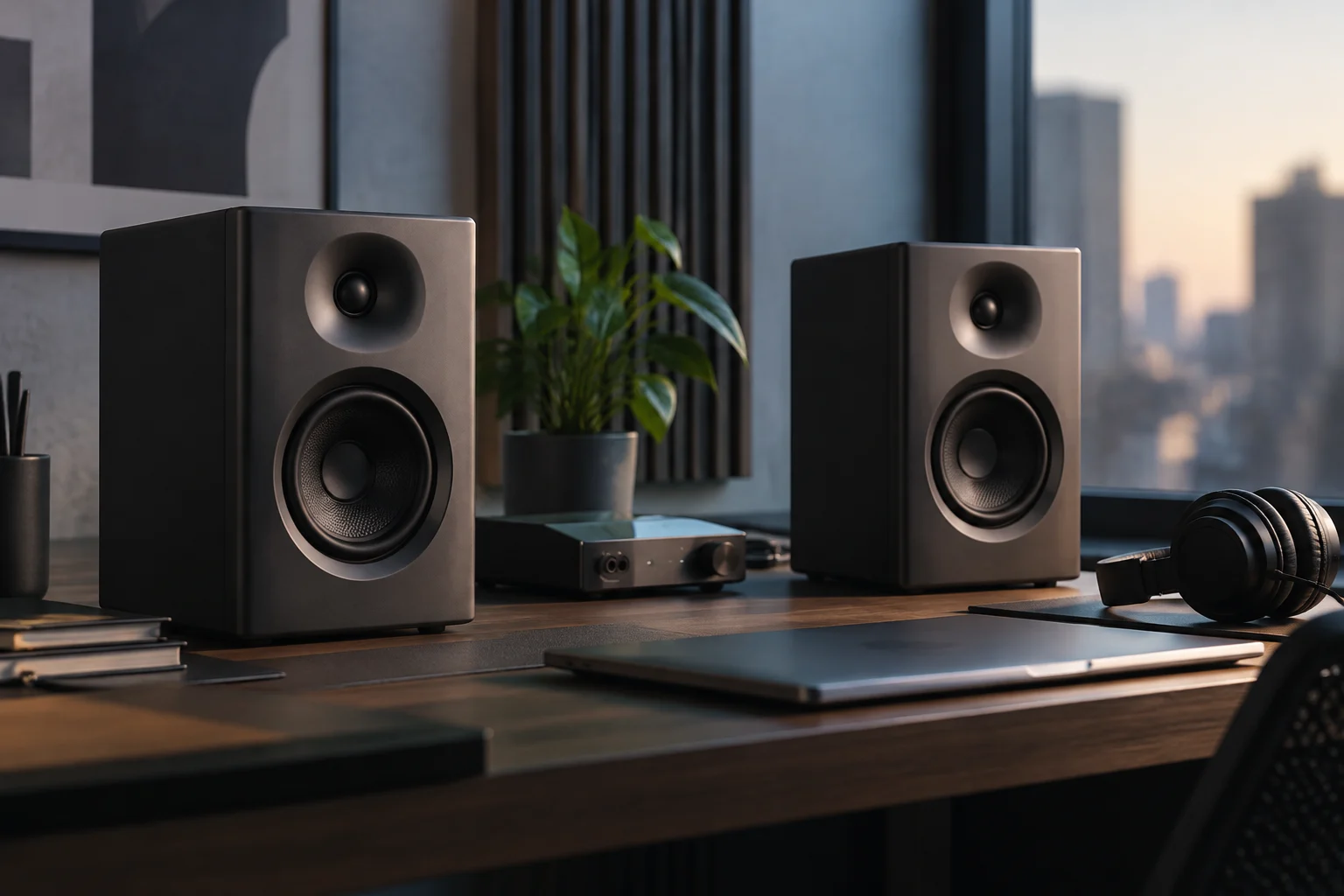
For a stereo pair, Sonos recommends leaving 8 to 10 feet (approximately 2.4–3 meters) between the speakers. This is the manufacturer’s placement reference, not a universal distance for every room, model, or installation.
The company also places the preferred listening position 8–12 feet from the paired speakers. According to its guide, listening closer increases the perception of bass, while greater distance improves the stereo image. These recommendations can help you test an initial placement and then adjust the listening position to suit the available space.
A practical example is to place the speakers at the recommended distance, sit in your usual listening spot, and assess the result. If the room cannot accommodate those measurements, the guide does not say that the pair will stop working: these are recommended distances, not mandatory compatibility conditions.
Group Sonos Rooms for Synchronized Playback
Sonos grouping lets you bring two or more products together to play the same content in sync. The documentation distinguishes this grouping from a zone, which it defines as a more permanent grouping of products for a room or area. It does not state that group synchronization depends on Wi-Fi or specify here which model combinations are compatible.
In the app, open the Group menu from the “Now Playing” bar and check or uncheck the rooms you want to add or remove. In the web app, Sonos says you can open the menu using the grouping icon next to one of the rooms. In either case, select “Apply” to save your changes.
If your Sonos system has three or more products, the app lets you choose “Everywhere” to group them all. You can also group rooms using physical controls: Sonos explains that holding down the Play/Pause button on a product joins it to another room or group that is playing audio. Available options depend on the control method described for each system.
Group Volume and the Difference Between a Group and a Zone
Once two or more rooms are grouped, the Sonos app lets you change the volume of the entire group or adjust each room separately. Group control therefore does not require every room to use the same volume setting: products in the group can also be adjusted individually.
The term “group” refers to rooms brought together for the playback described by Sonos. A zone, by contrast, is a more permanent grouping intended for a room or area. Keeping this distinction in mind helps separate a playback selection from a more stable system arrangement, without confusing either with a stereo pair.
For example, to hear the same content in several rooms, use Grouping and then adjust the overall volume or the volume of an individual room. For two speakers that should work as a stereo pair in one room, use the dedicated stereo-pair setup option; the two functions serve different purposes.
AirPlay: Stream from an iPhone or iPad
AirPlay can send music, podcasts, and other audio to an Apple TV, HomePod, compatible speakers, or compatible smart TVs. Apple says audio can be played on multiple speakers in sync. To stream from an iPhone or iPad, Apple requires the device and the speakers or Apple TV to be on the same network.
To select multiple destinations from an iPhone or iPad, start playing audio and open Control Center. Tap AirPlay and select each speaker or TV to which you want to send the content. You can also open an audio app, tap AirPlay, and choose one or more speakers. The precise way to open Control Center depends on the device model and the iOS version specified by Apple.
AirPlay can also suggest or establish automatic connections with devices you use frequently, depending on AirPlay and Continuity settings. On an iPhone or iPad, open Settings, tap “General,” then “AirPlay & Continuity” and “Automatically AirPlay.” Apple describes the options “Never,” “Ask,” and “Automatic”; for automatic or suggested connections, it specifies that devices must be on the same Wi-Fi network.
What Can Be Concluded About Bluetooth
The cited sources describe Sonos and AirPlay functions, but do not document Bluetooth as a way to group several speakers or establish general synchronization or latency limits for that technology. These instructions therefore do not support concluding that Bluetooth always fails for multiroom playback, works the same on every device, or has a particular latency.
If you want playback in several rooms, consult the instructions from your device manufacturers and check which grouping or streaming functions they support. For Sonos products, the grouping guide explains how to bring rooms together; for AirPlay-compatible destinations, Apple’s documentation explains how to select multiple speakers and which network condition applies when streaming from an iPhone or iPad.
The practical choice depends on the compatibility documented for the specific equipment: a Sonos stereo pair for two paired speakers, Sonos grouping to play the same content in selected rooms, and AirPlay to stream from Apple devices to compatible destinations. The functions described do not replace manufacturers’ specifications for Bluetooth connections.