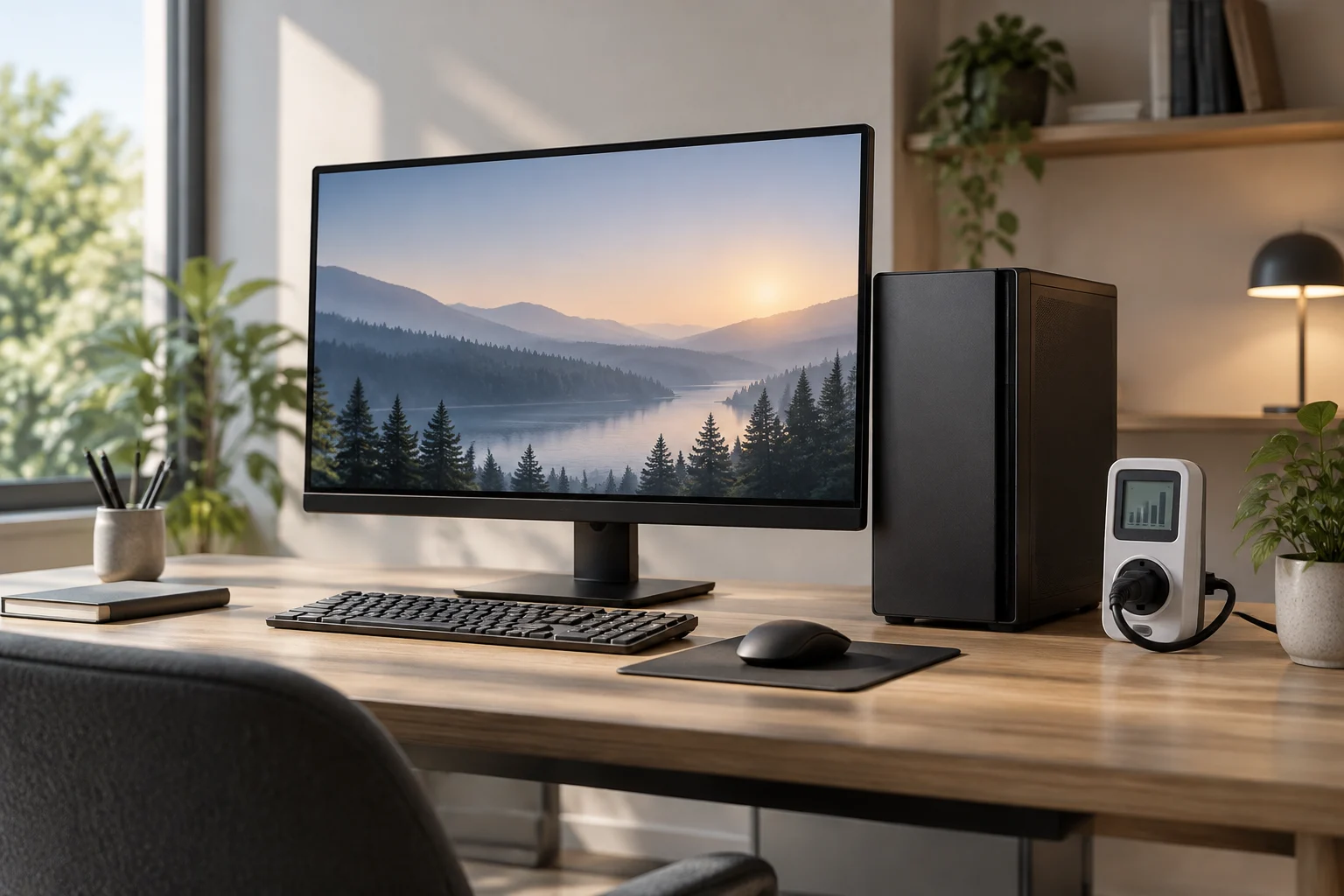
Measure the whole setup, not just the computer
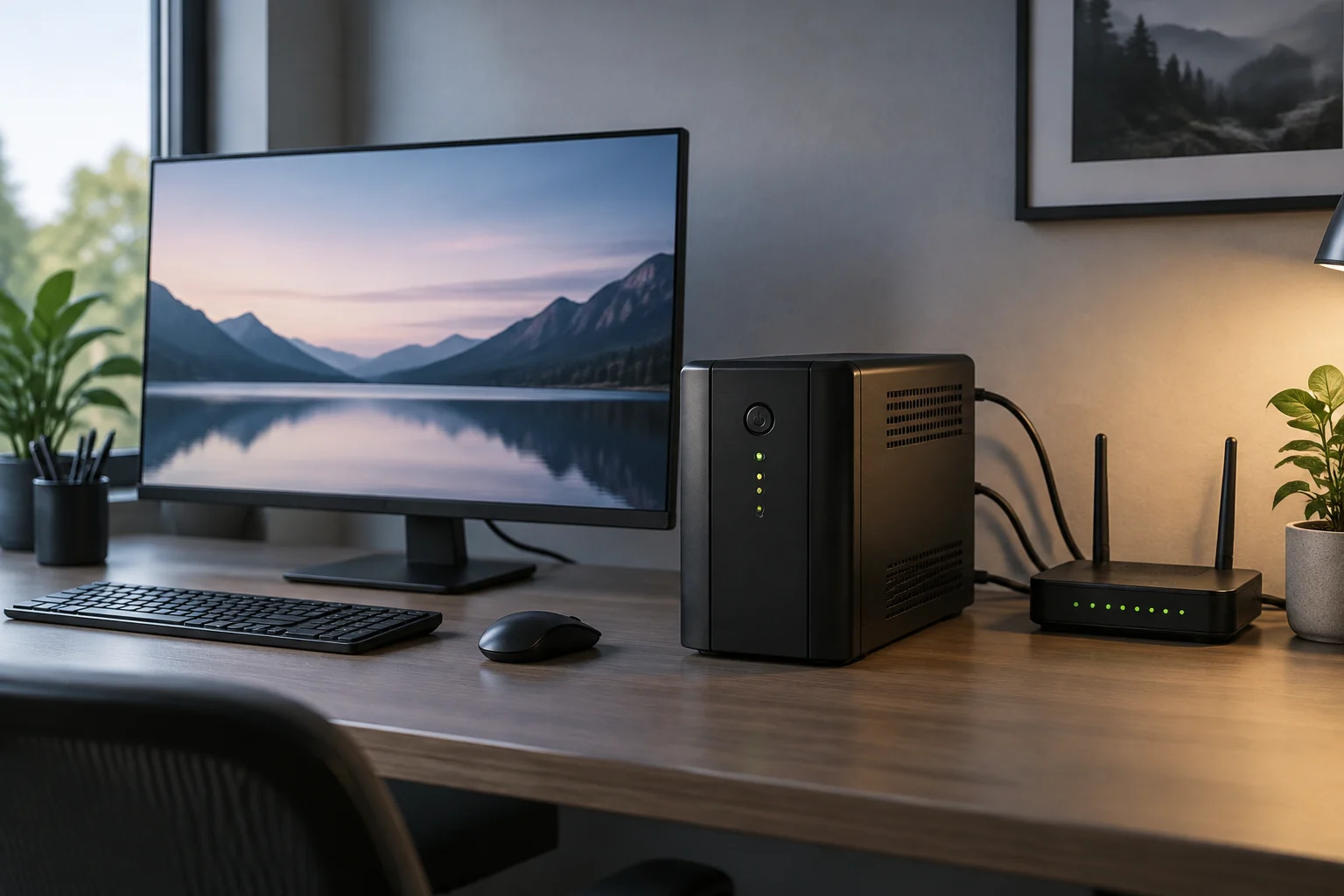
Decide which devices to include in your calculation: the computer, external monitor, docking station, and other home-office equipment. List what stays plugged in and when it is used. The FEMP guide notes that pairing a laptop with an external monitor or docking station can increase energy use, so compare the complete setup you plan to use.
Look for power data by mode for the specific model and configuration, along with the measurement conditions. If comparable data is unavailable, do not replace it with an assumption of constant power use. The EIA distinguishes power at a given moment, measured in W, from energy accumulated over time, measured in Wh or kWh; estimating energy requires both power and time.
To compare configurations doing equivalent work, use energy-use data for the complete setup and its different modes. Do not treat the power rating on a charger or power supply as a measurement of constant consumption. Note differences in tasks, screens, and peripherals before comparing a desktop with a laptop.
Sleep, hibernate, and shut down serve different purposes
Sleep reduces power use and lets you resume work quickly, making it practical for short breaks. Windows lets you configure what happens when you close the lid or press the power button; menus and options can vary by version, device, and manufacturer.
In Windows, hibernate saves your work state and uses less energy than sleep, but takes longer to resume. It is not available on every computer. It can be useful for a longer absence when you want to return to your session, but check that your computer supports it and that connected devices work properly after resuming.
Shutting down closes the session and stops the computer’s normal operation. It can be a straightforward choice for long periods without use; however, computers providing network services, running backups, or needing to receive scheduled tasks may need to stay on. The right mode depends on the task and the time away, not a universal rule.
| State | Typical use | What to consider |
|---|---|---|
| Sleep | Short breaks and quick resumption | Keeps a session ready to continue; may use some energy. |
| Hibernate | Longer absences when you want to restore your session | Uses less energy than sleep, but takes longer to resume and may not be available. |
| Shut down | Long periods with no pending tasks | Stops normal operation; first check backups, updates, and network needs. |
Adjust the screen and system to your routine
Set screen and system inactivity timers separately. Turning off or suspending the display before the computer can be useful if the computer needs to keep working, such as during a backup. If no tasks are pending, setting the computer to sleep automatically reduces time spent in an active state unnecessarily.
In Windows, power options let you change what happens when you close the lid or press the power button, as well as set sleep timers. Adjust these settings to match your routine and the tasks your computer needs to perform.
ENERGY STAR’s computer specification, effective October 27, 2025, covers efficiency in modes such as off, sleep, and idle, along with power-management features. Check the documentation and settings for your model. Enable power savings that fit your work and confirm which tasks need to continue. An animated screensaver is not the same as turning off the display.
Compare computers by task and total energy use
Start with the tasks you actually do when choosing a computer: browsing and documents, video editing, design, programming, and gaming can require different capabilities. A laptop may suit mobility and save space; a desktop may offer different expansion or repair options. Neither form factor guarantees lower energy use across all configurations and patterns of use.
Count the complete setup: external monitors, docking stations, and other accessories add to energy use when active. In its federal procurement guide, the U.S. Department of Energy’s FEMP specifically notes that pairing a laptop with an external monitor or docking station can increase energy use. This is a useful comparison point, not a consumption figure for every home-office setup.
Compare specific models doing the same work, not just their processors. If the manufacturer publishes power-use data by mode, check the conditions; if not, measuring the configuration you plan to use is more relevant than relying on the maximum power rating listed for an adapter.
For purchases in the United States, ENERGY STAR offers a search tool for certified computers and filters by type and features. Certification indicates that a model meets the program’s energy-efficiency criteria; it does not predict exactly what a household will pay, because that depends on configuration, hours of use, and local electricity prices.
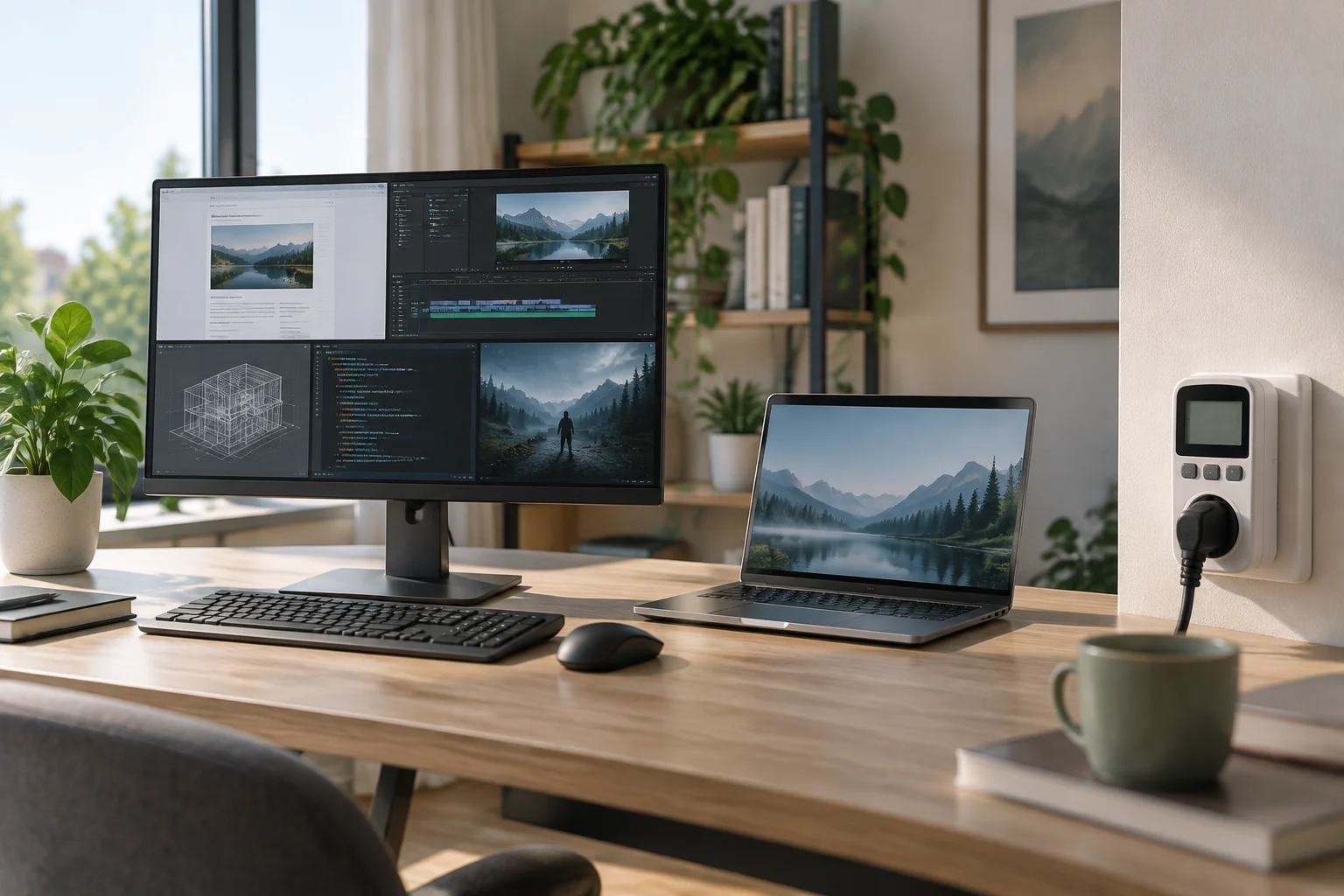
Calculate kWh and cost using your hours and rate
The EIA explains that 1 kW equals 1,000 W and that 1 kWh is 1 kW used for one hour. To estimate a period, use: kWh = power in W × hours in the period ÷ 1,000. The power figure should represent that mode of use; an instantaneous reading may not represent the entire period. Calculate each period separately, add the results, then multiply the total kWh by the applicable rate to estimate the variable portion of the cost.
Original, entirely hypothetical example: a computer uses 60 W for 6 hours a day and 2 W for 4 hours a day in sleep mode, over 365 days. Use: 60 × 6 × 365 ÷ 1,000 = 131.40 kWh. Sleep: 2 × 4 × 365 ÷ 1,000 = 2.92 kWh. Total for these periods: 134.32 kWh. At a fictional rate of $0.20 per kWh: 134.32 × 0.20 = $26.864, or $26.86 rounded to two decimal places. The power levels, schedules, and rate are assumptions for illustrating the calculation, not measurements of a computer or a recommended utility plan.
| Period in hypothetical example | Assumed power | Hours per day | Energy over 365 days |
|---|---|---|---|
| Use | 60 W | 6 h | 131.40 kWh |
| Sleep | 2 W | 4 h | 2.92 kWh |
| Total for these periods | — | 10 h | 134.32 kWh |
The example covers only 10 hours of each day: the remaining 14 hours are not modeled. It is not the computer’s full annual energy use and does not include a monitor, other peripherals, changes in workload, taxes, or fixed charges. To estimate a full year, add the other modes and devices using their power levels and hours, without counting the same period twice; use your actual rate structure to estimate cost.
Chargers, power strips, and background tasks
FEMP’s U.S. federal procurement guide advises unplugging a laptop power adapter after charging the battery. This is guidance for that federal context, not a household requirement. At home, follow the manufacturer’s instructions and consider which functions need to remain available; do not assume this advice guarantees a particular amount of savings.
Before cutting power, save your work and check that updates, syncing, or backups are not running. A networked computer may need to stay on to provide files or receive maintenance. Do not interrupt an active task to save energy: if the system allows it, schedule shutdown or sleep after the task finishes.
A switched power strip lets you control power to connected devices. Do not use it to cut power while data is being written or the system is updating. For managed computers or devices with network functions, follow the applicable instructions and policies.
ENERGY STAR and EPEAT address different questions
ENERGY STAR focuses here on energy efficiency: its search tool helps locate certified computers, and its label applies to models that meet the program’s criteria. Check the listing for the exact model and configuration; do not assume every computer in a product family has the same certification status.
EPEAT 2.0 currently includes the joint Computers and Displays category. Criteria for this category include climate change mitigation, sustainable use of resources, chemicals of concern, and responsible supply chains. Products meeting EPEAT 1.0 criteria for computers and displays will remain in the registry until July 1, 2027. Check the model’s version and status in the registry; EPEAT and ENERGY STAR assess different aspects.
Use labels as one part of your decision, and also compare your needs, total cost, and repair options. Before replacing a computer, check whether your current one still meets your needs, what maintenance it supports, and what repair or support options are available. Do not infer a complete environmental footprint from the electricity bill: this guide estimates only use-phase energy and its variable cost, not manufacturing, transport, or end of life.
Quick checklist before changing settings or buying
- Note which devices stay on and when.
- Check screen and sleep timers; allow for tasks that need network access or backups.
- Measure watts by mode or use comparable data for the specific model.
- Calculate kWh and cost using actual hours and your electricity rate.
- For purchases in the United States, check the model with ENERGY STAR; for EPEAT, verify its category, version, and registry status.
- Consider maintenance and repair if the computer still meets your needs.