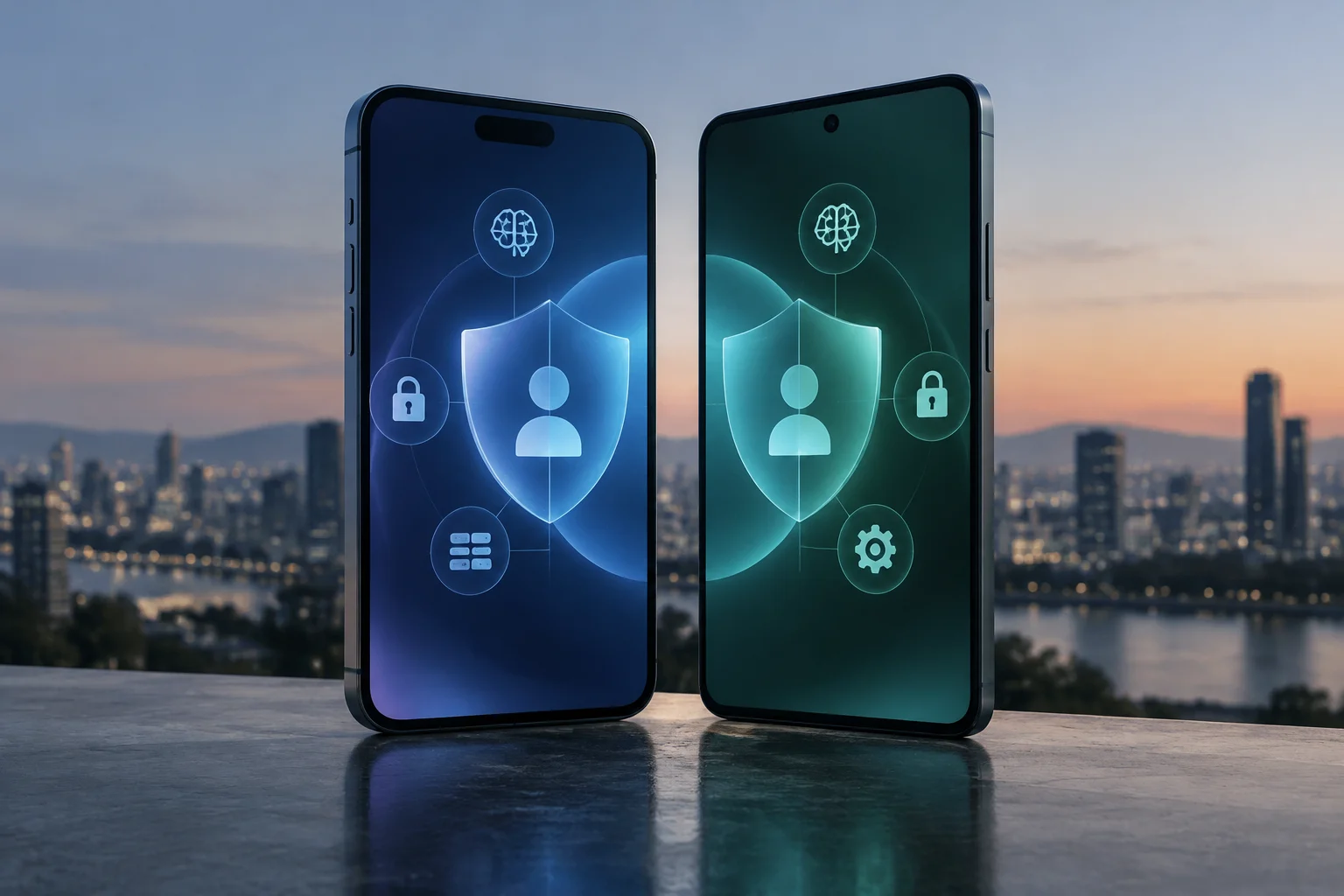
The opacity of AI processing in modern operating systems
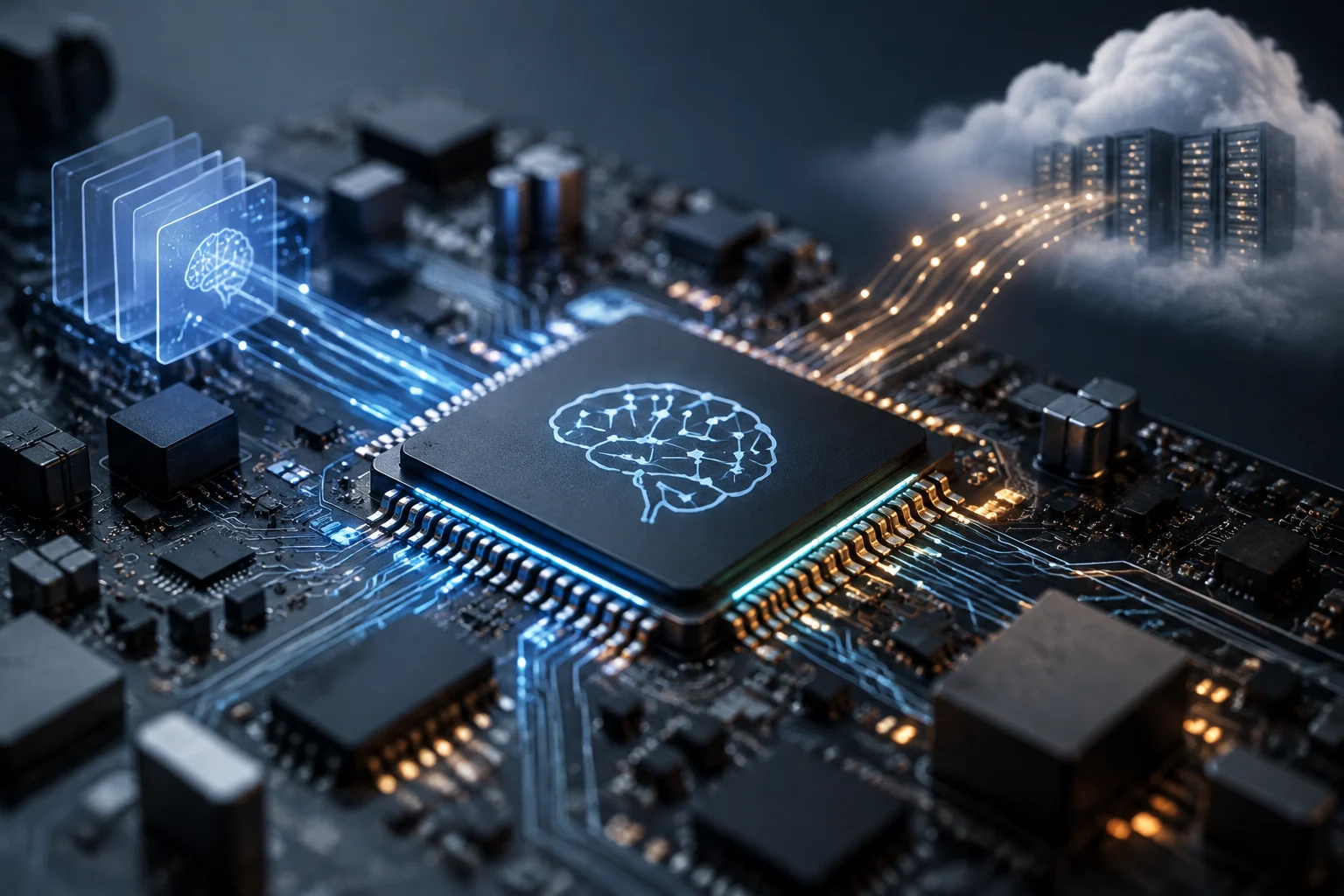
Current operating systems integrate artificial intelligence features that promise privacy, but the technical reality is more complex. The distinction between local and cloud processing is not binary: most modern systems use a hybrid approach where the software decides, task by task, whether work should be done on the device or sent to the cloud. This opacity creates uncertainty for advanced users and IT professionals who need to ensure that sensitive data does not leave the device.
The term AI PC or Copilot+ PC does not mean that all AI tasks are executed locally. According to Microsoft, these devices are designed to accelerate specific functions like image effects, transcription, and search via a Neural Processing Unit (NPU), but the operating system may resort to the cloud when a task requires more computational power. Understanding this architecture is the first step to auditing your device's privacy.
Step 1: Identify hardware architecture and NPU status
The first step to verify local processing is to confirm the presence and status of the NPU. In Windows 11, you can open Task Manager and navigate to the Performance tab to see if a dedicated NPU section appears. If your device is a Copilot+ PC, the NPU must be capable of performing at least 40 trillion operations per second (TOPS), a specific Microsoft requirement to enable advanced AI functions locally.
In macOS, the situation is different. Apple does not use the NPU term in the same way, but integrates AI into the Neural Engine of its Apple Silicon chips. You can verify the use of this unit through Activity Monitor, observing power consumption and AI core load. If you do not see activity in the NPU or Neural Engine when using an AI feature, it is likely that processing is being done on the CPU, GPU, or, more concerning, in the cloud.
Hardware verification criteria
- Windows 11: Presence of NPU in Task Manager with capacity ≥ 40 TOPS.
- macOS: Visible activity in the Neural Engine of the Apple Silicon chip.
- Android: Support for Android Virtualization Framework (AVF) and pKVM.
Step 2: Inspection of network permissions and outgoing traffic
The most direct test to determine if data leaves the device is to monitor network traffic. Tools like Wireshark or command-line tools like netstat allow you to detect if the AI assistant generates outgoing traffic when starting a query. If you observe data packets directed to Microsoft, Google, or Apple servers when performing an AI task, the processing is not 100% local.
In Windows 11, Microsoft has introduced Microsoft Execution Containers (MXC) to isolate AI agent sessions, but this does not prevent data from being sent to the cloud if the task requires it. In Android, the AISeal architecture uses a protected virtual machine (pKVM) to isolate personal data, but it is crucial to verify if the AI application has active network permissions. A local model should not need an Internet connection to function, unless it is downloading updates or additional models.
How to interpret network traffic
- Start an AI query in your operating system.
- Open Wireshark or use
netstat -anto filter active connections. - Identify destination IP addresses: if they are provider cloud servers, processing is remote.
- If there is no significant outgoing traffic, processing is local.
Step 3: Review of privacy settings and local models
Each operating system offers configuration options that allow the user to choose between local and cloud processing. In Windows 11, features like system search and live captions can be configured to use device-based processing, while other features, such as complex image generation, may require the cloud. You must review privacy options in Settings > Privacy & security > AI to see which features are enabled for local execution.
In Android 17, Google has introduced AISeal, an enclave architecture that isolates personal data in a hardware-protected virtual machine. This means that, even if the AI model runs locally, the data it uses is cryptographically isolated from the host operating system. You can verify if your device supports AISeal by reviewing Android security updates and the presence of Android Virtualization Framework (AVF).
In macOS, Apple Intelligence is designed to be private at every step, but some advanced features, such as AI photo editing or semantic search, may use the cloud if the device does not have enough power. Apple allows users to disable cloud use for certain features in Settings > Apple Intelligence and Siri, forcing local execution whenever possible.
Step 4: Disconnection test to confirm local execution
The most practical and definitive method to verify if an AI feature runs locally is the disconnection test. Disconnect your device from the Internet (disable Wi-Fi and mobile data) and perform the AI task you want to audit. If the feature continues to operate correctly, processing is local. If it fails, shows a connection error, or degrades significantly, it depends on the cloud.
This test is especially useful for features like voice transcription, file search by content, or summary generation. On a Copilot+ PC, Microsoft claims that over 2 trillion local inferences are performed per month, suggesting that many basic functions work offline. However, not all features are optimized for local execution, so the disconnection test is the only way to confirm it for each specific case.
Limitations of the disconnection test
- Some features may have local cache that allows brief offline operation.
- Large AI models may take longer to run locally than in the cloud.
- Response quality may vary between local and remote processing.
Privacy risks and recommendations to maintain control
Using AI in the cloud carries significant privacy risks, especially when dealing with sensitive data such as emails, work documents, or personal information. Although operating system providers claim that data is encrypted and not stored, transmission of data to external servers always introduces a potential risk vector. To minimize this risk, it is recommended to use local processing whenever possible and periodically verify privacy settings.
Practical recommendations include: 1) Disable AI features you do not need and that require the cloud. 2) Use the disconnection test to audit critical features. 3) Review network permissions of AI applications. 4) Keep the operating system updated to benefit from security improvements like AISeal in Android or MXC in Windows. 5) Consider using open-source local models, such as Gemma, in development environments where privacy is critical.
In conclusion, privacy in the era of AI integrated into operating systems is not an automatic promise, but a configuration that must be actively managed. The advanced user must assume the role of auditor of their own device, using the technical tools described in this guide to verify data flow and make informed decisions about which AI features to use and how to configure them to maximize privacy without sacrificing functionality.