What Generative Fill Does in Photoshop
Generative Fill is a Photoshop feature powered by Adobe Firefly. Adobe describes it as a tool for adding, extending, or removing image content through text prompts. In its May 2023 announcement, Adobe also explained that content could be generated without entering a prompt, allowing the system to propose content based on the image.
According to Adobe, Photoshop analyzes surrounding areas and generates content intended to match visual aspects of the scene, such as lighting and perspective. The company warns that some results may be surprising or may not match what the user had in mind. Treat each generation as a visual proposal, not as a guaranteed exact reconstruction.
Adobe announced Generative Fill as integrated with Photoshop’s selection tools and described a contextual taskbar that appeared after making a selection. That description applies to the beta application presented in May 2023; the location and availability of controls may vary between versions. For current interface instructions, consult the help documentation for the version you use.
A Generative Layer for Reviewing the Edit
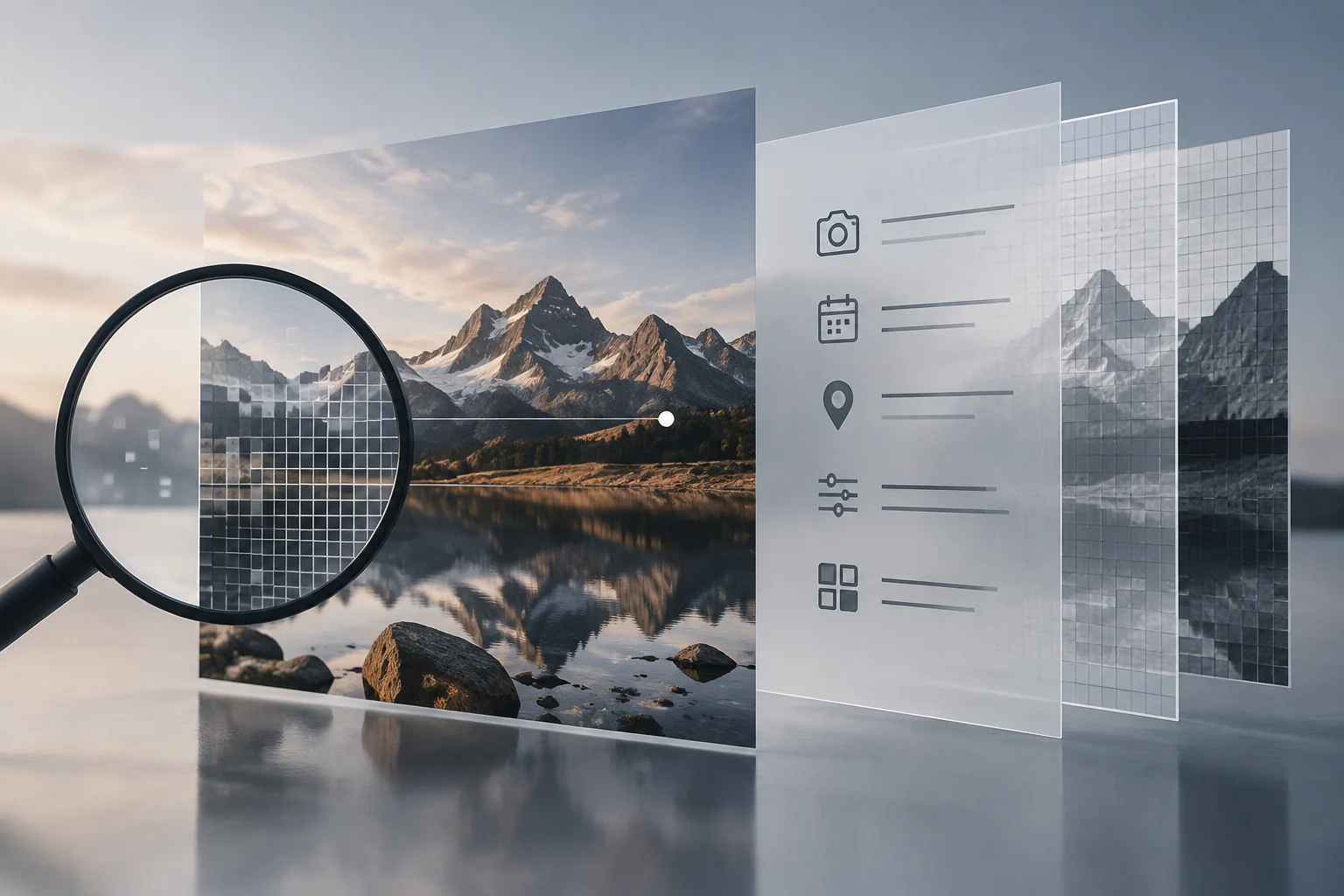
Adobe states that generated content is created on a new generative layer. According to the company, this enables nondestructive work and lets users reverse the effects without affecting the original image. Keeping the content separate makes it easier to compare the generation with the starting image and retain alternatives while deciding which result to use.
In practice, review the generated layer before incorporating it into a final composition. Check whether the edges fit the surroundings, whether the perspective looks coherent, and whether unwanted elements have appeared. If the result is unsuitable, you can discard it or generate another alternative; exact layer controls depend on the options available in your version of Photoshop.
Adobe says that Photoshop’s usual tools can be used to adjust generated imagery. A cautious workflow is to correct important defects with those tools and inspect the result at different scales. Human review is especially important when the image must preserve specific details or represent a scene faithfully.
Generative Fill and Generative Expand: The Difference
The main difference is where new content is needed. Adobe recommends Generative Fill for replacing or removing content within an image, and Generative Expand for extending the canvas outward, beyond the original edges. These tools are designed for different tasks; their names are not interchangeable labels for the same operation.
If you want to remove an element within the existing frame, Adobe describes Generative Fill as the tool for that task. If the issue is a lack of space around the subject or a need to widen the frame, Generative Expand is the relevant option. Adobe’s page describes the latter as a way to generate content outside the original boundaries and blend it with the existing image.
Adobe presents Generative Expand as an option for changing proportions and creating additional space around a subject, for example to make a composition more panoramic or vertical. The choice depends on whether you want to change content inside the image or extend its edges. In either case, review the generated result before using it.
A Workflow for Generating and Reviewing
- Define the change you need: add, extend, or remove content within the image. Adobe describes Generative Fill as integrated with selection tools, although the specific controls may vary by version. To expand the canvas beyond the original edges, choose Generative Expand.
- If you use Generative Fill, make a selection corresponding to the area you want to modify. Decide whether to enter a text prompt: Adobe says generation can be performed with or without text. A brief prompt can specify the content you want; without one, the system may propose a generation based on the image.
- Generate and examine the alternatives available in your version. In its May 2023 announcement, Adobe said each prompt produced three options and that users could continue generating. That number describes the version presented at the time and should not be treated as an invariant feature of all current versions.
- Review the result carefully and, if necessary, adjust it with conventional Photoshop tools. Check continuity, edges, shadows, and perspective rather than assuming generation will always handle them correctly. Adobe explains that the application’s usual tools can be used to adjust the image.
- Keep an editable copy if you need to compare layers or alternatives again. The generative layer separates new content from the original image, but the sources consulted do not establish a required file format or a universal saving routine. Choose the final format according to the image’s destination and whether further editing will be needed.
Limitations and Terms of Use
Generation does not guarantee a result that matches the user’s intent. Adobe warns that some outputs may be surprising or unexpected, and says the tool is not suitable for every scenario. If specific details matter, such as an object’s exact shape or the continuity of a shadow, inspect the image and make any necessary corrections before using it.
Access and usage terms depend on the product and the conditions applicable to the feature. The May 2023 announcement concerned Generative Fill in the Photoshop beta application and stated that it was then unavailable for commercial use and accepted text prompts only in English. This information describes the context of that announcement, not necessarily the current terms for every version.
On its Generative Expand page, Adobe says images created with Firefly models and generative features without a beta label can be used commercially. That statement is limited to the conditions Adobe describes and is not universal authorization for every piece of content or use. Before using an image commercially, consult the terms applicable to the specific product and model.
Which Tool to Choose for Each Goal
| Goal | Tool | What It Modifies |
|---|---|---|
| Remove or replace content within the image | Generative Fill | Content inside the frame |
| Extend the canvas beyond its edges | Generative Expand | Area outside the original boundaries |
| Add space around the subject | Generative Expand | Canvas and composition |
| Adapt a composition to a wider frame | Generative Expand | Image extension |
The practical rule is simple: Fill works inside the image; Expand extends its edges. If the change you want does not clearly fit either task, first define which part of the composition needs to change, then choose the tool according to that goal.
Keep alternatives separate while comparing them, and set aside time to review details. Selection, generation, and retouching offer different ways to control the edit, but they do not remove the need to decide whether the result is suitable for its intended use.