USB-C Does Not Always Mean Video Output
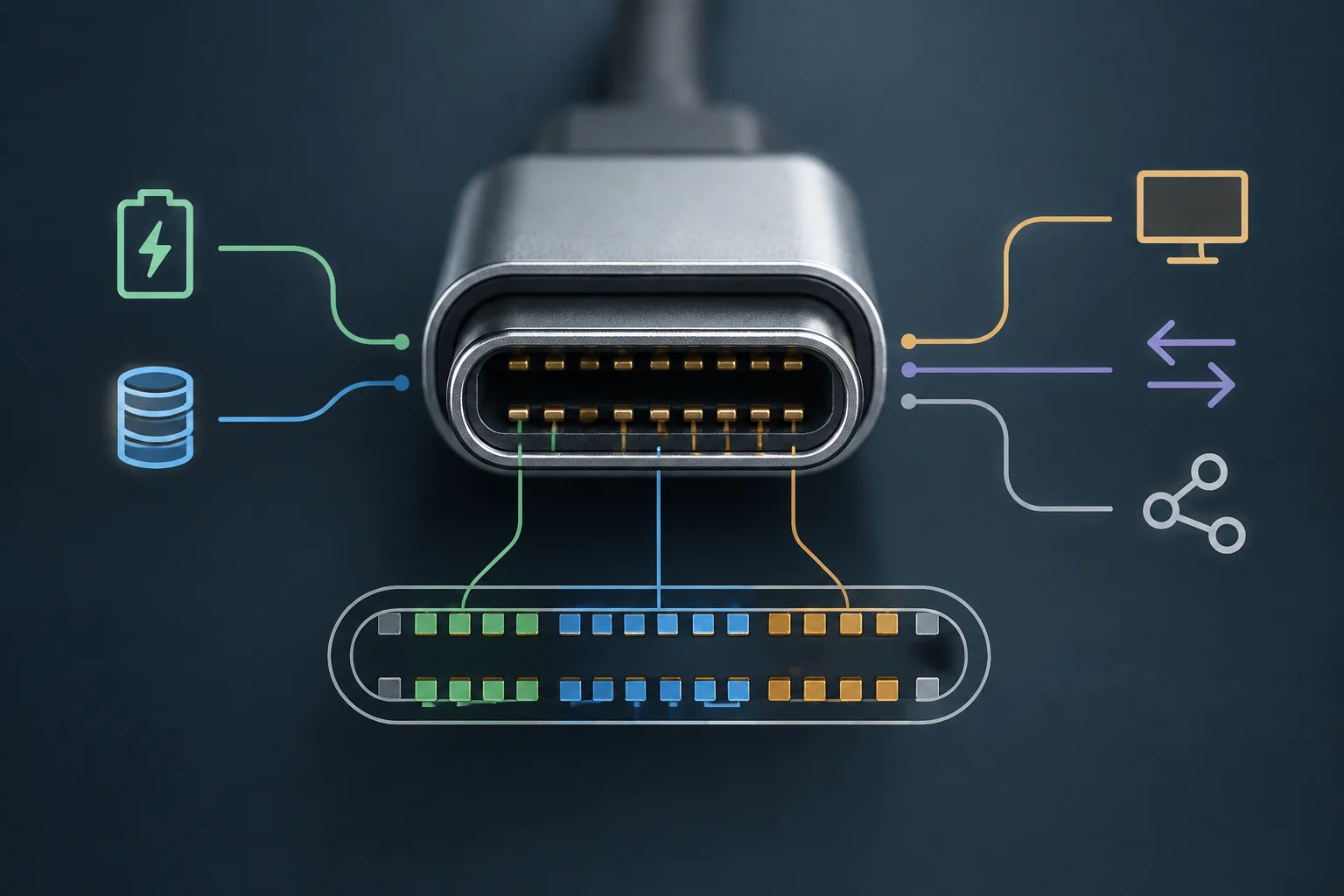
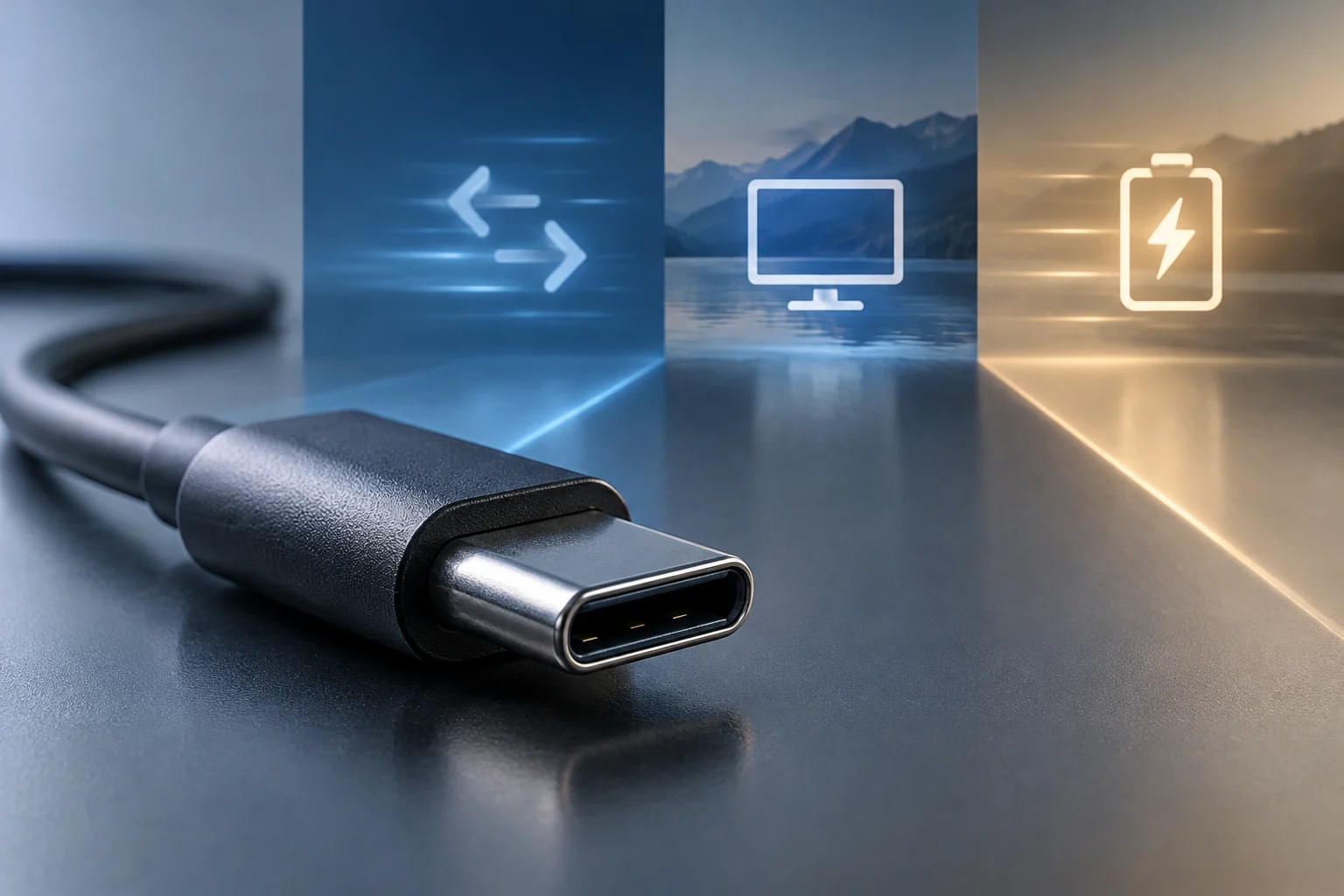
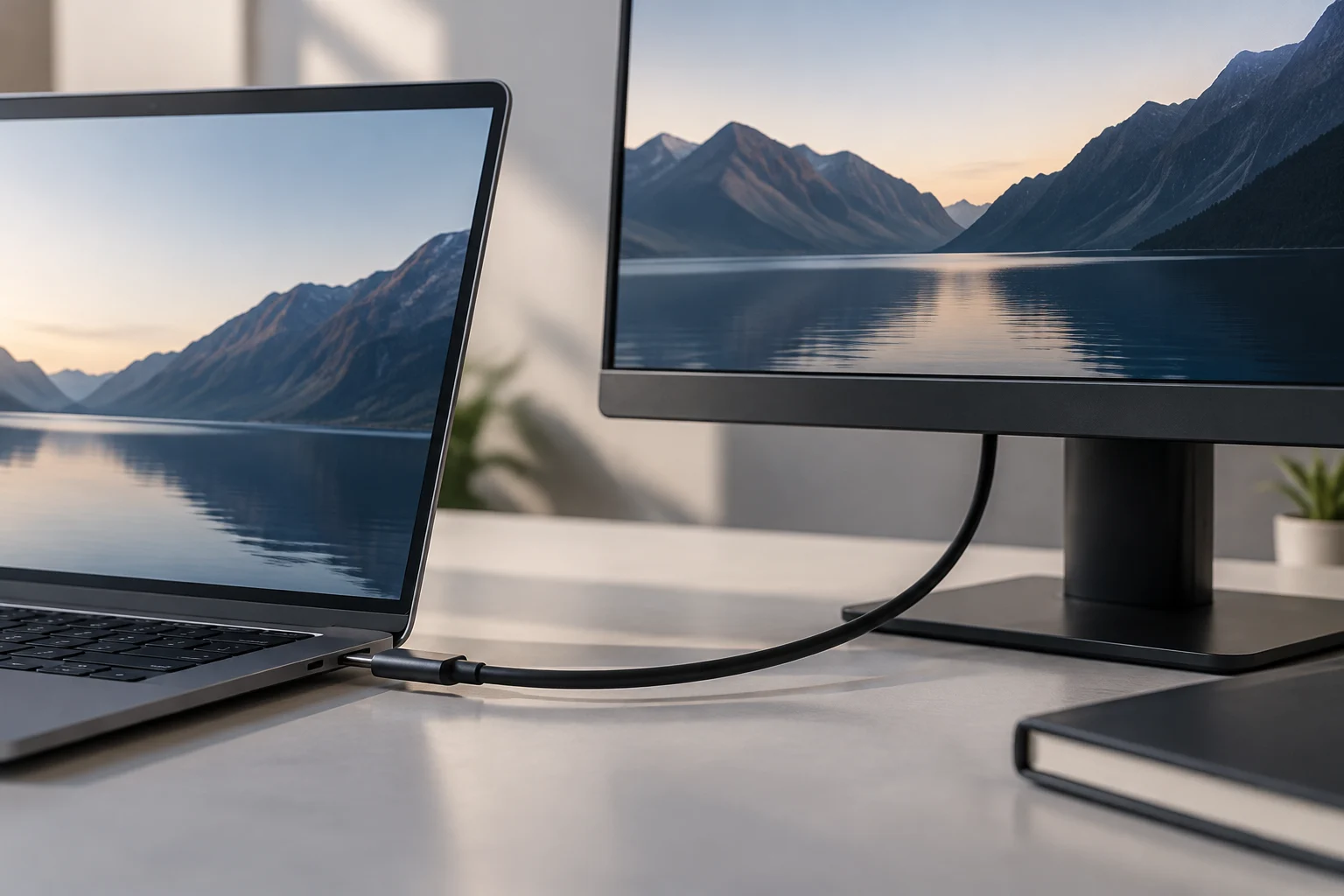
The USB-C connector can be used for charging, data transfer, or connecting a display, but not every port supports video. DisplayPort over USB-C, also called DisplayPort Alt Mode, carries audio and video through the connector. VESA documentation explains that this mode allows a USB-C connector and cable to transport audio and video using DisplayPort.
If you connect a display to a port that does not support DisplayPort over USB-C, it will not receive video data and no picture will appear. VESA notes that doing so will not damage the device. A cable fitting into the port therefore does not prove that the phone transmits video: check the features of the specific model.
Before buying an accessory, confirm that the phone supports video output over USB-C. An adapter cannot add this feature to a port that does not support it; it only converts a compatible signal so it can connect to a suitable display input.
How to Check Whether the Phone Supports Video
Start with the documentation or specifications for the exact model. VESA says that support for DisplayPort Alt Mode should be listed in the device documentation. Some compatible connectors also carry the DP logo near the port; this can be a clue, but checking the specifications is the most reliable approach.
For iPhone, Apple publishes which models support connecting to external displays through USB-C and notes that an adapter may be required, depending on the display. Check Apple’s current list for the specific model rather than inferring compatibility from the connector’s shape. Apple adds that iPhones that do not support display connections over USB-C can mirror and play content using AirPlay.
Quick check
- Find the exact model in the manufacturer’s documentation and check whether it specifies USB-C video output or DisplayPort Alt Mode.
- If it is an iPhone, consult Apple’s section on connecting to displays.
- Use the DP logo as a guide, not as a substitute for the specifications.
Choosing a USB-C-to-HDMI Adapter or Cable
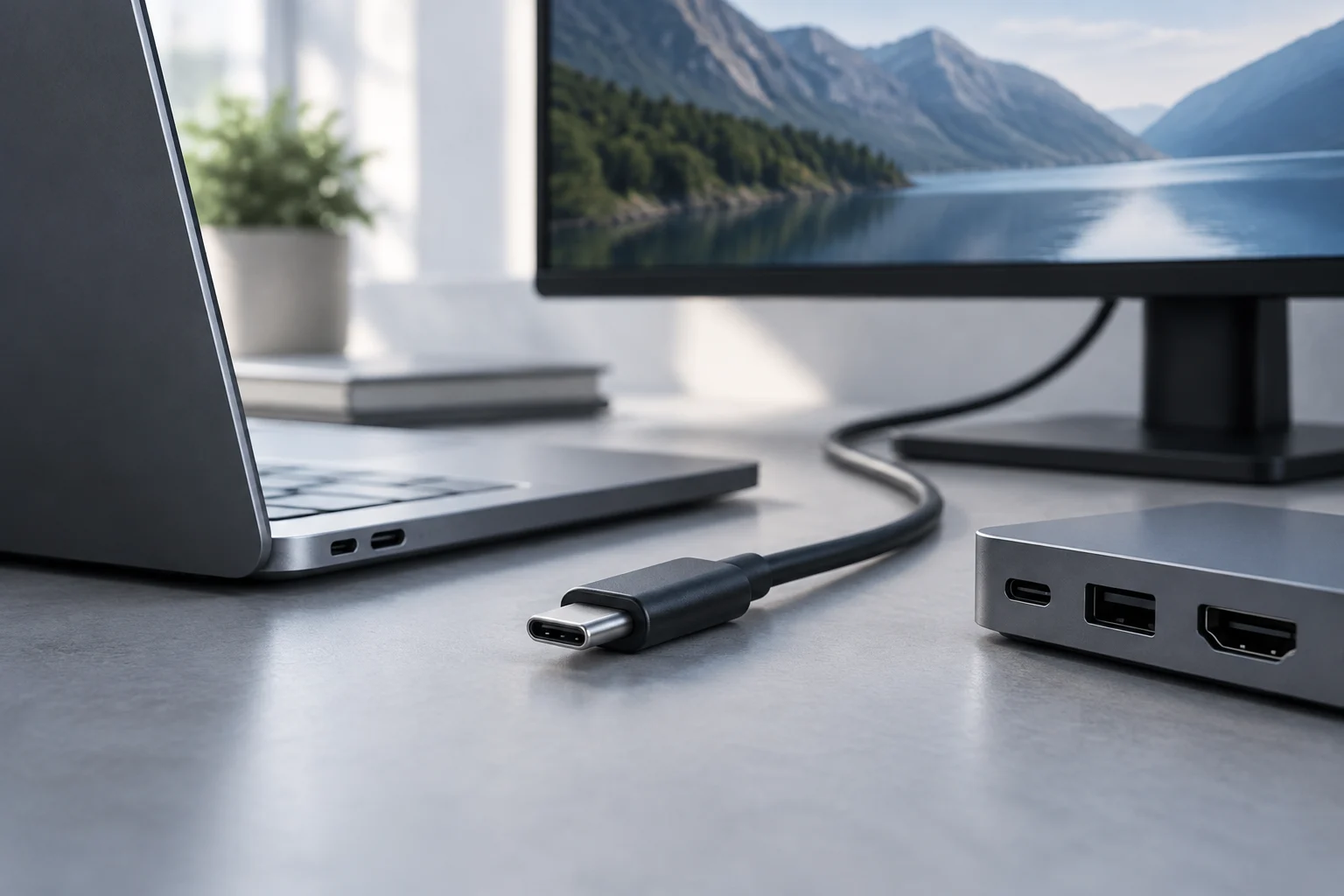
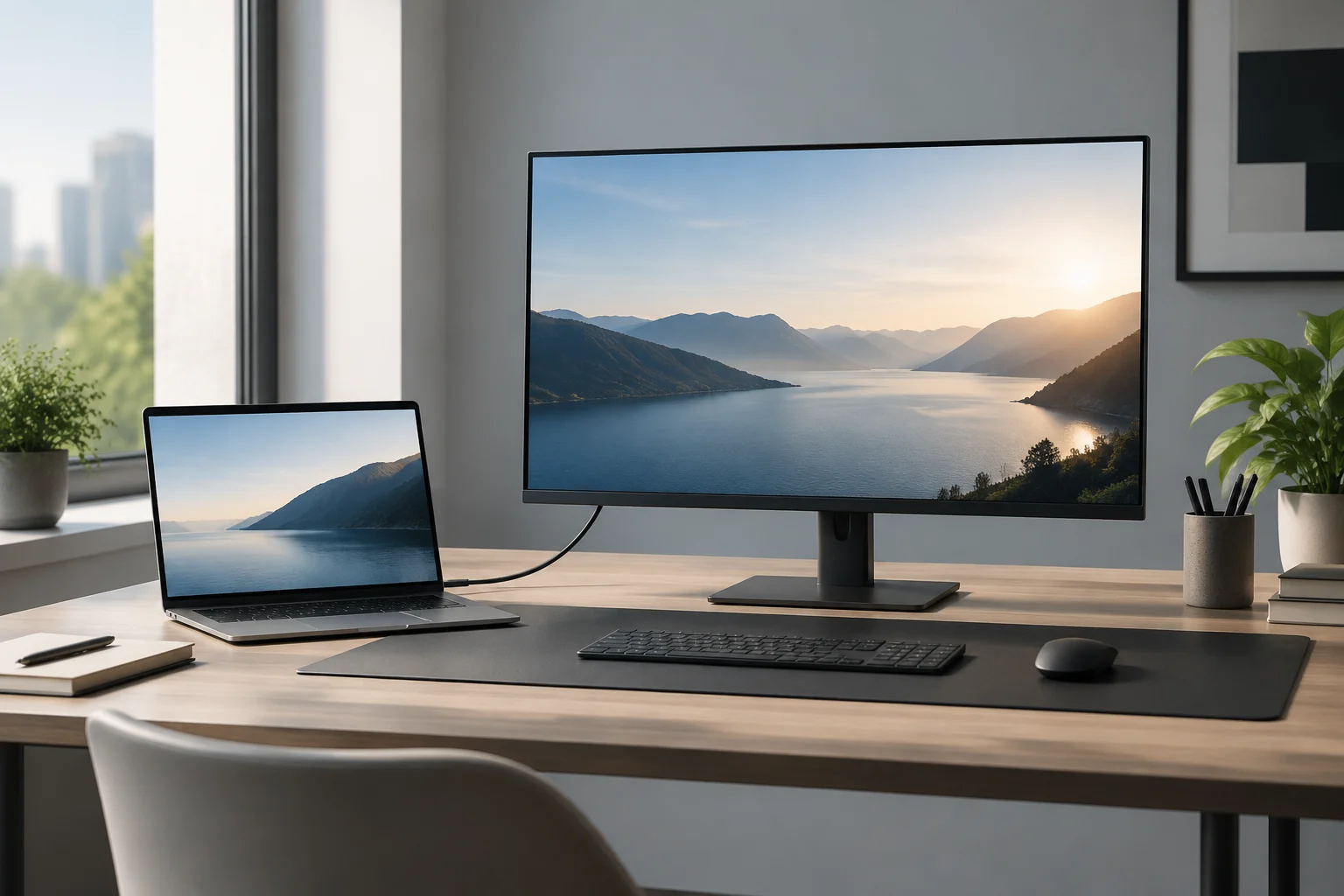
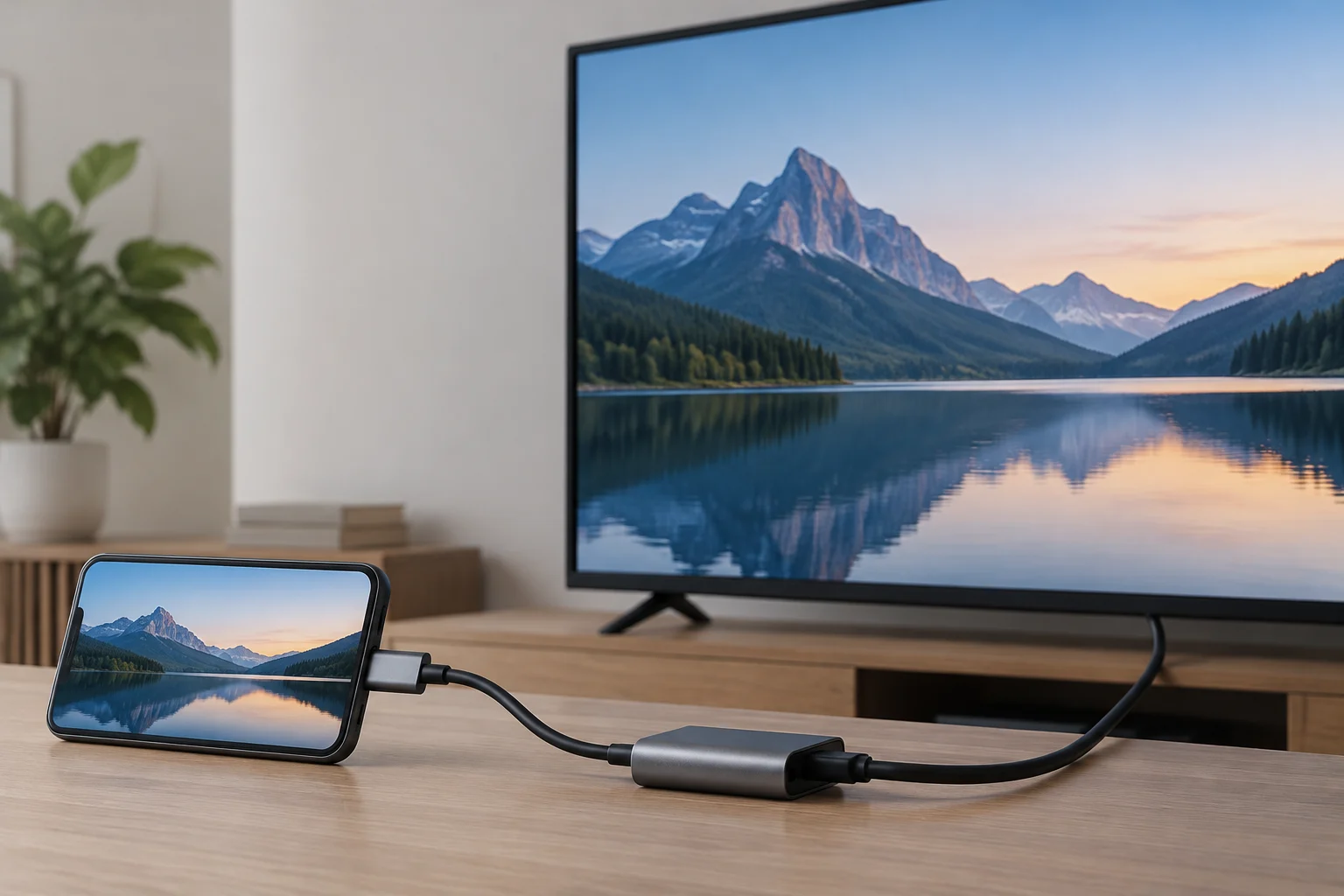
To connect the phone to an HDMI display, use a USB-C-to-HDMI adapter or a USB-C-to-HDMI cable that supports the device’s video output. VESA confirms that adapters and cables are available for connecting a source with DisplayPort over USB-C to an HDMI input. Check that the accessory clearly states that it supports this conversion.
Not every accessory works with every phone, and a generic mention of USB-C is not enough to confirm compatibility. Review the product specifications and verify that the manufacturer identifies the input signal type and HDMI output. The display must also have an available HDMI input.
| What to check | What to look for |
|---|---|
| Phone | USB-C video output or DisplayPort Alt Mode |
| Accessory | USB-C-to-HDMI adapter or cable compatible with the source |
| Display | Available and selectable HDMI input |
| Resolution and refresh rate | Compatibility specified for the components |
As an iPhone-specific reference, Apple says compatible HDMI 2.0 adapters and cables can output video at up to 4K at 60 Hz. That figure is not a guarantee of the same result with every phone, accessory, or television: performance depends on each component in the connection.
Resolution, Refresh Rate, and HDR
Resolution and refresh rate depend on what the phone, adapter or cable, and display support. The specifications of the whole setup matter: a 4K television alone does not mean it will receive a 4K signal at 60 Hz.
Apple says that, with a compatible iPhone, HDMI 2.0 adapters and cables can transmit up to 4K at 60 Hz. Apple also explains that an iPhone can connect to USB-C displays using DisplayPort at up to 4K at 60 Hz, but that is a different route from HDMI and is not a guarantee for other phones or accessories.
For an iPhone’s HDMI connection, Apple says the output includes HDR10 or Dolby Vision content if the display or television supports HDR. Check every component before relying on a particular resolution, refresh rate, or HDR format; the phone and accessory specifications determine what signal can be sent.
Charging While Using the Display
Being able to transmit video does not guarantee that the phone will charge at the same time. Power delivery depends on the phone and the accessory or display being used. Apple says some USB-C displays can charge an iPhone while it is connected; this does not mean that every HDMI adapter supplies power.
If you need to keep the phone charged, check whether the adapter has a power connection and what function the manufacturer specifies. Do not assume that the power capability associated with DisplayPort over USB-C will reach the phone: charging depends on the connected equipment and the capabilities of each component.
Before a presentation or a long session, test the complete setup and check whether the phone receives power when needed. If the accessory does not specify this function, consult the phone and adapter manufacturers’ instructions before relying on simultaneous power delivery.
What to Do If There Is No Picture
Start by checking that the phone supports video output over USB-C, that the adapter or cable is compatible, and that the display is set to the correct HDMI input. Check each part separately: a connector that physically fits does not prove that it carries video.
Disconnect and reconnect the accessory, then select the HDMI input again. If there is still no picture, consult the phone and adapter documentation and, if possible, try another accessory whose compatibility is specified. If the port does not support DisplayPort over USB-C, changing the cable will not enable video output.
For some iPhones, Apple warns that USB-C accessories and cables can interfere with wireless connections. If Wi-Fi or cellular performance drops while using the accessory, disconnect it and check whether performance improves. Apple also recommends trying another cable.
Troubleshooting checklist
- Confirm that the phone model supports video over USB-C.
- Check that the accessory is specified for USB-C to HDMI.
- Select the correct HDMI input on the display.
- Review the phone and accessory instructions; try another compatible connection if available.
- If wireless performance gets worse, disconnect the accessory and compare the result.