Which iPads can connect via USB-C
To connect external storage by cable, you need an iPad with a USB-C port. Apple says this port can connect accessories such as external storage devices. Its list names specific models, so check your exact model before choosing a drive or cable.
Apple lists the iPad Pro with M4 or M5; the 11-inch iPad Pro, first, second, third, and fourth generations; and the 12.9-inch iPad Pro, third, fourth, fifth, and sixth generations. It also includes the 13-inch iPad Pro with M4 or M5; the fourth- or fifth-generation iPad Air and models with M2, M3, or M4; the sixth-generation iPad mini or models with A17 Pro; and the 10th-generation iPad or models with A16. The product family name alone is not enough: different generations can have different connectivity.
The list refers to USB-C models that can connect accessories, including external storage. To identify your device, check its device information and compare it with the model name Apple provides. If it does not match, do not assume that this connection method will work.
Choosing the right cable or adapter
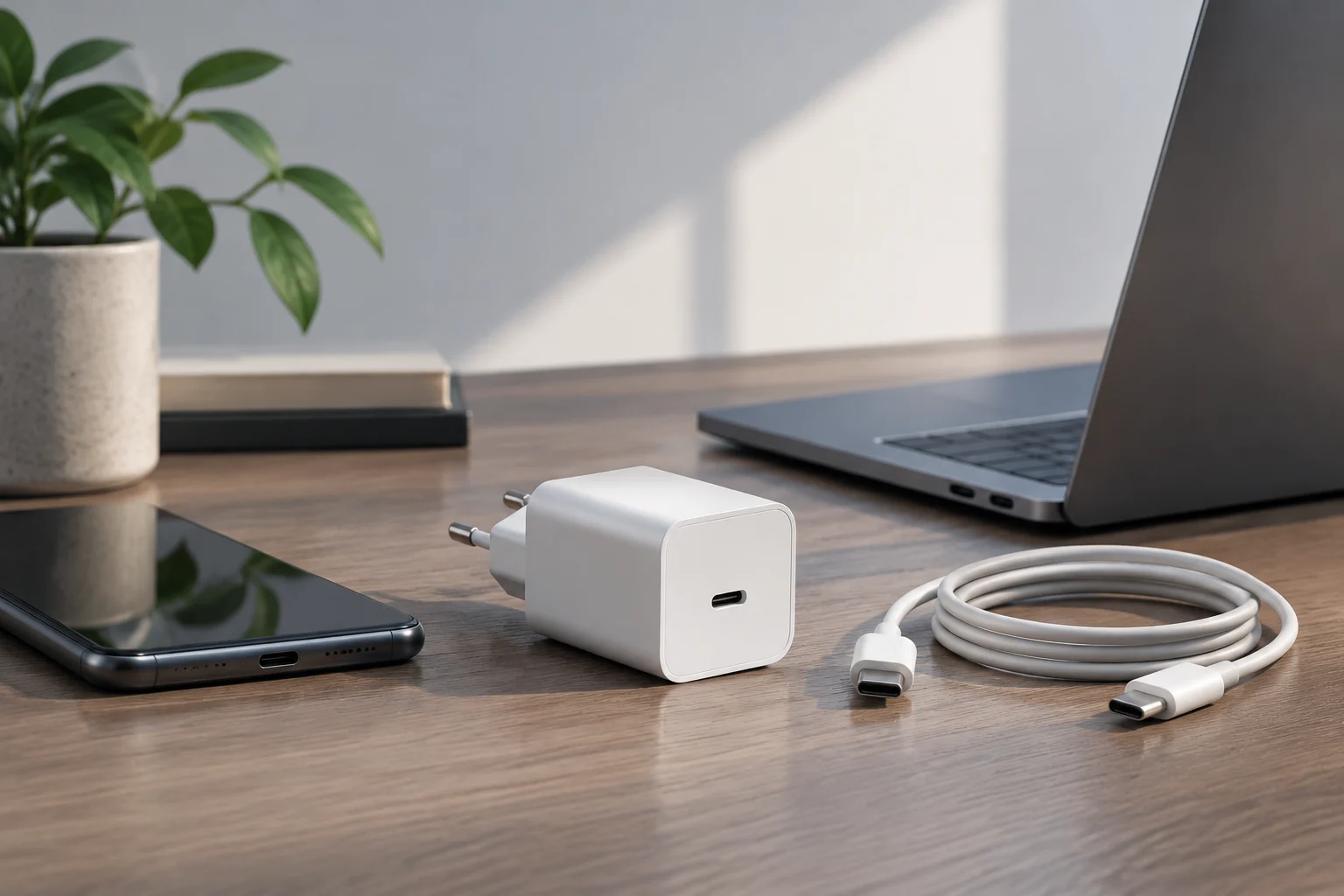
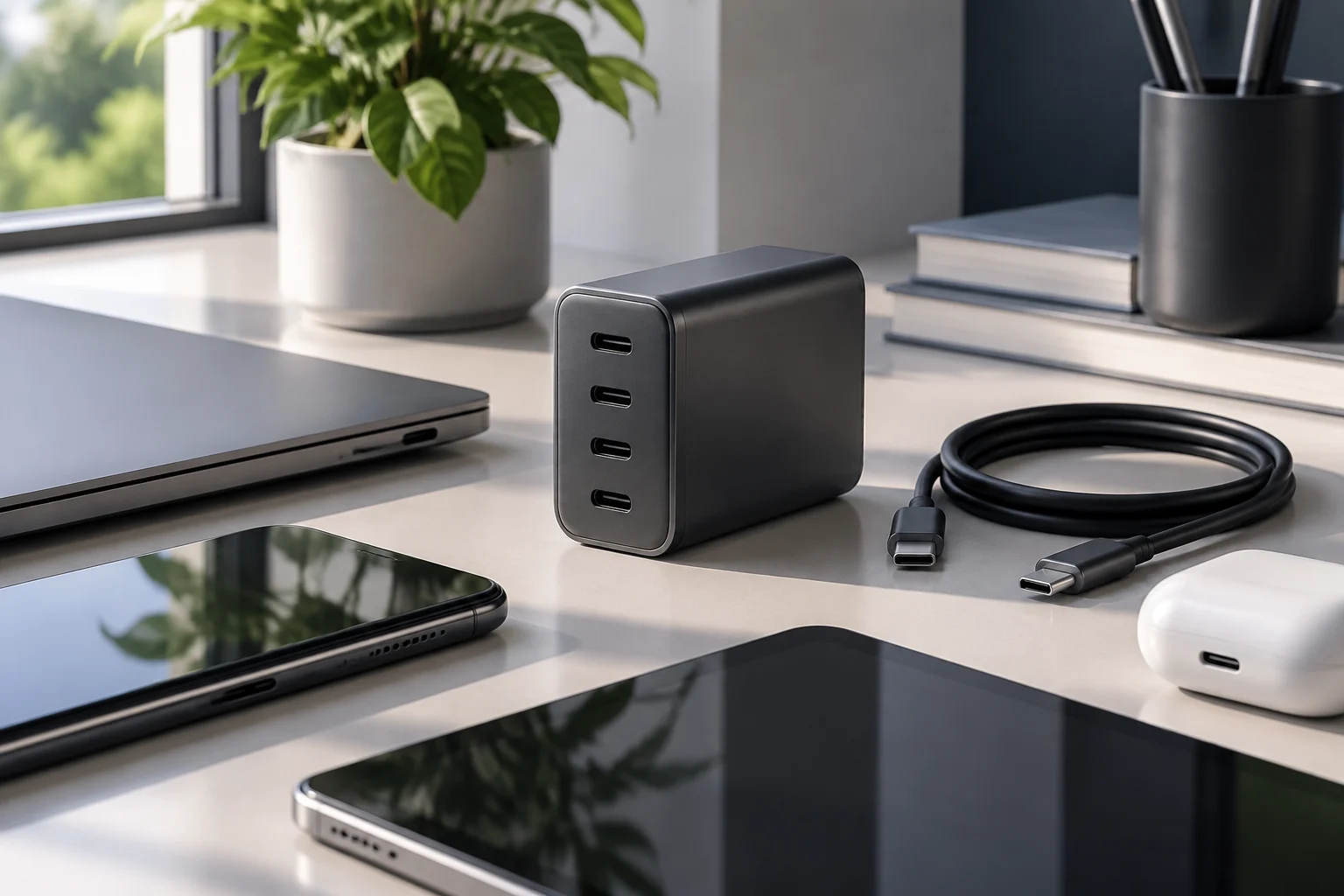
The drive’s connector determines the cable or adapter. Apple says that if the device has USB-C, a cable with USB-C at both ends is sufficient; if it has USB-A, it can be connected using Apple’s USB-C to USB Adapter. Check the drive’s connector and the iPad’s connector before buying accessories.
As a practical check, identify the two ports you are connecting: the iPad’s USB-C port and the drive’s connector or cable. If the drive ends in USB-A, you need the adapter specified by Apple; if it uses USB-C, use a USB-C to USB-C cable. Connector shape alone does not establish that every device or hub is compatible.
Apple recommends checking the accessory manufacturer’s specifications. It also warns that some accessories may request more power from the iPad and affect battery life. The available sources do not specify which particular drives work or set power requirements for each disk, so it is not possible to guarantee that a particular hub will resolve a connection problem.
Accessing the drive in Files
The iPad guide includes sections on connecting external storage devices and transferring files from iPad to a storage device. To connect the drive, follow Apple’s instructions and consult the guide for the iPadOS version you use, since you can select different system versions.
The iPad guide includes instructions for connecting external storage devices and transferring files from iPad to a storage device. Consult Apple’s guide for the installed iPadOS version. Follow the instructions for that version, because the guide lets you select different system editions.
If the drive does not appear, check that your iPad is among the models Apple lists and that the cable or adapter matches the connectors. Then consult Apple’s instructions for your system and the drive manufacturer’s instructions. The available sources do not describe error messages or a complete troubleshooting sequence for every accessory.
Storage formats and preparation
Before using a drive, it is worth finding out how it is prepared and which file system it uses. However, the available sources do not list compatible formats, partition schemes, or read and write conditions. A specific format cannot be recommended, nor can it be guaranteed that a drive prepared in a particular way will appear on the iPad.
If you do not see the drive in Files, do not make reformatting your first step. Reformatting can affect saved data, and the available documentation provides no conversion procedure or guarantee of the result. Keep another copy of important files before changing the storage, and check requirements with Apple and the drive manufacturer.
The available information also does not support claiming that one file system is universal or that another is necessarily incompatible. To decide how to prepare a disk, separately confirm what the iPadOS version you use supports and how to preserve existing data. Do not base that decision solely on the fact that the physical connector is USB-C.
Power: what USB-C does and does not tell you
Connecting an accessory via USB-C does not determine how much power it will receive from a particular iPad. Apple warns that some accessories may request more power and affect battery life; it also recommends checking the manufacturer’s specifications. Power needs depend on the accessory, and the available documentation does not specify a power level for each drive.
USB-IF explains that the USB Power Delivery 3.1 specification allows delivery of up to 240 W through compatible USB Type-C cables and connectors. That figure describes a specification capability, not an iPad’s output or the power an external drive connected to it will receive.
If the manufacturer says the drive needs its own power supply, follow its instructions. Apple recommends disconnecting high-performance accessories connected to an iPad Pro when they are not in use to help extend battery life. It cannot be guaranteed that an unpowered adapter or hub will solve a power-draw problem; check the specifications of every component involved.
Disconnecting the drive and protecting files
The available sources do not specify an official safe-eject procedure in Files or Control Center, nor do they establish whether ejecting the drive before removal is mandatory. For device-specific instructions, consult the manufacturer’s guide and Apple’s information for the iPadOS version you use.
As a precaution, avoid unplugging the cable while a file is being transferred, and wait until the visible operation has finished. This is a prudent recommendation, not an official eject method or a guarantee about how every drive will behave. If files are important, keep an independent copy.
The available documentation also does not specify how iPadOS handles encryption for files copied to external storage. If you need to protect sensitive information, check whether the drive offers encryption and which devices can access it. Do not assume that the iPad automatically encrypts the data or manages the drive’s keys.