The chipset is only one part of the comparison
A chipset name helps identify the platform, but it does not tell you how many SSDs, expansion cards or peripherals you can connect. ASUS identifies the PRIME B650EM-A WIFI as an AM5 motherboard with B650, and the ROG STRIX B850-A and B850-E GAMING WIFI as AM5 models with B850. Published specifications apply to each specific motherboard, not to every model using the same chipset.
These examples show why it is important to compare individual products: the PRIME B650EM-A WIFI has three M.2 slots and four SATA ports; the ROG STRIX B850-A GAMING WIFI has four M.2 slots and two SATA ports; and the ROG STRIX B850-E GAMING WIFI has five M.2 slots and four SATA ports. The chipset number does not sum up expansion options. Check the connectors and their operating conditions in the specifications and manual for the exact model.
A useful comparison starts with defining the system: which processor and graphics card you will install, how many storage drives you need, which devices will connect over USB and what kind of network you use. Then compare those requirements with the candidate motherboards. This helps avoid paying for a feature you will not use or assuming that one model includes something simply because another B850 board does.
PCIe and storage: check the links, not just the size
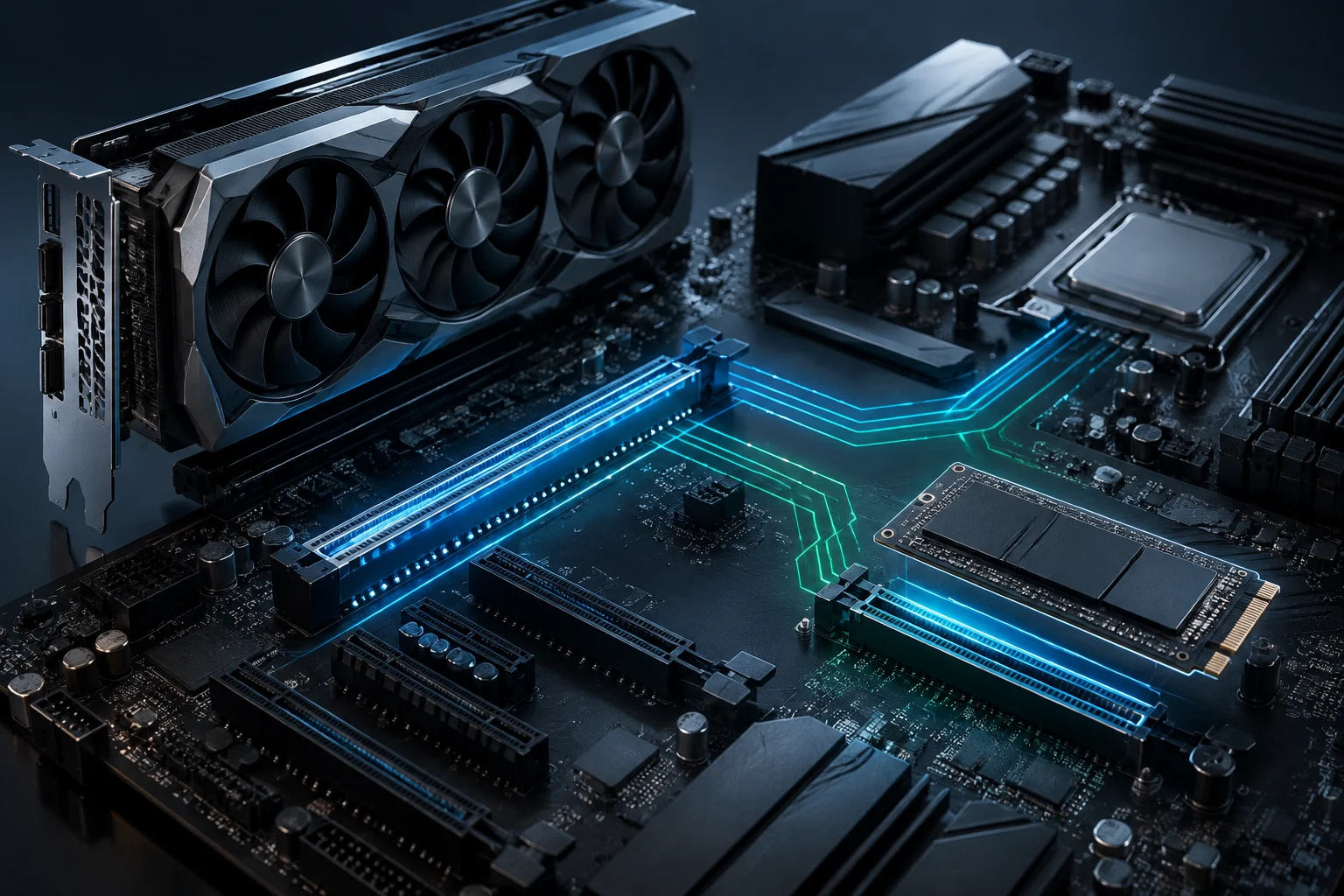
For a graphics card, it is not enough to check for an x16-size slot: you also need to look at the electrical mode specified by the manufacturer. The PRIME B650EM-A WIFI lists one PCIe 5.0 x16 slot and another PCIe 4.0 x16 slot that operates in x1 mode. The ROG STRIX B850-A GAMING WIFI includes one PCIe 5.0 x16 slot and another PCIe 4.0 x16 slot operating at x4. Physical size and effective link are not the same; check both in the specifications for the model.
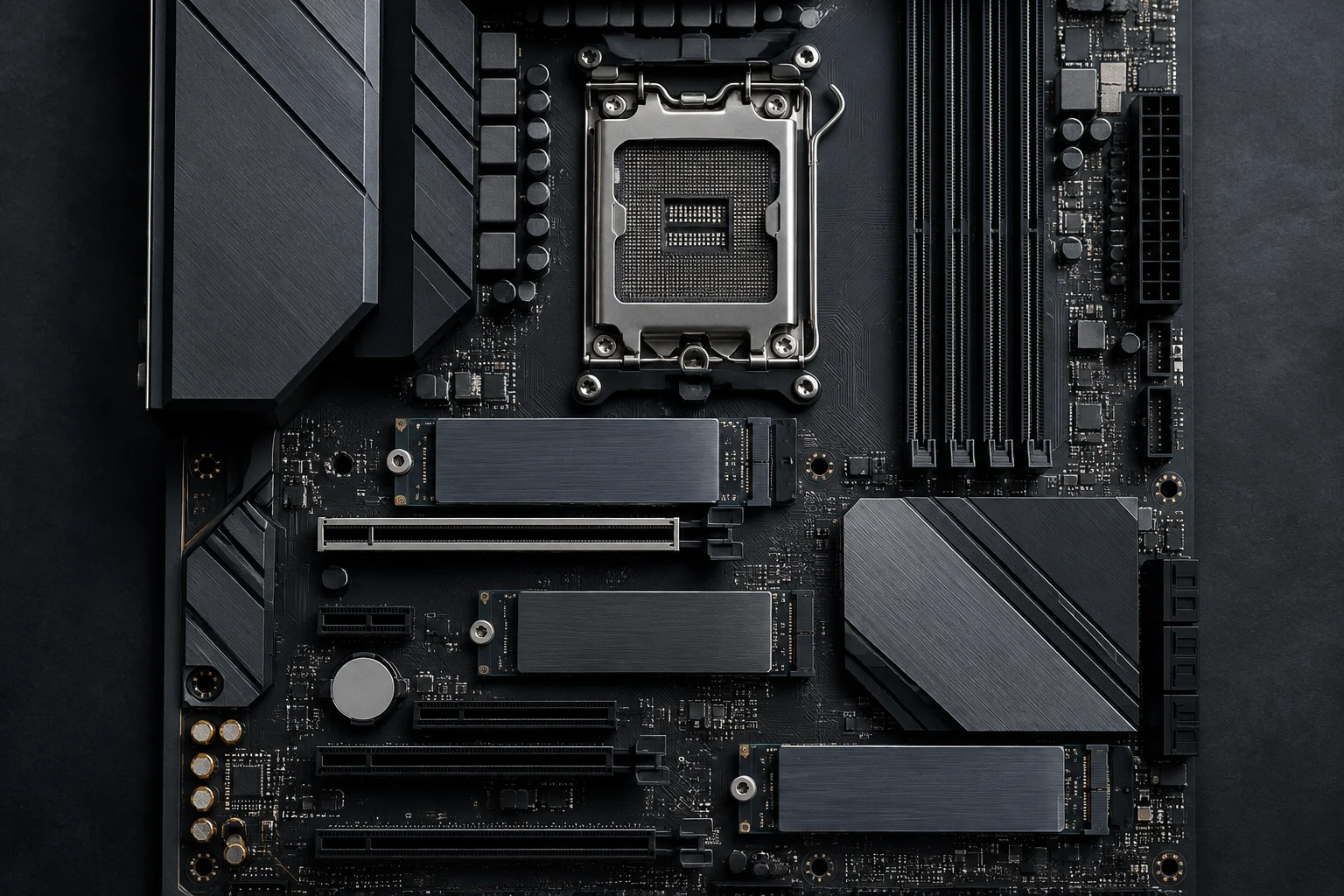
Storage also varies between these motherboards. The PRIME B650EM-A WIFI has three M.2 slots: one PCIe 5.0 x4 and two PCIe 4.0 x4. The ROG STRIX B850-A GAMING WIFI has four: one PCIe 5.0 x4 and three PCIe 4.0 x4. The ROG STRIX B850-E GAMING WIFI offers five: three PCIe 5.0 x4 and two PCIe 4.0 x4. More slots give you more options, but do not tell you on their own which drive combinations can operate simultaneously.
Before planning to install several SSDs, consult the manual to confirm supported form factors, drive lengths and installation conditions. Also check whether using one slot affects SATA ports or other connectors: such rules depend on the specific board design and cannot be inferred from the chipset. Finally, distinguish PCIe’s theoretical bandwidth from an SSD’s sustained speed, which also depends on the drive and system configuration.
Selected AM5 motherboard connections
Specification comparison of three ASUS boards. Slot counts and connection types are model-specific; check the relevant manual for shared-resource conditions.
| PRIME B650EM-A WIFI — M.2 slots | 3 |
|---|---|
| ROG STRIX B850-A GAMING WIFI — M.2 slots | 4 |
| ROG STRIX B850-E GAMING WIFI — M.2 slots | 5 |
| PRIME B650EM-A WIFI — SATA ports | 4 |
| ROG STRIX B850-A GAMING WIFI — SATA ports | 2 |
| ROG STRIX B850-E GAMING WIFI — SATA ports | 4 |
| ROG STRIX B850-A GAMING WIFI — rear USB-C | 20 Gbit/s |
| ROG STRIX B850-E GAMING WIFI — rear USB-C | USB4, 40 Gbit/s |
Specifications can vary by model revision or region; confirm the exact board’s support page and manual.
USB and networking: B850 models can differ
External connections are another area where the B850 name does not guarantee a uniform configuration. The ROG STRIX B850-A GAMING WIFI lists a rear 20 Gbit/s USB-C port and an internal 10 Gbit/s USB-C header; the B850-E includes a USB4 Type-C port supporting up to 40 Gbit/s. Check both speed and location: a rear port connects a device directly, while an internal header can provide USB-C on the front panel of a compatible case.
Networking also differs between motherboards using the same chipset. The B850-A lists Wi-Fi 7 and 2.5 Gb Intel Ethernet; the B850-E has Wi-Fi 7 and 5 Gb Realtek Ethernet. The PRIME B650EM-A WIFI offers Wi-Fi 6 and 2.5 Gb Realtek Ethernet. These figures describe the motherboards’ interfaces, not the real-world speed of a connection in every environment. Your router, access point and the rest of the network must be compatible to take advantage of a multigigabit connection or a newer wireless standard.
It is also worth checking SATA, video outputs, audio and internal connectors, as well as counting the rear USB ports. For example, the PRIME B650EM-A WIFI specifications list a 5 Gbit/s front-panel USB Type-C header. If your case has front-panel ports, verify that the motherboard has the right header and that its speed meets your needs. The motherboard specifications must match the case wiring and the peripherals you plan to use.
Ryzen compatibility, memory and BIOS
The models compared use the AM5 socket, but you should confirm support for a specific CPU in the motherboard’s official list of supported processors. The ROG STRIX B850-A and B850-E specifications state support for Ryzen 9000, 8000 and 7000 Series desktop processors. Check the exact CPU model and support list, not just the socket: the BIOS version may matter for processor recognition.
ASUS specifies BIOS FlashBack on the models cited. The feature lets you update the BIOS using a USB drive and, according to ASUS’s description for the PRIME B850M-A, does not require a CPU or memory to be installed. The procedure and exact requirements can vary by model, so the manual for the motherboard you choose is the practical reference. Do not assume every board follows the same steps or that instructions for a different product family apply unchanged.
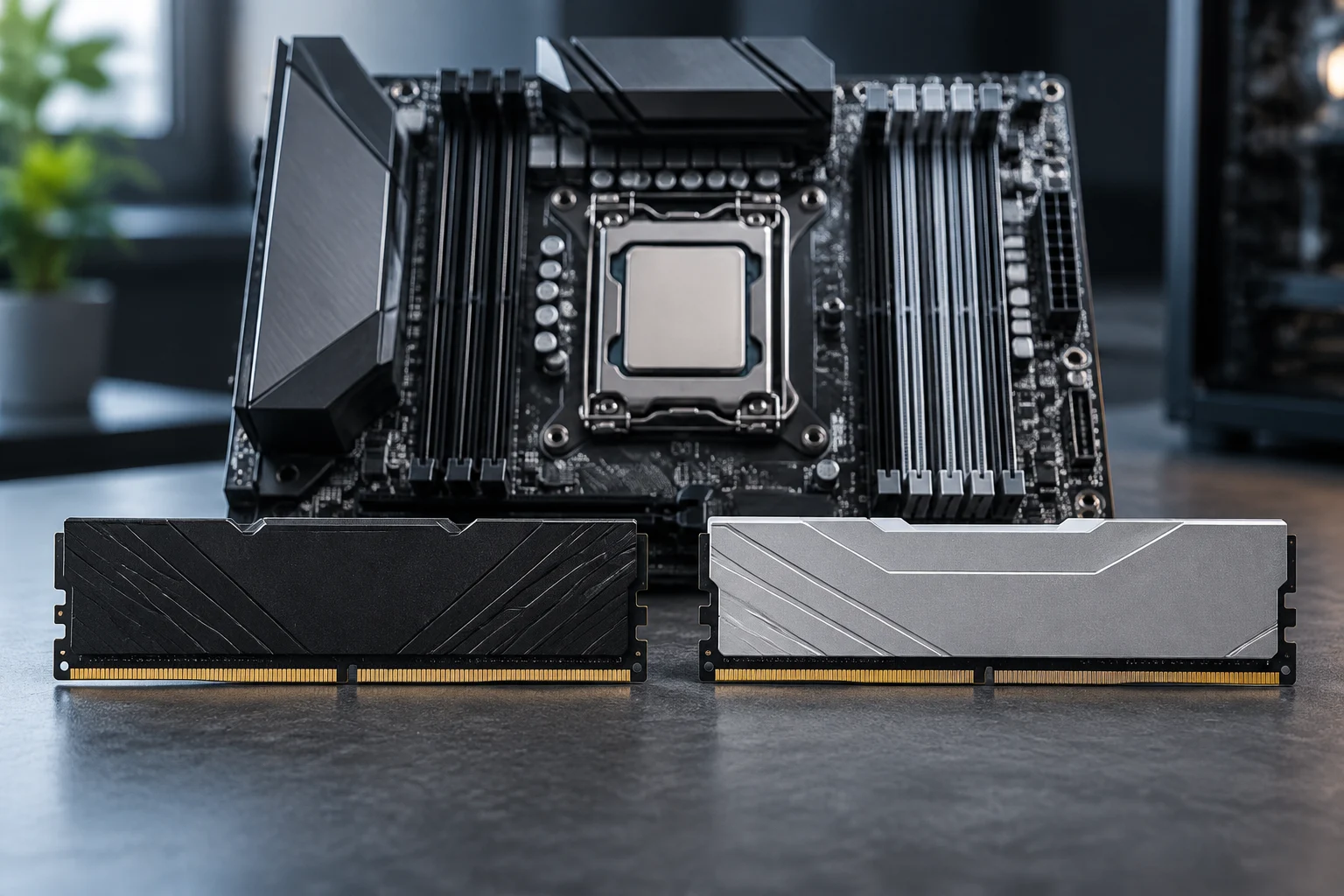
The cited specifications indicate DDR5 support and memory profiles such as AMD EXPO. ASUS warns that memory overclocking can vary depending on the processor series. Therefore, a listed maximum frequency should not automatically be taken as guaranteed for every combination of CPU and memory modules. Check the validated memory list and processor specifications to choose capacity, modules and speed with realistic expectations.
Which motherboard fits each system?
For a system with one graphics card, one or two SSDs and everyday peripherals, priorities may include a suitable primary slot, enough storage connections and the USB ports you need. If you expect to use several NVMe SSDs, the number and type of M.2 slots become more important. Start with the components you will actually use and look for a motherboard that accommodates them without relying on broad assumptions about B650 or B850.
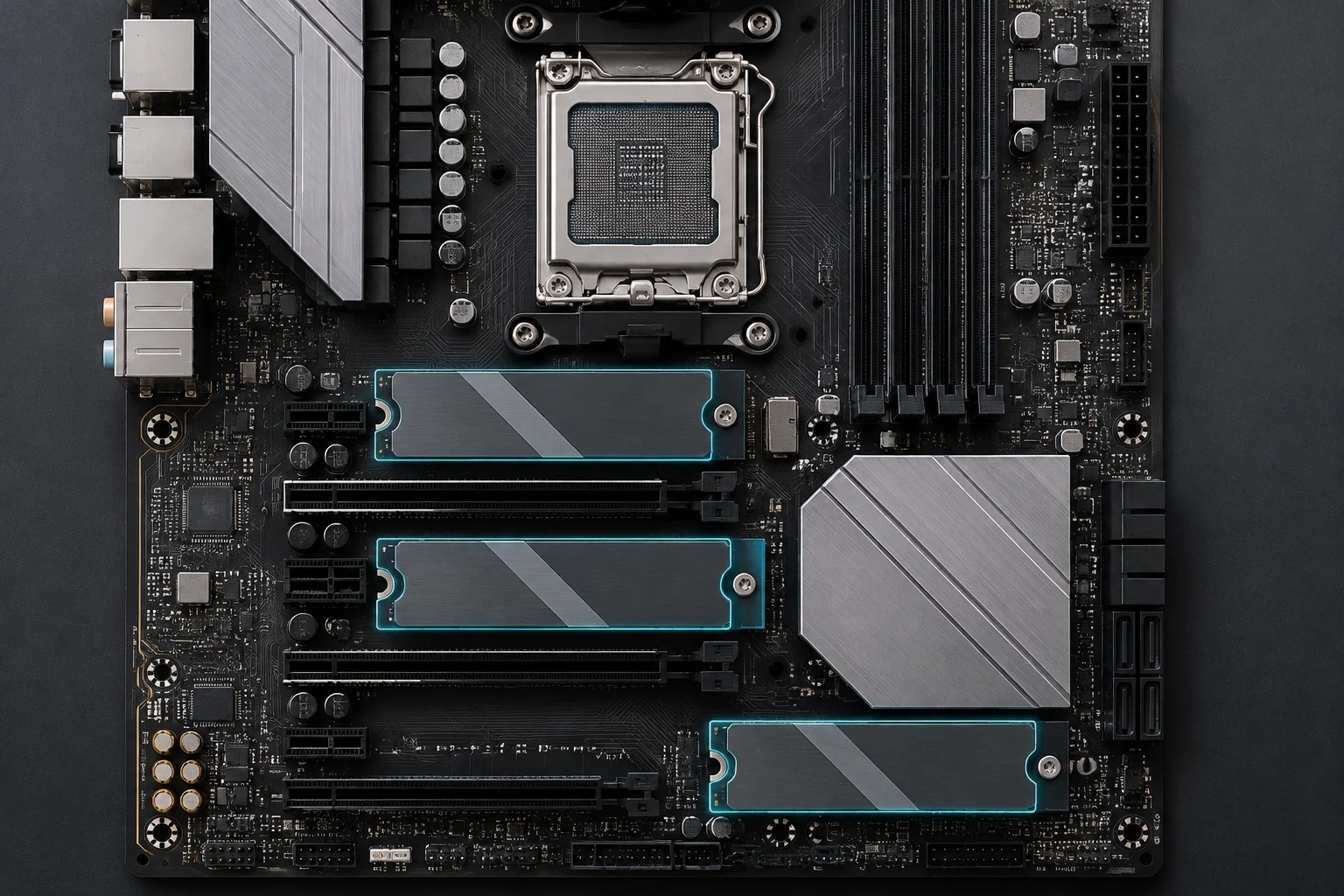
If you need many M.2 drives, the B850-E offers five slots, compared with four on the B850-A and three on the PRIME B650EM-A WIFI. But the count does not replace checking the manual: confirm each slot’s form factor and the conditions for simultaneous use. If you use SATA drives, compare the number of available ports as well: the cited models specify two on the B850-A and four on the B850-E and PRIME B650EM-A WIFI.
For fast peripherals, compare each USB port’s speed with that of the device, and distinguish rear ports from internal headers. On a wired network, the difference between 2.5 Gb and 5 Gb is useful only if the router or switch supports the same link. For Wi-Fi, the motherboard and access point must support the standard you want to use. The most advanced feature only adds value when the rest of the system can use it.
Price, value and checks before buying
Value cannot be inferred from a chipset having a higher number. Compare the prices of the specific motherboards and relate them to connections you will actually use: M.2 slots, SATA ports, USB4, Ethernet speed or Wi-Fi. Pay for a real need or a reasonable upgrade path, not for a list of features you do not plan to use. The motherboard is only one part of the cost; compatibility with the components you have already chosen matters too.
Before buying, check the specifications and manual for the exact model:
- Socket and supported CPU list; required BIOS version, if applicable.
- Motherboard form factor and case dimensions.
- PCIe slots, link modes and card placement.
- Number, form factor and generation of M.2 slots, as well as SATA ports.
- Rear USB ports, internal headers and front-panel connections.
- Wi-Fi, Ethernet, video outputs and audio connectors.
- DDR5 memory compatibility and available overclocking profiles.
If there are regional variants or different revisions, make sure the support page and manual match the model being sold. This helps avoid confusing products with similar names and lets you verify physical fit, connections and supported CPUs. The complete model number matters more than the product family when comparing slots, connectors or BIOS support.
The practical rule is to choose first for compatibility and the connections you need, then compare planned upgrades and cost. ASUS’s examples show that B650 and B850 do not, by themselves, determine how many SSDs, which USB ports or what networking a motherboard includes. Compare specific models, not just chipset labels, and use both the specifications and manual to make your decision.