What changes when moving from integrated graphics to an eGPU
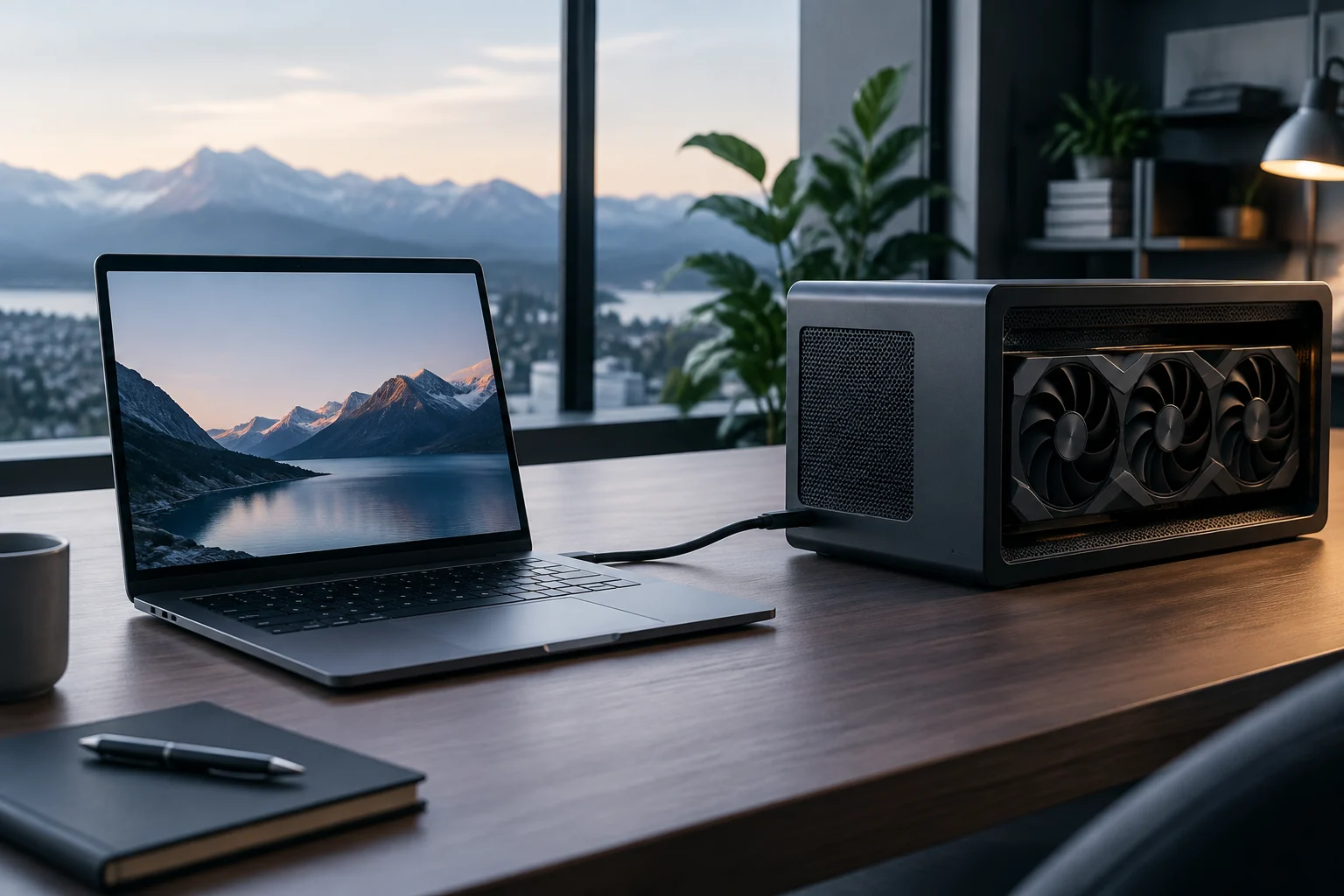
An integrated GPU is part of the device, whereas an eGPU places a graphics card in an external enclosure connected to the laptop. It is not an internal upgrade nor does it work simply by plugging it in: the device must support external graphics, and the operating system, drivers, and application must be able to use them.
The setup usually includes three pieces: a graphics card, an enclosure with appropriate connection and power, and a compatible laptop. Some boxes allow installing a desktop PCIe card; others are integrated solutions. A monitor connected directly to the eGPU's video outputs may also be required, especially so that the rendered image does not have to return to the laptop via the same link.
The comparison is not simply 'slow integrated vs. fast dedicated'. An integrated GPU is already part of the device, while an eGPU requires a compatible enclosure and connection, plus space for the whole setup. An eGPU can add graphics capability when the computer is on a desk, but its use depends on compatibility and the specific task. The advantage depends on the task, not just the card's advertised power.
USB-C is not enough: the port must support external graphics
USB-C describes the connector shape, not a guaranteed eGPU-compatible connection. For a graphics box to work, the port and laptop must offer an adequate data path, and the manufacturer must support that function. Razer, for example, specifies Thunderbolt 4, Thunderbolt 5, or certain USB4 ports with eGFX support for its Core X V2; the page itself recommends checking the host device documentation.
Check the host requirements for the enclosure you plan to use. For the Razer Core X V2, Razer specifies Thunderbolt 4, Thunderbolt 5, or USB4 with eGFX support, and recommends checking the host device’s technical documentation. USB-C describes the connector shape; it does not, by itself, establish compatibility with this enclosure.
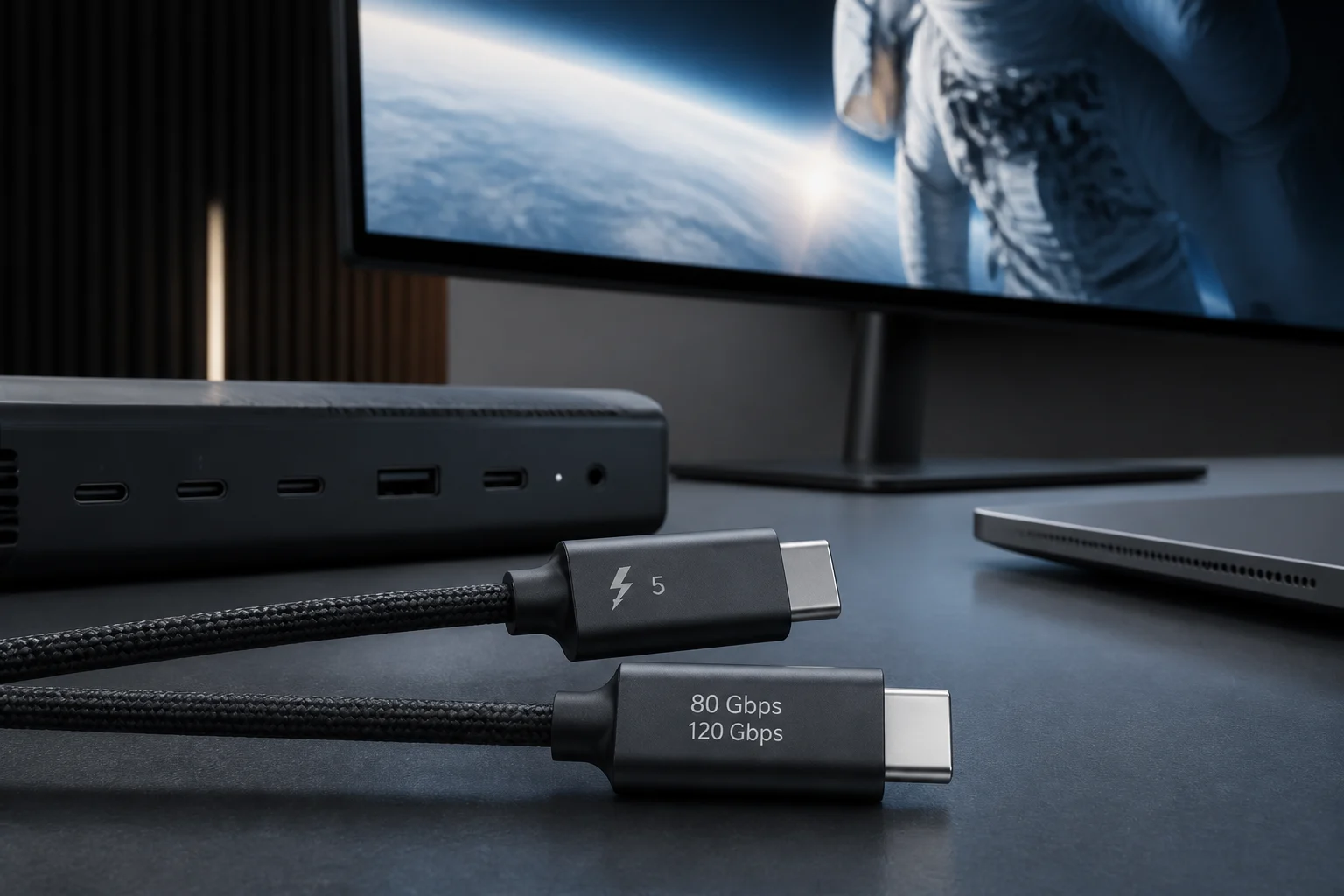
The Core X V2 manufacturer states that Thunderbolt 5 offers up to 80 Gbps of bandwidth. Razer also warns that performance may vary depending on the connection type. The bandwidth figure alone does not allow predicting the performance of an eGPU on a laptop.
Compatibility: system, card, enclosure, and application
Compatibility has several layers. First, the operating system must recognize the eGPU and have valid drivers for the card; then, the enclosure must physically accommodate the card size and supply the necessary power. Finally, the application must be able to select or utilize that GPU. The system detecting the device does not guarantee that all games or programs will use it.
On macOS, Apple's eGPU support described in its documentation is limited to Intel-based Macs with Thunderbolt 3 and macOS High Sierra 10.13.4 or later. Apple also warns that not all applications and games accelerate with an eGPU, and that card compatibility depends on the architectures supported by macOS. Do not extrapolate that support to Apple Silicon Macs: the cited documentation does not include them as compatible hosts.
On Windows, you must verify the laptop model, Windows version, port, and GPU drivers separately. The Core X V2 page indicates compatibility with Windows 10 RS5 or Windows 11 and later, but also requires a host port with eGFX support; those enclosure requirements do not replace the laptop manufacturer's confirmation. An enclosure that accepts a card does not guarantee that any laptop will recognize it correctly.
Before paying, gather these checks into a single list:
- Laptop: exact port protocol and explicit eGPU support.
- System: version and drivers compatible with the chosen card.
- Enclosure: maximum dimensions, supported card type, and available space.
- Power: power supply needed for the card and, if applicable, laptop charging.
- Applications: external acceleration support and behavior with an external screen.
- Connection: cable and link recommended by the manufacturer, without assuming any hub works.
What may limit performance in practice
eGPU performance depends on the configuration and the task. Razer says performance may vary by connection type. There is no universal percentage that applies to every setup.
The screen also matters. If a monitor is connected to the eGPU's outputs, the card can send the image directly to it. If the laptop's integrated screen is used, frames may have to return via the external connection to the device, adding traffic. Apple recommends connecting external screens directly to the eGPU for compatible use cases, and explains that GPU assignment also depends on the screen and the application.
Not all workloads behave the same: performance depends on the software and how it utilizes the GPU. Apple's documentation lists potential uses such as professional applications, 3D games, and virtual reality, but notes that the application must be compatible with eGPU acceleration. A powerful GPU does not fix an application that does not use it.
Performance figures published by a manufacturer or an independent test are only transferable when the conditions are known: card, computer, connection, driver version, resolution, settings, and monitor. Therefore, it is not advisable to buy based on an isolated percentage. To estimate the result in your case, look for a test of the same type of task and a sufficiently similar configuration, and treat it as a reference, not a guarantee.
Total cost and scenarios where it may make sense
The budget is not limited to the enclosure. The Razer Core X V2 is sold without a graphics card or power supply. Razer recommends allowing 230 W in addition to the graphics card’s power needs when choosing a power supply, so include those components when calculating the cost of this setup.
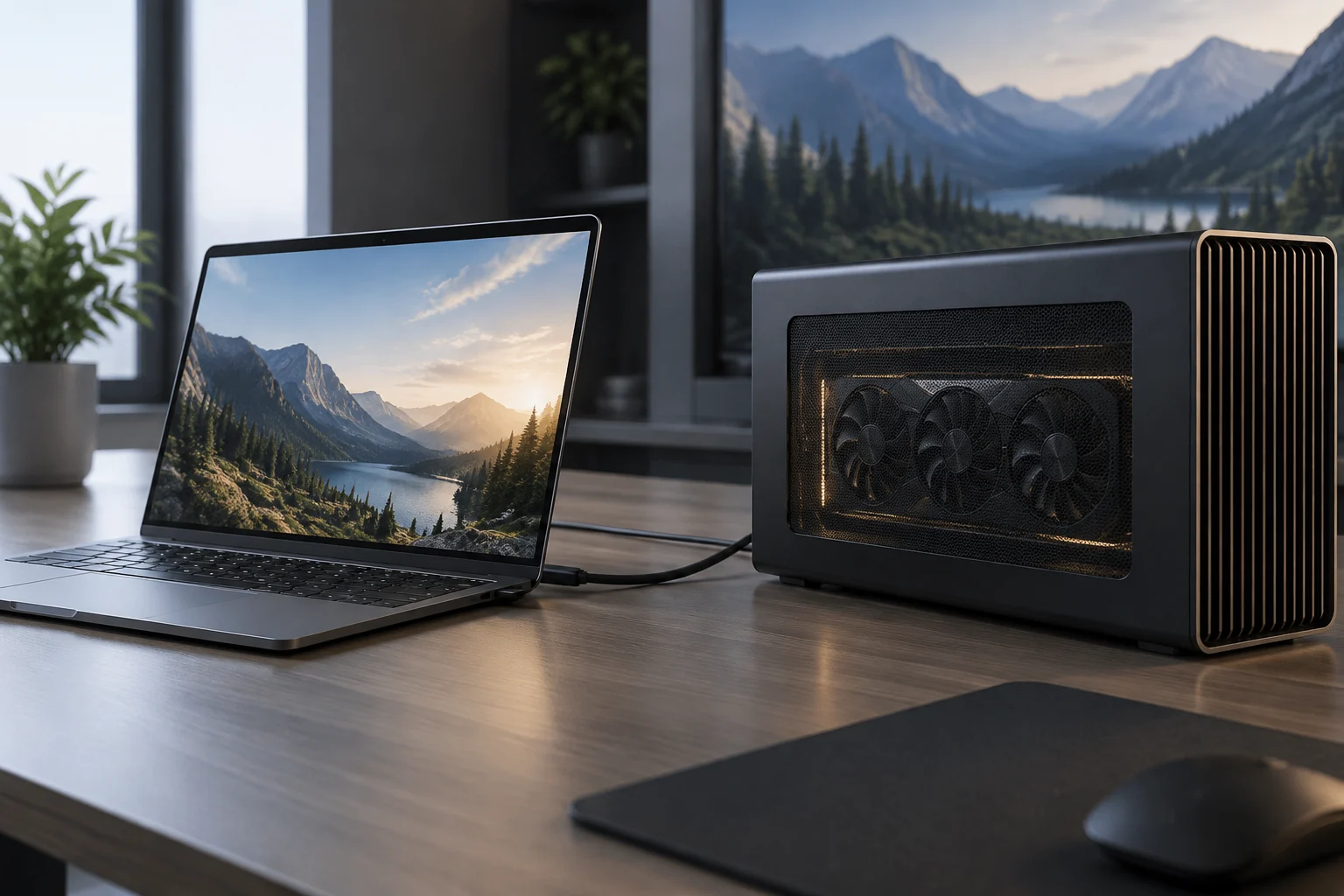
An eGPU may make sense if you already have a compatible laptop that meets your CPU, memory, and storage needs, but you want more graphics capability mainly on a desk. The connection allows separating mobile use from intensive graphics work: disconnected, the box stays at home; connected, it can enable a desktop card configuration, provided the software and device support it.
An eGPU can be useful if you already have a compatible laptop and want to add graphics capability when working on a desk. The enclosure remains connected to the host device and the card can only be used if the laptop supports that connection.
Before choosing, check the laptop's compatibility and add the enclosure, graphics card, and power supply to the budget if they are not included. Then, compare that set with the alternatives you are considering and the tasks you need to perform.
Purchase decision: a check before choosing
The laptop's spec sheet is the first filter. Look for the exact model and confirm the protocol of each port, not just that USB-C exists. Then consult the manufacturer if that port supports eGPU. A graphics box's documentation may describe which cards fit or what connections it expects, but host compatibility is confirmed on the laptop, not inferred from the box.
With the laptop confirmed, review the enclosure's list of compatible cards, its dimensions, and its electrical needs. Check if the power supply is included and if it can power both the GPU and the laptop when that use is necessary. The Core X V2 supports standard ATX power supplies, but Razer indicates that the power supply and card are sold separately; they are components that must be incorporated into the calculation.
Finally, confirm that your programs support external GPU acceleration and decide how you will connect the screen. If the purchase depends on a specific game, professional application, or system version, verify those specific cases before closing the budget. The useful rule is simple: if port, system, enclosure, card, and application do not fit together at the same time, an eGPU is not a guaranteed upgrade.