1) What they promise and how they differ
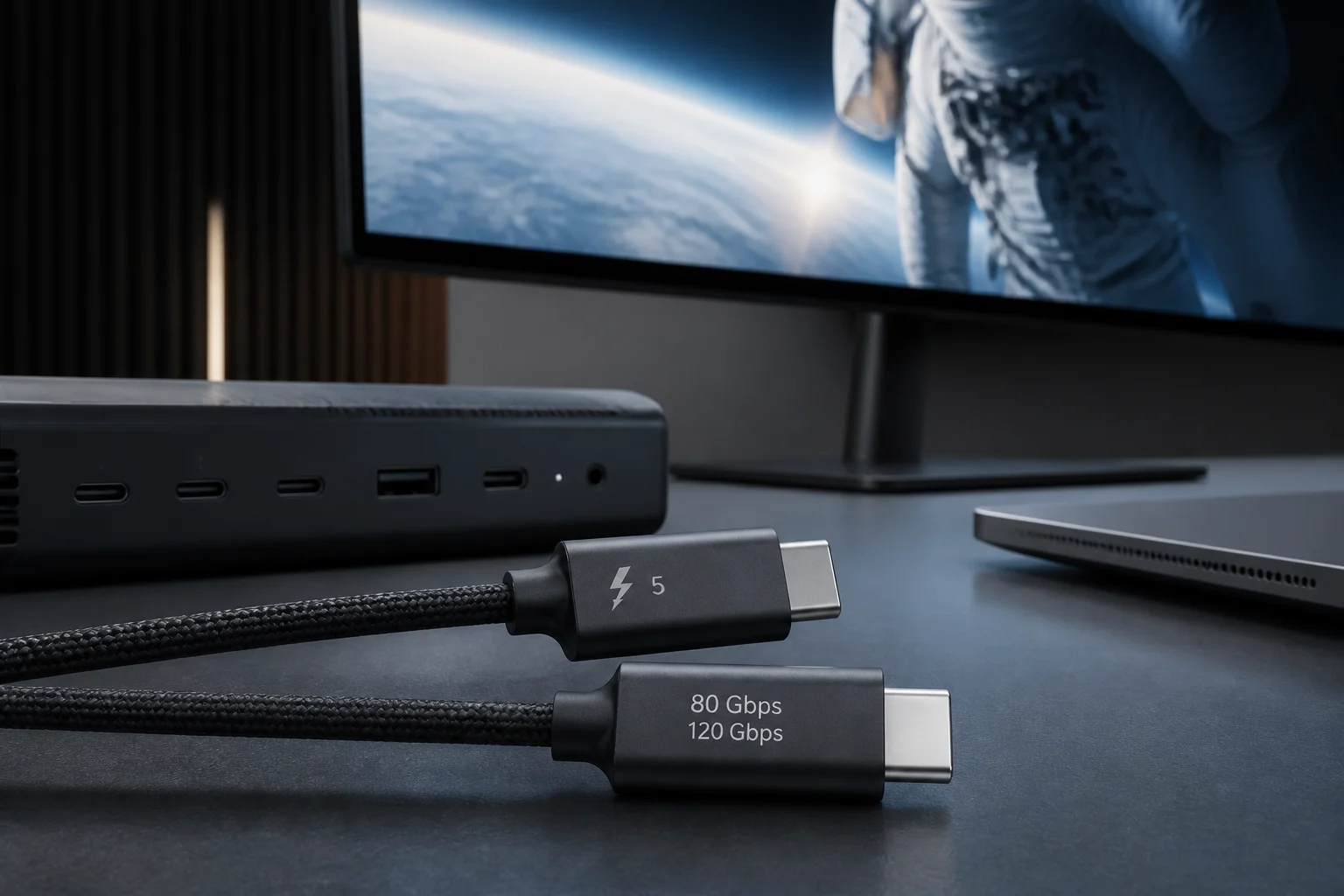
USB4 v2 raises USB’s ceiling to 80 Gb/s bidirectional and enables an asymmetric 120/40 Gb/s mode for video‑heavy workloads. It achieves this with a new physical layer based on PAM3 signaling while retaining the USB‑C connector and backward compatibility, and aligning its DisplayPort transport with DP 2.1. In parallel, Thunderbolt 5 (TB5)—an Intel‑steered implementation compatible with the USB4 specification—offers 80 Gb/s sustained and activates Bandwidth Boost up to 120 Gb/s when it detects predominantly display traffic, alongside tunneling for PCIe Gen4 and DP 2.1.
In practice, the two technologies share a lot: the USB‑C connector, tunneling of USB/PCIe/DP, and charging via USB Power Delivery. The operational difference lies in requirements and the true “end‑to‑end” experience: TB5 mandates certification and a minimum capability set (including VT‑d‑based DMA security and reliable support for 80/120 Gb/s where applicable); USB4 v2 describes the maximum possible capabilities, but real availability depends on specific controllers, cables, and firmware. This nuance is crucial to avoid purchases that later underperform.
For users, the “how” translates into realistic expectations. The 120/40 Gb/s mode in USB4 v2 and TB5’s Bandwidth Boost prioritize host→device throughput when the workload is clearly video‑centric—no extra magic: the link divides what’s available between video and data, and the return path (device→host) drops to 40 Gb/s. Backward compatibility also means that if any link in the chain—host, dock, or cable—only supports 40 Gb/s, the entire setup will operate at that level. In mixed chains, assume the system’s effective ceiling is the chain’s lowest advertised capability.
2) Verifiable adoption as of September 2026
What “exists” today should be validated against official listings. On the USB side, the USB‑IF publishes a certified product search that, by default, shows the last two years; you’ll already find controllers, cables, and test tools for USB4 Gen4 (80 Gb/s). On the Thunderbolt side, Intel’s certified product directory lists TB5 cables and docks—for instance, 2 m active cables—and several commercial TB5 docks (CalDigit, OWC, Sonnet). These sources keep you from relying on unverified sales pages.
One important note: the consumer‑facing brand is not “USB4 v2” but “USB 80Gbps” (and “USB 40Gbps/20Gbps” for earlier generations), together with 60 W/240 W power markings on cables. Looking specifically for those logos and a certification entry in the integrators list drastically cuts down on surprises. For TB5, using the word “Thunderbolt” on the box implies Intel certification; if an accessory doesn’t appear in the directory, treat the purchase with caution.
It’s worth familiarizing yourself with how those listings look. In the USB‑IF search, each entry shows the marketing name, the speed, and—for cables—the supported power. There’s also a test identifier that reputable sellers reference as a TID. In the Thunderbolt directory, you can filter by category (cable, dock, storage, display) and see the cable’s length and type (active/passive). Reviewing those details before paying is a simple way to separate certified gear from generic products that merely “promise” without backing.
3) Real‑world compatibility today: where it shines and where it stumbles
For heavy video pipelines (5K/6K/8K displays or multiple high‑rate combinations), TB5 and USB4 v2 make it possible to carry DisplayPort 2.1 with more efficient tunnels than USB4 40 Gb/s, especially when DSC compression comes into play. For external NVMe over PCIe, the jump to tunneled PCIe Gen4 translates into more headroom for RAID enclosures and ultra‑fast external SSDs, though final performance is still conditioned by dynamic link sharing when video or intense USB 3.x traffic coexists.
Where do they stumble? There’s still friction in mixed ecosystems: a USB4 40 Gb/s host with a TB5 dock will function, but won’t scale to 80/120 Gb/s; certain UHBR monitors may be constrained by the cable or the dock; and on Windows, if drivers or UEFI firmware don’t expose proper telemetry, the USB4 page in Settings won’t display the expected tunnels. That’s why we recommend always verifying the negotiated link before blaming the accessory.
When evaluating “shine/stumble,” ground yourself in concrete scenarios. Example: two 4K monitors at 120 Hz with DSC are typically feasible with TB5 or USB4 v2 if the cable sustains 80 Gb/s and the dock advertises adequate DP 2.1; by contrast, if you insert a cable that’s only 40 Gb/s or a dock that doesn’t expose the same UHBR level, the system will step down the link or increase compression. Similarly, an external SSD over tunneled PCIe Gen4 can reach very high transfers when not competing with display traffic, but if you simultaneously drive multiple high‑rate displays, you’ll see peaks and valleys consistent with dynamic sharing. All of that is normal and reflects how the link’s scheduler prioritizes.
4) Cables: how to read markings, pick lengths, and avoid traps
For USB4 v2 (80 Gb/s), look for the USB logo with USB 80Gbps and, if you want high charging power, the 240 W logo. Passive 80 Gb/s cables are short; as you go longer, you’ll be in active cable territory with dedicated retimers/redrivers. In Thunderbolt 5, Intel documents universal cables up to 2 m that maintain function and rated speeds (with Bandwidth Boost where applicable). As a rule of thumb: if you need ≥1.5–2 m, prefer certified active cables for TB5 or USB4 80 Gb/s; if your desk allows ≤1 m, a certified passive cable is usually more robust and less costly.
Don’t trust vague descriptions (“compatible with 240W,” “up to 80G”) without logos or a visible TID. In USB, the USB‑IF integrators list and the marketing guidance spell out exactly how speed and power must be labeled. In TB5, the Thunderbolt directory lets you confirm that a 2 m cable is truly active and retains full functionality. A handy tip: keep the packaging with the TID/PN; if a link inexplicably falls back to 20/40 Gb/s, swapping in a certified cable often fixes it.
Two more practical details when choosing a cable. First, 240 W cables embed an e‑marker that advertises 48 V/5 A; if the host or charger doesn’t see that signal, the system will cap power even if the copper could “handle” more. Second, mixing cables of different generations and lengths in one setup introduces uncertainty: the chain will adopt the weakest link. Standardizing on a single cable model—same length, same brand, same certification—reduces surprises and speeds up troubleshooting when something won’t negotiate as it should.
5) Video: DP 2.1/2.1a, UHBR, and limits imposed by cable and dock
With DisplayPort 2.1/2.1a, VESA consolidated DP40/DP80 and improved coexistence of tunneled video with other USB4 data, while also extending longer passive runs for UHBR13.5 (DP 2.1a) and preparing DP80LL active cables up to ~3 m for UHBR20 (80 Gb/s raw). For buyers, this means a UHBR20 monitor may require a true DP80 cable or the correct tunneled route via USB4/TB5. If the path includes a dock that doesn’t advertise the same link capabilities, the system will renegotiate to lower rates or engage more aggressive compression.
In TB5, Bandwidth Boost temporarily reallocates more Tx lanes toward video (up to 120 Gb/s effective in the host→device direction), helping with high‑resolution/high‑refresh display combinations. Caveat: the remaining tunnels (PCIe/USB) share what’s left; if a RAID or capture device saturates the link at the same time, you’ll hit choke points that can seem “capricious.” That’s the expected behavior of dynamic multiplexing.
When the monitor supports DSC, negotiation is typically more flexible, as it reduces required throughput without visible quality loss in most cases. Even so, the true anchors remain the cables and the dock. An ideal path is: USB4 80 Gb/s or TB5 host → certified 80 Gb/s cable (or active TB5 up to 2 m) → dock advertising appropriate DP 2.1 → suitable DP cable for the monitor. If any segment drops in level (e.g., a DP cable that isn’t DP80 feeding a UHBR20 monitor), the system will do a fallback. Anticipate that behavior and validate each link before declaring a “display failure.”
6) Power: USB PD 3.1 EPR (up to 240 W) and what to expect per laptop
USB Power Delivery Revision 3.1 extends the range to 240 W (EPR, 48 V/5 A) and also defines cabling requirements for that power. The market already offers EPR 240 W certified chargers and cables; however, whether a laptop accepts 180–240 W over USB‑C depends on the OEM’s design. Many thin systems with a discrete GPU cap USB‑C input at 100–140 W even when they use more powerful adapters via a proprietary jack.
Best practices: ensure the charger explicitly declares EPR 48 V/5 A, that the cable carries the 240 W logo, and confirm in the laptop’s spec sheet whether it supports sustained 180–240 W USB‑C input. An SPR cable or charger (≤100 W) may power the system on but can induce sustained throttling or keep the GPU from reaching its rated TGP under load.
Remember negotiated power is mutually agreed: the charger advertises profiles, the cable advertises its limit, and the device requests what it supports. If any of the three is not aligned with EPR, the system will fall back to lower profiles. On mobile workstations, you’ll notice this as quieter fans but longer export times or performance dips in GPU‑heavy sessions. The solution is not to “force” a profile, but to pick a set—charger, cable, and laptop—that consistently declares the same capability.
7) Operating systems, diagnostics, and buying without surprises
In Windows 11, starting with build 22621.1778, the Settings app shows a “USB4 Hubs and Devices” page with negotiated capabilities. Microsoft also requires systems with external USB4 ports to support PCIe tunneling and DP Alt Mode on all USB‑C receptacles, and documents the bandwidth sharing policy and dynamic allocation of video tunnels. In macOS, Apple’s documentation and the TB5 ecosystem on Apple silicon add advanced features (such as RDMA over Thunderbolt in recent versions) that are useful for low‑latency data flows.
Before you buy: 1) identify whether your host exposes USB4 40 Gb/s, USB4 80 Gb/s, or TB5; 2) define the critical scenario (for example, two 4K120 monitors with DSC plus a PCIe Gen4 RAID); 3) choose a cable whose length and type (passive/active) are compatible with 80/120 Gb/s; 4) verify the USB4 page in Windows after connecting everything and, in macOS, check System Information/Thunderbolt to confirm the path. This checklist avoids guesswork and minimizes returns.
To close, here’s a quick troubleshooting method when “something underperforms”: a) test with a single monitor and no storage attached to observe the display tunnel’s ceiling; b) swap in another certified cable of equal or shorter length; c) update the host and dock firmware/BIOS and drivers; d) in Windows, inspect each port entry under “USB4 Hubs and Devices” and verify DP and PCIe tunnels appear; e) in macOS, use System Information → Thunderbolt/USB4 to confirm link speed and devices in the chain. Following these steps, most bottlenecks are located within minutes and resolved by changing a cable or port.