Distinguishing Connection Loss from Speed Degradation
It is not the same thing for the internet to be down as for pages to load slowly, a video call to freeze, or a download to progress at a snail's pace. The first situation points to an interruption or a connection problem; the second may originate in the line reaching the home, the router, the Wi-Fi network, or the device itself. Separating the symptoms prevents attributing the cause to the provider immediately or buying a new router without checking where performance degrades.
Start by noting which service is failing, at what time, and from which room. Also check if it happens on multiple devices and with different applications. If only one website or app is slow, do not assume the entire home connection is affected; if the problem appears on several devices and services simultaneously, comparing wired access with Wi-Fi becomes more useful. This description does not identify the cause on its own, but it allows repeating tests with a consistent criterion.
Measuring the Connection Under Comparable Conditions
A speed test is a single observation, not a verdict on the provider. Its result changes depending on the device connection, the activity of other equipment, the chosen server, and the time of measurement. For the comparison to be useful, keep the same device and test service, pause downloads or synchronizations that can wait, and record download, upload, time, and connection type. Repetition under similar conditions provides more information than an isolated figure.
First, run the test with a computer connected to the router via Ethernet, if possible. Then repeat it over Wi-Fi from the same location and with the same equipment. Compare the results with the contracted service and what you need to do, but avoid interpreting a single reading as a contractual breach: home test conditions do not replace contract conditions or applicable rules in each country. Available sources do not allow establishing a universal legal threshold for claims.
Record the results in a simple table so the provider can understand the pattern. For example, you can save the date and time, device, connection used, download and upload results, and whether there was other network activity. There is no need to use an estimated figure to complete fields you do not know: the goal is to document reproducible observations, not to produce a professional measurement.
Isolating the Home Network: Cable, Wi-Fi, and Coverage
Comparing cable and Wi-Fi helps locate the segment that deserves more attention. If the cable connection works clearly better than wireless in a test done under similar conditions, the result points to Wi-Fi as a possible limitation; if both give low results, several possibilities remain open, including the router, the test equipment, or the external connection. The comparison guides, but does not prove on its own that the provider is or is not responsible.
If Wi-Fi performs well near the router and worsens in another room, first try changing the location: place the router in a clearer and more central point, and repeat the measurement in the same places. Distance and obstacles can affect wireless coverage. If performance changes significantly from one room to another, that is a clue that local coverage deserves attention before changing the internet plan.
The 2.4 and 5 GHz bands present different trade-offs. The 5 GHz band can offer more speed under favorable conditions, but usually has less range; 2.4 GHz can reach further, although it may also be more exposed to interference. There is no better band in all homes: compare the result at the point where you use the device. If a console, computer, or TV can connect via cable, that test eliminates the Wi-Fi link variable for that equipment.
Reviewing the Router Without Turning Every Setting into a Solution
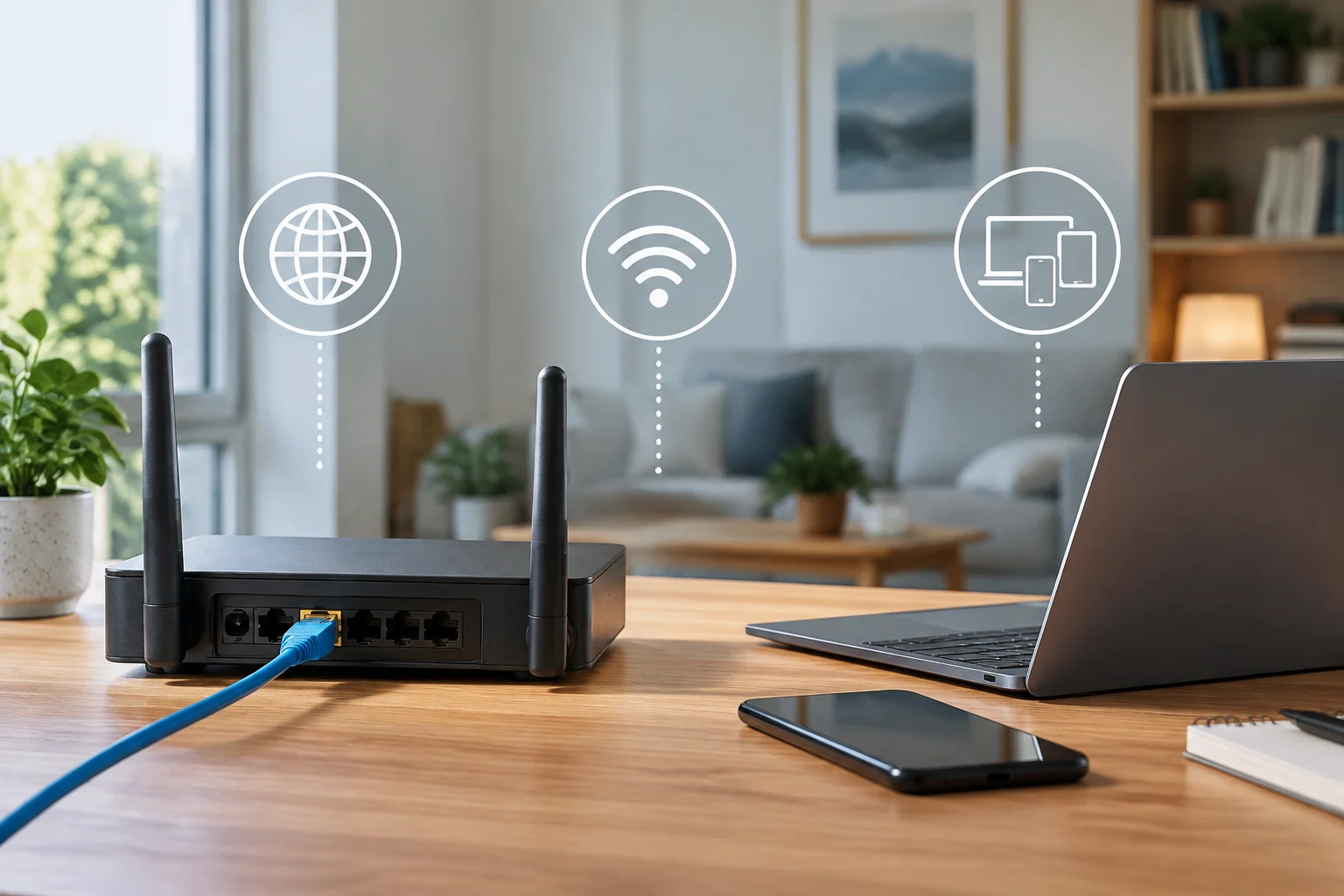
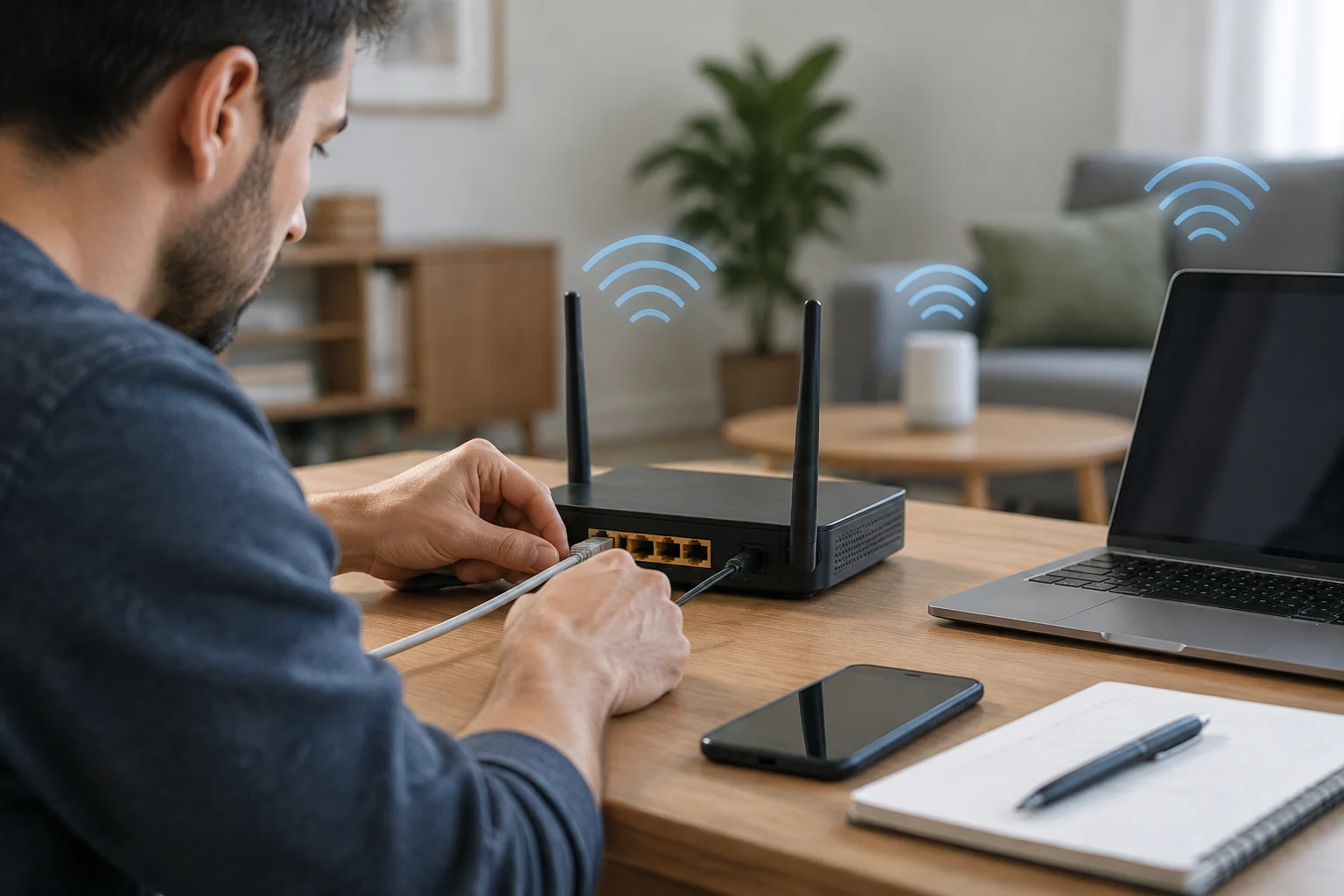
Before touching advanced options, check that the router is working, that its cables are well connected, and that the failure is not limited to a single device. If you decide to restart it, keep in mind that you will temporarily interrupt the connection; note the symptom and previous measurements to check later if anything changed. Change one parameter at a time and measure again, instead of modifying several settings at once and losing track of which one influenced the result.
Settings for channels, bands, and wireless standards depend on the model and the connected devices. A guide on routers points out that some equipment allows disabling compatibility with old Wi-Fi protocols, but that can leave legacy devices without a connection. It is not advisable to apply a generic recommendation as if it guaranteed an improvement: verify what option your equipment offers, what devices depend on it, and how to restore it before changing it.
Keep the firmware up to date only by following the manufacturer's or equipment provider's instructions. The update may fix device problems, but available sources do not allow asserting that it will increase speed in all cases. DNS is also not a general connection accelerator: it can affect name resolution and how long it takes to start a load, but it does not increase the contracted capacity or the transfer speed of an already initiated download on its own. QoS, when the router offers it, serves to manage priorities; it does not create additional bandwidth.
Checking Devices and Network Activity
Slowness may coincide with a download, a backup, or an update in progress. To check this, observe if the problem changes when temporarily pausing non-essential activities, such as a large download or file synchronization. Make a before-and-after comparison, without unexpectedly disconnecting other people. An improvement when pausing a task suggests that network activity influences the symptom, but it does not quantify on its own how much each device consumes.
Review the list of connected devices from the router's app or panel, if that function is available. Names may be unclear: identify each known device before blocking or expelling any. Not all routers show detailed consumption per device, and it is incorrect to assume that any connected device is using a lot of bandwidth just by appearing in the list.
If the router has QoS, consult its documentation before configuring it. The function can prioritize certain types of traffic over others according to the equipment's options, but it does not increase the total connection capacity. If the connection is shared among several activities, one priority may improve the experience of one application at the expense of another; therefore, check if it solves the specific problem and keep the previous values to be able to revert it.
When to Contact the Provider and What Data to Prepare
Contact the provider if the problem persists on multiple devices and services, also appears in cable tests, and is not explained by a local task that you can pause. Describe the symptom and the time it happens; provide repeated results, the type of connection used, the test equipment, and relevant conditions. A clear record facilitates the investigation, although it does not prove on its own where the failure is or force a specific conclusion.
If the problem is intermittent, record several occurrences instead of relying on memory: date, time, room, cable or Wi-Fi connection, affected devices, and any relevant activity. Ask the provider what procedure they recommend and what conditions they require to evaluate the service. Rights and compensation criteria depend on the country, the contract, and applicable regulations; there is not enough basis here to assert that a specific minimum speed is a general legal threshold.
Before contracting a faster plan or replacing the router, use the comparison to decide the next step. A consistent difference between cable and Wi-Fi justifies reviewing the wireless network; a problem limited to one device invites checking that device; low cable results on several occasions justify asking the provider to review the connection. Those conclusions are clues to act, not definitive diagnoses: the practical decision is to investigate the segment indicated by the tests first and avoid costs until a better delimited cause is found.