Introduction: The Root Cause of Connectivity Failures
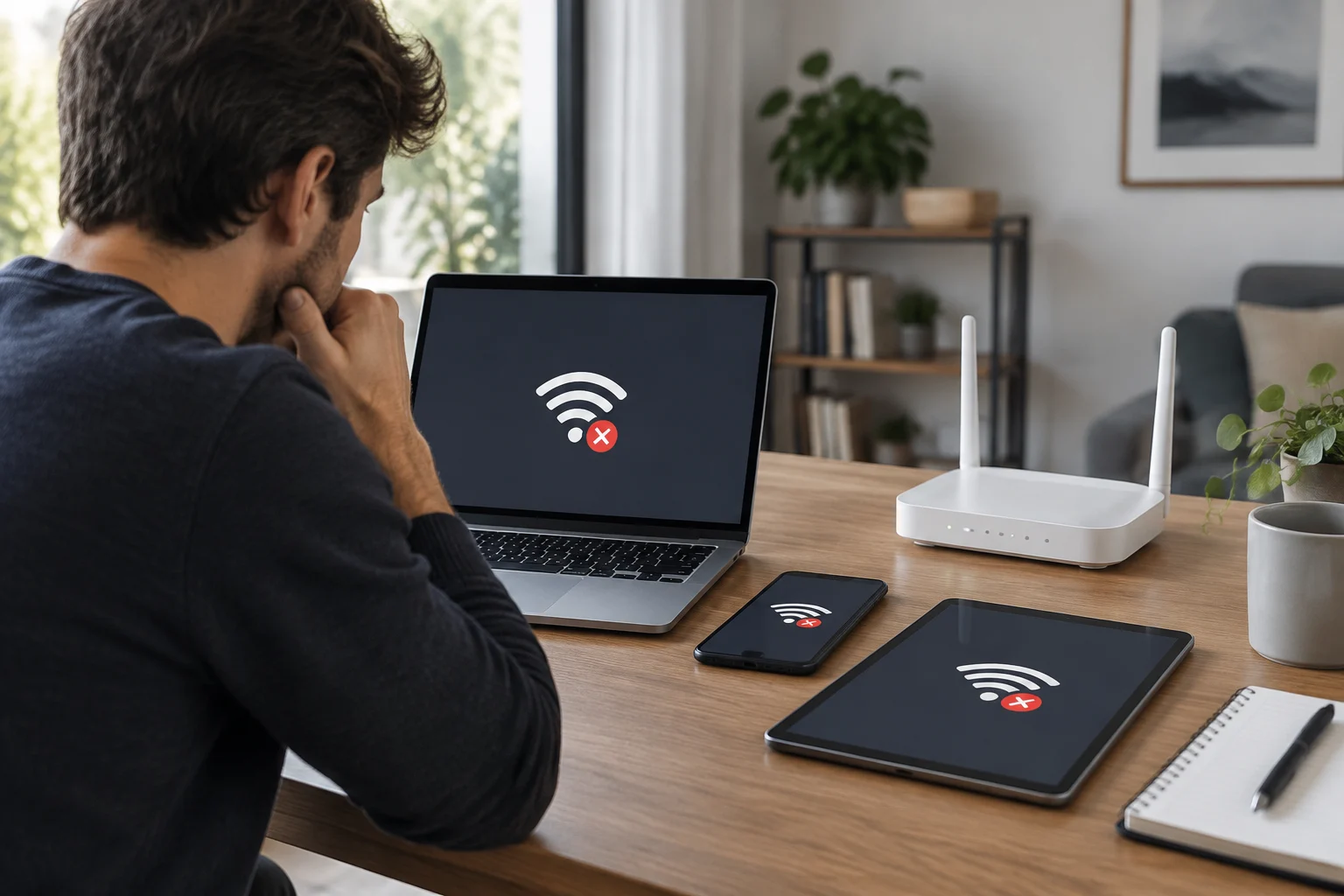
The loss of Internet access in Windows 11 rarely stems from a physical failure of the cable or antenna. In most cases, the origin is an incorrect network configuration, such as a duplicate IP address, a corrupted DNS cache, or a misclassified network profile. Distinguishing these logical errors from hardware failures is the first step to avoid destructive solutions like factory resets, which erase data and work time.
This guide focuses on the use of native diagnostic tools that allow the user to identify the exact cause of the problem. Unlike generic recommendations to 'restart the router', here technical precision is prioritized so that SME administrators and advanced users can resolve the conflict without relying on external support or deleting personal data. The approach is methodological: isolate the variable before intervening.
Step 1: Initial Diagnosis with ipconfig
The ipconfig /all command is the fundamental tool for inspecting the current state of the network interface. When executed in a command terminal, it provides a detailed list of IPv4 and IPv6 addresses, subnet masks, and, crucially, the assigned DNS servers. This information allows verifying whether the device has received a valid configuration or if there is an addressing conflict.
If the IP address appears as 169.254.x.x, it indicates that the device has not been able to obtain a valid address from the DHCP server, suggesting a problem in the router or adapter configuration. This specific range is automatically assigned when negotiation fails, serving as a clear indicator that the network infrastructure is not responding correctly to the operating system's requests.
Once the IP status is identified, the next step is to clear the temporary memory of domain names. The ipconfig /flushdns command removes obsolete or corrupted entries from the local cache. This step is vital when the device correctly resolves one website but fails on another, as the cache may contain outdated DNS records that prevent the current connection and generate intermittent resolution errors.
Step 2: Network Profile and Adapter Management
Windows 11 classifies networks as 'Private' (home) or 'Public' (work). This classification determines which security policies are applied. If a home network is incorrectly marked as public, the Windows firewall will block non-essential incoming and outgoing connections, causing intermittent failures in collaboration applications or online games. It is necessary to verify this setting in the Network Control Panel to ensure policies are consistent with the actual usage environment.
Additionally, the state of the network adapter can be affected by outdated drivers or power conflicts. In Device Manager, you must check that the Wi-Fi or Ethernet adapter has no error warnings. Sometimes, disabling and re-enabling the adapter forces a connection renegotiation with the router, resolving temporary blocks without needing to restart the entire system. This action restarts the network handshake and clears internal driver states.
Step 3: Restoring the Network Stack with netsh
When problems persist after DNS cleaning and profile verification, it is likely that the Windows socket stack (Winsock) is damaged. The netsh winsock reset command restores the Winsock catalog to its default state. This operation is safe and does not delete user files, but it does remove customized network settings that might be causing the conflict. It is a tool of controlled restoration that should be used as a last resort before reinstalling the system.
Complementarily, netsh int ip reset restarts the IP interface configuration, cleaning up accumulated firewall rules and routing settings. After executing these commands, it is mandatory to restart the device for the changes to apply correctly. This process is especially useful after installing third-party software that modifies the network architecture of the operating system, leaving residues that interfere with normal traffic.
Step 4: Solving Specific DNS Issues
If the specific error is 'DNS server not responding', the problem usually lies in the communication between the device and the name server. In these cases, manually changing the DNS servers to public options like Cloudflare (1.1.1.1) or Google (8.8.8.8) can resolve the block. This action allows bypassing possible failures in the Internet Service Provider (ISP) DNS or local router configuration, ensuring more reliable name resolution.
To verify that name resolution works correctly, the nslookup command is used. By entering a known domain, such as google.com, the command should return the corresponding IP address. If nslookup fails while ping to a direct IP works, it confirms that the problem is exclusively DNS resolution and not physical connectivity or layer 3. This differential diagnosis is key to not wasting time checking cables or ports.
Step 5: System Prevention and Maintenance
Preventing future network failures requires proactive maintenance. The sfc /scannow (System File Checker) tool verifies the integrity of Windows system files, including network components. If an operating system file is corrupted, sfc replaces it with a backup copy, preventing the failure from recurring after updates. This process can take several minutes, but it is essential to guarantee the long-term stability of the system.
Additionally, it is recommended to keep network drivers updated through Windows Update or the hardware manufacturer's website. Outdated drivers are a frequent cause of incompatibilities with new versions of Windows 11. Establishing a routine of periodic verification of system integrity and drivers significantly reduces the probability of unplanned connectivity interruptions, ensuring constant performance.