The difference between power modes in Windows 11
Windows 11 offers three main power modes: Best power efficiency, Balanced, and Best performance. Each one adjusts how the system manages CPU, GPU, and background process consumption. The right choice depends on the context: working unplugged, playing video, or running demanding applications.
The Best power efficiency mode limits background activity and reduces overall consumption, while Best performance prioritizes maximum processor speed. The Balanced mode seeks a middle ground that is usually sufficient for most daily tasks. According to official Microsoft documentation, these modes are configured independently for the plugged-in and battery states.
It is important to distinguish between the power mode and energy saver. The former is a permanent setting selected by the user, while the latter activates automatically when the battery drops below a configured threshold, dimming the screen and limiting processes. Both mechanisms can be combined to maximize battery life.
Basic setup: selecting the right profile
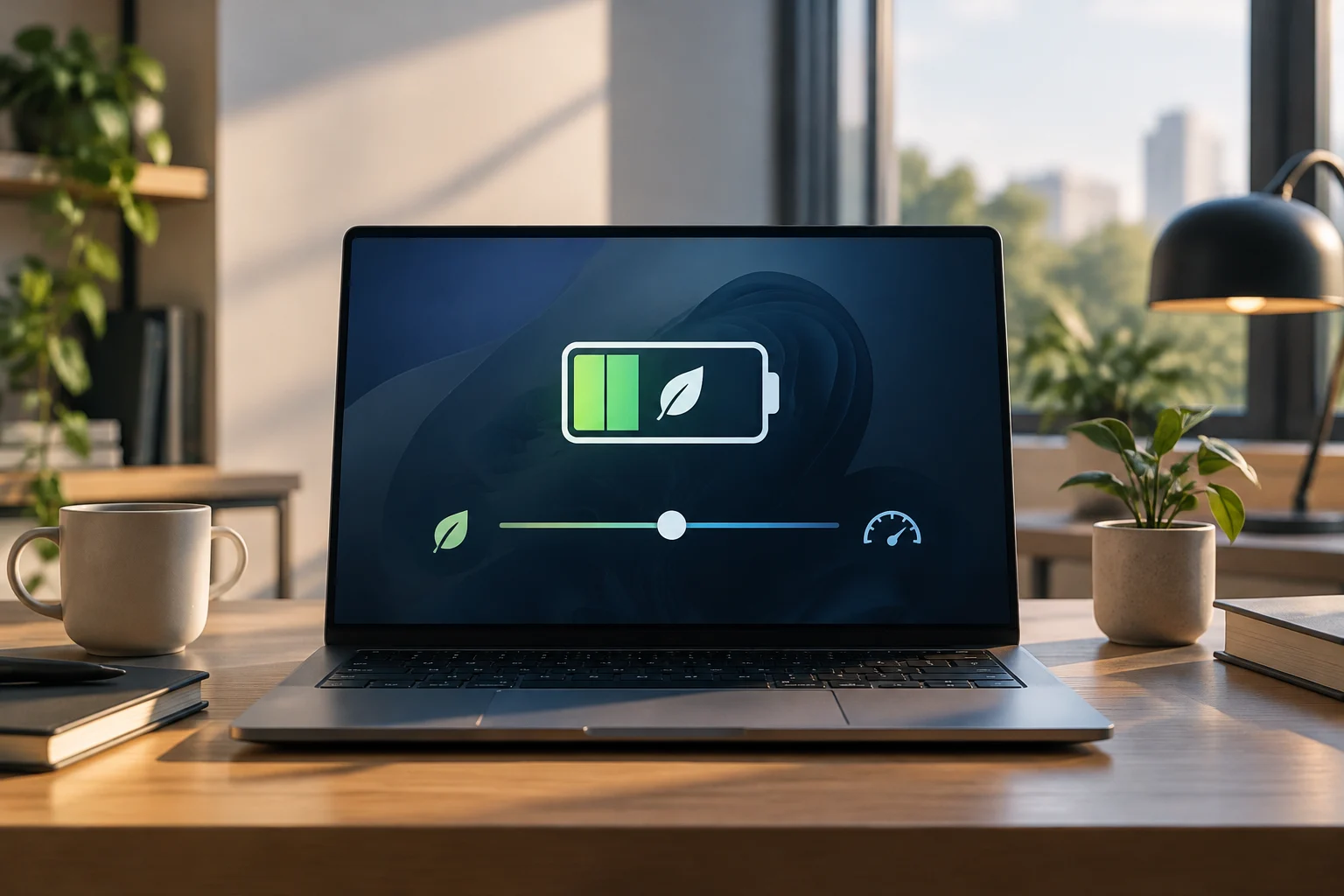
To change the power mode, open Start > Settings > System > Power & battery. In the Power mode section, you will see two sliders: one for Plugged in and another for On battery. Select the option that best fits your usual usage. If you mainly work on battery, set the battery mode to Best power efficiency and the plugged-in mode to Balanced or Best performance.
A quick alternative is to click the battery icon in the taskbar and drag the slider directly to the desired mode. This option is not available on all Windows 10 devices, but it is standard in Windows 11. If you cannot change the power mode, you may have a custom power plan active; in that case, open Control Panel > System and security > Power Options and select Balanced.
The Windows power management architecture is designed to coordinate the consumption of all system devices, including graphics cards, network adapters, and sound cards. This means the power mode affects not only the CPU but also the global behavior of the hardware. A correct adjustment can significantly reduce consumption without manually turning off components.
Advanced settings: performance limit and background processes
In the advanced power options, you can modify the minimum and maximum processor state. These values determine the percentage of CPU capacity the system can use. Reducing the maximum state to 80% or 90% can save battery in light tasks, though it may limit performance in demanding applications. This setting is found in Control Panel > Power Options > Change plan settings > Change advanced power settings.
Windows 11 energy saver automatically manages background processes when activated. You can configure the activation threshold in Settings > System > Power & battery > Energy saver. For example, if you enable it at 20%, the system will reduce background activity and dim the screen when the battery drops below that level. You can also enable the Always use energy saver option to keep it active until you plug the device back in.
On devices with hybrid design processors, such as Intel Core Ultra or AMD Ryzen AI, Windows 11 assigns tasks between high-performance and efficiency cores. The power mode influences how this load is distributed: in Best power efficiency, the system prioritizes efficiency cores for most tasks, reserving high-performance cores only when strictly necessary. This intelligent management is one reason modern laptops offer greater battery life than previous models.
Managing screen and notifications
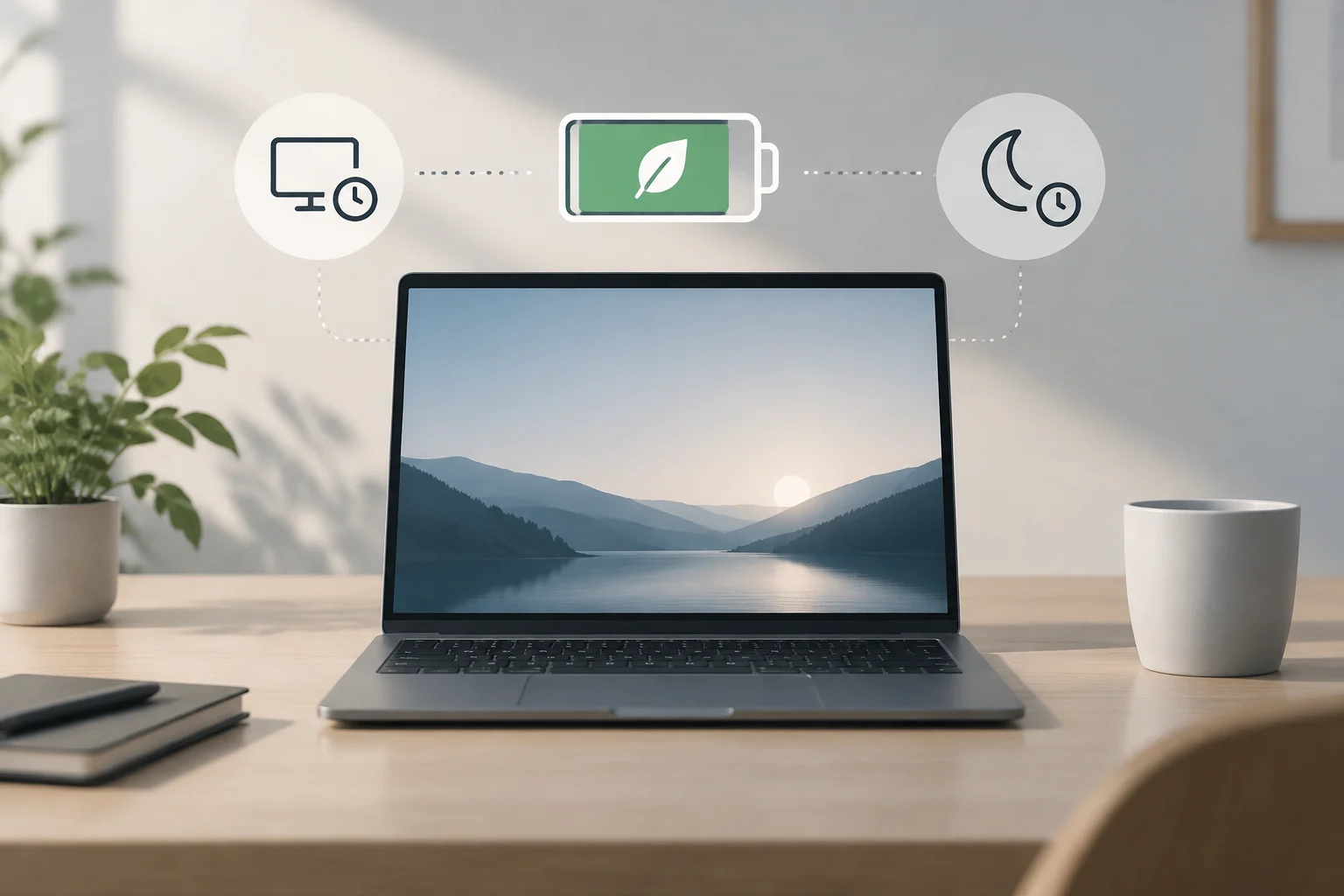
The screen is one of the components that consumes the most energy in a laptop. In Settings > System > Power & battery > Screen & sleep, you can adjust the active screen duration and the time until sleep. Reducing the screen-off time to 1 or 2 minutes and sleep to 5 or 10 minutes can save significant battery if the device is frequently inactive.
Dark mode also contributes to energy savings, especially on OLED or AMOLED screens, where black pixels do not emit light. In Settings > Personalization > Colors > Choose your mode, select Dark mode. Although the savings are smaller on LCD screens, the reduction in overall brightness can be noticeable. Additionally, energy saver includes the option Dim the screen when using energy saver, which automatically dims the screen when low power mode is activated.
Notifications and automatic updates also consume resources. In Settings > System > Power & battery > Energy recommendations, you will find a section that identifies settings that likely consume more than usual, such as screen brightness, screen saver, and inactivity time before sleep. You can apply all recommended settings at once or adjust each one individually. This tool is especially useful if you do not want to spend time configuring each option manually.
Verifying the impact: measuring consumption before and after
To check if the settings are having an effect, you can use the Windows Performance Monitor. Open the application from the Start menu and observe the CPU and GPU power consumption metrics. Compare the values before and after changing the power mode. In Best power efficiency, you should notice a reduction in average CPU consumption, especially in background tasks.
Another option is to review the battery usage history in Settings > System > Power & battery. Windows 11 records consumption by application and by component, allowing you to identify which programs are draining the battery. If an application consumes a disproportionate amount of energy, consider disabling it in the background or looking for a more efficient alternative.
It is important to remember that battery savings depend on many factors, including workload, hardware configuration, and installed applications. Do not expect identical results on all devices. The key is to find a balance that works for your specific use and adjust parameters as needed. If you notice performance degrades too much, revert to Balanced or Best performance and adjust only screen and sleep options.
Summary of recommended settings and how to revert them
For most laptop users, the recommended configuration is: Best power efficiency on battery, Balanced or Best performance plugged in, energy saver enabled at 20%, screen off after 2 minutes of inactivity, and sleep after 10 minutes. This combination offers a good balance between battery life and productivity without requiring advanced adjustments.
If you need to recover maximum performance, simply change the power mode to Best performance in both states (plugged in and on battery) and disable energy saver. All settings are reversible and do not require reinstalling the system. You can switch between modes depending on the context: use Best power efficiency in meetings or travel, and Best performance when working with editing software or games.
Power management in Windows 11 is smarter than in previous versions, thanks to integration with modern hardware and the ability to assign workloads between efficiency and performance cores. Take advantage of built-in tools, such as Energy recommendations and Performance Monitor, to make informed decisions. A well-configured adjustment can extend battery life and improve the user experience without sacrificing power when you need it.