What saver modes do and why they are not the same
The battery saver mode is not a universal setting with the same effect on all phones. Android can vary by manufacturer: Google notes that some devices include a saver mode and refers to manufacturer assistance to know what is available in each model. Therefore, menu names, options, and restrictions may change; it is advisable to search for the function in Settings rather than assuming an identical path for all.
On iPhone, Apple documents a more specific set of changes for low power mode: it reduces brightness, shortens auto-lock, disables background app refresh and automatic downloads, and temporarily pauses iCloud Photos and automatic mail checks. It also disables some visual effects. The trade-off is less automatic activity, not a promise of a determined duration: the source does not establish how many additional hours each person will get.
The practical recommendation is to think of these modes as emergency or prolonged use profiles, not as magic optimizers. Reducing background activity may delay updates or synchronizations; lowering brightness may affect reading comfort. Savings and functionality are balanced according to what you need the phone to do while the mode is active.
Android: Enabling saver and reviewing useful settings
On many Android phones, the starting point is opening Settings and searching for “Battery” or “Battery Saver”. Google's help describes manual activation from Settings > Battery > Battery Saver, but warns that some instructions depend on the version and that not all devices have exactly the same options. If you cannot find that path, consult the manufacturer's help or use the internal search in Settings.
Google recommends several low consumption measures that do appear in its documentation: reducing brightness, making the screen turn off sooner, enabling adaptive brightness, and restricting high-consumption apps. It also mentions Adaptive Battery and dark theme as options available depending on the device. These recommendations are a starting point, not a universal classification of efficacy: the effect depends on the phone and usage. If a messaging, navigation, or work app must notify you in the background, review the consequences before restricting it.
Settings worth checking
Start by reducing brightness to a legible level and shortening the time until the screen turns off. If the device offers adaptive brightness, you can try it and observe if it adjusts well to your environments. Then review the battery usage section to locate apps that consume a lot; restrict only those that do not need to stay active or send quick alerts. Change one thing at a time to identify which setting is useful to you without interrupting important functions.
Refresh rate deserves caution: the draft proposed changing from 120 to 60 Hz as a guaranteed improvement, but available sources do not document that setting or quantify its effect. If your phone allows choosing a lower frequency, you can try it as a manufacturer option, but it is not responsible to promise a notable savings for all models. Also check if the option alters the smoothness you expect when scrolling or playing.
Android: Automation and variations between phones
Saver scheduling is also not uniform. Android Open Source Project documentation explains that Android 10 introduced a “Based on routine” option to schedule the saver using signals from a manufacturer-chosen app; implementation is optional and requires device configuration. It does not mean all phones offer that option nor that the user can configure the same automation in any version or brand.
In practice, look within the battery screen for options like scheduling, percentage activation, or automatic saver, if present. If you only need to stretch a specific charge, enabling it manually is usually more direct. Before automating it, consider what tasks might be delayed and whether you want the phone to activate restrictions when you still need to receive notifications or complete synchronizations.
Avoid changing advanced system configurations just because a generic guide mentions them. Phones from different brands may organize controls differently, and a path published for one version does not guarantee it remains valid in another. Specific model documentation takes priority over universal instructions, especially for background activity permissions or screen settings.
iPhone: Enabling low power mode
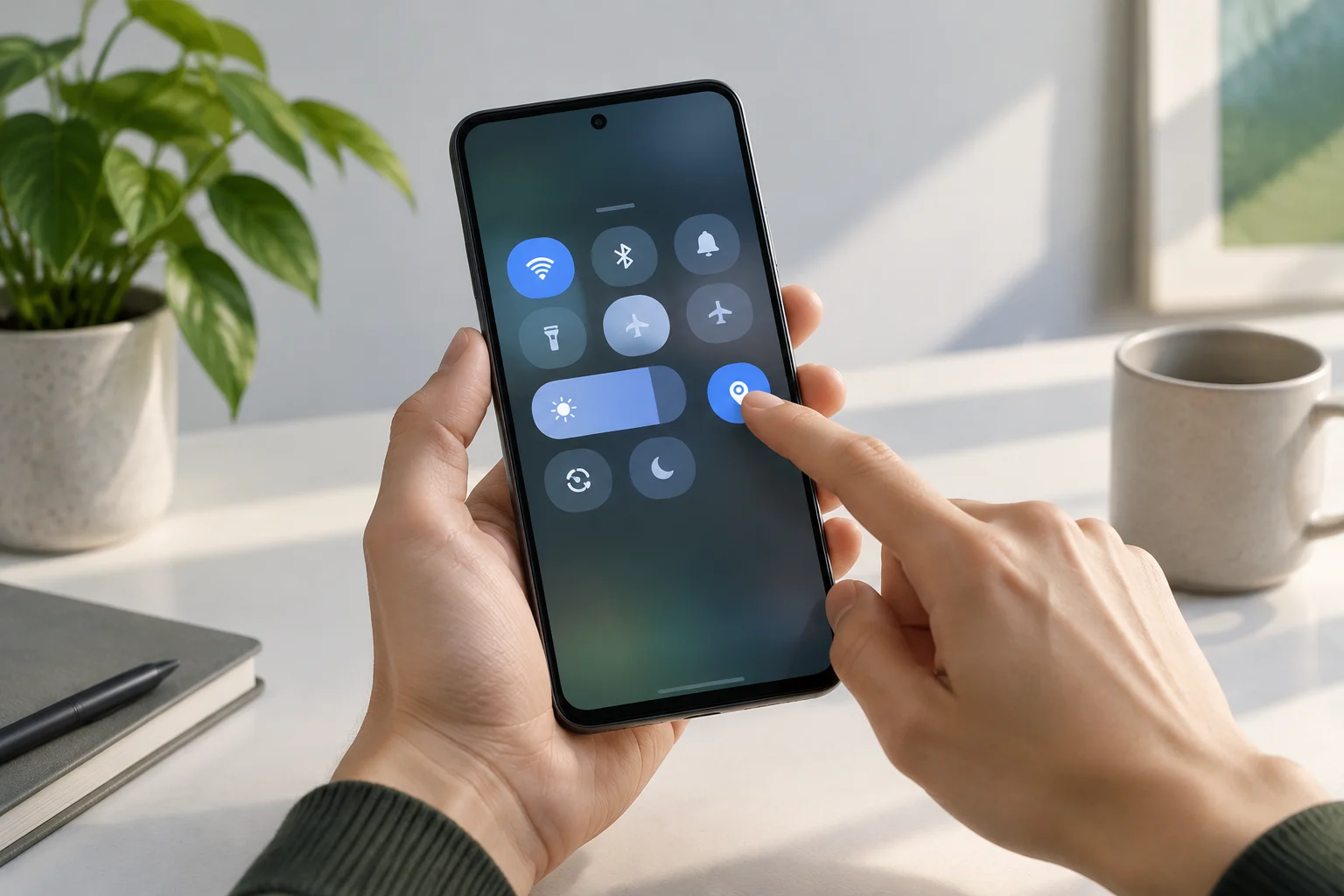
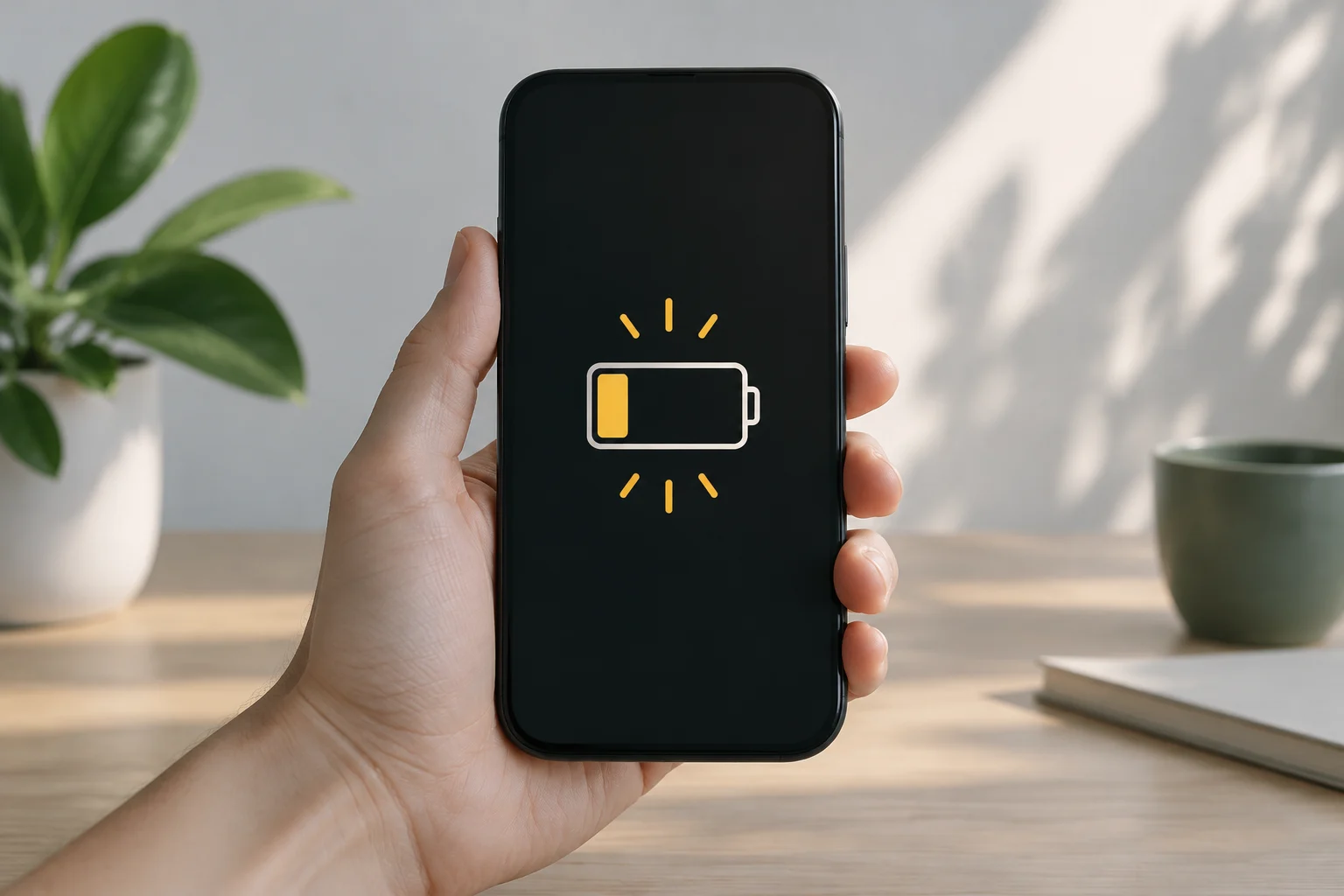
On iPhone, Apple indicates that the path depends on the model: on models 15 and later, go to Settings > Battery > Power Mode and enable Low Power Mode; on models 14 and earlier, open Settings > Battery and enable it there. It can also be enabled from the Control Center or via Siri. The yellow battery icon allows recognizing that the mode is active.
The mode reduces brightness, sets auto-lock to 30 seconds, disables some animations, automatic downloads, and background refresh, and temporarily pauses iCloud Photos. Automatic mail fetching is also disabled, although the effect may vary depending on how your accounts are configured. It does not equate to turning off iCloud completely: the documentation specifies a pause of iCloud Photos, not the general deactivation of all synchronization services.
Apple indicates that the mode turns off when the iPhone reaches a charge of 80% or more. If the device supports Adaptive Power and it is enabled, the function can turn on the mode when dropping below 20%. On iPhone 12 and 13 models, documentation indicates that 5G is maintained for streaming and large downloads; therefore, it should not be described as a universal 5G restriction. Check the behavior on your model if you depend on a specific function while saver is active.
How to check if the changes help you
There is no comparative test in the consulted sources that allows asserting how many hours a specific phone will gain with these changes. The useful way to check is to observe consumption under comparable conditions: note the percentage at the start and end of a period, screen time, and tasks performed, and compare days with similar habits. Do not attribute a difference to a single setting if you also changed coverage, brightness, video usage, or apps.
On Android, review the battery panel and consumption per app to detect which programs appear as relevant energy users. On iPhone, consult Settings > Battery and compare the periods presented by the system; avoid interpreting a graph as proof that the mode has eliminated a peak by itself. The remaining percentage describes the charge state, not a direct measurement of future hours, which depend on activity and conditions.
A simple log can help decide what to keep:
- Day and period observed: compare similar duration ranges.
- Setting tested: for example, saver mode enabled or brightness reduced.
- Usage and context: screen, video, navigation, mobile signal, and relevant notifications.
- Observed result: percentage consumed and any function that was delayed or limited.
If a change reduces consumption but interrupts an important function, it may not be worth keeping it always active. The reasonable goal is not to achieve a universal figure, but to find a balance that adapts to your day and priorities.
Myths and decisions to avoid
Disabling Wi-Fi is not a general rule to save battery. Apple indicates that, when using data, the Wi-Fi connection consumes less energy than the mobile connection. If you have a stable network available, keeping Wi-Fi may be preferable to transferring data over the cellular network; the specific result will depend on coverage, activity, and device. This recommendation does not allow asserting that turning off Wi-Fi or Bluetooth never helps: it only discards presenting it as an automatic improvement in any situation.
It is also not necessary to discharge the battery to 0% to “teach” the phone its capacity. Google explicitly says that it is not necessary to perform full charge-to-discharge cycles and recommends keeping the device cool, because heat can accelerate consumption and harm the battery. The same guide advises using the adapter supplied with the phone, as other chargers could charge slowly or cause damage. Do not confuse autonomy with useful life: the former is how long a charge lasts; the latter, how long the battery retains its capacity before needing replacement.
A prudent routine would be to enable the native mode when charge is scarce or when you can accept less frequent synchronizations; lower brightness to a comfortable level; review consumption per app; and keep Wi-Fi if the available network is stable. It is not necessary to install a third-party app to start. The decision depends on what you want to preserve: immediate alerts, synchronization, screen smoothness, or the remaining percentage at the end of the day.