Before Changing Settings: Identify the Router and Save Access
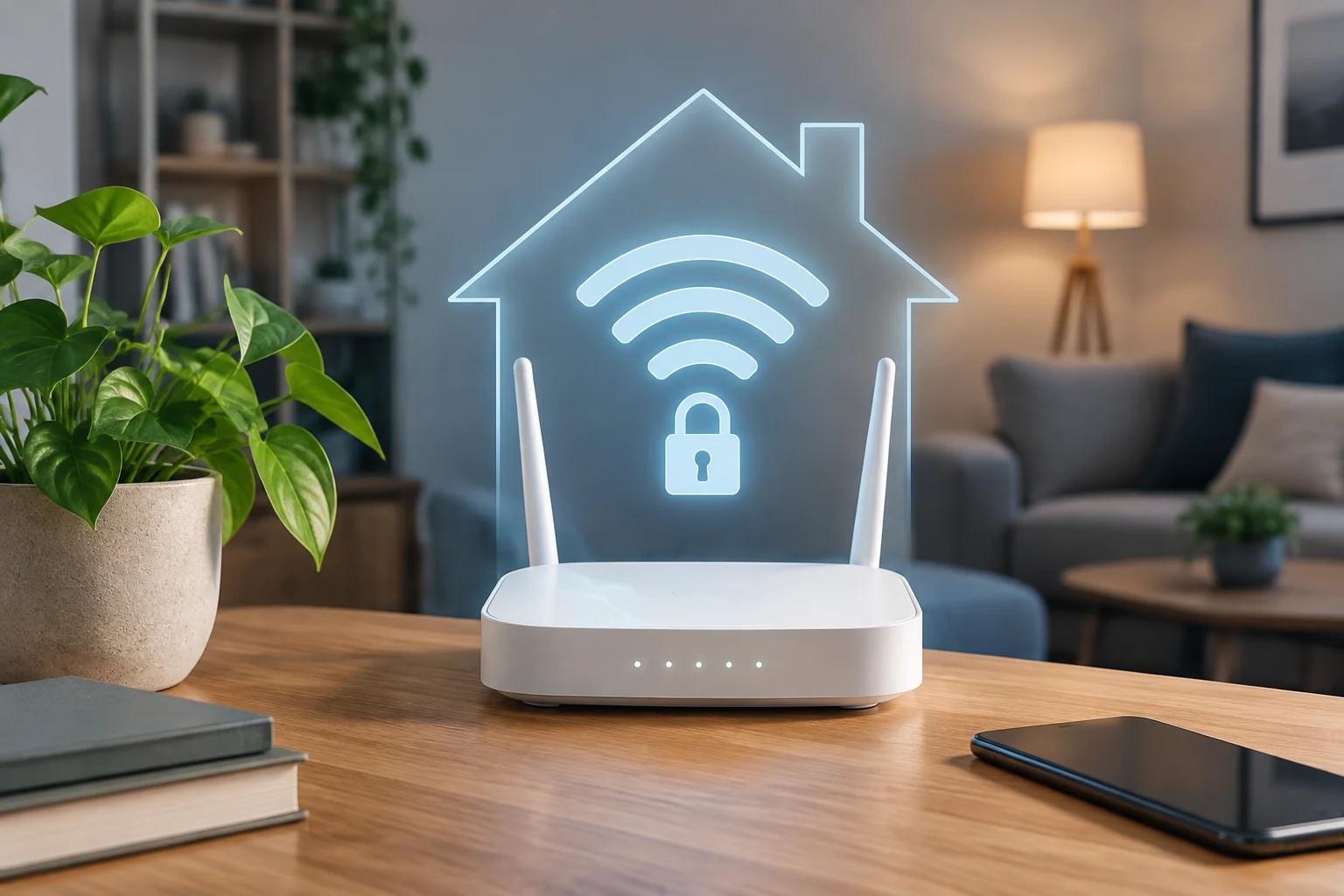
Wireless configuration is usually found in a provider application or the router's administration panel. Menu names vary by manufacturer and firmware version; therefore, it is advisable to locate the manual or support page for the specific model rather than following instructions designed for another device.
Before modifying anything, note how to re-enter the panel and save the administration password in a secure place. The Wi-Fi key is not the same as the router password: the former allows devices to connect to the network; the latter provides access to settings that can change its security and operation.
Make changes from a device connected to the home network and avoid sharing screenshots that reveal passwords, addresses, or access codes. If the connection stops working, you can return to review the panel; if the device belongs to the operator, some options may be locked or managed by their technical service.
Strengthen Credentials and Wireless Encryption
Change default credentials if the router still retains them. Choose a long, hard-to-guess Wi-Fi password that you do not reuse in other services, and use a different password to administer the router. The Cyberzaintza guide recommends keys of at least 12 characters and enabling a second factor when available for accounts that support it (https://ciberseguridad.euskadi.eus/ciberpedia/buenas-practicas/configuracion-segura-de-los-dispositivos/webcyb00-contdocu/es/).
In wireless settings, select WPA3-Personal if the router and home devices support it. If an older device cannot connect, check if there is a WPA2/WPA3 transition mode or a compatible option that maintains robust encryption. Do not assume that the menu name guarantees a specific level: verify the selected mode in the panel or manufacturer documentation.
Avoid leaving obsolete standards or weak compatibility modes enabled when not necessary. An Aurum security guide advises using WPA2 or WPA3, changing default credentials, disabling WPS, and keeping firmware updated (https://www.aurum-informatica.es/blog/como-configurar-una-red-wifi-segura). Compatibility matters, but it is not advisable to lower protection without checking which device needs it and if there is an alternative.
Update the Router and Review Access Options
Look for the firmware update option in the panel and check if the device installs updates automatically. If not, consult the manufacturer or provider instructions before installing a file: the exact model and region must match. Firmware is also part of security; INCIBE recommends keeping devices and programs updated to fix known vulnerabilities (https://www.incibe.es/ciudadania/tematicas/configuraciones-dispositivos).
Disable WPS if you do not use it to connect devices. Its availability and connection method depend on the router, so confirm which option you are turning off in the manual. It is also reasonable to disable remote administration if you do not need it; if the provider requires it for support, ask before changing it to avoid losing a necessary function.
Do not blindly change DNS settings, channels, or transmission power with the expectation that they will always improve the network. These are settings that depend on the environment and hardware. First check if there is a specific problem and if the manufacturer recommends a configuration; save the initial state to be able to revert changes that affect the connection.
Control Which Devices Are Connected
In the application or panel, review the list of connected devices and compare the names with home appliances: mobiles, televisions, cameras, printers, and guest devices. An unknown name does not by itself prove an intrusion; some devices appear with generic identifiers or change their network address. Before acting, confirm that it is not your own device.
If you do not recognize a connection after checking your devices, change the Wi-Fi password and reconnect only authorized devices. The Aurum guide recommends reviewing connected devices and changing the key if an unrecognized one appears (https://www.aurum-informatica.es/blog/como-configurar-una-red-wifi-segura). Also review the administration password if you suspect someone may have accessed the panel.
A guest network can separate visit access from the main network, if the router includes that function. Enable it with its own key and check in the manual if guests are isolated from home devices. Not all routers implement isolation equally, so do not assume that a network with a different name is enough to prevent access to the local network.
Improve Coverage with Simple Checks
Signal depends on the router's location, walls, interference, and the capabilities of each device. Placing it in a relatively central and clear area can help avoid obstacles, but it does not guarantee uniform coverage throughout the home. If performance changes from room to room, compare the experience in several points before buying additional equipment.
To separate a wireless incident from a provider problem, check the connection near the router and, if possible, compare with a wired connection. Perform checks with the same device and service, at similar times; an isolated test does not allow concluding that the router is the cause. First locate where the drop occurs and then decide if it makes sense to change the location or consult the operator.
Quality of service settings, when they exist, can prioritize certain types of traffic, but they do not create additional capacity in a saturated connection. Follow the manufacturer's documentation and change one option at a time. If you do not notice a clear improvement or another activity worsens, restore the previous setting instead of maintaining a difficult-to-diagnose configuration.
Final List and Limits of This Guide
When finished, check that you can connect usual devices, that the chosen encryption remains active, and that you know the new key. Save recovery information and review updates and the connection list from time to time. The frequency will depend on how much the network changes; there is no need to turn the review into a daily task.
Before finishing the adjustment, review these points: own and distinct credentials, compatible and updated encryption, WPS disabled if not needed, firmware reviewed, and connections identified. If the router belongs to the operator or the panel does not offer an option, consult its documentation and do not replace model-specific instructions with generic recommendations.
This guide gathers general measures and does not certify the security of a specific router. The sources consulted support practices such as updating firmware, using WPA2 or WPA3, changing default keys, and reviewing connected devices; they do not provide an independent performance proof or establish a universal configuration for each home. The right decision depends on the model, its updates, and the devices that must connect.