Two GPUs, two usage profiles
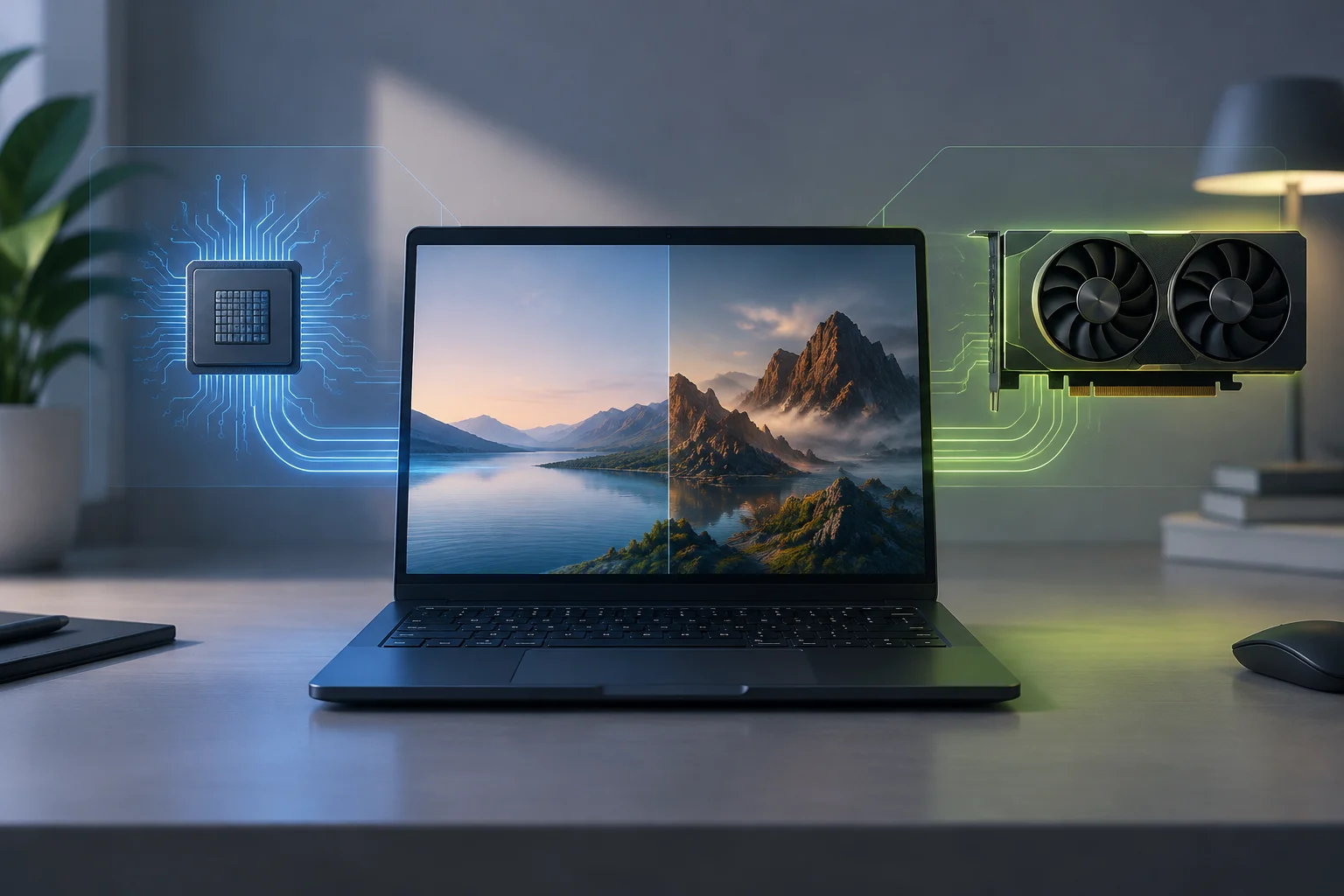
An integrated GPU and a discrete GPU can coexist in the same computer, especially in laptops. The first typically uses less energy for light graphics tasks; the second may be better suited to demanding workloads, although it usually requires more power. Hybrid graphics aim to balance battery life and graphics capability, rather than keeping the most powerful GPU active all the time. (Microsoft)
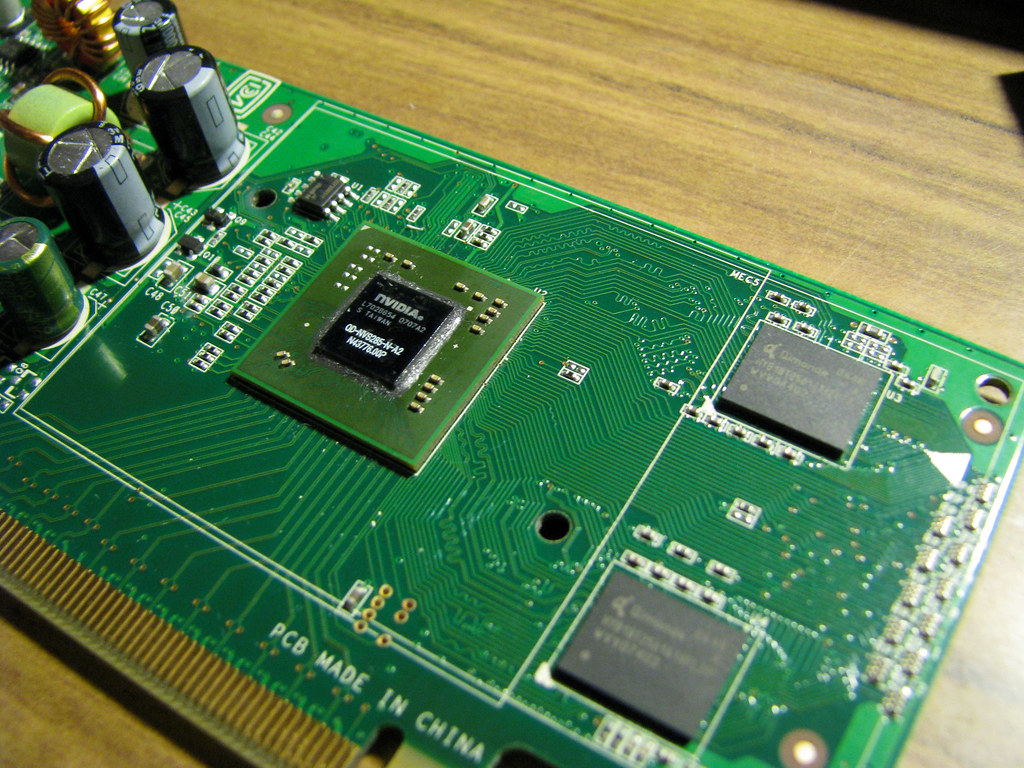
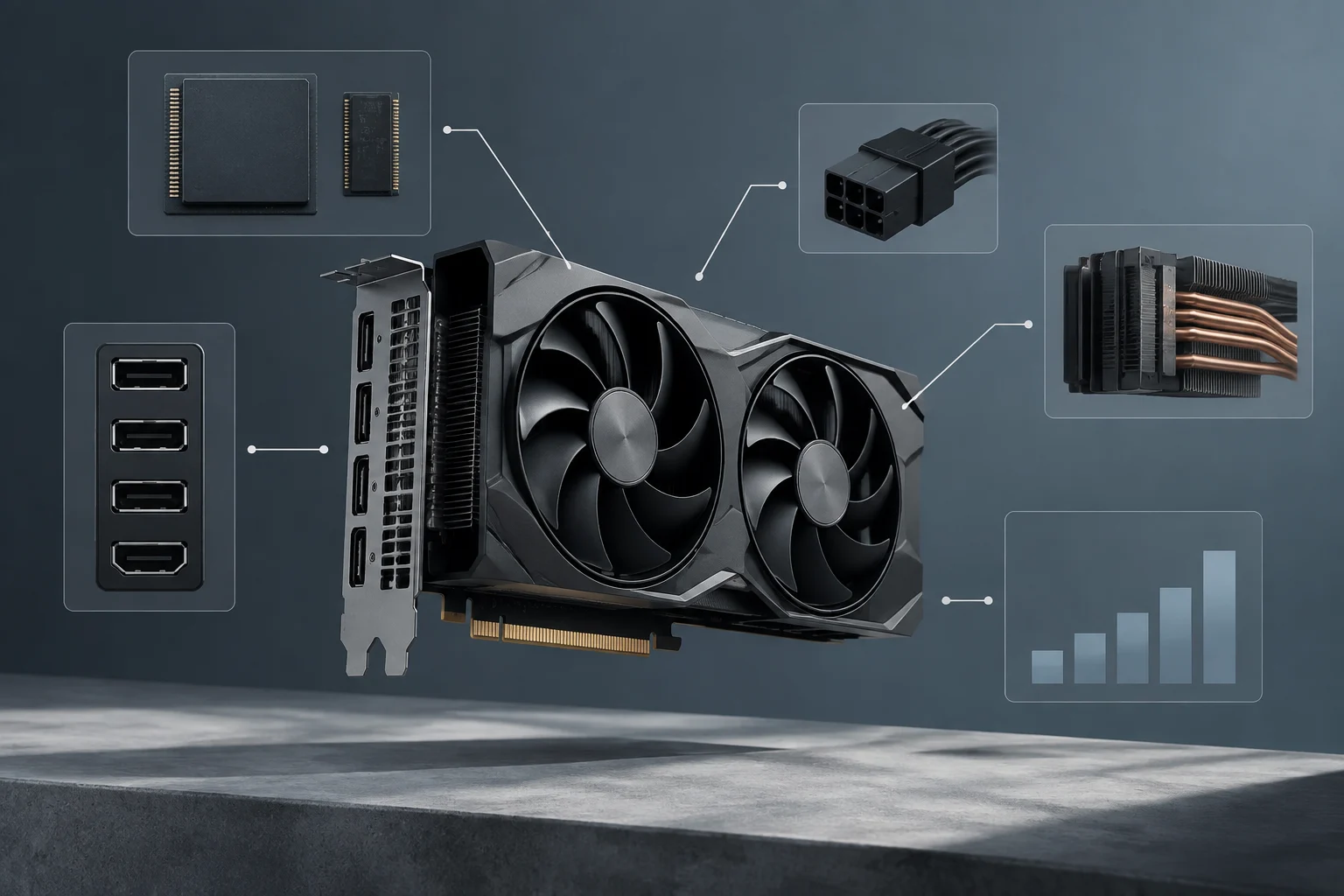
It is useful to distinguish a GPU, the processor that performs graphics work, from a graphics card, which in a desktop may be a separate board that includes a GPU and other components. In a laptop, a discrete GPU may also be physically integrated into the computer’s motherboard: “dedicated” or “discrete” describes a class of graphics processor here, not necessarily a removable card. (ACTA; Microsoft)
Windows describes a common division of work: the integrated GPU handles less demanding tasks, while the discrete GPU may take on heavier workloads. This is a general explanation, not a promise that every app will switch GPUs automatically or that both GPUs will process the same task at once. Actual behaviour depends on configuration, the driver, the app, and the computer’s design. (Microsoft)
What Windows graphics preference decides
In Windows 11, Settings > System > Display > Graphics lets you set a preference for an app or game. Microsoft’s documentation says that when more than one graphics processor is present, you can choose to let Windows decide, select power saving, or select high performance. The exact path may change with the Windows version. (Microsoft)
The preference is assigned through the options for a specific app, rather than as a universal rule for the whole system in the interface Microsoft describes. In practice, you can find an app in the list or add it, then select an available profile. “High performance” and “Power saving” are preference labels: they do not, by themselves, identify a GPU by manufacturer or model, nor do they guarantee speed, power use, or temperature. (Microsoft)
The same support page explains windowed-game optimizations, but these are a separate option: they concern how compatible DirectX 10 and DirectX 11 games are presented in windowed or borderless-window modes. Do not confuse that optimization with GPU preference. One changes compatible presentation handling; the other states which graphics profile is preferred for an app. (Microsoft)
App settings and driver profiles
To set a preference, open Settings > System > Display > Graphics, select an app, and open its options. If it is not listed, Microsoft’s documentation says you can add apps. Choose “Let Windows decide,” “Power saving,” or “High performance,” depending on the options shown on your computer, save the changes, and restart the app if needed. (Microsoft)
Do not assume that an older setting in the manufacturer’s control panel takes precedence over Windows. A question posted on Microsoft Q&A reports that, on one particular laptop, the NVIDIA Control Panel pointed users to Windows graphics settings; this is a user’s case, not official policy or a rule that applies to every driver. Windows support documentation is the better source for general steps; documentation from the computer or driver manufacturer is needed to confirm specific behaviour. (Microsoft Q&A)
If the selected setting does not seem to match the behaviour you observe, first check which executable you configured and whether you restarted the app. Also check that Windows and the drivers are up to date, following the manufacturer’s instructions. The available sources do not establish that an individual preference always overrides every decision made by an app or driver. The research provided also does not include official NVIDIA, AMD, or Intel guidance for resolving specific conflicts.
How to check which GPU is active
One useful check is to identify the running app and look at each GPU’s activity in Task Manager, if Windows displays that information on your computer. The value shown indicates activity associated with a graphics processor; it does not, on its own, prove that the app is using the optimal option or allow you to compare GPU performance. The available sources do not include an official Microsoft guide that documents this check in sufficient detail for every version. (Microsoft Q&A)
For a structured check, change one preference at a time, close and reopen the app, and compare activity information under similar conditions. Keep three questions separate: which GPU Windows shows as active, whether the app works properly, and whether the change improves the outcome you care about. Do not treat an activity reading as a conclusion about smoothness, temperature, or battery life without suitable measurements. Those relationships are not verified by the sources gathered.
Monitoring tools and their indicators can vary with the driver, Windows version, and display configuration. Microsoft’s historical note about problems analysing GPU performance in Windows 8.1 documents timing errors in an older measurement scenario; it is not evidence that current tools fail in the same way. Its relevance here is the reminder that a figure depends on method and context, not a claim that Windows 11 has a current limitation. (Microsoft)
Performance, power, and the limits of choice
Microsoft’s documentation supports a general distinction: integrated GPUs are usually more power-efficient, while discrete GPUs may suit graphics-intensive tasks and use more power. This is guidance by GPU type, not a comparison of specific models or a battery-life figure. Thermal design, power limits, and workload also matter, but the evidence provided does not quantify them. (Microsoft)
That is why it is not correct to treat “High performance” as a button that will necessarily increase frames per second or reduce the load on the integrated GPU. The preference asks Windows to use an option for an app; the measurable effect depends on the case. If your aim is to save battery, check power use and actual behaviour on your computer rather than assuming the selected label guarantees an improvement. The preference is a configuration choice, not a measured result.
On desktops with multiple GPUs, laptops with external displays, or computers with an external GPU, the image path can make interpretation more complicated. User questions on Microsoft Q&A illustrate particular issues and configurations, but do not establish a general solution. Do not infer a universal rule from those cases: a specific recommendation would require official documentation for the model and driver, as well as reproducing the affected configuration. (Microsoft Q&A)
What can be concluded—and what still needs checking
The supported conclusion is limited: Windows 11 offers per-app graphics preferences when a computer has more than one GPU, and Microsoft presents the choice as a way to guide the balance between power saving and performance. The documentation provided is not enough to describe every driver profile, display path, or manufacturer-specific exception precisely. (Microsoft; Microsoft)
This article has also not verified how to obtain a reliable record of the GPU used by each app across all Windows versions, or the quantitative effect of changing the preference on battery life, temperature, or performance. Microsoft Q&A responses are community testimony and guidance; they do not replace an official specification. The prudent approach is to use the preference as a configuration tool and check the result on the specific computer.
Before turning this explanation into a more detailed troubleshooting guide, we would need up-to-date Microsoft documentation on GPU monitoring and official manufacturer sources for their control panels and drivers. It would also be useful to specify the differences between hybrid systems and desktop configurations with more than one adapter. Until then, this article can explain the controls available, but cannot promise that a selection will force every app to use a particular GPU.