The connector does not define capability
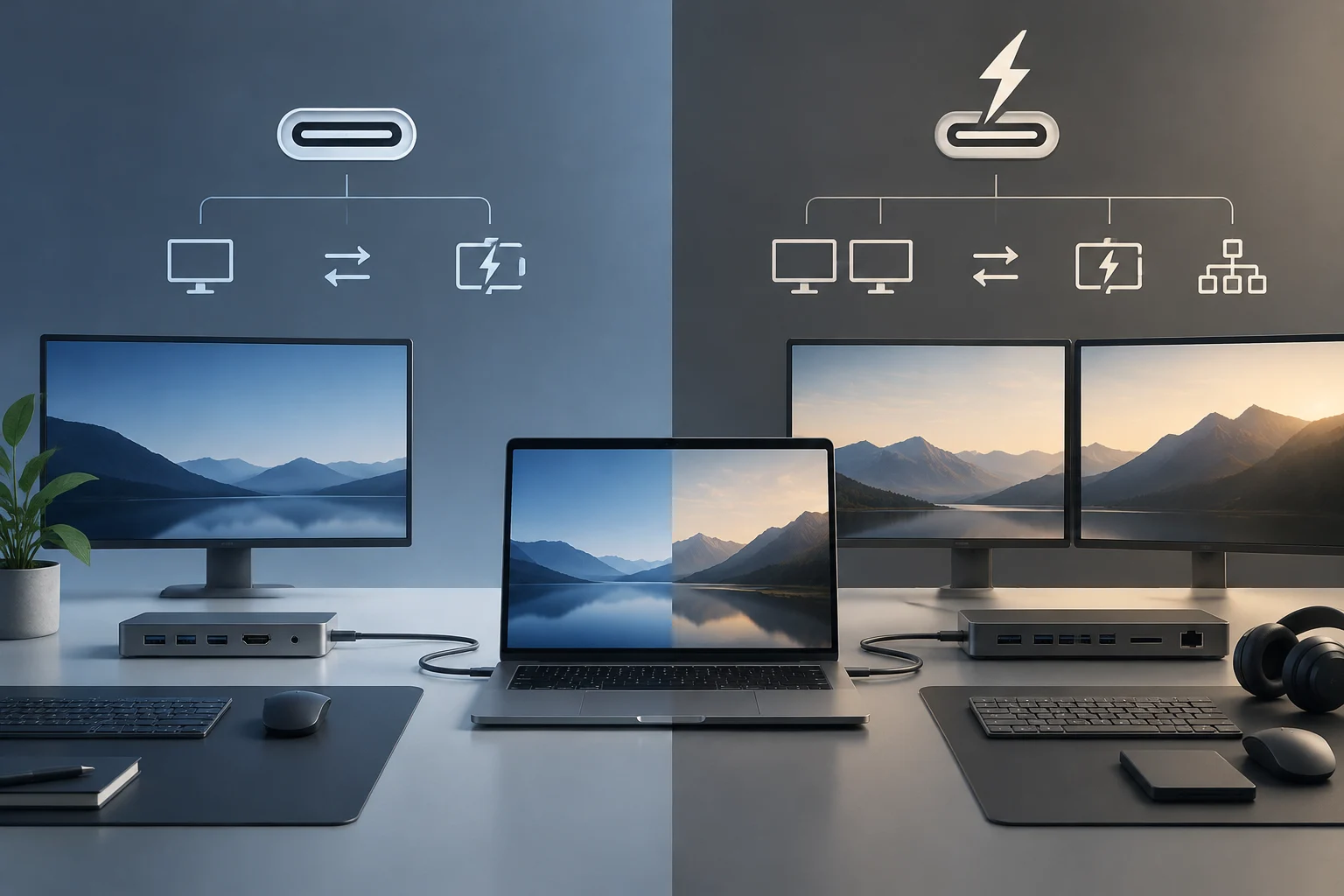
One of the most common sources of confusion when buying a dock is assuming that the connector type alone determines performance. USB-C is a physical connector format, not a communications protocol. The same connector can carry USB 2.0, USB 3.x, USB4 or Thunderbolt, depending on the manufacturer’s internal implementation. Therefore, a dock labelled “USB-C” is not guaranteed to provide high bandwidth or support multiple high-resolution monitors. When comparing devices, first identify the technology implemented by the port rather than inferring it from its shape.
Connector and protocol
The useful distinction is between the physical layer—the connector you plug in—and the logical layer, which determines how data is transmitted. Although two ports may look identical, their capabilities can differ. The port’s shape cannot confirm performance or tell you, by itself, whether it supports video, a particular data speed or Thunderbolt-associated features.
A laptop’s USB-C port may be internally wired to support DisplayPort Alt Mode, USB 3.2 Gen 2x2 or even Thunderbolt 4. The spec sheet should explicitly state which protocol each port supports. This precision matters when choosing a dock: users need to know not just which connector is available, but also which features the manufacturer has implemented on it.
Bandwidth specifications: USB4 and Thunderbolt
The official USB4 and Thunderbolt specifications set bandwidth limits that affect simultaneous video and data transmission. Thunderbolt 4 guarantees a minimum of 40 Gbps bidirectional bandwidth, while USB4 can operate at either 20 Gbps or 40 Gbps, depending on the implementation. The name USB4 alone therefore does not establish the actual speed: check the value specified by the manufacturer for the computer or dock.
The difference can matter with a dock connecting several monitors and peripherals at once. Video uses some of the available bandwidth, which must also be shared with data from other connected devices. A higher total bandwidth figure can therefore provide more headroom for simultaneous transmissions, although the final capability also depends on video specifications and the supported configuration.
Practical comparison
In practice, a Thunderbolt 4 dock may support two 4K monitors at 60 Hz or more demanding configurations. By contrast, a USB-C dock with USB 3.2 Gen 2, at 10 Gbps, could be limited to one 4K monitor or several at lower resolutions. This is not something you can infer from the connector alone: these options depend on the specific implementation and the capabilities listed in the spec sheets.
Manufacturers usually state the dock’s exact protocol, along with the supported resolutions and number of displays. Comparing those details with the laptop’s specifications helps establish whether both devices can work together in the intended setup before purchase, without assuming that two products with USB-C connectors offer the same performance.
Video capabilities: DisplayPort Alt Mode and DSC
Video transmission over USB-C depends on support for DisplayPort Alt Mode, which allows the port to carry video signals directly. Not every USB-C port includes this feature: some are limited to USB data and charging. To find out whether a laptop can send video through that port or a dock can receive it, consult the spec sheet and check that it explicitly mentions DisplayPort Alt Mode.
A video output on the dock does not, by itself, settle compatibility. The laptop and dock specifications must both cover the required capabilities. Check both ends of the connection, because a USB-C label does not certify video support, and identical-looking ports do not necessarily carry the same signal.
Signal compression
Display Stream Compression (DSC) is a technology that compresses a video signal without perceptible loss, reducing the bandwidth needed to transmit it. A port that supports DSC can handle more combinations of resolution and refresh rate than one without that capability, even when both start with the same base bandwidth.
This is especially relevant to multi-display setups, which are common in some professional work environments. DSC can expand the available video options, but its effect depends on support from the port and the devices involved. It is therefore worth looking for an explicit reference to DSC instead of inferring support from the connector type or the protocol’s general name.
Charging and power delivery: limits of the laptop port
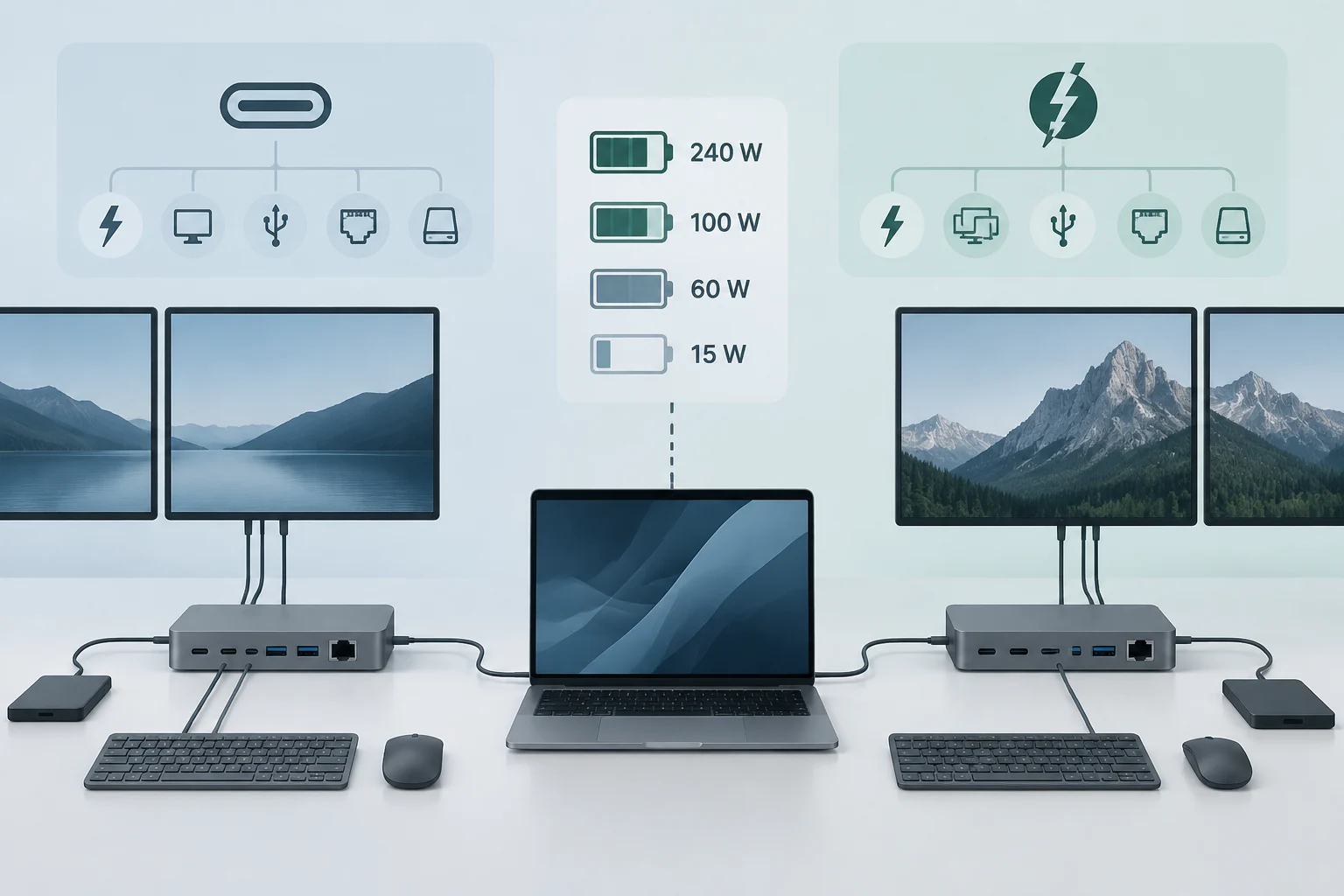
A dock’s charging capability does not depend solely on how much power the dock can deliver. It is also constrained by the maximum power the laptop’s USB-C port can accept. USB Power Delivery (USB-PD) defines power profiles that, in the latest versions, range from 15 W to 240 W; however, many laptops have a 60 W or 100 W limit regardless of the capability advertised by the dock.
This means the dock’s charging rating and the laptop’s rating describe different capabilities. A spec sheet may state how much power the dock supplies, but that figure does not guarantee the connected computer will receive all of it. To assess the practical result, compare the power offered by the dock with the power accepted by the laptop port, using the official documentation for both.
Power available to peripherals
A dock advertising 100 W charging will not deliver that amount to a laptop that accepts only 60 W. The receiving device’s limit prevails: the dock’s maximum capability does not increase what the laptop can accept. Before choosing a docking station, check the charging specification for the particular computer model instead of relying only on the power figure printed on the dock’s packaging.
Also, the power available to peripherals connected to the dock is reduced when the laptop is charging at the same time. This can limit how many USB devices the station can power. If several peripherals are planned, consider the laptop’s charging needs and the power allocated to those devices together, rather than treating the two requirements as independent.
How to verify specifications in spec sheets
To make an informed decision, consult the official spec sheets for both the laptop and the dock. In the laptop’s sheet, look for terms such as “Thunderbolt 4”, “USB4 40 Gbps” or “USB 3.2 Gen 2x2”, as well as information about DisplayPort Alt Mode and maximum charging power. The specification must apply to the port you plan to use: the characteristics of one port do not necessarily describe every other port on the same computer.
In the dock’s spec sheet, check the connection protocol and the video and charging details: how many monitors it supports, the maximum resolutions stated and how much power it can deliver. It is also useful to check the number of USB ports and their speeds. Information about both products allows you to compare them against the requirements of the planned setup rather than relying on a general description or the appearance of the connectors.
Checklist
An orderly review can cover these six points:
- Connection protocol: Thunderbolt, USB4 or USB 3.x.
- Total bandwidth specified for the connection.
- Compatibility with DisplayPort Alt Mode and DSC.
- Number of supported monitors and their resolutions.
- Charging power delivered by the dock and accepted by the laptop.
- Number of USB ports and their specified speeds.
This checklist helps uncover differences that a product name or connector does not reveal. For example, confirming that the laptop supports video through the chosen port and that the dock specifies the required number and resolution of monitors makes it possible to assess compatibility more accurately. Systematic verification reduces surprises and helps establish whether the dock meets the user’s specific needs.
Conclusion: what can be compared from documentation
The differences between USB-C and Thunderbolt docks can be verified using official specifications for bandwidth, video support and charging power. Thunderbolt 4 guarantees higher capabilities in the areas described, while capabilities associated with USB-C vary widely by implementation. The connector label should therefore not take the place of reading the spec sheets.
For specific needs, such as connecting several high-resolution monitors or charging a power-hungry laptop, consult the computer manufacturer’s documentation and confirm exact compatibility. The comparison must take the laptop and dock together into account: the protocol, video and power supported by each determine what can be verified for that combination.
The guiding principle is simple: compare documented capabilities, not just names or connectors. With official data for both products, you can assess the connection more precisely and decide whether the dock suits the intended use, without assuming capabilities that the spec sheet does not confirm.