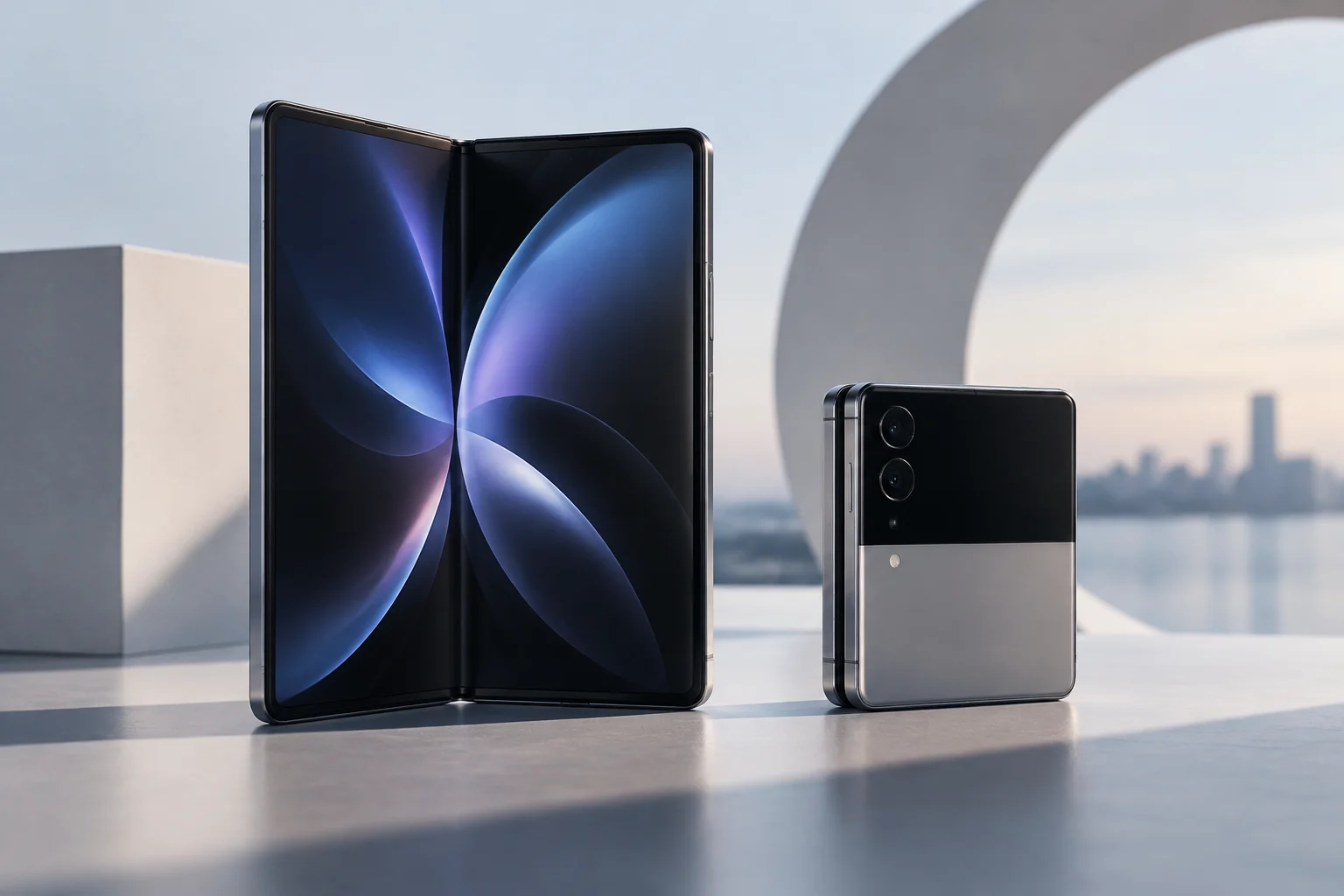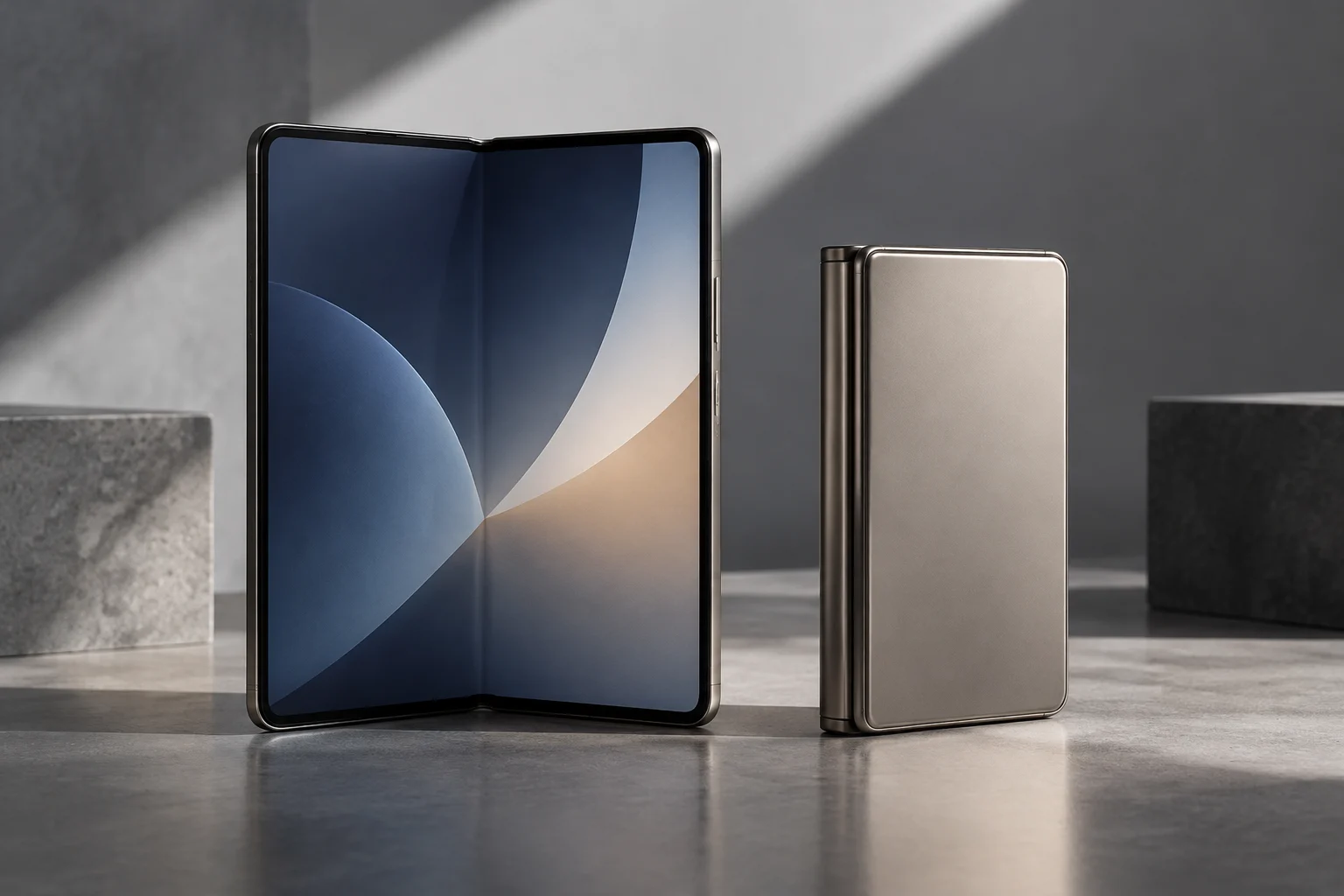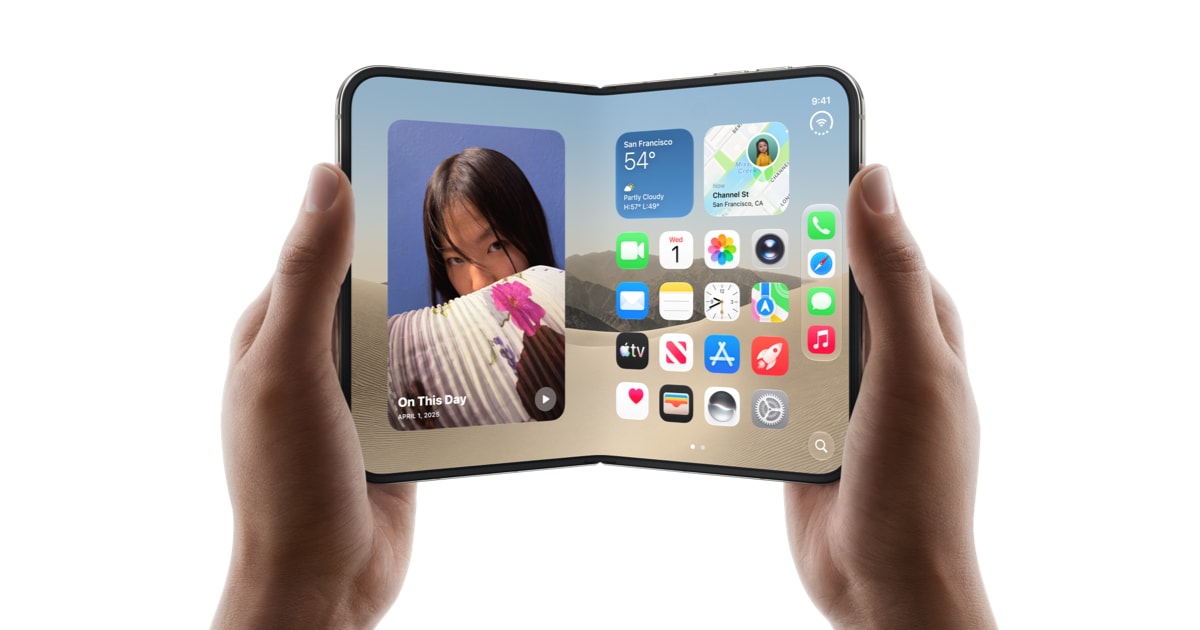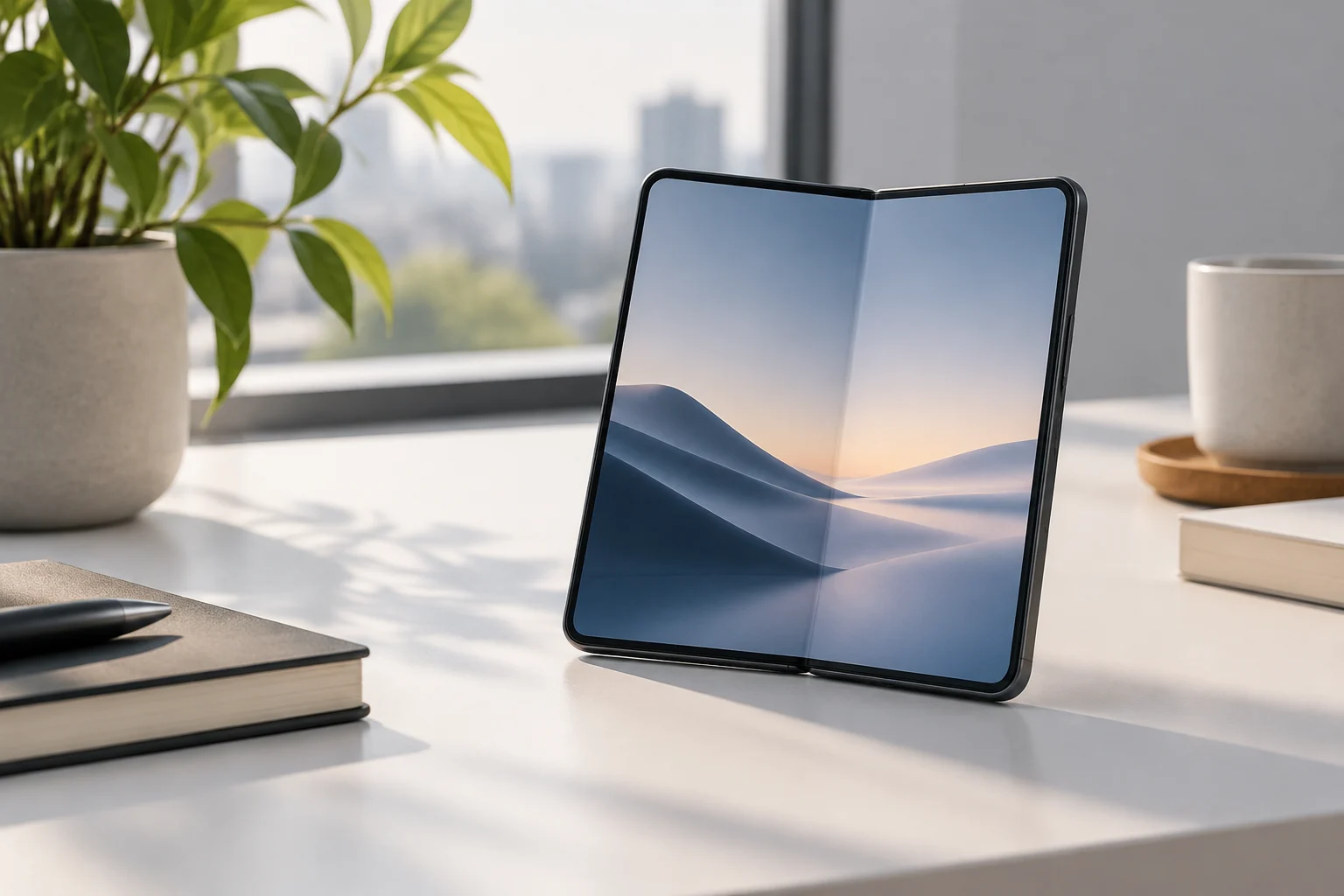
What It Means for an App to Be Adaptive
An adaptive app changes its layout according to the characteristics of the window in which it appears. Instead of merely stretching or shrinking the same elements, it can replace components and show or hide content. For example, it might use a bottom navigation bar on a phone and a sidebar in a wide window.
Android classifies app windows as compact, medium, or expanded according to their width or height. The reference is the app window, not necessarily the entire physical screen: in multi-window mode, a device can display several windows of different sizes.
A layout can also respond to changes in a foldable’s posture, screen density, or font size. In a wide window, an app might show a list and its details at the same time; in a compact one, it might display just one of those areas. Each app behaves according to its implementation: there is no single layout shared by every app.
What to Look for When Using an App
Notice whether navigation and content reorganize when the available space changes. One interface might make use of a wide window with related panels, while another keeps a simple layout. Adaptation does not mean only enlarging elements: it can also mean changing the structure.
Window Size and Content Layout
Window size classes help determine how many panels appear in a window. At compact and medium sizes, an app might show a single panel; at an expanded size, it can display related content in several panels, such as a list alongside its details. If the window becomes smaller, it might return to a single panel.
The width and height of a window can vary according to the device, its orientation, and whether it is being used in multi-window mode. As a result, the same foldable might show one layout full-screen and another when the app is open beside a second one. The device’s size alone is not enough to predict which layout will appear.
When assessing an interface, check what happens to navigation and content as you widen or narrow the window. An adaptive layout can change the number of panels or the navigation component; every change does not have to be limited to scaling buttons and text.
A Simple Test
Open a screen containing a list and select an item. In a wide window, see whether the app keeps the list visible alongside the details; in a compact window, check whether it displays a single view and lets you return to the other one through navigation. The result depends on the app, but comparing the two helps you understand how it lays out content.
Multitasking on Galaxy Devices
Samsung offers Multi window to open apps in split-screen view or pop-up windows on compatible devices. One way to start is to open recent apps, tap an app’s icon and choose the split-screen option. Screens, options and compatible apps may vary with the device and its software; check what your model offers.
To open an app in a pop-up window, Samsung explains that you can drag it from the Edge panel toward the center. It also describes opening Recent apps, tapping an app’s icon, and choosing split screen or pop-up view. In pop-up view, the window can be moved and resized; in split screen, the divider lets you adjust the space allocated to each app.
Not every app or phone screen supports the same views. If an option does not appear in an app’s menu, do not assume it is available just because the phone is foldable. Try a compatible app and check the restrictions for the screen you are using.
Gestures for Opening Multitasking Views
On Galaxy devices running One UI 6 or later, Samsung describes gestures that must first be enabled in Settings, under Advanced features and Multi window, if the options are available on the device. Then, swiping up from the bottom with two fingers opens split screen; swiping inward with one finger from an upper corner opens pop-up view. The path may vary by model.
App Pairs for Everyday Tasks
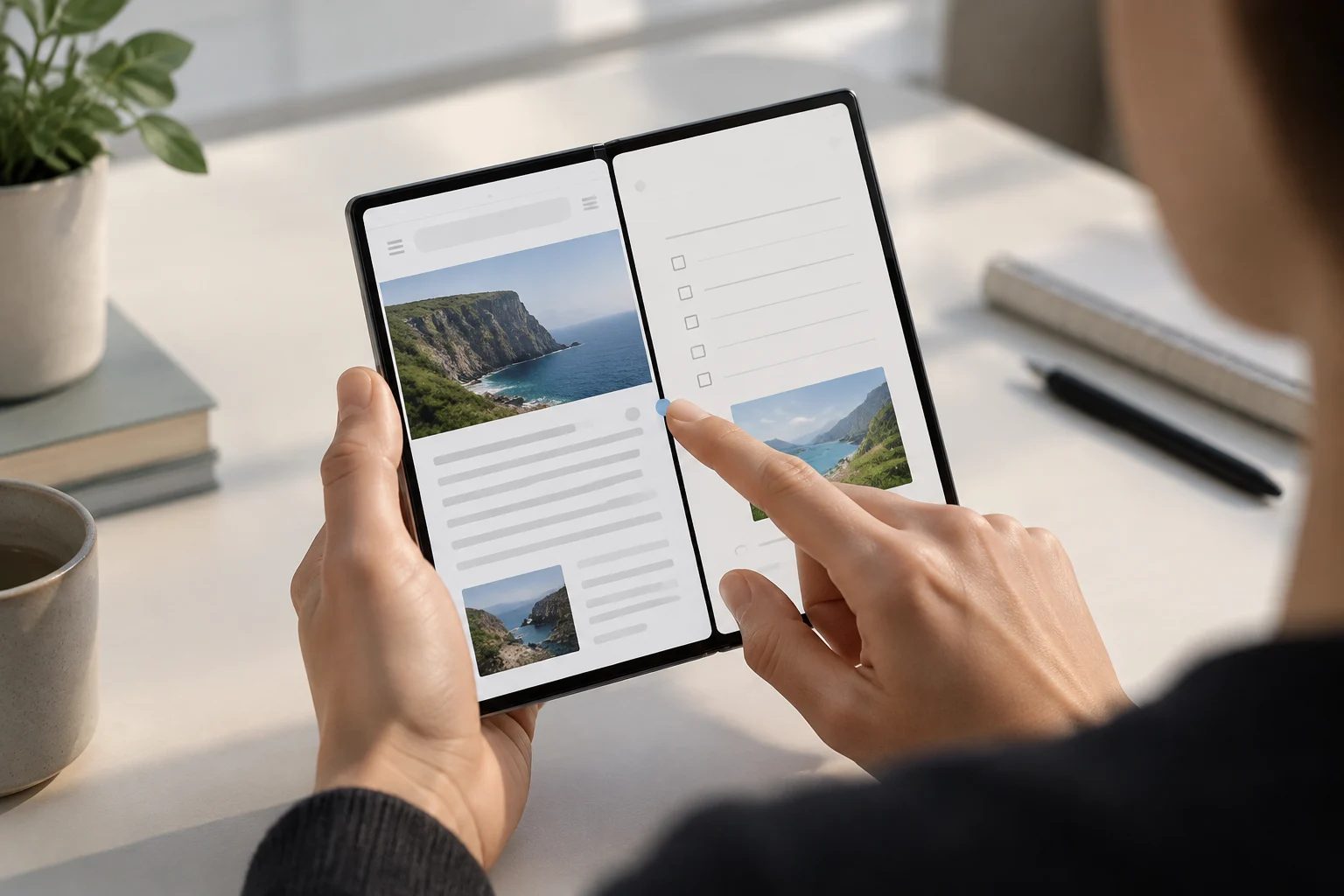
An app pair saves a combination of two apps so you can open them together in split screen. Samsung gives examples such as Internet with Samsung Notes or Music with Maps. You can add the pair from the divider between the open apps; the Edge panel, which provides access to these shortcuts, is available only on certain models.
Adding a third app is not universally supported: Samsung limits it to specific compatible models. Do not confuse a two-app pair with a three-app combination. Before planning your workflow, check your exact phone’s compatibility in Samsung’s documentation.
When choosing a useful combination, think about tasks that benefit from viewing two apps at the same time: browsing the web while taking notes, or keeping a map open while listening to music. If an app does not support split screen, you can choose a different combination or switch between the apps.
Save an App Pair
Open the two apps in split screen and tap the dotted divider between them. Samsung says to select the icon to add the pair and, if the system asks, choose where to save it. To save a group of three on a compatible model, add the third app from Edge before saving.
Foldable Postures: Tabletop and Book
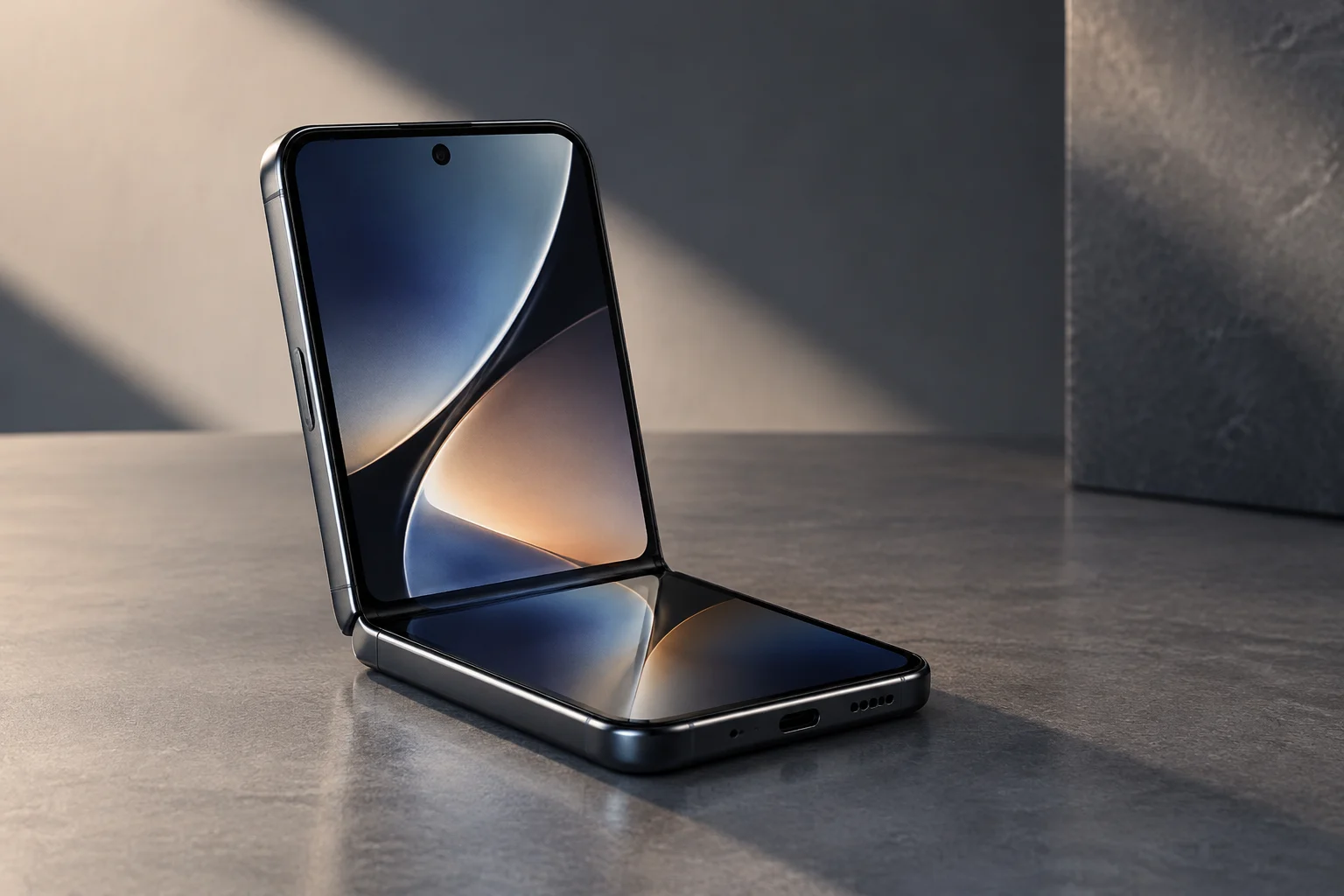
Tabletop posture occurs when a foldable is half-open with its hinge horizontal. Android describes it as a way to use the phone propped up without holding it, and notes that it can be useful for watching content, taking photos, and making video calls. An app designed for this posture might place the video in one area and the controls in the other.
Book posture occurs when the device is half-open with its hinge vertical. Android says it can be useful for reading e-books with a two-page layout. It also describes a possible use in photography, offering a different aspect ratio and allowing hands-free use of the phone.
Postures do not make every app automatically change its layout. An app that takes the fold into account can avoid placing important content over the hinge area and use it as a natural divider. The response depends on the app’s design and the information it uses.
Fold Information in Jetpack Compose
In Jetpack Compose, collectFoldingFeaturesAsState() lets an app observe a window’s fold information. It returns a Compose state containing a list of FoldingFeature objects, including details such as the fold’s state and orientation, whether it occludes part of the screen, and whether it separates the screen into logical areas. Components observing that state can recompose when the posture changes.
Continuity When the Window Changes
An app window can change when a device is folded or unfolded, rotated, or resized in multi-window mode. Screen density or font size can change as well. Maintaining continuity means preserving relevant state while the app adjusts to the available space.
Android explains that, by default, a configuration change recreates the activity and its state is lost. To maintain continuity, an adaptive app can save state by using onSaveInstanceState() or a ViewModel. How a reading position, selection, or form is preserved depends on how the app is implemented.
When testing an app, observe whether it maintains the task in progress after the window size or posture changes. For example, check whether it returns to the section you were viewing or retains content entered in a form. These are useful checks, not guarantees that every piece of state will be preserved.
How to Assess an App’s Adaptation
When using an app on a foldable, check whether it reorganizes navigation as the window width changes, uses extra space to show more content, and responds to posture when appropriate. Behavior varies: some apps offer multi-panel layouts, while others keep a simpler arrangement.
According to Android documentation, Google Play offers collections and recommendations specifically for tablets and foldables, and better classifies apps and games optimized for large screens according to its quality guidelines. The documentation also says that apps that do not meet those standards display a warning on their details page, letting users know that they might not work well on large-screen devices.
The best choice depends on what you need to do: open two apps at once, view a list and its details, read with two pages, or prop up the phone in tabletop posture. Check compatibility for each specific feature with your device and the apps you want to use.