
Design the activity before choosing the app
Start with the learning you want to observe and the student product that will allow you to assess it: a justified response, an explanation of a prediction, a corrected practice, or an audio recording. The app is a means; if it does not improve a specific task, its presence does not in itself constitute a pedagogical objective.
Define the sequence before, during, and after. Before, activate prior knowledge and explain the purpose; during, decide whether students work individually, in pairs, or in groups and what support the teacher offers; after, reserve time to explain, compare, or review the product. Assessment must look at what was learned, not just whether a screen was completed.
Anticipate an equivalent alternative without a device: a paper question, a simulation demonstrated by the teacher, or an oral explanation. It must allow collecting evidence of the same objective, without penalizing those who do not have equipment, connection, or a compatible adaptation. For school coordination decisions, also consult the guide on implementing mobile learning in multiple schools.
A question-and-justification sequence can be organized as follows:
- Before: present a curricular question and ask for an individual prediction.
- During: each student responds in the app or on paper and adds a reason; the teacher collects doubts and models how to justify.
- After: reasons are compared and a revised response is submitted. The observable product is the explanation; it can be done in audio or text, depending on access needs.
Assess educational quality and evidence
Review whether the content is correct and aligned with the curriculum, whether the language and reasoning level fit the task, and whether the feedback explains what to correct. A mark of correctness or a reward can guide practice, but it does not replace an explanation of the error nor does it demonstrate that learning transfers to another problem.
When the provider presents studies, identify who conducted them, with which students and context, what result they measured, and against what comparison. Ask if that measure is related to your objective. A trial on a guided activity, for example, does not automatically demonstrate that another function of the same app produces the same result.
Store ratings, download numbers, gamification, and testimonials serve to describe popularity or declared experience; they do not by themselves establish a cause between using the app and learning more. UNICEF proposes an adaptable framework to review whether a tool is transparent, safe, relevant, and solid from an educational point of view; it is not a universal seal of efficacy.
Test the complete task and age appropriateness
Do not limit yourself to opening the initial screen. Go through the activity from start to finish: locate instructions, navigate, respond, retrieve saved data, correct an error, and seek help. Check if students can return to the appropriate point without losing their work and if the teacher can explain how to start and resolve a frequent blockage.
Examine the language, content, social interactions, external links, and the autonomy the activity requires. The age rating of a store and pedagogical appropriateness are different questions. Apple explains that its rating is generated from the developer's responses about content and capabilities; this does not constitute an educational trial nor does it determine if a specific task is appropriate for your group.
Categories and obligations can vary by region and platform. Do not turn a store label into a universal minimum age or confuse it with rules on consent, accounts, or school access. Also check if the activity can be performed without creating a personal student account, or if the school can offer a managed modality.
Check accessibility and inclusion in context
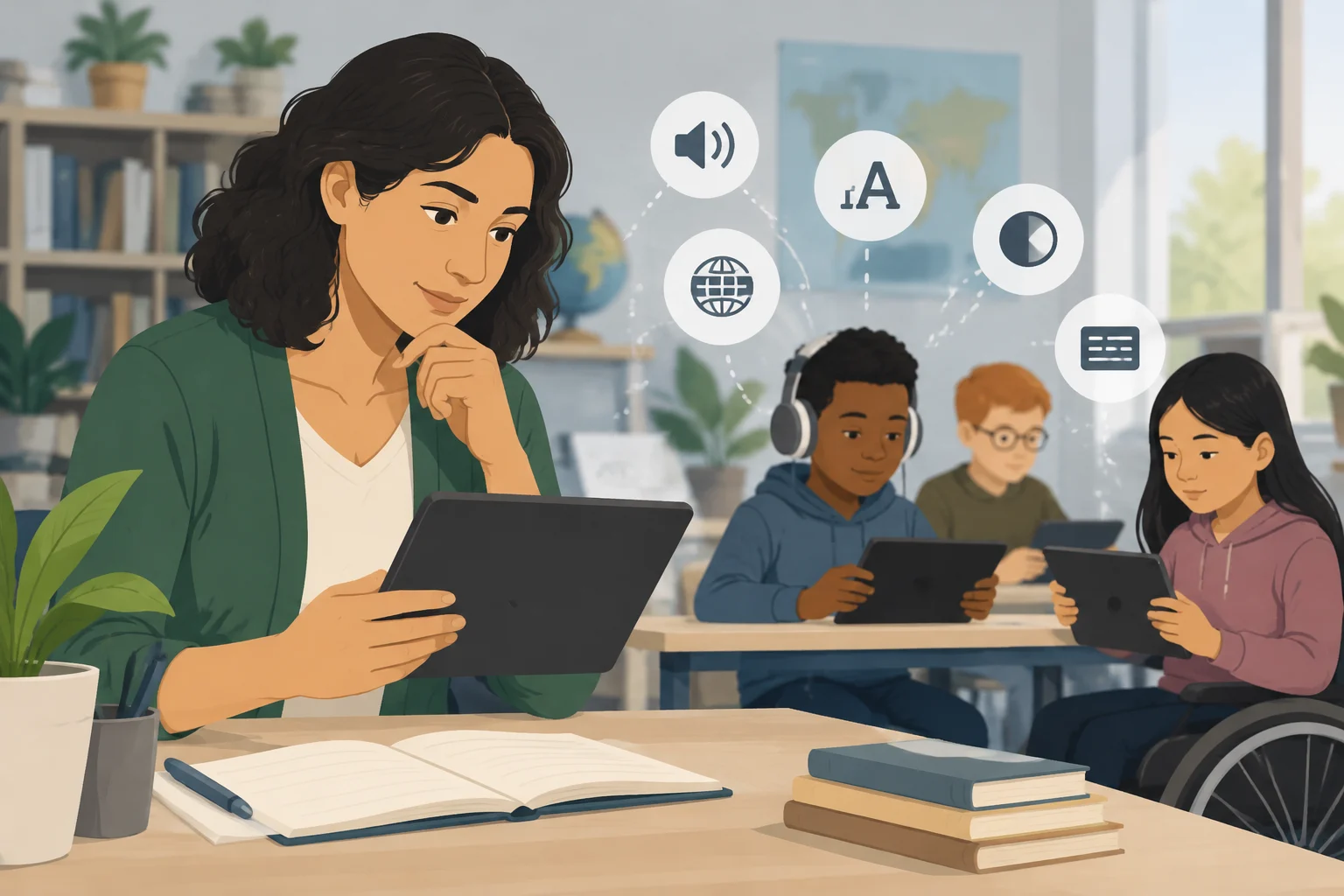
Test the activity with relevant support functions: screen reader, magnification, contrast, keyboard or alternatives to gestures, subtitles, and transcripts. Also review if audio can be paused and controlled, if instructions are available in a comprehensible language, and if the screen imposes an unnecessary attention load.
W3C gathers resources to address accessibility on different devices and distinguishes, among others, web content and mobile applications. A technical list does not certify a specific app: you must observe the real task and, when possible, consult users with diverse needs. Do not assume that a web guideline covers a native app without nuances.
Prepare an equivalent option for those who do not have a device, connection, or a compatible support function. The UNICEF App Catalogue applies its own criteria of functionality, accessibility, and use by children; its existence does not universally authorize other applications. The EdTech for Good framework, for its part, is positioned as a tool that can be adapted to the context, not as an automatic verdict.
Review privacy, ads, and purchases
Before introducing real data, test the journey with authorized fictitious data. Identify who provides the service, who decides the uses of the data, what information and permissions it requires, what records it keeps, for how long, how they are deleted or exported, and which third parties intervene. Also review the contract and the school's rules; if applicable, consult the data protection officer.
Request comprehensible explanations about purposes, accounts, retention, and recipients, and minimize the data you introduce. Family consent does not automatically resolve all the obligations of the school or the provider. The CNIL formulates recommendations for French teaching centers within the GDPR framework; FERPA and COPPA are US references applicable only to their pertinent context. They are not a set of interchangeable global rules.
Go through the activity to locate ads, trackers, links, chats, purchases, subscriptions, and rewards that depend on paying. Record if a payment or account prevents completing the essential task. Google Play policies for family-oriented apps set requirements for that platform, but they do not prove educational quality nor guarantee by themselves all real practices. Common Sense indicates that even a Pass rating requires reading the policies and reviewing the intended use: it is a privacy evaluation, not a pedagogical certification.
If an essential privacy or access condition is not acceptable, do not compensate it with a high average score in other criteria. Stop the test with student data, consult the appropriate person, or choose an alternative that allows performing the same learning with less exposure.
Verify compatibility and offline functionality
Run the tests on the equipment that will be used: installed operating system and browser, necessary permissions, screen size, formats, and support functions. Do not assume that an app works the same on phones, tablets, and browsers, nor that an update will maintain all the features of the tested version.
To check offline mode, download the materials the app allows preparing, disconnect the device from the network, and complete the task. Close and reopen the app; then reconnect and check what is preserved, what is synchronized, and if conflicts or pending steps appear. The result of a test is valid for that configuration, not for all accounts, courses, or versions.
Moodle App serves as an example if the school already uses Moodle: Moodle describes it as a mobile app focused on student functions, with offline access, but not with all the web functions of teachers and administrators. The documentation warns that some data is stored in cache, that other content is downloaded manually, and that not everything is automatically available. Check in the specific installation if the activity and its materials are prepared; do not assume that an external resource, such as a video hosted outside Moodle, will be downloaded.
PhET allows illustrating another check: the help center distinguishes platforms and points out that Android does not have official support for its HTML5 simulations, although it recommends using an up-to-date version of Chrome to those who test them there. This does not guarantee compatibility with each simulation. Before designing the session, open the specific resource on the intended equipment and confirm that it can run and that students can explain what they observe.
Calculate total cost and necessary support
Separate the download cost from the usage cost: institutional plan, licenses per user or device, essential paid functions, connectivity, hosting, administration, and time for training or support. A free download does not necessarily describe the total cost nor the conditions for the whole class to access the required functions.
Request the current terms and clarify what the license allows: number and type of users, school use, created or downloaded content, export of work, and cancellation. Review how updates are announced and what help the teacher will receive if a function changes. Do not assume a provision is permanent if it depends on a version, a plan, or the school's configuration.
Also compare the operational cost of maintaining the activity: who prepares accounts, resolves incidents, and offers an alternative if the network fails. If the tool requires more support than the team can provide, a less complex option may be more suitable even if it has fewer functions.

Integrate the tool without turning it into a distraction
Choose few tools for clear needs and rehearse the complete sequence as a student before class. Prepare brief instructions, support for errors, and time for students to explain what they produced. Sharing designs among teachers can prevent each course from having to rebuild the same activity from scratch.
Agree on when the device is used and when it is stored; if the rules allow, reduce notifications and limit access to functions unrelated to the task. Include an offline or non-digital alternative and avoid prescribing universal screen time minutes: the pertinent time depends on the objective, age, activity, and access needs.
Mobile learning with authorized equipment does not mean allowing personal phones. The rules depend on the place and the school. For example, the guide from the Department for Education in England distinguishes phones from BYOD programs for laptops or tablets; it should not be transferred as a rule to other territories. Agreeing on accessibility supports and specific exceptions is part of the design, not an administrative distraction.
Apply two sequences and collect useful results
An activity with a simulator must ask for more than touching controls. The prediction and subsequent explanation turn the interaction into a product that the teacher can assess; if the resource does not run on the intended equipment, the teacher's demonstration or a paper scheme can preserve the objective.
- Before: pose a question about what will change when modifying a condition and ask for a prediction with a reason.
- During: students explore the simulator individually or in pairs; the teacher asks which variable changed and which observation supports the answer.
- After: each student explains if they revised their prediction and why, in text, audio, or commented drawing. The no-device adaptation can use a sequence of images or a common demonstration followed by the same explanation.
To assess the activity, compare products with a rubric or reference task and observe understanding and transfer, not just completion. Record effective participation, barriers, interruptions, incidents, teacher load, and cost. Clicks, points, and minutes describe use, but they do not replace a demonstration of learning; a before-and-after difference also does not by itself prove that the app caused it.
Review the decision if the version, equipment, usage conditions, or group needs change. Do not fix a universal success threshold: define in advance what evidence would allow maintaining the tool, what barrier would require adjustments, and what essential problem would justify changing the alternative.
Checklist for comparing apps
Use this table as a question sheet, not as an automatic score. Record concrete observations in the intended task and equipment. If an essential impediment affects privacy, access, or the possibility of learning, consult or seek an alternative instead of compensating it with other results.
| Criterion | Test Question | What to Record |
|---|---|---|
| Objective and product | What learning and observable product does the activity allow? | Objective, product, and form of assessing it |
| Educational evidence | What study supports the claim and resembles this task? | Authorship, context, students, measure, and comparison |
| Age and usability | Can the group complete the journey and understand the instructions? | Steps, errors, language, help, and interactions |
| Accessibility | Do the necessary supports work throughout the task? | Tested function, barrier, and equivalent alternative |
| Data and privacy | Who receives what data, for what, and for how long? | Responsible party, permissions, third parties, retention, and deletion |
| Ads and purchases | Are there tracking, links, payments, or accounts that block the activity? | Point in the journey and effect on the essential task |
| Equipment and compatibility | Does it work on the intended equipment, systems, and supports? | Device, configuration, and task result |
| Offline use | Is the work completed, preserved, and synchronized after reconnecting? | Prepared material, pending steps, and conflicts |
| Cost and license | What functions, accounts, and uses does the current agreement cover? | Direct and operational costs, conditions, and export |
| Support and changes | Who resolves incidents and how are updates communicated? | Responsible party, help, updates, and training |
| Assessment and distractions | What evidence of learning will be collected and what interruptions are there? | Rubric, participation, incidents, and teacher load |
Useful comparison does not automatically produce a winner. It allows discarding risks and formulating decisions: adopting with conditions, requesting clarifications, adapting the activity, or choosing another tool. Repeat the checks when needs, version, or the way the school provides the service change.