What “local AI” really means in Windows 11
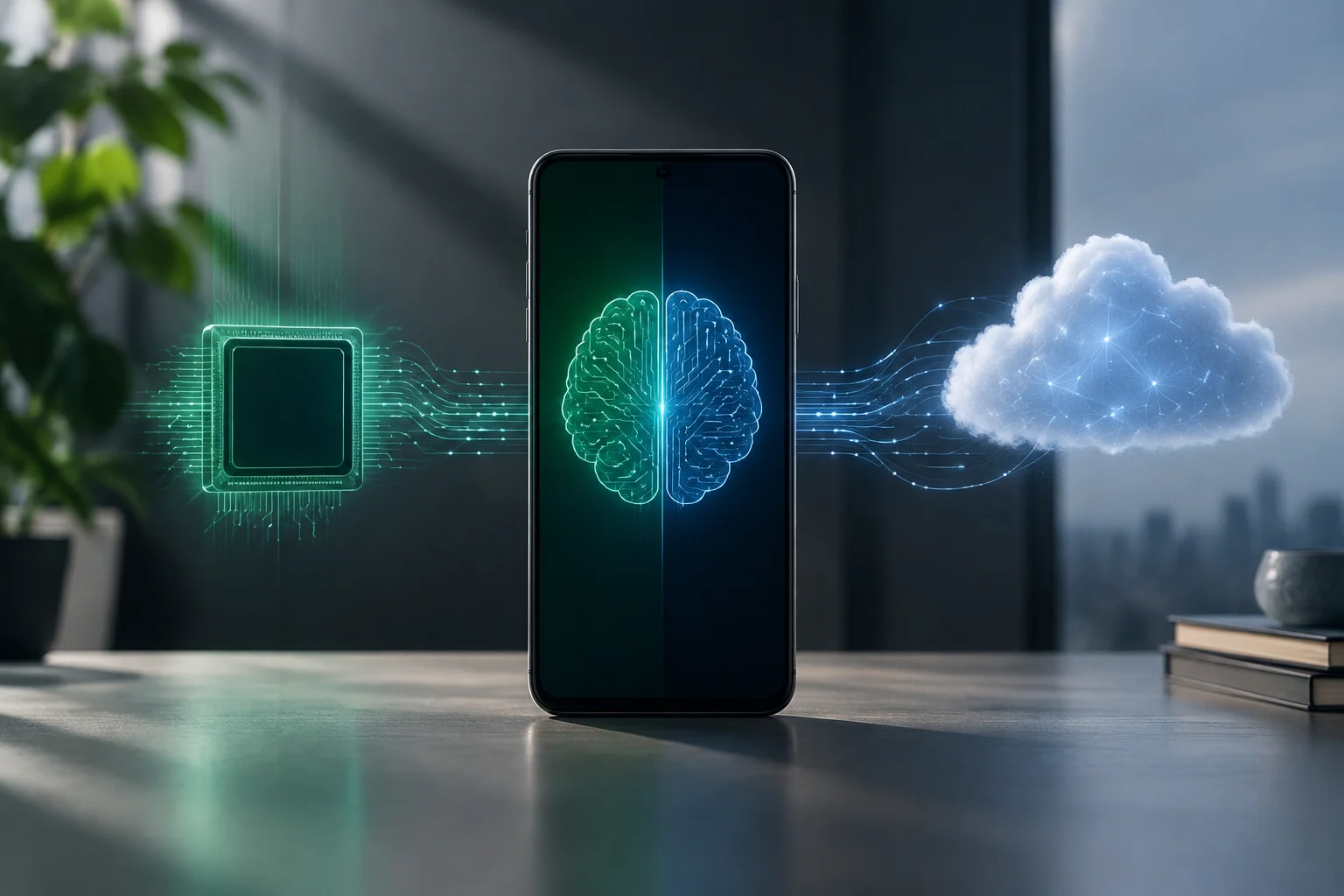
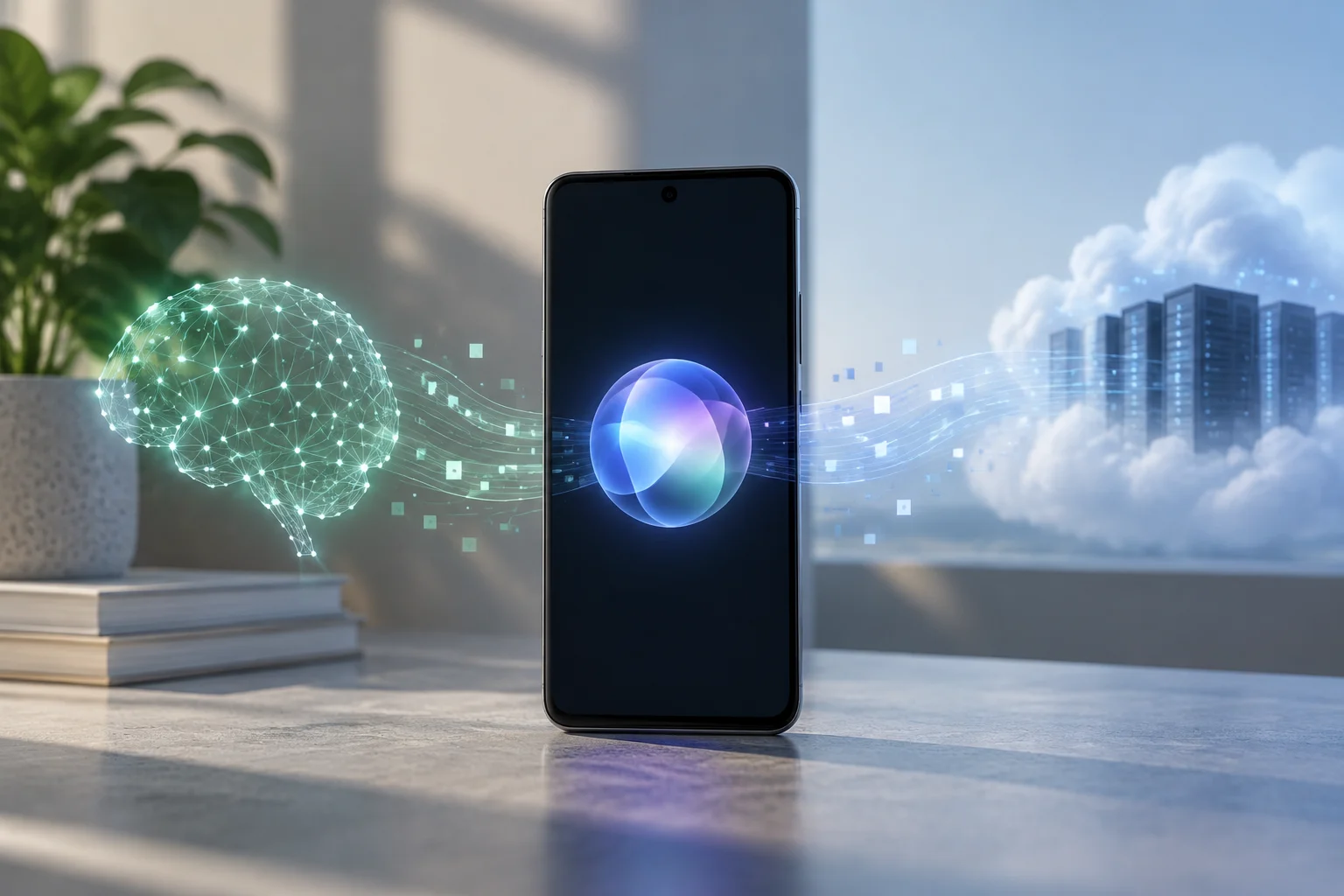
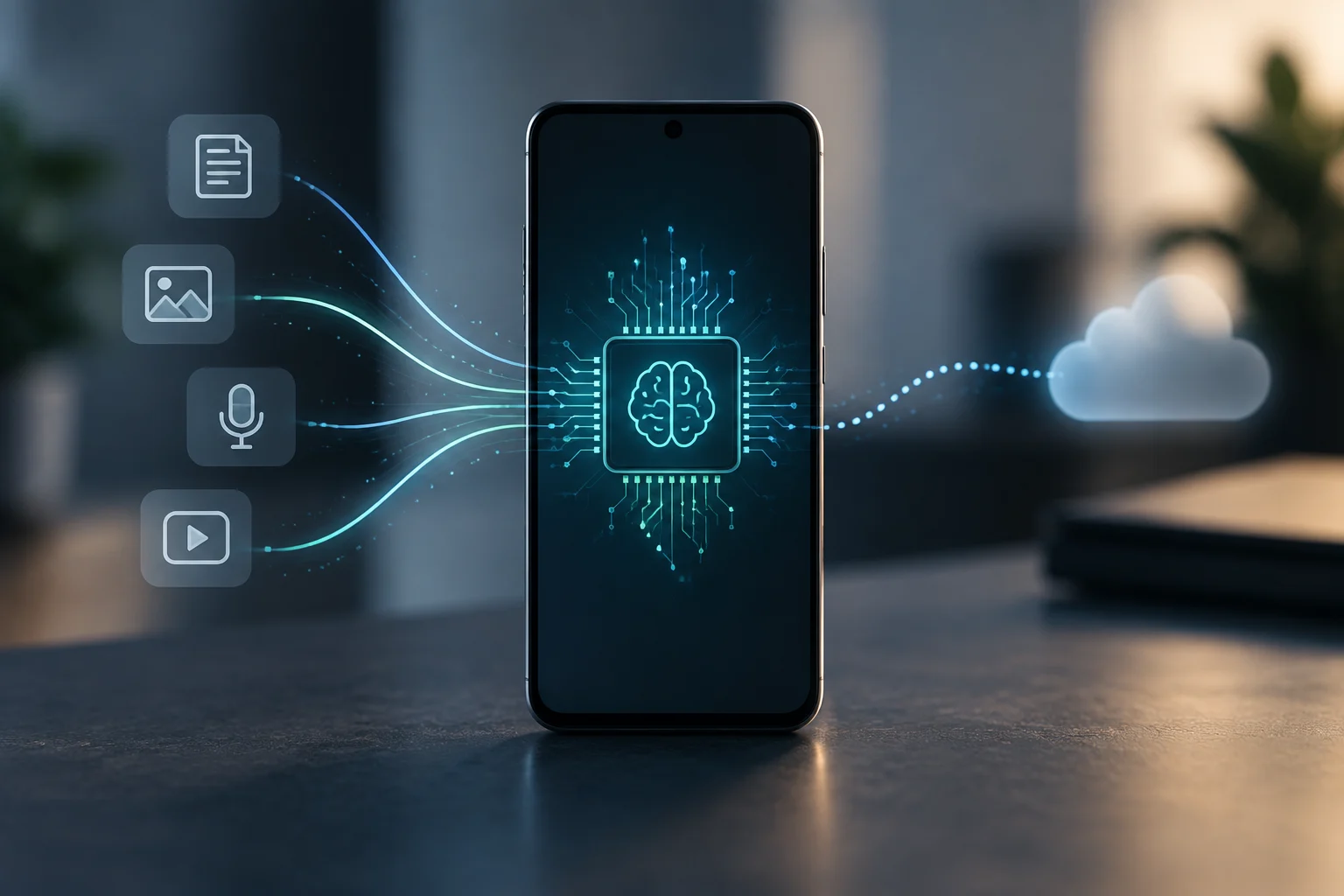
In Windows 11, “local AI” is not a single switch that guarantees all artificial-intelligence work stays on your laptop. Where a task is processed depends on the particular feature: some experiences use models running on the device, while others rely on remote services, sometimes within the same Microsoft product.
The most useful practical distinction is between Windows features that take advantage of your device’s hardware and the Microsoft Copilot assistant. Microsoft lists Recall, Live Captions, and Windows Studio Effects among Copilot+ experiences; opening the Copilot assistant, by contrast, does not show that a request will be processed locally. Check each tool’s requirements and terms instead of inferring its behavior from the name “Copilot+.”
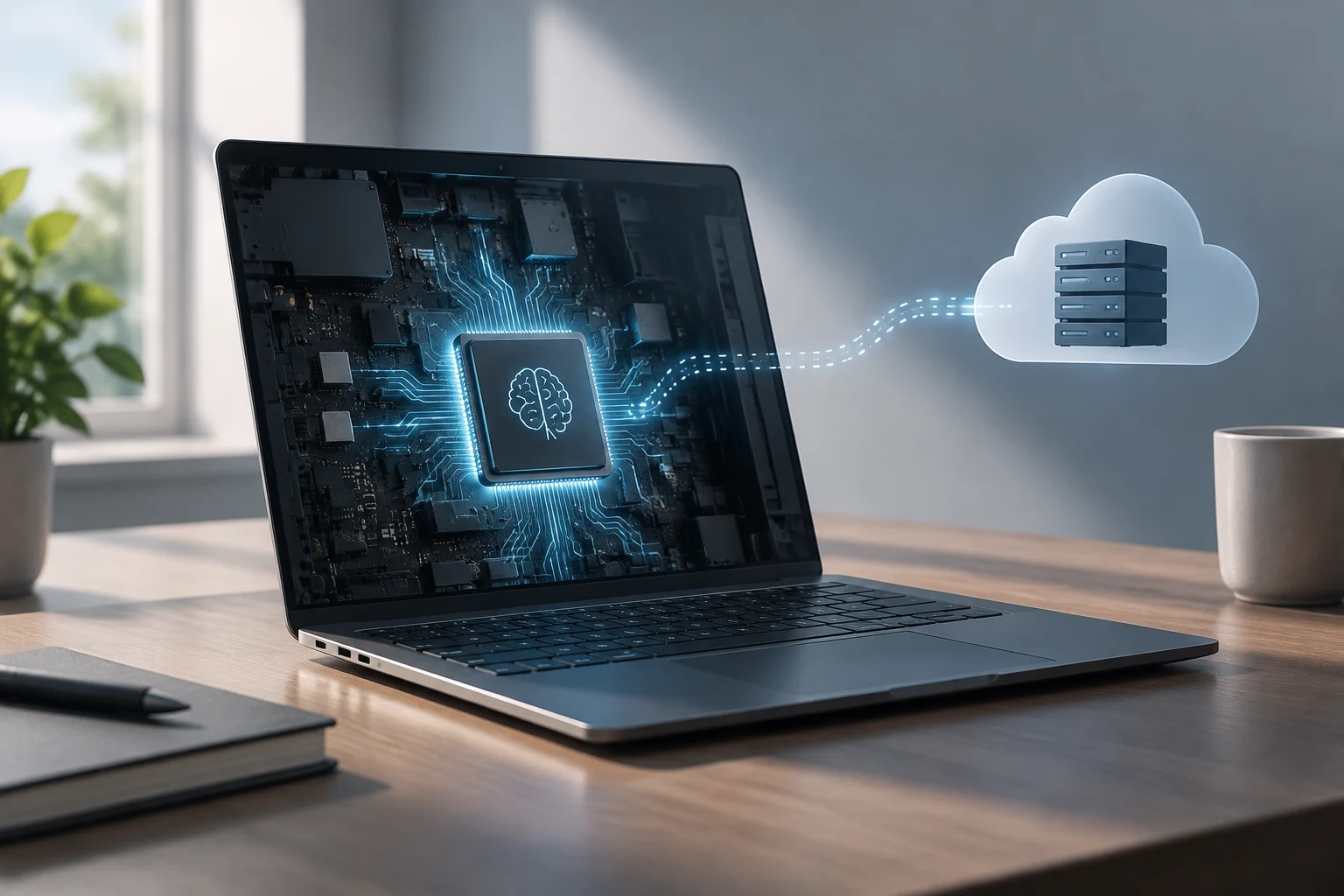
There is also a difference between being able to run some AI workloads locally and meeting the requirements for the Copilot+ PC category. Microsoft says certain Windows 11 devices with an NPU can run compatible local workloads without meeting every Copilot+ requirement. The Copilot+ label sets a hardware threshold and access to specific experiences; it does not mean every app or query works without an internet connection.
Check your device before looking for a setting
Check the specifications for your exact model to identify its processor, memory, and Windows version. Microsoft’s requirements page defines a Copilot+ PC as having an NPU capable of more than 40 TOPS, at least 16 GB of memory, and 256 GB of storage; the device must also meet the other applicable hardware requirements. Running Windows 11 or having a processor marketed as AI-ready is not enough by itself.
In Settings > Windows Update, install available updates and restart when Windows asks you to. Then check the manufacturer’s information for the exact model: processor family and configuration matter, and one product line can include variants with different capabilities. Feature availability may also vary by device, region, language, and update.
Use this list as an initial screen, not proof that a feature is active: a requirement enables potential compatibility; it does not confirm that an experience is installed or configured.
- Check the model and processor under System > About.
- Check memory, storage capacity, and available space.
- Look up the model’s NPU specifications on the manufacturer’s website.
- Compare the result with the requirements for the specific feature, not just the Windows 11 minimums.
What you can check in Recall
Recall is an optional feature for Copilot+ PCs that lets you search through snapshots of screen activity. Microsoft says that, when enabled, snapshots and associated information are stored encrypted on the device and are not shared with Microsoft or third parties. That description applies to Recall, not every Windows AI feature: it should not be generalized to Copilot, web search, or third-party applications.
To see whether Recall is available and how it is configured, open Settings > Privacy & security > Recall & snapshots. Microsoft says saving snapshots requires your consent; from that page, you can turn saving on or off, pause capture, and manage filters for supported apps and websites. Initial setup also requires authentication through Windows Hello and the security protections specified by Microsoft.
If you choose to use it, review the filters before enabling saving: Recall can capture what appears on screen, and protections for sensitive information do not make a snapshot impossible or replace reviewing your habits and content. The useful controls work together: consent, filters, and deletion. You can delete individual snapshots or the history, and pause or turn off the feature in its controls; check the settings again after changing them.
How to distinguish local processing from cloud use
Seeing an NPU icon or owning a Copilot+ PC does not, on its own, verify the data path. To assess a particular feature, check its requirements, whether it needs a connection or account, and how the manufacturer describes its processing.
For a practical test, separate local features from online services without confusing availability with privacy. A feature that continues to work offline can offer a clue about its reliance on internet access, but that alone does not show what data is processed, stored, or transmitted while you are connected. Likewise, an app’s use of an NPU does not mean every step, model, or related service is local.
In particular, do not use “Copilot” as a synonym for on-device processing. An online assistant and an NPU-accelerated Windows feature are different cases. If a task involves sensitive information, look for the privacy explanation for that service and avoid entering confidential material until you understand how it is processed. On a laptop managed by a business or school, also check with the administrator: device management policies can affect availability and controls.
Privacy: specific controls and limits
Privacy depends on the feature and how you use it, not just on the processor. For Recall, Microsoft documents encrypted local storage, consent before saving snapshots, Windows Hello, and the ability to exclude apps and websites. The practical risk is that a snapshot may capture visible information you did not want to keep, so consider which apps you use and how much history you want to retain.
A feature connected to online services may need internet access or an account, and its data handling should be reviewed in that product’s privacy information. Recall, Copilot, and web search have separate controls; if your goal is to limit the sending of queries, review the settings for the particular search service and its terms.
As a rule of thumb, you can decide this way: turn on only the feature you need, set exclusions before saving activity, and delete data that no longer serves a purpose. If your laptop contains work, medical, financial, or internally regulated material, follow your organization’s rules. Local processing reduces the need to send some data for that task, but it is not a general guarantee of privacy or security.
If the feature is missing or does not work
If Recall or another Copilot+ exclusive experience does not appear, first check the exact model and its specifications, your Windows edition and update status, and whether the feature is offered in your region and language. A compatible laptop may still need an additional update, and Microsoft notes that some experiences have their own requirements and availability. A missing button does not, by itself, mean the NPU is faulty.
Next, install drivers and firmware released by the manufacturer for that model, along with Windows updates. If the device is managed, ask your IT department to confirm whether its policies allow the feature. Do not install drivers from unofficial websites or change the registry using generic guides: instructions intended for a different hardware generation may not apply to your laptop.
If your goal is to run your own models offline, separately check the application, model, and hardware requirements. Copilot+ is not a universal local-AI mode and does not guarantee that every model will run on the NPU. The practical step is to check the requirements for each workload and distinguish that capability from Windows’ built-in experiences.