Define what you want to protect and the drive's role
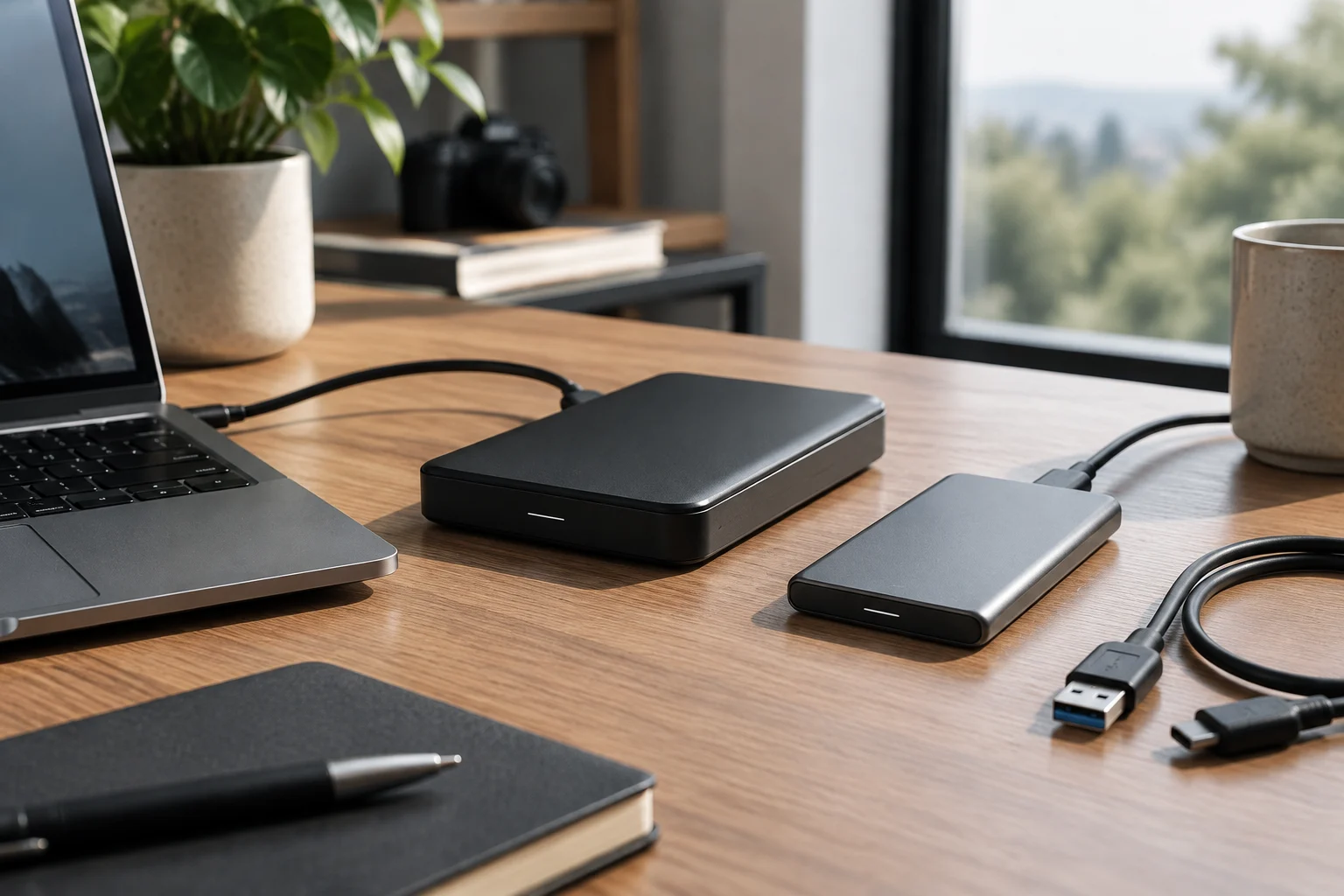
Before looking at models, decide if the drive will serve for periodic computer backups, storing a file library, or both. The intended use determines the capacity, connection frequency, and the appropriate software to use.
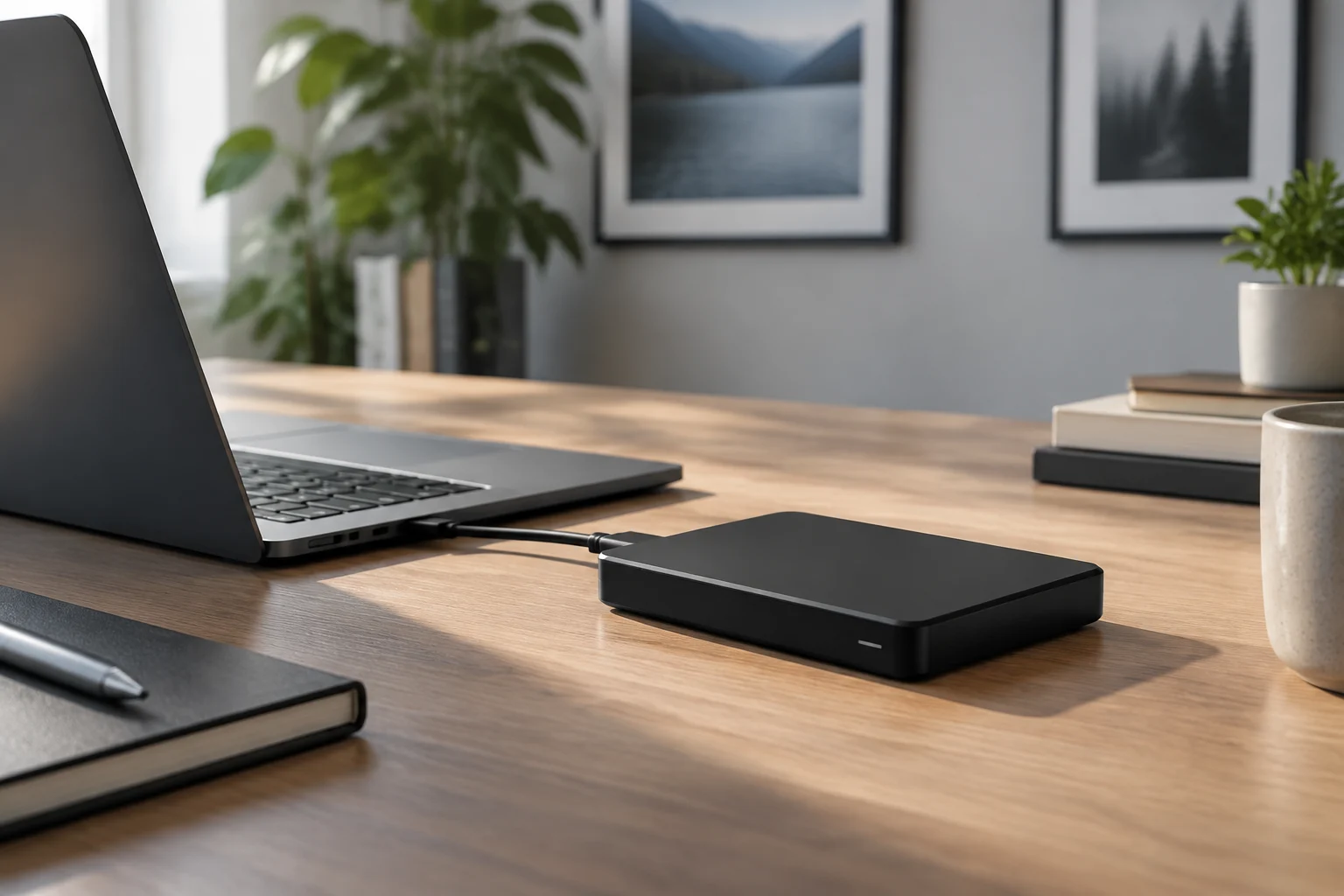
An external drive connected to the computer can be a simple destination for local backups. On Mac, Time Machine can save to a compatible external drive and allows restoring specific files or backed-up content. The function does not copy macOS, so operating system recovery and personal file recovery are distinct tasks. Check what the backup includes regarding the operating system before relying on it.
A local backup is not complete protection if the original and the copy are exposed to the same theft, accident, electrical failure, or security incident. For irreplaceable files, keep another independent copy, for example on another device stored separately or in a remote storage service. The practical rule is to think about more than one copy in separate locations, not a single larger-capacity drive.
Choose and test a backup drive
A practical sequence for planning a local backup and checking that files can be restored.
-
Plan
Decide what to back up
-
Capacity
Leave room for growth
-
Compatibility
Check ports and format
-
Protection
Keep a separate copy
-
Recovery
Practice restoring files
Time Machine-specific details apply to Mac; compatibility and usable capacity vary by drive, computer, and backup software.
Calculate capacity with margin, not from a single figure
Start by measuring how much space the folders you actually need to protect occupy now: documents, photos, videos, projects, and work files. Then add reasonable growth for the period you plan to use the drive. Capacity must cover the entire set being backed up, not just the space occupied today by the files you remember.
Review the backup software requirements and the space occupied by the file set you want to protect before choosing the capacity.
The manufacturer's advertised capacity does not necessarily equal the space shown by the system. In its Backup Plus Portable datasheet, Seagate explains that its drives express GB and TB in decimal base and that the operating system may show a lower capacity; part of the space is also used for formatting and other functions. Compare usable space, and leave margin for versions and growth, instead of buying right at the limit.
HDD or SSD: decide based on cost, mobility, and usage pattern
An external HDD stores data on magnetic platters and uses mechanical components; an SSD stores it in flash memory and has no moving parts. Generally, an HDD is attractive when gathering many terabytes at a contained cost matters, while an SSD is often more suitable if transported frequently, handling large files, or valuing a quick response. The choice depends on usage, not on one technology being better in every way.
For a backup that runs at home and stays stored most of the time, an HDD can offer wide capacity without paying for performance that may not be utilized. For moving the drive between offices or carrying it in a backpack, an SSD avoids the moving mechanism inherent to HDDs and is usually a more suitable alternative against vibrations during transport. This does not make an SSD indestructible or eliminate the risk of loss, theft, or connector damage.
Do not confuse the maximum speed indicated for an interface with the drive's sustained speed. Real performance depends on the drive, port and cable, computer, and type of transfer. A fast connection does not transform an HDD into an SSD: if the internal mechanism is the limit, a higher-capacity port does not eliminate that bottleneck. For a backup, consistency and the ability to restore usually matter more than the theoretical maximum.
Check the connection, cable, and format before buying
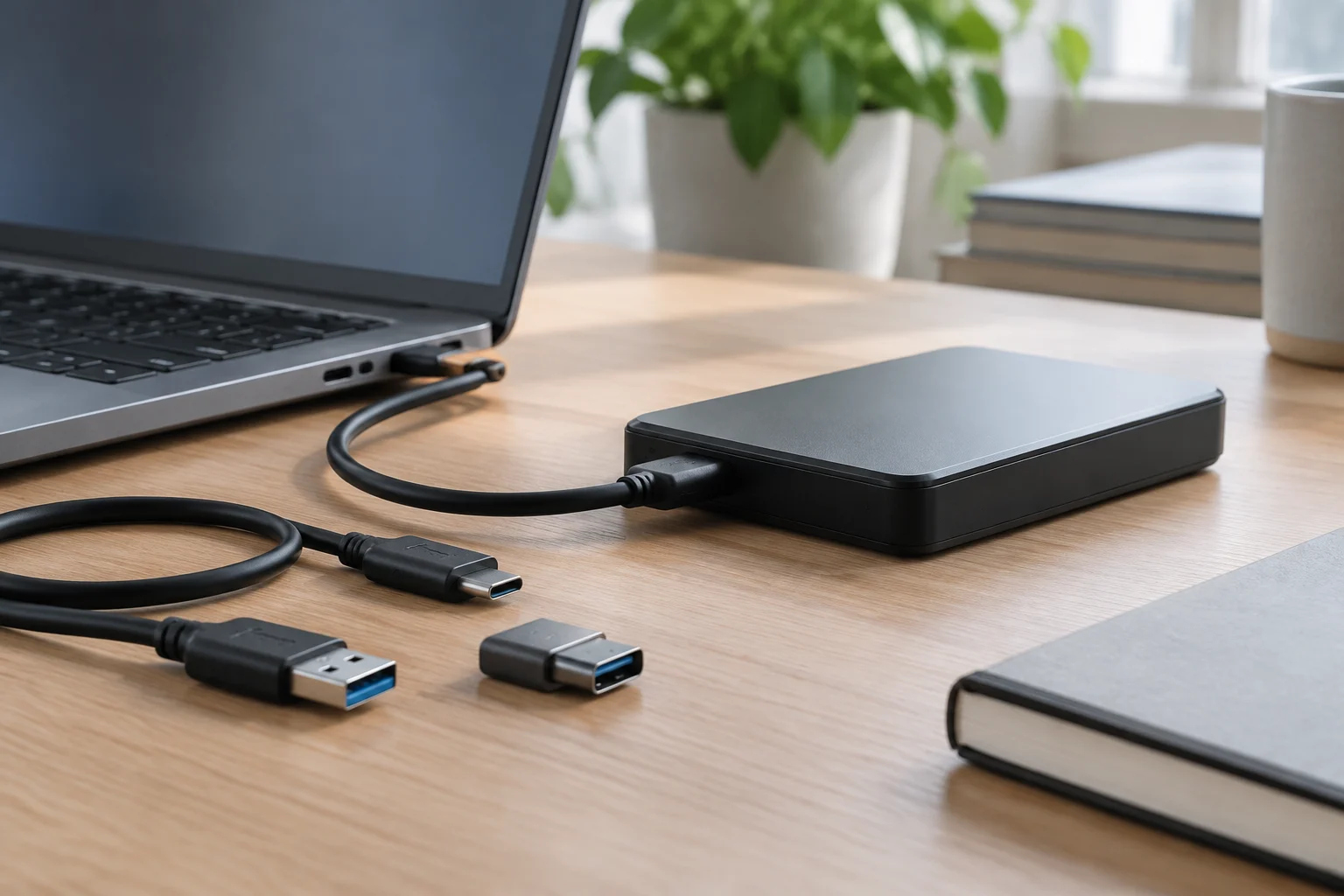
Identify the ports on the computer where you will create the backup and, also, on the devices from which you might need to restore it. Check the connector shape, the USB type each device supports, whether an adapter is required, and what cable the drive includes. Compatibility is verified at both ends: a fitting connector does not guarantee the port offers the expected speed or that the device is compatible with all computers.
The file system also matters. A drive prepared for one system may require reformatting or configuration to be used with another; reformatting erases data stored on the drive. Seagate's material for Backup Plus Portable notes that for certain Mac devices, reformatting may be necessary, and that compatibility depends on hardware configuration and operating system. Confirm the required format by the backup tool and restoration devices before starting to save files.
If you want to use the same drive with multiple operating systems, do not assume that sharing files and using a backup tool are the same. The tool may require specific formats or configurations, and encryption requires the corresponding password or key to access files.
Reduce exposure and keep the copy in working condition
Check the backup program's instructions to see if the drive must remain connected to run backups and follow the indicated procedure for your device.
Eject the drive from the operating system before disconnecting it, especially when there is read or write activity. The manufacturer may specify the procedure for its model and system. Avoid moving an HDD abruptly while it is running and store the device in a dry place, protected from shocks and extreme temperatures. An SSD has no moving platters, but it can also suffer damage to its casing, electronics, or connector.
If the backup is encrypted, have the associated password or key at hand when you are about to restore files.
Test the restoration before you need it
Test-restore a small file and check that it opens correctly. Then, practice how to locate previous versions and select a restoration destination. This will help you familiarize yourself with the process before needing to recover files.
On Mac, Apple explains that Time Machine allows exploring backups and restoring individual items or multiple items at once; to recover personal files after reinstalling macOS, you can use the Time Machine backup. The restoration method varies depending on the program used to create the backup.
If a drive stops being recognized or shows errors, first check the manufacturer's instructions for that model. Keeping another copy of important files helps have an alternative if you cannot access the drive.
Checklist for choosing with criteria
Before buying, summarize the decision in four points: how much space the data you will back up occupies, how many versions you want to keep, if the drive will travel, and what connection the involved devices accept. Add the format required by the tool and the place where you will store the second copy. Check these requirements on the devices and program you will use.
An HDD uses magnetic platters and mechanical components; an SSD stores data in flash memory and has no moving parts. Compare capacity, connection, and features of the models you are considering, and check that they are compatible with your devices and intended use.
When choosing a drive for backups, check compatibility with your devices and backup program, and choose an adequate capacity for the files you want to save. Consider how you will restore the data and where you will keep an additional independent copy.