Preparation: Identify the Model and Save Key Data
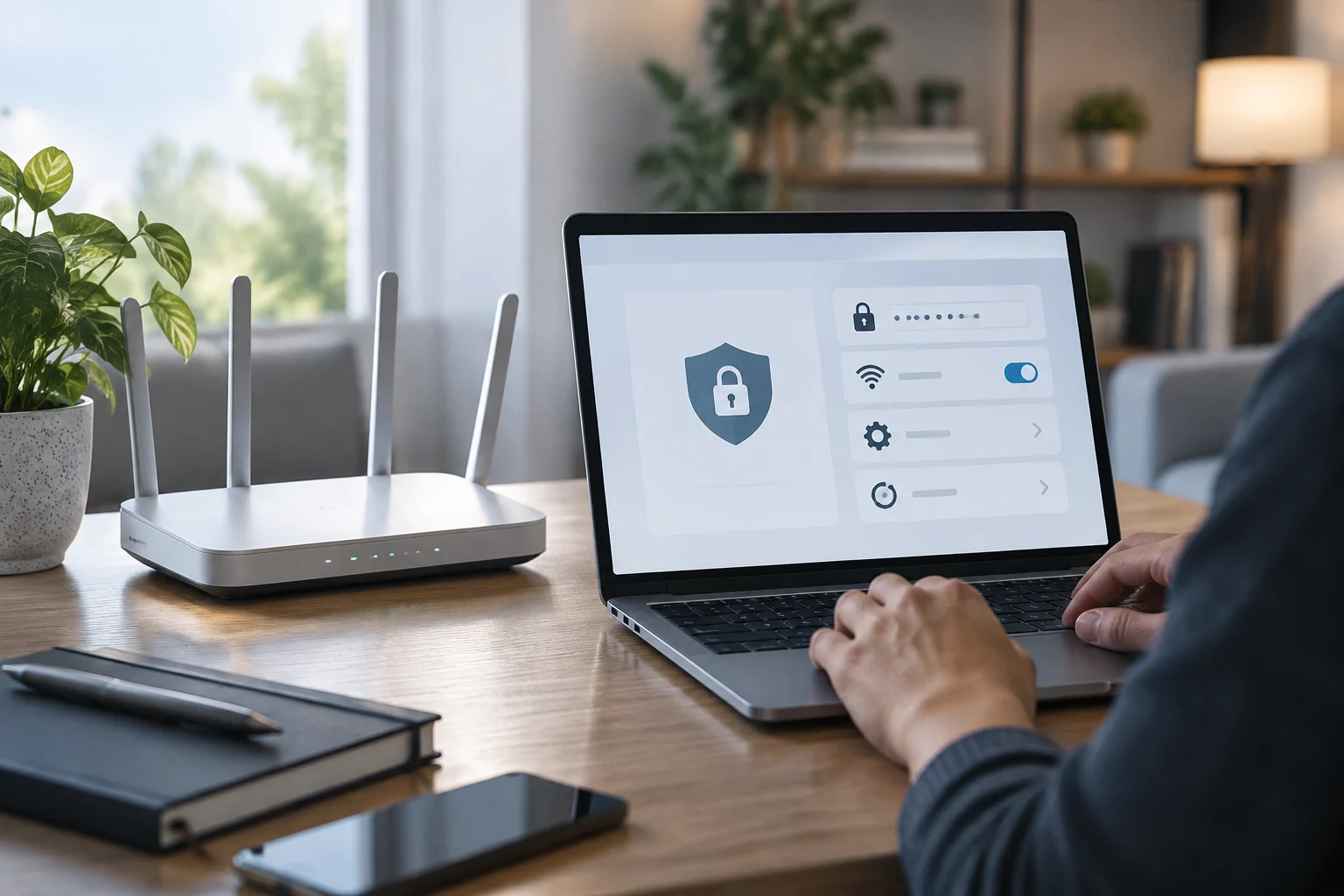
Before touching any setting, it is fundamental to identify the exact model of the router. The label located on the bottom or back of the device usually contains the administration IP address (commonly 192.168.1.1 or 192.168.0.1), the username, and the default password. If the router was configured by a service provider, these data may have been modified; in that case, the manufacturer's documentation or the operator's mobile app are the reliable sources to recover access.
Once the equipment is identified, it is recommended to make a backup of the current configuration. Most modern administration panels include an option to export a configuration file (generally with .cfg or .bin extension). Saving this file in a secure place allows restoring the previous state if a change causes a loss of connectivity or an Internet service failure.
What data to note before starting
- Administration IP address of the router.
- Username and password for panel access.
- Wi-Fi network name (SSID) and current password.
- Model and serial number of the device.
Secure Access to the Administration Panel
Access to the administration panel is typically done through a web browser connected to the router's local network. It is crucial to distinguish between the Wi-Fi network password (which allows devices to connect to the Internet) and the administration password (which allows modifying the router's parameters). Confusing both is one of the most common errors that leads to failed access attempts or temporary blocks due to excessive attempts.
If the router uses a mobile app for management, the process is similar but guided by the manufacturer's interface. In both cases, it must be verified that the connection to the panel is made via a secure protocol (HTTPS) if the device supports it, to prevent administration credentials from being transmitted in plain text over the local network.
Configuration management is a systems engineering process that seeks to track and control IT resources. In the home environment, this translates into maintaining a record of changes made to revert them if necessary. A configuration management tool helps impose a desired state and provides problem alerts, a principle that also applies to the manual audit of a router.
Wi-Fi Encryption and Key Management
Wireless network encryption is the first line of defense against unauthorized access. WPA2 and WPA3 protocols are the current recommended standards. Networks using WEP or WPA (version 1) are vulnerable to key recovery attacks and must be disabled immediately. Network configuration is the process of establishing policies and controls that allow secure communication between devices, and encryption is the central component of that policy.
When changing the Wi-Fi network key, it is important to choose a robust password phrase that combines letters, numbers, and symbols. The network password must be different from the router's administration password. If the key is changed, all connected devices will need to re-authenticate, so it is recommended to make this change at a time when each device can be reconfigured.
Recommended encryption protocols
| Protocol | Status | Recommendation |
|---|---|---|
| WPA3 | Active | Preferred for new devices |
| WPA2 | Active | Acceptable if WPA3 is not compatible |
| WPA | Obsolete | Disable |
| WEP | Obsolete | Disable immediately |
WPS, Remote Administration, and Exposed Services
Wi-Fi Protected Setup (WPS) is a function designed to facilitate device connection, but it has known vulnerabilities that allow nearby attackers to recover the network key. Unless it is actively used to pair devices regularly, it is recommended to disable WPS in the administration panel. This measure eliminates a common attack vector in home networks.
Remote administration allows accessing the router's panel from the Internet, a useful function for technical support but dangerous if left enabled without additional protection. If remote access is not required, this option should be disabled. If it is kept active, it is essential to change the default administration port and use a strong administration password, as standard ports are frequent targets of automated scans.
Other services such as the UPnP (Universal Plug and Play) server or access to the administration console from the external network must be reviewed. UPnP facilitates the configuration of applications that require open ports, but it can be exploited to open ports without authorization. Disabling it or restricting it to specific devices reduces the router's attack surface.
Firmware Update and Manufacturer Support
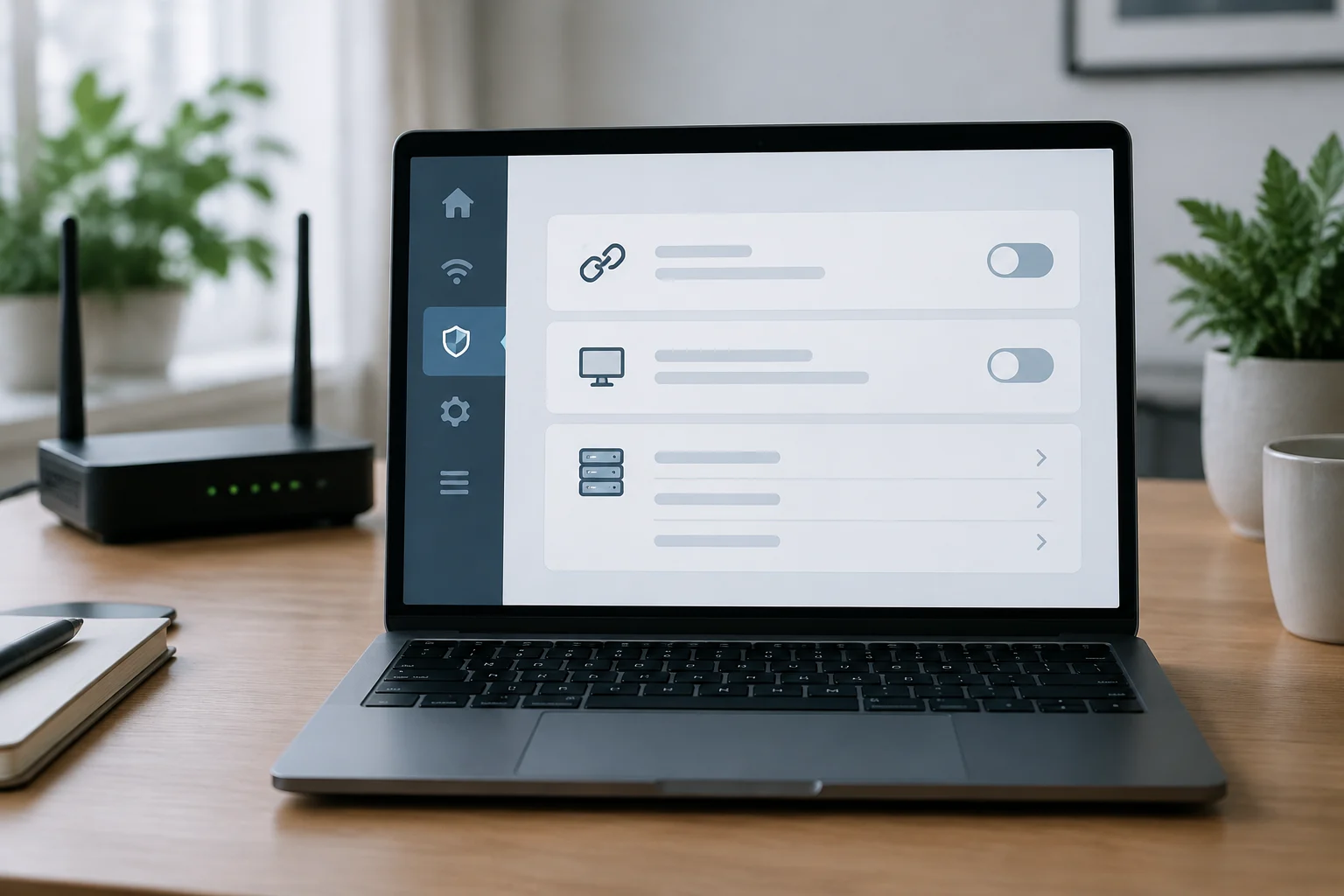
The router's firmware is the software that controls its functions. Firmware updates fix security vulnerabilities and improve stability. It is important to periodically check if the manufacturer offers a newer version. Some routers allow automatic updates, while others require a manual upload of the firmware file from the administration panel.
Before updating, you must download the correct firmware for the exact model of the router. Installing incompatible firmware can brick the device, leaving it unusable. Manufacturers like GL.iNet or DrayTek provide specific instructions for firmware update and downgrade, including the option to keep the current configuration or restore it from a backup.
If the router is old and the manufacturer has stopped offering support, firmware updates may not be available. In that case, the only solution to maintain security is to replace the device. The availability of support is a key factor in the decision to keep or renew a router, especially in environments where network security is a priority.
Apply Changes Incrementally and Recovery Plan
A fundamental principle when modifying a router's configuration is to change one setting at a time. If several parameters are modified simultaneously and the network fails, it will be difficult to determine which change caused the problem. After each modification, Internet connectivity and access to local devices must be tested before proceeding to the next setting.
If a change causes the loss of access to the administration panel, the standard recovery procedure is to restart the router by holding the reset button for 10 to 15 seconds. This restores the factory configuration, eliminating all changes made. After the reset, the router must be configured from scratch, using the previously saved backup if the previous configuration is to be recovered.
Recovery procedure in case of failure
- Restart the router by holding the reset button.
- Wait for the router to complete the restart.
- Access the panel with default credentials.
- Restore the configuration backup if available.
- Verify Internet connectivity and local devices.
Final Checklist and Audit Limits
Router security audit is not a one-time event, but a periodic process. It is recommended to repeat this review every six months or after any significant change in the network, such as the addition of new devices or firmware updates. A brief checklist facilitates the task and ensures that critical points are not omitted.
Router security checklist
- Administration password changed and robust.
- WPA2 or WPA3 encryption active.
- WPS disabled.
- Remote administration disabled or protected.
- Firmware updated to the latest version.
- Configuration backup saved.
- UPnP disabled or restricted.
There are inherent limits to the router configuration that cannot be resolved from the administration panel. For example, the security of connected devices depends on their own updates and configurations, not the router. Furthermore, firmware vulnerabilities that have not been patched by the manufacturer cannot be mitigated through configuration settings. In these cases, the only solution is to replace the device or use a router with active support.