Physical Key vs. Passkey: What Problem Each Option Solves
Before purchasing, it is fundamental to distinguish between a physical security key and a passkey stored on the device. According to the FIDO Alliance, a passkey is an authentication credential based on FIDO standards that can be stored on the phone, computer, or in a hardware security key. Both use public key cryptography to offer phishing-resistant authentication, but the user experience and the risk of loss differ significantly.
A physical key requires the device to have a compatible port or an NFC reader, while a passkey on a mobile device depends on credential synchronization and device availability. The physical key offers a tangible possession factor, making it especially useful for high-value accounts or environments where minimizing cloud dependency for credential storage is desired. However, it does not completely replace passkeys on modern mobile devices, where convenience is a priority.
Compatibility Requirements in Major Services
Compatibility is not universal: each service establishes its own requirements. Microsoft supports FIDO2 keys for signing in to personal and work accounts, allowing both USB and NFC keys. The process involves going to Settings > Accounts > Sign-in options and selecting the security key option. It is crucial to verify that the browser and operating system are updated, as compatibility depends on the WebAuthn implementation in the client.
Google allows the use of security keys for Two-Step Verification, but with important nuances. To create a passkey directly on the key, it must support the FIDO2 protocol. Google warns that recently registered keys may take up to 7 days to be available for sign-in, a security measure to prevent unauthorized use. Additionally, if the key is lost, the recovery process can take between 3 and 5 business days if no alternative verification method is available.
Apple supports security keys for two-factor authentication on macOS and iOS. Official documentation indicates that USB or NFC keys can be used to sign in to the Apple Account. It is important to verify the operating system version, as security features may vary between macOS Sequoia, Tahoe, and earlier versions. Verifying the OS version is a critical step that is often omitted, leading to the purchase of a key incompatible with the user's current system.
Choosing the Connection: USB-A, USB-C, or NFC
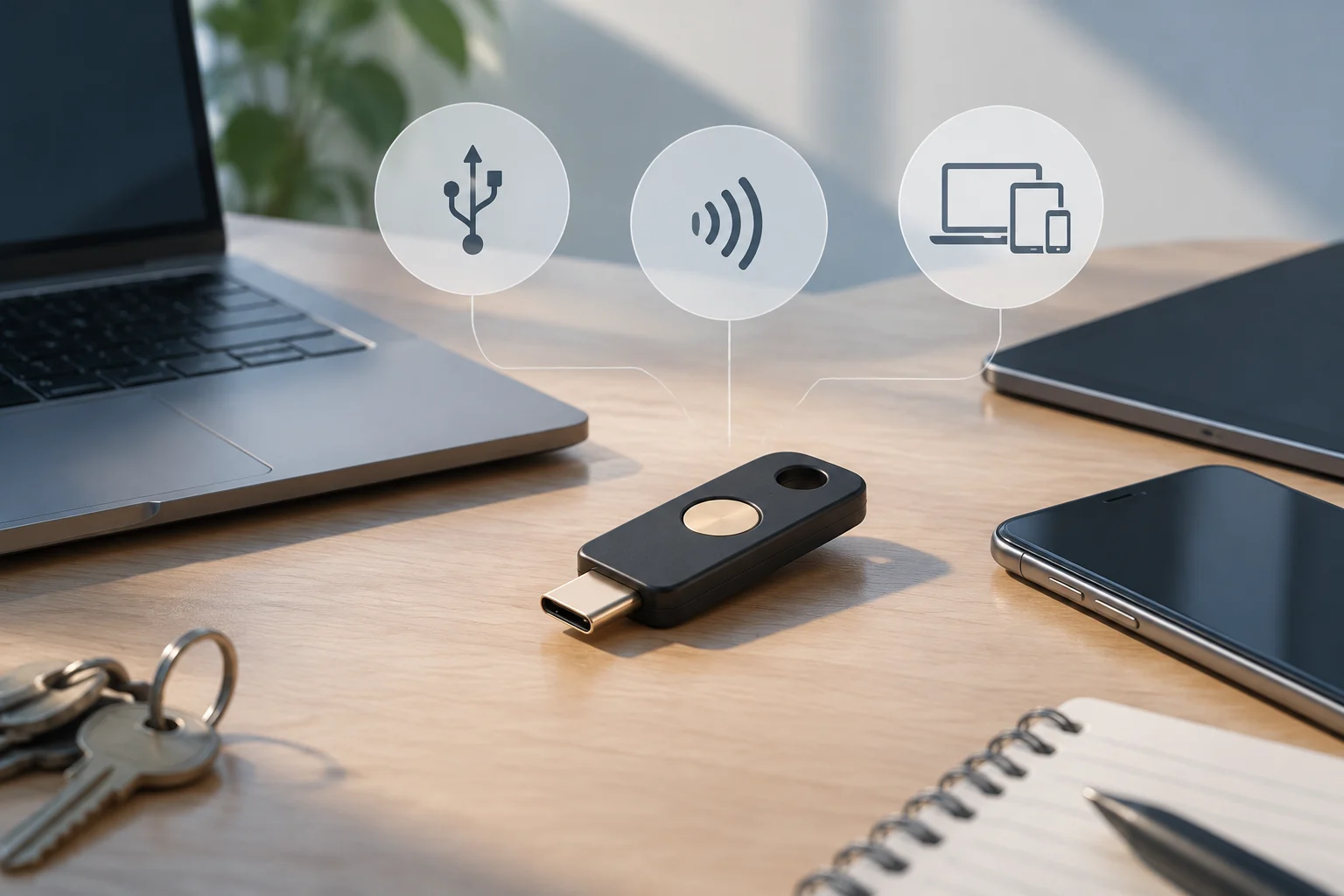
The choice of connector determines daily usability. USB-A is the traditional standard in desktop computers and older laptops, while USB-C is predominant in recent devices, especially in MacBooks and ultrabooks. If a modern laptop is used primarily, a USB-C key is the most practical option. For users with mixed equipment, a key with a dual connector (USB-A and USB-C) or an NFC key can offer greater flexibility.
NFC is the ideal option for mobile devices that do not have a USB-C port or for users who prefer not to insert a physical device. Tapping the key against the phone activates authentication. However, not all mobile phones support NFC in the same way, and compatibility with specific services may vary. A key with both technologies (USB and NFC) offers maximum versatility, although it usually has a higher price.
It is a common mistake to assume that the shape of the connector guarantees compatibility. Real compatibility depends on FIDO2 support in the device and service, not just the type of port. A USB-C port does not guarantee that the operating system supports FIDO2 without updates, and a USB-A port does not prevent the use of a FIDO2 key if the system allows it. The manufacturer's list of compatible devices and the authentication service must always be verified.
Practical Features and Specification Limits
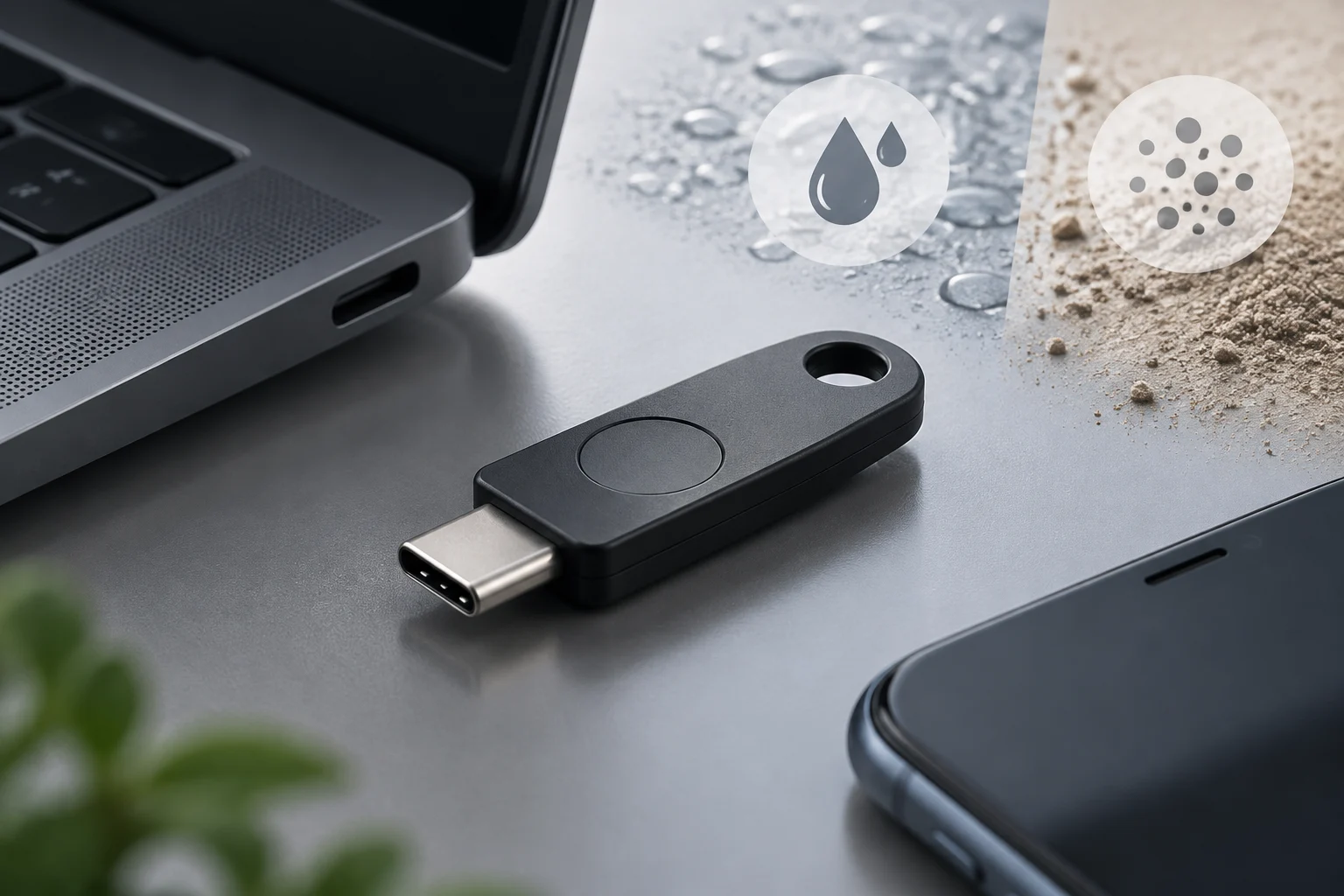
When comparing models, water and dust resistance (IP certification) is a relevant factor for daily transport, but it should only be considered if officially documented by the manufacturer. Many security keys do not publish IP certifications, meaning they are not designed to withstand immersion or dust exposure. Resistance to elements should not be assumed if it is not explicitly stated in the technical sheet.
Physical resistance and connector durability are practical aspects that affect the key's lifespan. USB-C connectors are generally more robust than USB-A, but a low-quality key may present contact failures. The choice should be based on the manufacturer's reliability and community reviews, not just marketing specifications. The FIDO Alliance certifies cryptographic security, but not the mechanical durability of the device.
It is important to remember that no security key guarantees universal compatibility. FIDO2 standards are open, but implementation varies between services and devices. A key that works perfectly in Microsoft 365 may have limitations in a specific online banking service. The purchase decision should prioritize the user's critical services and verify compatibility in each one before finalizing the purchase.
Recovery Plan: The Key to Not Being Locked Out
The greatest risk of a security key is the loss or damage of the device. Planning recovery before buying is as important as choosing the key. Google recommends having at least a second verification method, such as backup codes, a second security key, or a registered trusted device. If the key is lost and no other method is available, the recovery process can take several days and require identity verification through security questions or codes sent by email.
Microsoft and Apple also offer recovery options, but the process varies. In Microsoft, Windows Hello or a passkey on another device can be used if previously configured. In Apple, recovery depends on the two-factor authentication methods configured in the account. Registering a second security key or a passkey on a trusted device is the most robust strategy to avoid total account lockout.
The following steps are recommended: 1) Register the main key in critical accounts. 2) Register a second key or a passkey on a trusted device. 3) Generate and save backup codes in a secure place (not in the unencrypted cloud). 4) Test the recovery process in a controlled environment. 5) Remove the lost key from the account immediately if unauthorized use is suspected. Pre-loss preparation is the only way to guarantee access continuity.
Final Checklist and Guide Limits
Before finalizing the purchase, verify: 1) That the key supports FIDO2 (not just FIDO U2F) if you want to use passkeys. 2) That the connector is compatible with your main devices. 3) That the authentication service supports security keys. 4) That you have a configured recovery plan. 5) That the key is certified by the FIDO Alliance if security is a top priority. This list does not replace individual verification in each service, as security policies change over time.
This guide is based on the official documentation of the FIDO Alliance, Apple, Google, and Microsoft, but it does not cover all existing authentication services. Banking, email, or development platform services may have additional requirements or specific limitations. It is recommended to consult the security documentation of each service before relying exclusively on a security key. Authentication technology evolves rapidly, and today's recommendations may change in the coming years.
In summary, choosing a security key should be an informed decision that balances compatibility, usability, and security. There is no perfect key for all cases, but a careful selection based on the user's specific requirements can significantly improve the security of digital accounts. Investing in a security key is a proactive security measure that, combined with a solid recovery plan, offers robust protection against phishing and credential theft.