What the Microsoft Defender Firewall controls and what it cannot protect on its own
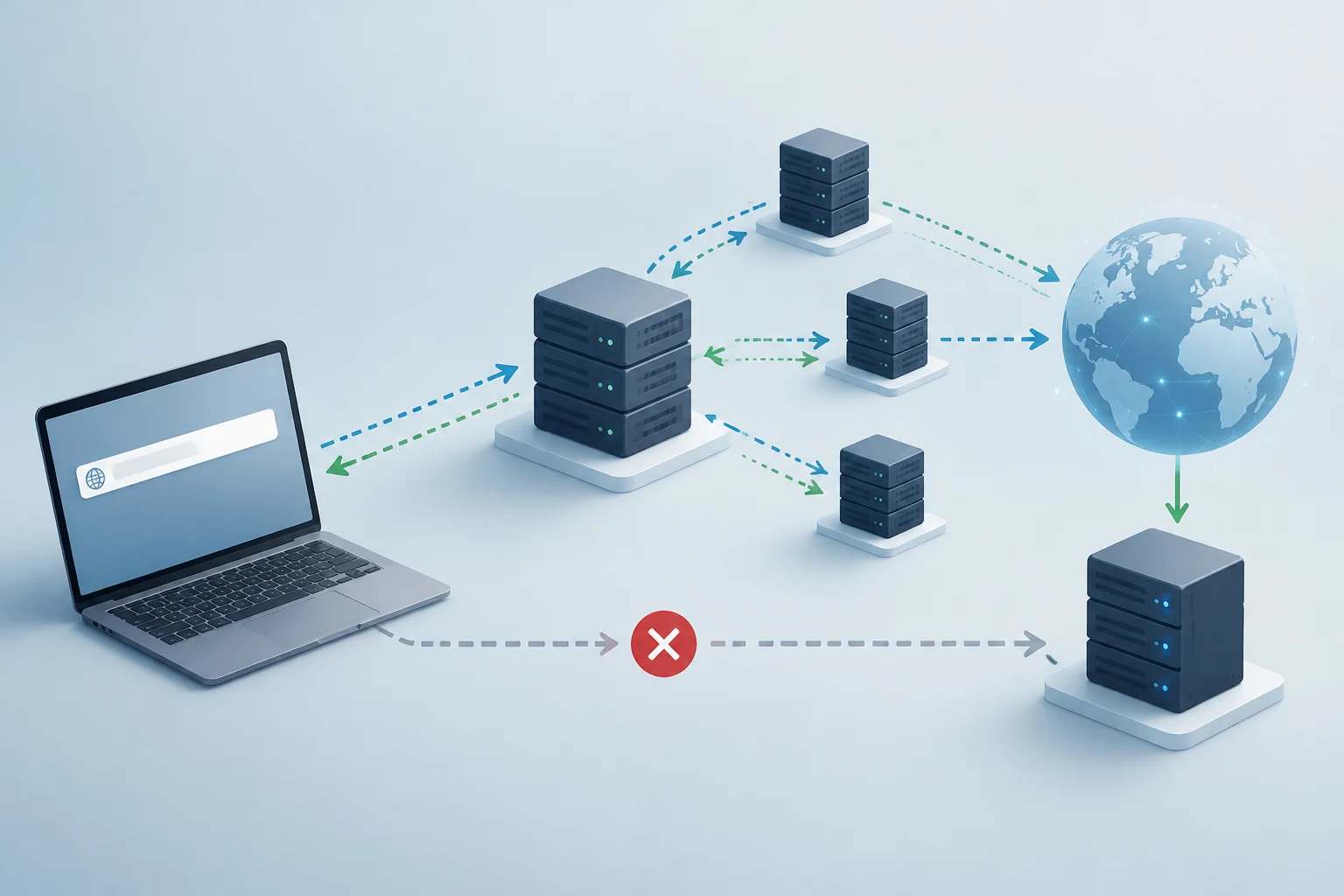
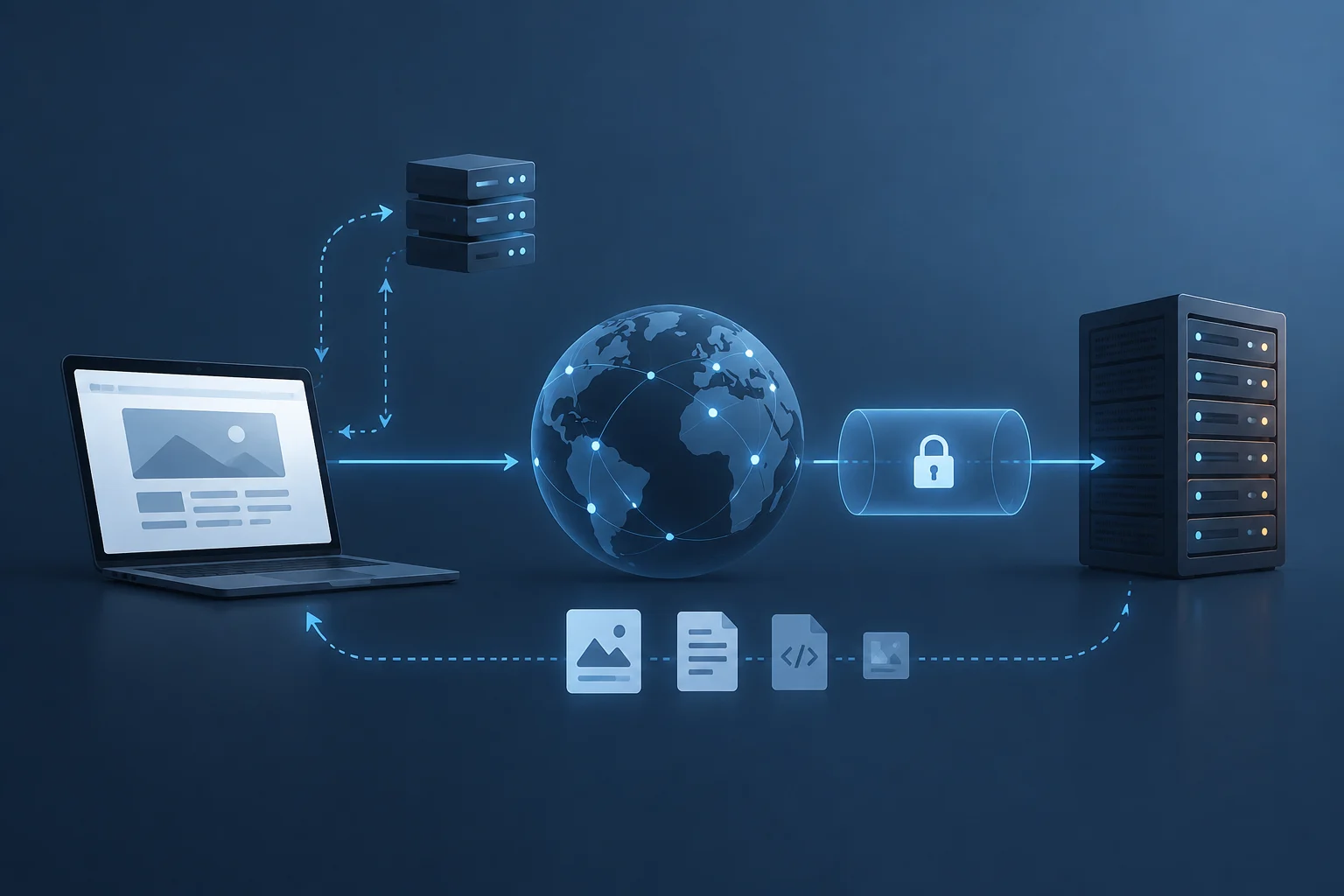
The Windows Firewall is a security feature integrated into the operating system that filters incoming and outgoing network traffic. It functions as a host-based firewall, meaning it specifically protects the device where it is installed, not the entire network. It is enabled by default in all editions of Windows 10 and 11, allowing you to restrict traffic only to those applications and services that are explicitly permitted to communicate.
This mechanism operates by filtering packets based on technical criteria such as the source and destination IP address, the IP protocol used, or the port number. However, it is crucial to understand its limits: the firewall does not replace an antivirus nor does it detect malware that is already inside the system. Its primary function is to control network communication, acting as a perimeter barrier for the individual device. For comprehensive protection, it must be complemented with other security layers, as an incorrect configuration can leave openings that attackers exploit to access internal resources.
Scope of protection
- Incoming traffic: Controls which external devices can connect to your computer.
- Outgoing traffic: Regulates which applications can send data to the Internet.
- Does not protect against: Local malware, social engineering, or physical attacks.
How to distinguish inbound and outbound rules and public and private network profiles
Firewall configuration is organized into two main dimensions: the type of traffic (inbound or outbound) and the network profile. Windows automatically classifies the networks you connect to as private or public. This distinction is fundamental because it determines the level of trust the system grants to other devices on the network.
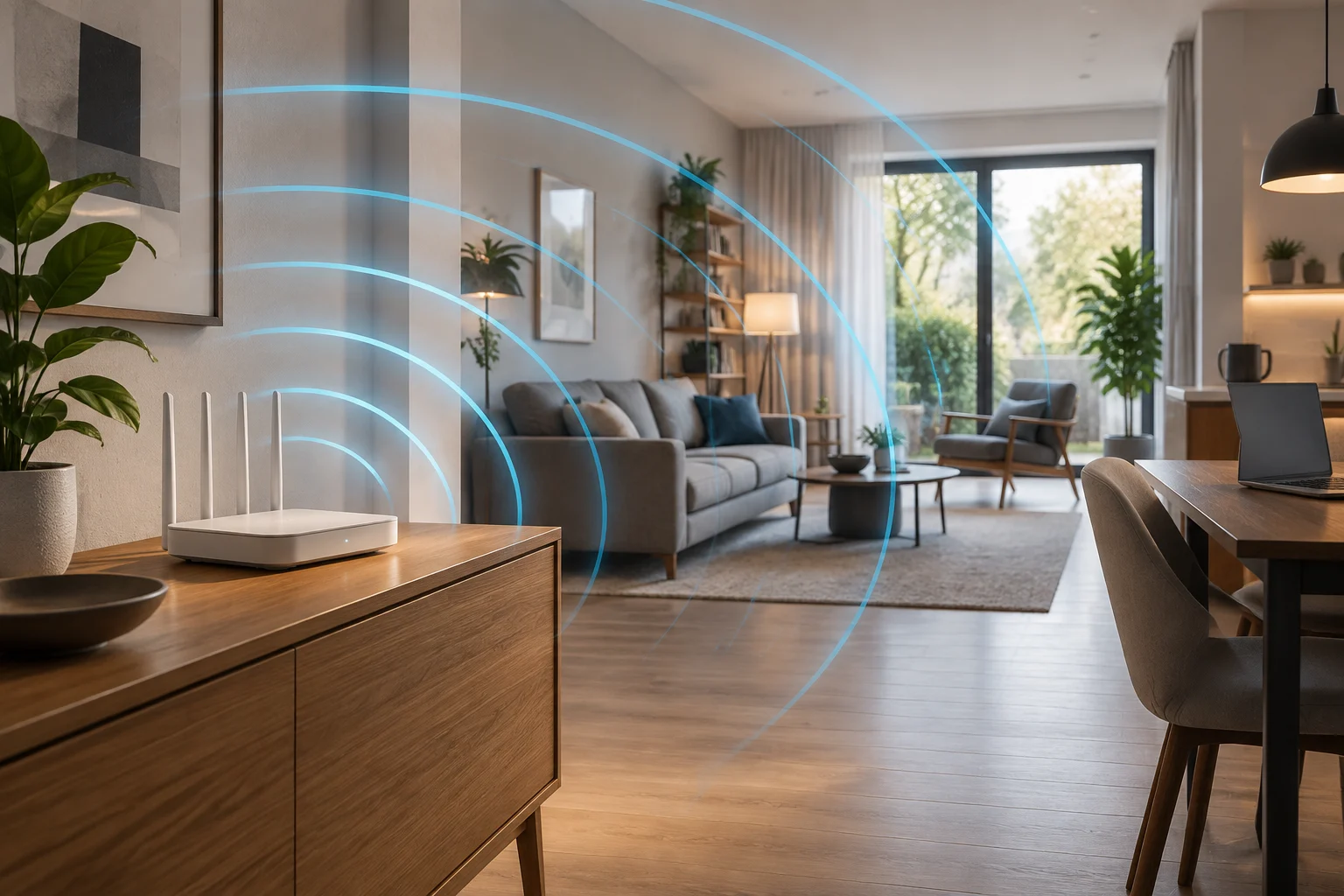
In a private network, such as your home or office, devices are assumed to be trusted. Therefore, inbound rules are usually more permissive to facilitate file sharing and printing. In contrast, in a public network, such as a café's Wi-Fi, the system applies much stricter controls. The key difference is visibility: in a private network, other devices can see your computer; in a public one, Windows attempts to hide your device to avoid unsolicited connections from strangers.
Key differences between profiles
| Feature | Private Network | Public Network |
|---|---|---|
| Trust level | High (known devices) | Low (unknown devices) |
| Visibility | Visible to other devices | Hidden from other devices |
| Inbound rules | More permissive | Very restrictive |
| Typical use | Home, office | Café, airport, hotel |
What to check before allowing or blocking an application
Before modifying any rule, it is essential to accurately identify the application you want to manage. Microsoft warns that there are two main ways to allow access: adding an application to the allowed list or opening a port. The first option is significantly safer because the application only opens the necessary ports when strictly needed. In contrast, opening a port leaves a permanent opening until it is manually closed, increasing the risk that malware or hackers use that path to access your files.
If you receive a firewall alert, do not ignore it or accept it automatically. Verify the application name and its access path. If you do not recognize the program, never allow it to communicate through the firewall. It is better to block the connection and look for information about the application than to expose the system to unnecessary risk. This precaution is vital because an incorrect configuration is one of the main causes of security vulnerabilities in home and corporate networks.
Verification criteria
- Identity: Do you know the application and its publisher?
- Necessity: Does it really need network access to function?
- Method: Is it better to allow the application or open a port?
- Context: Are you on a public or private network?
How to review and modify a rule without disabling the firewall
To manage allowed applications, open the Windows Security app and select the Firewall & network protection option. From here, access Allow an app through firewall. To make changes, you need to click Change settings, which will require administrator permissions. This process allows you to enable or disable the checkbox next to the specific application to allow or block its access on private and public networks.
If you need more granular management, you can access the advanced configuration from the control panel. There, rules are organized into inbound rules and outbound rules. It is important to understand the precedence of these rules: explicit block rules take priority over conflicting allow rules, and more specific rules take priority over less specific ones. For example, a rule that blocks a specific IP address will prevail over a general rule that allows all traffic from that network.
Steps to modify a rule
- Open Windows Security.
- Select Firewall & network protection.
- Click on Allow an app through firewall.
- Press Change settings and confirm administrator permissions.
- Enable or disable the checkbox for the desired application.
- Select the network profile (Private or Public) where you want to apply the change.
- Click OK to save the changes.

How to restore the previous configuration if an application stops working
If after blocking an application you notice it stops working correctly, it is likely that it needs network access to operate. In this case, it is not necessary to disable the entire firewall. It is enough to revert the specific change you made. Go back to the allowed applications section and re-enable the checkbox corresponding to the application in the appropriate network profile. This action restores communication without compromising the security of the rest of the system.
It is important to remember that a port remains open until you close it, but an allowed application opens the necessary ports only when needed. Therefore, if the problem persists, consider whether the application requires a specific port that is not being managed correctly. In more complex cases, you can use the netsh command-line tool to manage specific rules, although this requires greater technical knowledge. The key is to keep the firewall active and adjust only the necessary exceptions.
Reversion strategy
- Identify the failure: What specific function of the application is not working?
- Review the profile: Was the change applied on the correct network (private/public)?
- Restore the exception: Enable the application's checkbox in the allowed list.
- Verify the connection: Check if the application regains its normal functionality.
When to look for another cause of the problem and where to consult official documentation
If after adjusting the firewall rules the application still does not work, the problem is probably not in the network configuration. In these cases, it is recommended to look for another cause of the problem, such as a pending system update, a conflict with other software, or an error in the application itself. Disabling the firewall to diagnose the problem is a discouraged practice because it leaves the computer unprotected during the time the test lasts.
To obtain detailed and updated information, always consult the official Microsoft documentation. Microsoft support pages provide specific guides for each version of Windows and explain the risks associated with each type of configuration. In addition, resources such as the Microsoft Defender for Business portal offer advanced tools for managing firewall policies in corporate environments. Staying up to date with these official sources is the best way to ensure a secure and efficient configuration.
Reference resources
- Microsoft Support: Step-by-step guides for Windows 10 and 11.
- Microsoft Defender: Management tools for enterprise environments.
- CISA: Security recommendations for home networks.
- Fortinet: Analysis of common errors in firewall configuration.