Definition: Physical Connector vs. Protocol Standard
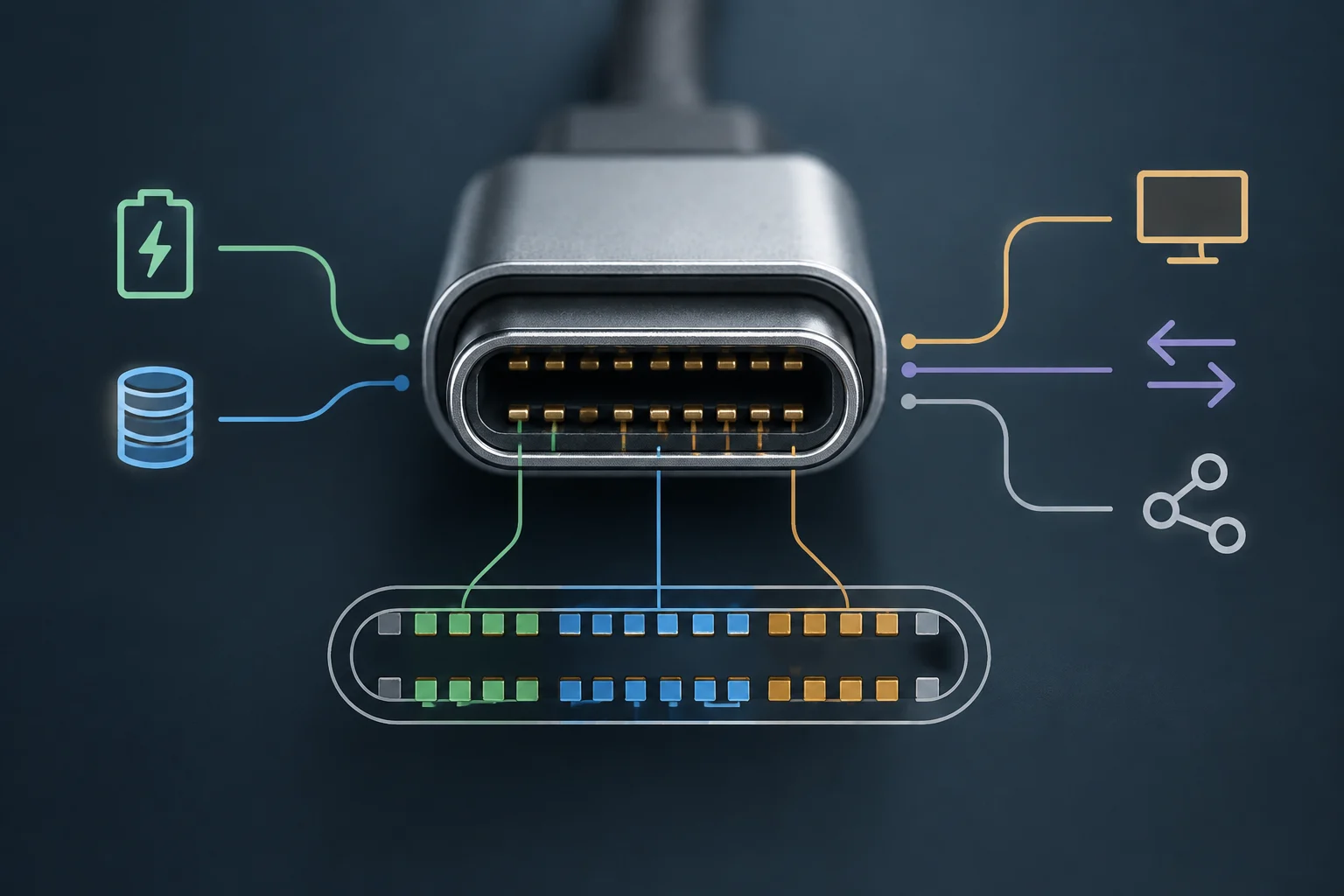
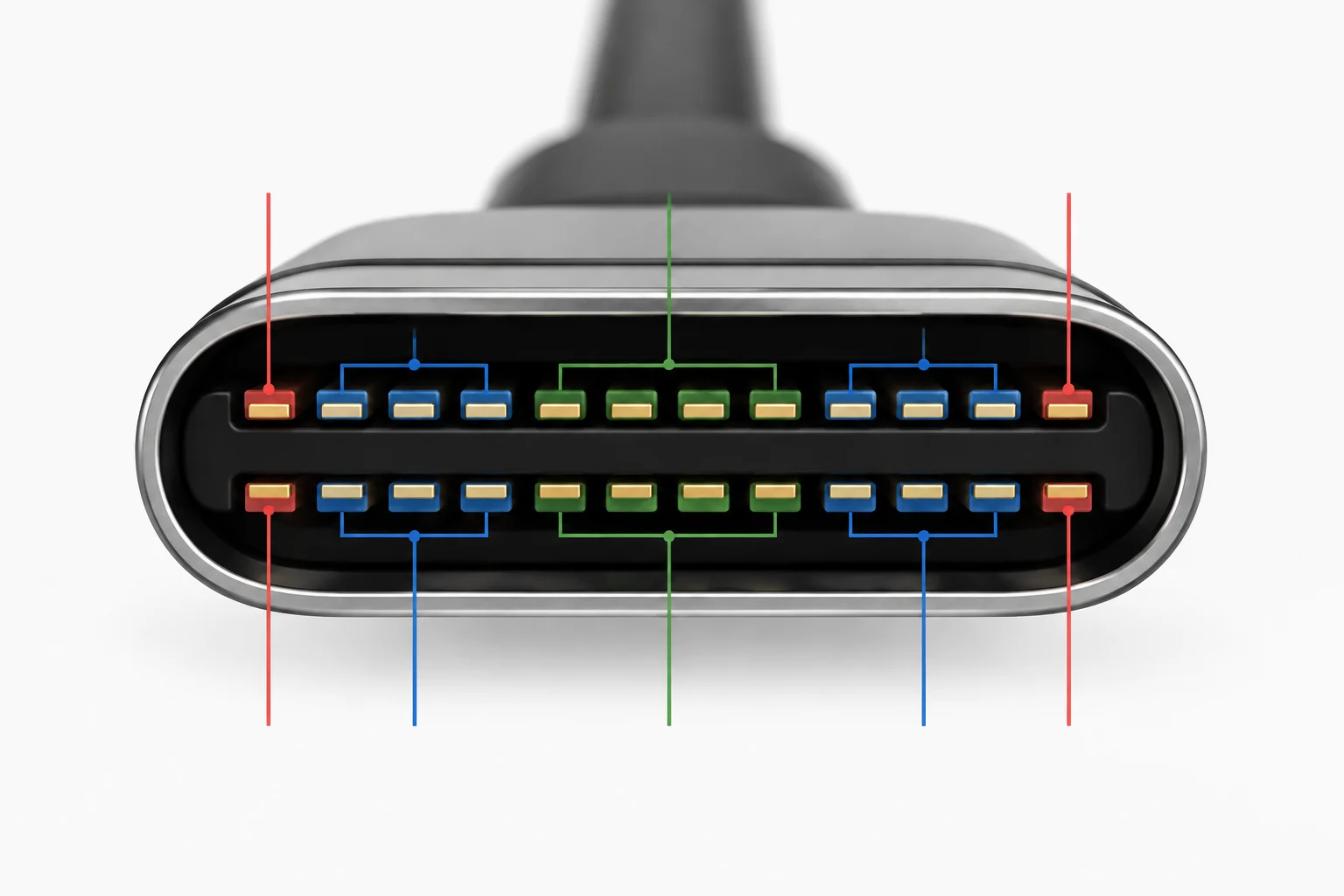
The USB‑C compatibility refers to a device or cable’s ability to work correctly with the USB Type‑C connector, but this term does not imply any specific speed or function. USB‑C is a 24‑pin physical connector, designed by the USB Implementers Forum (USB‑IF) in 2014 to replace older connectors such as USB‑A, USB‑B and Micro‑USB. Its most noticeable feature is reversibility: it can be plugged in either way without having to rotate the plug to find the correct orientation. This makes the connection more convenient, although it says nothing on its own about what a device can do once connected.
It is essential to distinguish between the connector and the protocol. The connector is the physical part that fits into the port; the protocol—such as USB 3.2, USB4 or Thunderbolt—defines communication rules, transfer speed and available functions. The shape of the plug does not determine those capabilities: a single type of connector can accompany different implementations.
Therefore, a USB‑C cable may transmit data at 5 Gbps, 10 Gbps or 40 Gbps depending on its internal wiring and the controllers in the connected devices. The effective speed depends on both ends and the cable supporting the corresponding capacity. Saying that a device is “USB‑C compatible” only confirms it can use that connector; it does not guarantee access to all advanced functions associated with USB, video or high‑power charging.
Internal Protocols: USB, Thunderbolt and DisplayPort
Within the USB‑C connector several protocols can coexist, although their presence depends on the device’s electronics rather than the port’s appearance. The most common is the USB standard, organized in generations: USB 2.0 offers 480 Mbps, USB 3.1 Gen 1 reaches 5 Gbps, USB 3.1 Gen 2 goes up to 10 Gbps and USB 3.2 can reach up to 20 Gbps in dual‑channel mode.
There is also USB4, which reaches 40 Gbps and is compatible with Thunderbolt 3 and 4. That compatibility does not mean every USB‑C port is USB4 or automatically supports all related protocols. Each capability must be implemented in the device and, to take advantage of it, the cable must also be suitable.
Another key protocol is Thunderbolt, developed by Intel. It can transmit PCIe signals in addition to USB data and video, so it can offer functions not available on a basic USB‑C port. Not all USB‑C ports support Thunderbolt; the visual guide usually indicates a lightning bolt icon next to the port, but it’s best to confirm capabilities in the manufacturer’s documentation.
The external similarity of ports explains much of the confusion: they may look identical yet offer different performance. A laptop might include one USB‑C port dedicated only to charging, another that transfers data at 5 Gbps and a third compatible with Thunderbolt 4 and 8K video output. You cannot deduce function solely from size or shape; you must consult specifications.
Alternate Modes: How Video Is Transmitted
To transmit video through USB‑C, an extension called Alternate Mode (Alt Mode) is used. The most widespread is DisplayPort Alt Mode, which allows DisplayPort video signals to be sent over the high‑speed pins of the USB‑C connector. Thus, a USB‑C port can carry both USB data and video signals, provided the device supports it.
VESA, the organization that standardises DisplayPort, released version 2.0 of this alternate mode in 2020. This version enables resolutions above 8K and higher refresh rates. These possibilities describe what the specification can support; they do not mean all USB‑C ports, cables or displays offer those features.
Not every USB‑C port supports video output. Some mobile phones and tablets use the connector only for charging and basic data, without the ability to send a video signal. Therefore, before connecting a monitor you must check the device’s technical specification or look for the DisplayPort logo next to the port.
If the port does not support Alt Mode, connecting a monitor via a USB‑C to HDMI cable will not solve the problem, no matter how good the cable is. The adapter and cable can only carry the signal that the source device provides. The lack of video may be due to the port, not necessarily an accessory defect.
Certifications and Cable Quality
USB‑IF runs a certification program for USB‑C cables designed to verify compliance with signal integrity, power and durability standards. A cable certified by USB‑IF bears a specific logo and has passed independent laboratory tests. Certification identifies evaluated cables but does not imply that all have the same capabilities.
Certification depends on the cable category: one may be certified only for charging, another for USB 2.0 data and yet another for USB 3.2 or USB4. Therefore, the logo does not replace checking the specific capacity. The label must clearly indicate what the cable can offer, including its maximum speed when applicable.
Generic un‑certified cables may work for basic charging but can fail at high‑speed data transfer or delivering high power via Power Delivery. For tasks such as connecting an external SSD or a 4K monitor, it is important to choose a cable with the appropriate certification and capabilities for the intended use.
USB‑IF recommends selecting certified cables that match device capabilities. Matching cable, port and required function helps avoid compatibility problems and potential damage from overloading. The choice should be based on the needed function, not merely that the cable has USB‑C connectors at both ends.
Comparative Table of USB‑C Capabilities
The table summarizes differences between some common types of ports and cables. In all cases, the physical connector may look identical, but capabilities change according to protocol and cable certification. The figures in the table describe the indicated categories and should not be interpreted as guaranteed features for any device with a USB‑C port.
| Port/Cable Type | Data Speed | Max Power | Video Output | Main Protocol |
|---|---|---|---|---|
| Charge only | N/A | 100 W (PD 3.0) | No | USB Power Delivery |
| USB 2.0 data | 480 Mbps | 100 W | No | USB 2.0 |
| USB 3.2 Gen 2 | 10 Gbps | 100 W | Optional (DP Alt Mode) | USB 3.2 |
| USB4 / Thunderbolt 4 | 40 Gbps | 100 W | Yes (DP Alt Mode 2.0) | USB4 / Thunderbolt |
Consequently, data speed, maximum power and video output are distinct aspects. A cable may be suitable for charging but not for high‑speed data transfer; similarly, a port with fast data does not necessarily offer video. Each capability must be verified separately in the specifications of both port and cable.
Practical Guide to Checking Compatibility
Before buying a cable or adapter, it is wise to review three elements: the source device’s specifications, the destination device’s specs and the cable itself. Compatibility depends on the combination of all three, so confirming only the connector type is insufficient to know whether charging, data or video will work.
In official manufacturer documentation look for specific terms such as “USB 3.2 Gen 2”, “Thunderbolt 4” or “DisplayPort Alt Mode”. If a device only mentions “USB‑C” without detailing other functions, it likely offers only basic charging and 480 Mbps or 5 Gbps data. Precise specifications allow distinguishing between ports that look identical at first glance.
On cables check for the USB‑IF certification logo and review the maximum speed indicated, e.g., “10 Gbps” or “40 Gbps”. A cable marked only as “USB‑C”, without speed information, is usually low‑grade. That indication alone does not confirm video support or high‑power charging: you must verify the required capability for your use case.
If you need to charge a laptop, also check whether the cable supports Power Delivery. Basic charging cables may deliver only 5 V/3 A (15 W) or 5 V/1.5 A (7.5 W), insufficient for most modern laptops. A fitting cable does not necessarily provide the needed power, just as Power Delivery compatibility does not automatically imply high data speed.
Common Mistakes and Troubleshooting
The most frequent error is assuming that if a cable fits, it will work for any task. The connector only confirms physical connectivity; it does not guarantee support for all protocols. If a monitor doesn’t turn on when connected via USB‑C, the problem usually lies in the laptop port not supporting DisplayPort Alt Mode, not in a broken cable.
Another common mistake is using a charging‑only cable to transfer large files. Depending on the cable’s capacity, the transfer may be extremely slow or the device may not be detected by the operating system. Charging and data transfer are different functions, even if they use the same connector.
To diagnose the problem, first test the cable with another known‑working device. If the failure persists, replace it with a high‑speed certified cable and try again. If the device still fails, check USB drivers in the operating system. This process helps separate a possible cable issue from one related to the port or configuration.
In some laptops, certain USB‑C ports are disabled for video by default in the BIOS. In those cases you may need to enable the “USB‑C Video” or “Thunderbolt” option in firmware settings. Before changing settings, confirm that the port and connected devices support the function you intend to use. Diagnosis should start with specifications: reviewing the port, cable and configuration avoids automatically attributing failure to a single component.