What Barebone Means and How It Differs from a Complete Mini PC
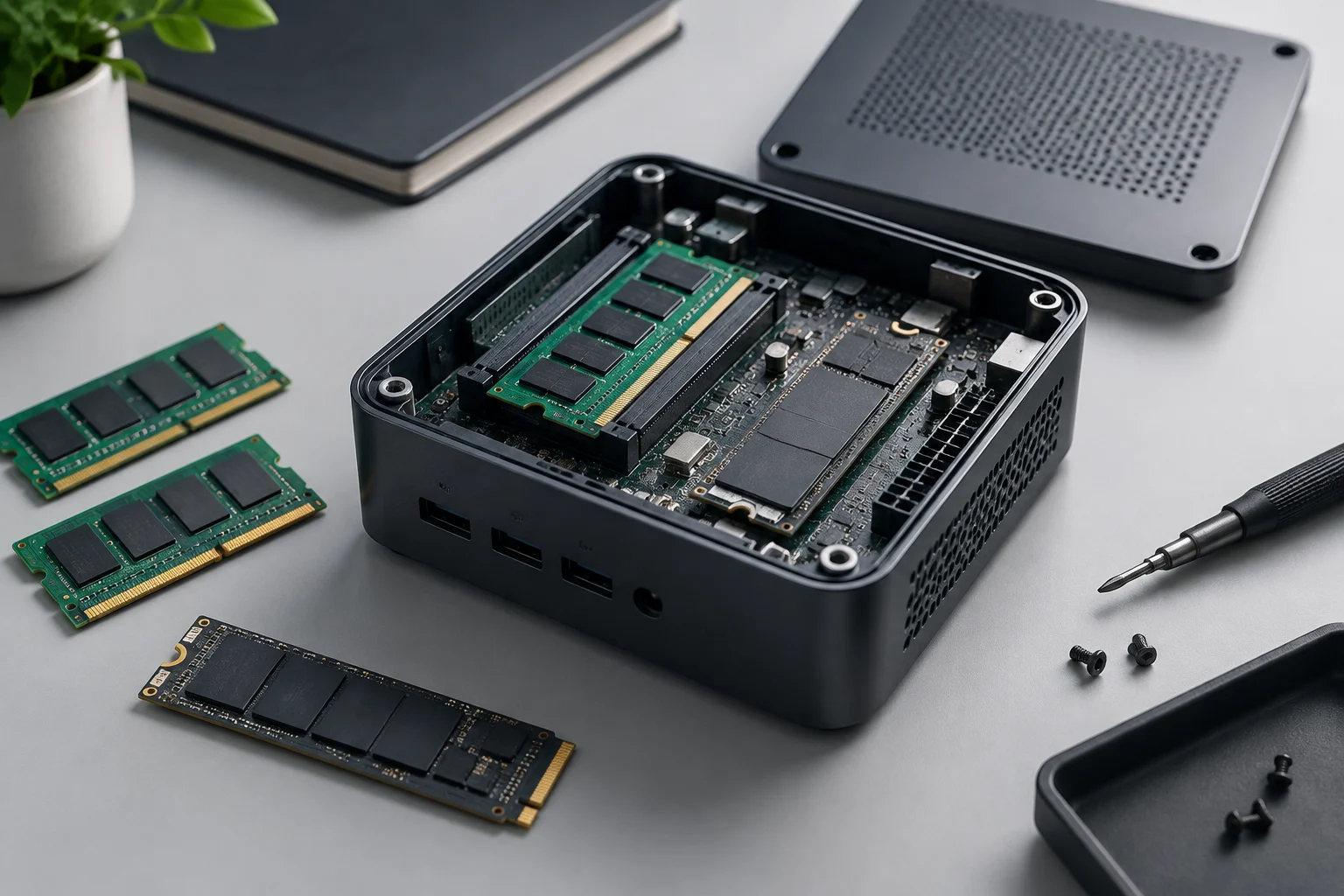
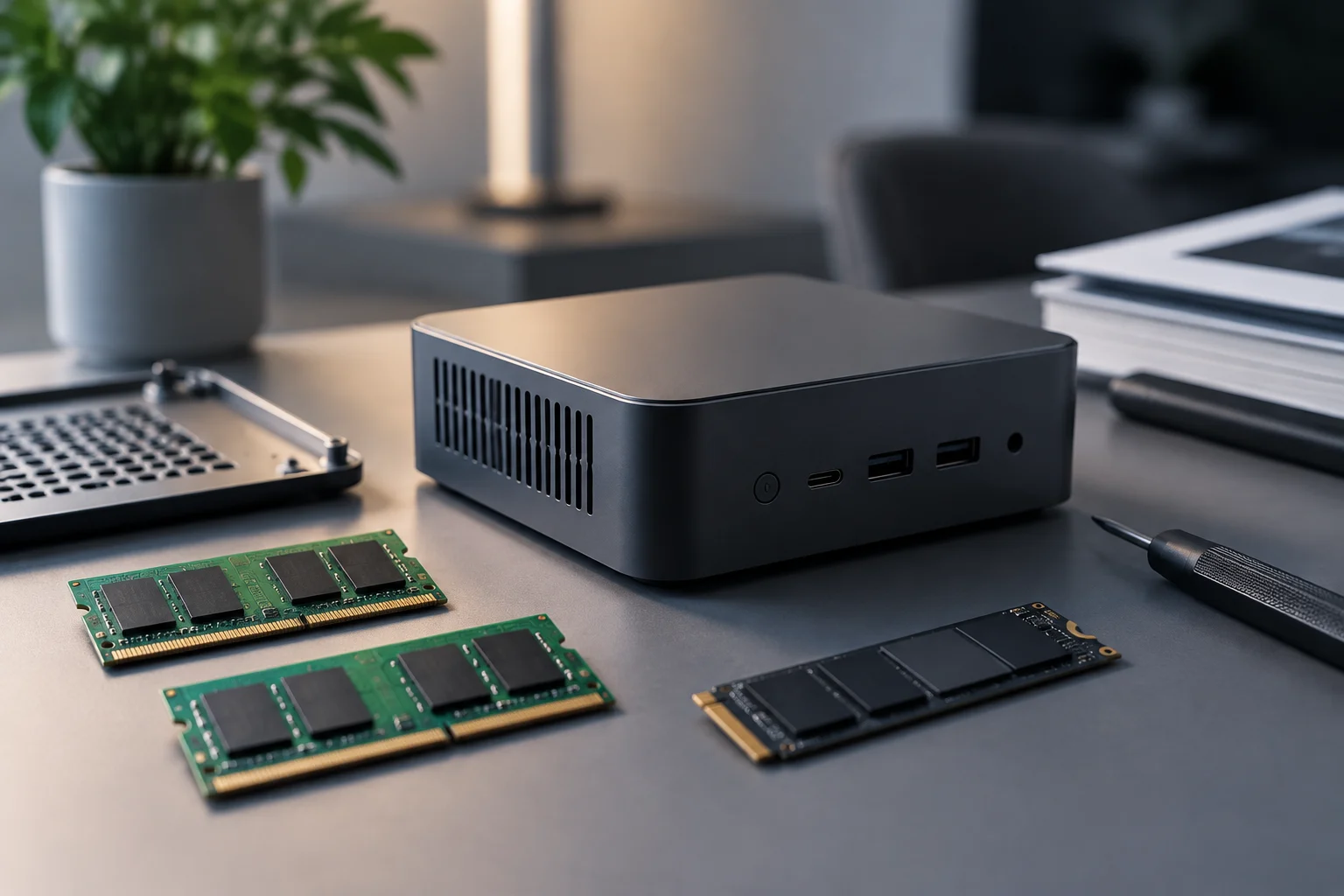
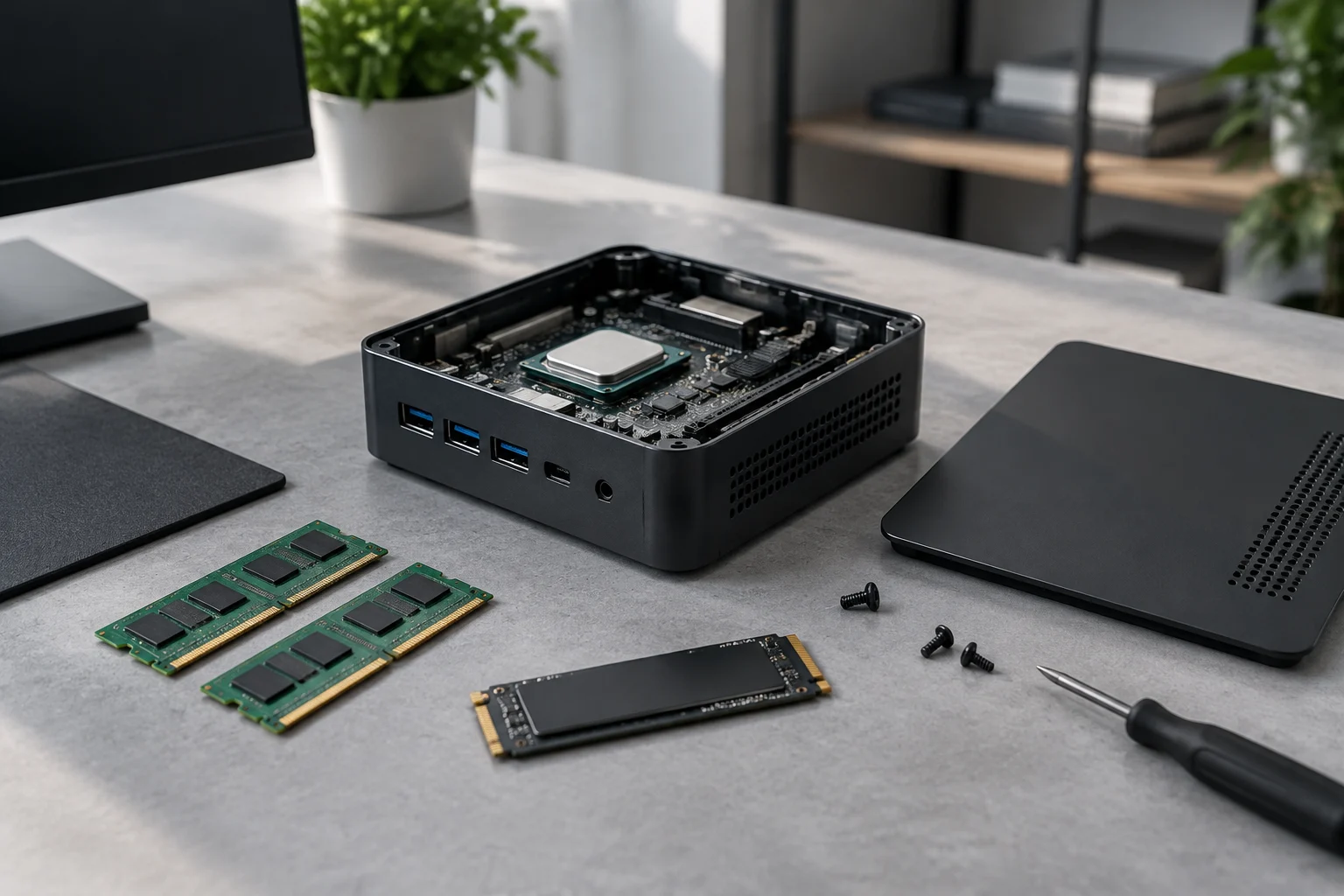
A barebone is a computer sold with a basic configuration, allowing the buyer to add certain components. In a mini PC, this usually means the motherboard, processor, chassis, and some connectivity are present, while RAM or storage may be missing. Barebone describes the offer's contents, not a fixed category of size, performance, or expandability.
In a preconfigured mini PC, the advertised memory and SSD are already installed. This does not guarantee the inclusion of other necessary items: the operating system, power adapter, cabling, or accessories depend on the variant and box contents. Therefore, it is advisable to read the specification sheet of the chosen configuration, not just the general product family page.
It is also different from an expansion kit. A barebone is a base computer that may require memory or storage to complete its configuration; an expansion kit, however, is a set of parts designed to upgrade an existing device. Unlike a desktop built from scratch, a barebone usually has the processor, motherboard, and cooling integrated, although the composition changes between models. The list of included components must be verified for each variant.
What the Box May Include and What Might Be Missing
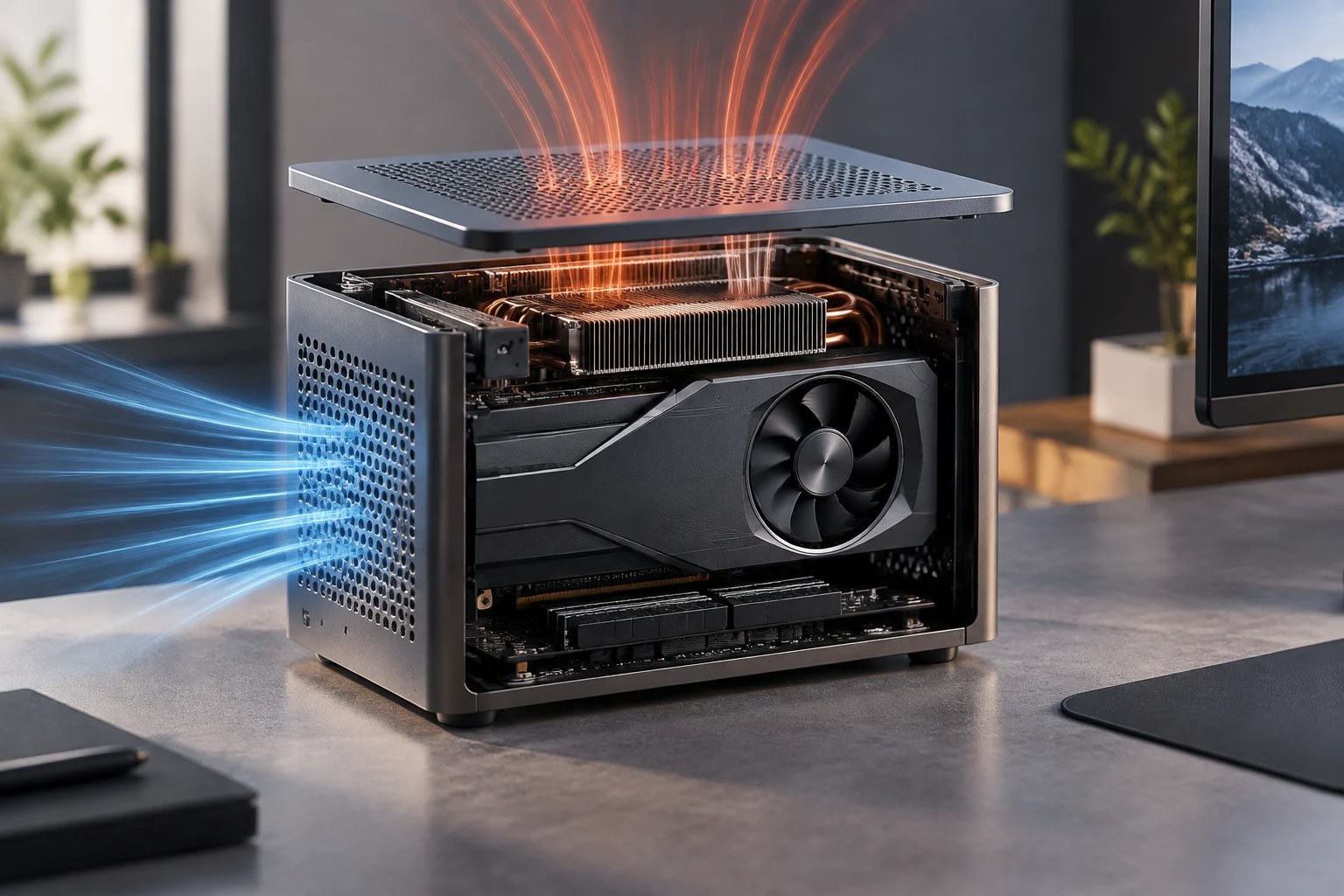
In a barebone configuration, the CPU may be installed, and the motherboard, cooling, and chassis may be incorporated. It may also have wireless connectivity and video or USB ports, but one should not assume that all models include the same elements. The specification sheet for an MSI Cubi 5 12M with Core i5-1235U, for example, identifies the processor, 65 W adapter, two DDR4 SO-DIMM slots, and M.2 and 2.5-inch storage options; this describes that model and variant, not all barebones.
Memory and storage are elements that are often missing in these offers, but this must be explicitly checked. A commercial example identifies the MSI Cubi 5 12M-015BUS as a version without RAM or disk; its description also lists the adapter and power cable. The word “barebone” does not replace the content list: confirm if the purchase includes memory, SSD, operating system, adapter, and the cables you need.
The power supply deserves a separate check. Some compact devices use an external adapter, while other designs may integrate the power supply; do not infer the type or power from the chassis appearance. Ensure the specified adapter is included in the box and suitable for the variant and market where it is sold. If the sheet only mentions supported or recommended power, do not confuse it with an included power supply.
RAM: Type, Format, and Supported Capacity
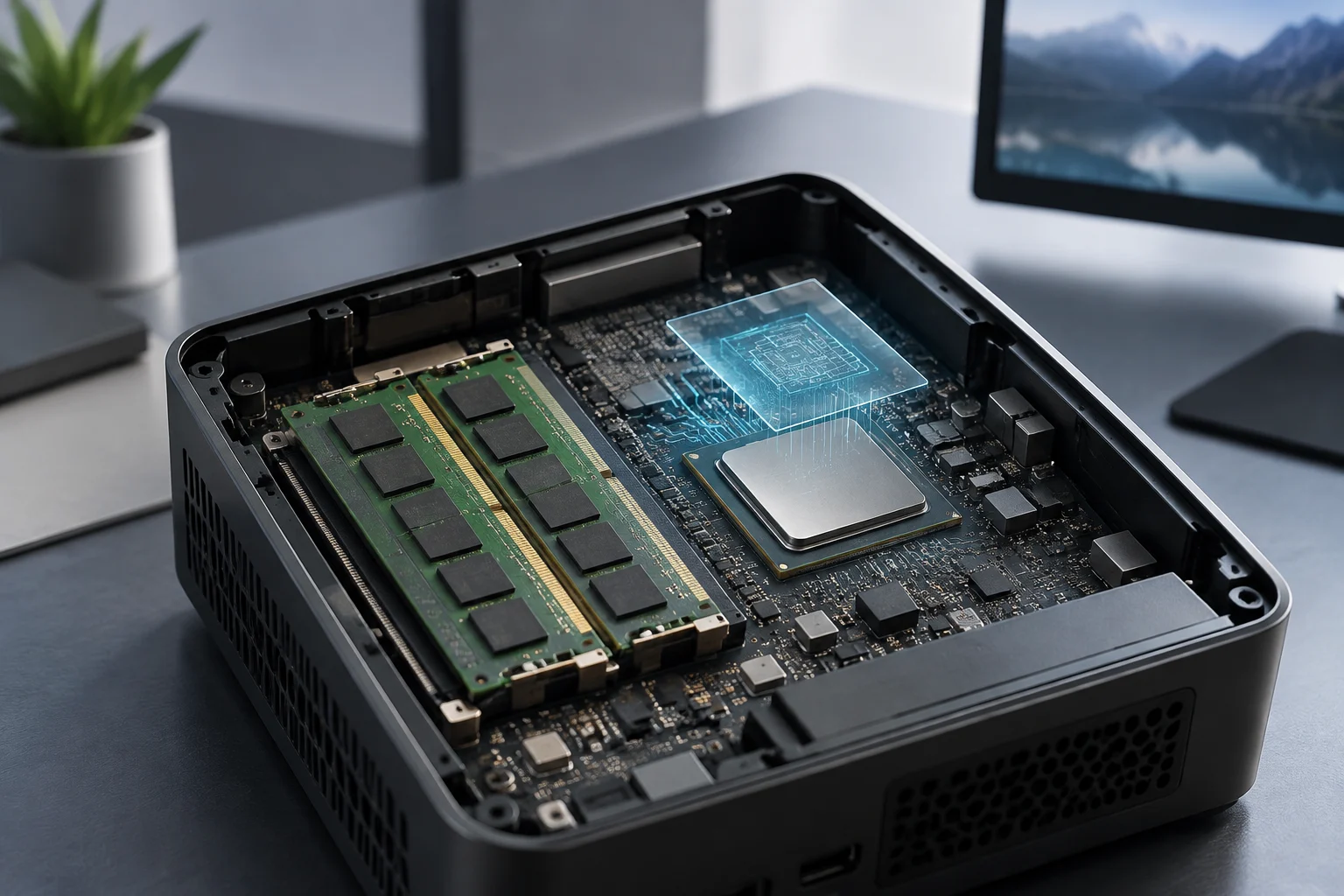
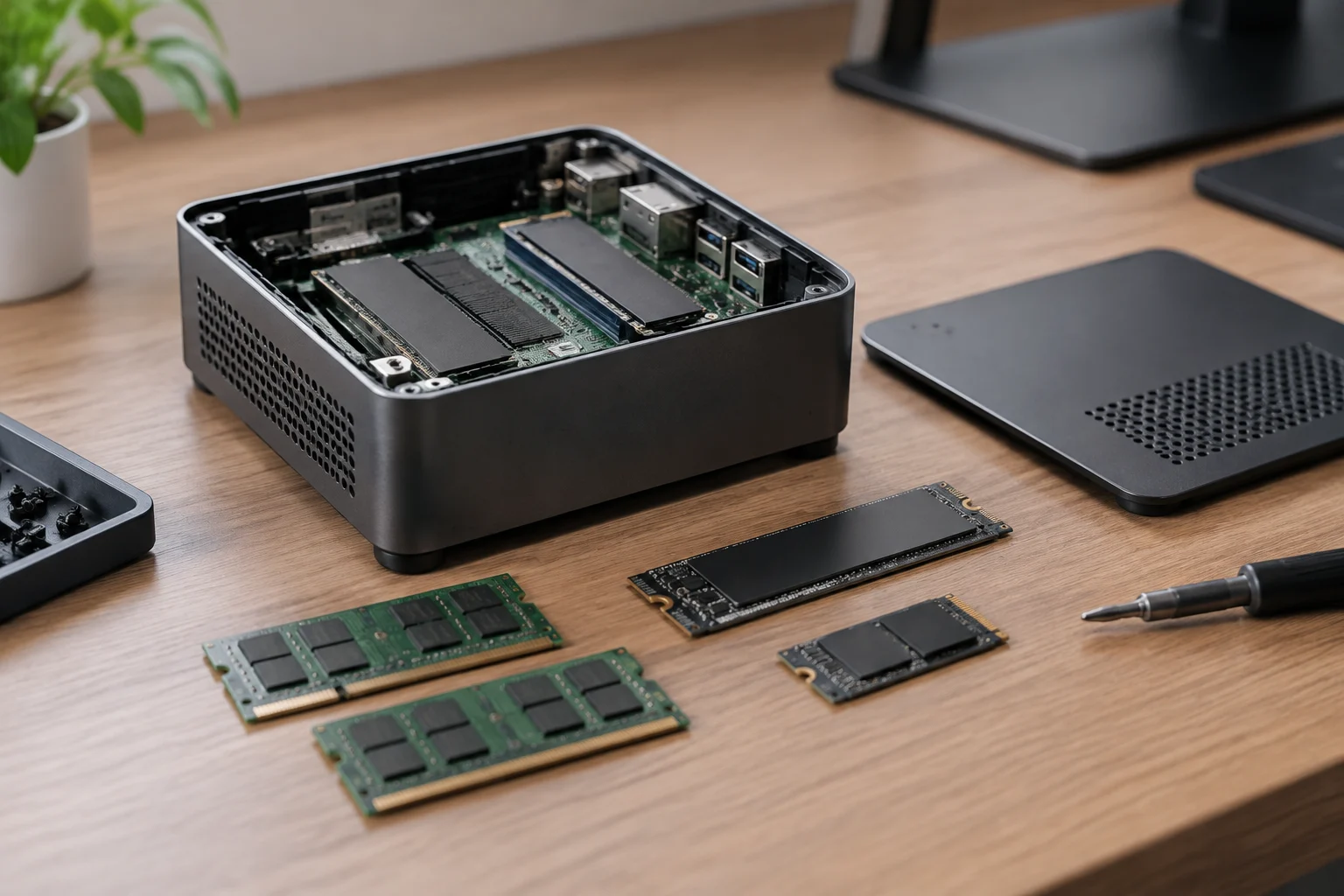
Before reusing or buying memory, verify the generation —for example, DDR4 or DDR5— and the module format. In the MSI Cubi 5 12M-015BUS, the commercial sheet specifies two DDR4 SO-DIMM slots and a maximum of 64 GB. This data cannot be extrapolated to another model: the generation, number of slots, maximum capacity, or even soldered non-replaceable memory may change.
Also check the supported speed and the module distribution required by the device. A specific total capacity does not guarantee that any combination will work: the manufacturer may limit compatible modules or capacity per slot. If reusing laptop RAM, compare the module label with the mini PC specifications; matching the commercial name or physical shape is not enough.
Memory configuration can influence integrated graphics performance, but it is not prudent to turn a general statement about dual channel into a guarantee for all devices. The effect depends on the platform and configuration. To decide, use the technical sheet of the exact model and the corresponding memory manual; do not buy modules based solely on a generic capacity recommendation.
Storage: M.2 Is Not Enough to Confirm Compatibility
The M.2 label describes a drive format, but it does not specify all compatibilities by itself. Check the supported physical length —such as 2280 or 2242— and the interface, which can be SATA or PCIe/NVMe. Also review how many slots exist and if any share resources with other connectors. Format, interface, and supported connection must match between the SSD and the computer.
The MSI Cubi 5 12M-015BUS sheet mentions an M.2 drive compatible with NVMe PCIe Gen4 x4 or SATA and a 2.5-inch bay. This is an example of how the same device can support more than one storage option, not a universal specification. Also confirm if the barebone includes any drive: announcing a slot or maximum capacity does not mean the SSD is installed.
In a compact chassis, check available space and mounting conditions before buying a drive with a bulky heatsink. If reusing an SSD, back up data before installing an operating system or changing partitions. The maximum supported capacity, if specified by the manufacturer, must be checked along with length and interface: a physically fitting drive does not necessarily provide the intended connection.
Operating System and Ports: Two Distinct Checks
A device's ability to run Windows does not mean the purchased variant includes Windows or a license. Some barebones are sold without an operating system; other configurations in the same family may include it. Check the variant and license separately and, if choosing Windows, confirm the installed edition matches the available license. If preferring Linux, verify the model's compatibility with the distribution and required hardware.
Ports should also be reviewed by function, not just quantity. In the Cubi 5 12M described in the commercial sheet, Thunderbolt 4, HDMI 2.0b, DisplayPort 1.4, USB, and two RJ45 connectors appear. This list can help evaluate multi-screen or wired network use, but should not be attributed to other Cubi versions or other mini PCs. Confirm which port offers video, data, network, or power and what resolution and multi-screen limits the manufacturer documents.
If connecting monitors, a dock, or specific peripherals is needed, check which ports share functions and what adapters might be required. A USB-C connector does not automatically imply Thunderbolt or video output; the name and specification of each port matter. For a business purchase, add to the review the number of Ethernet connections, the variant's wireless capabilities, and compatibility with the intended management environment.
How to Compare Cost and Choose Between Barebone and Preconfigured
Compare the cost of reaching the same final configuration, not just the initial price. For the barebone, add the device, missing RAM and storage, operating system if needed, and non-included accessories or adapters. For the preconfigured version, confirm that installed capacities and license fit your use. The entry price is not the cost of a ready-to-work device.
A barebone may make sense if you already have compatible components, need to choose a specific capacity, or want to control the configuration. The preconfigured version usually simplifies setup if you prefer not to select and install parts. Neither option is automatically cheaper or faster: the result depends on the model, chosen components, offer, and work you are willing to assume.
Before paying, review this brief list:
- Exact configuration: model and variant, not just family name.
- Box contents: RAM, drive, operating system, adapter, and cables.
- Compatibility: RAM generation and format; SSD length and interface.
- Power and connections: adapter power and each port's functions.
- Final cost: missing components, license, accessories, and shipping.
If a description does not clarify a necessary feature, request seller confirmation before buying; do not infer it from photos or another variant's sheet.