The Pillars of Home Wireless Security
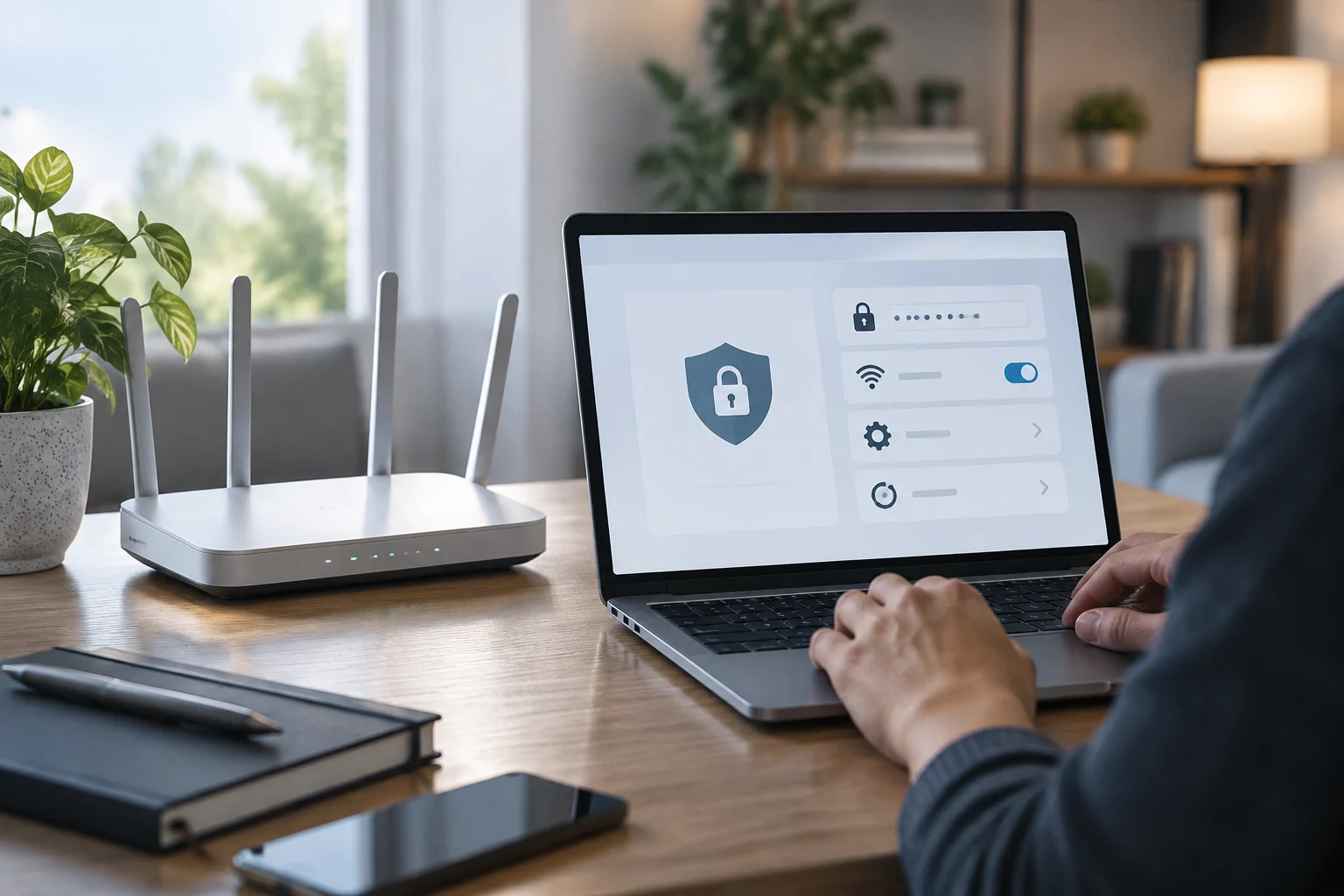
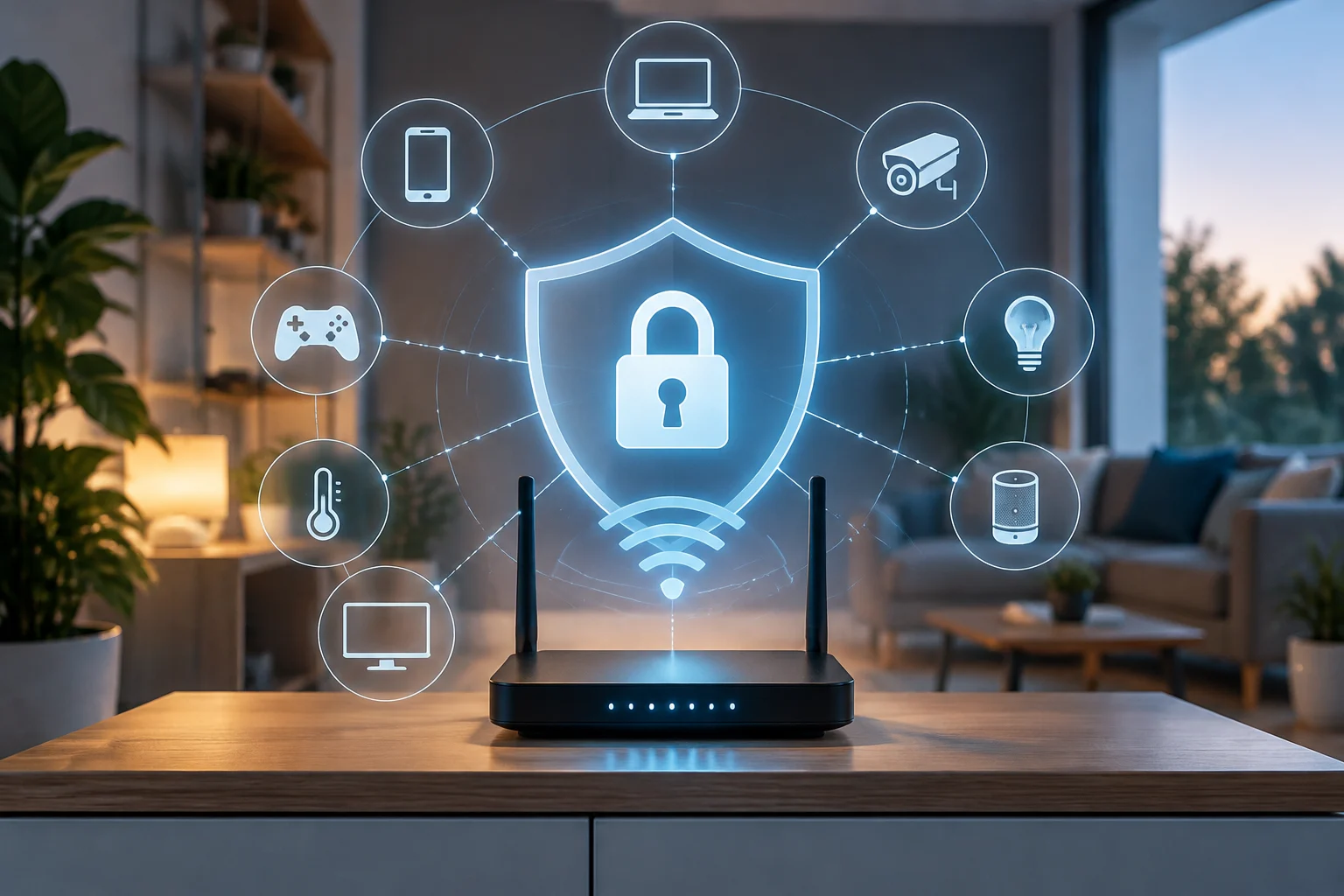
The security of a home Wi-Fi network does not rely on a single setting, but on the correct configuration of several protocols working together. Network encryption is the first line of defense, ensuring that data transmitted between your devices and the router cannot be intercepted and read by third parties. Without robust encryption, anyone within the range of your signal could capture traffic and, at best, see the websites you visit; at worst, steal credentials or inject malware.
In addition to encryption, the status of WPS and DNS configuration are critical factors often overlooked. WPS (Wi-Fi Protected Setup) was designed to facilitate device connection, but its implementation has shown serious vulnerabilities allowing attackers to access the network without knowing the password. On the other hand, DNS determines which servers receive requests to translate domain names into IP addresses; if misconfigured or intercepted, it can lead to unwanted redirects or leakage of browsing data.
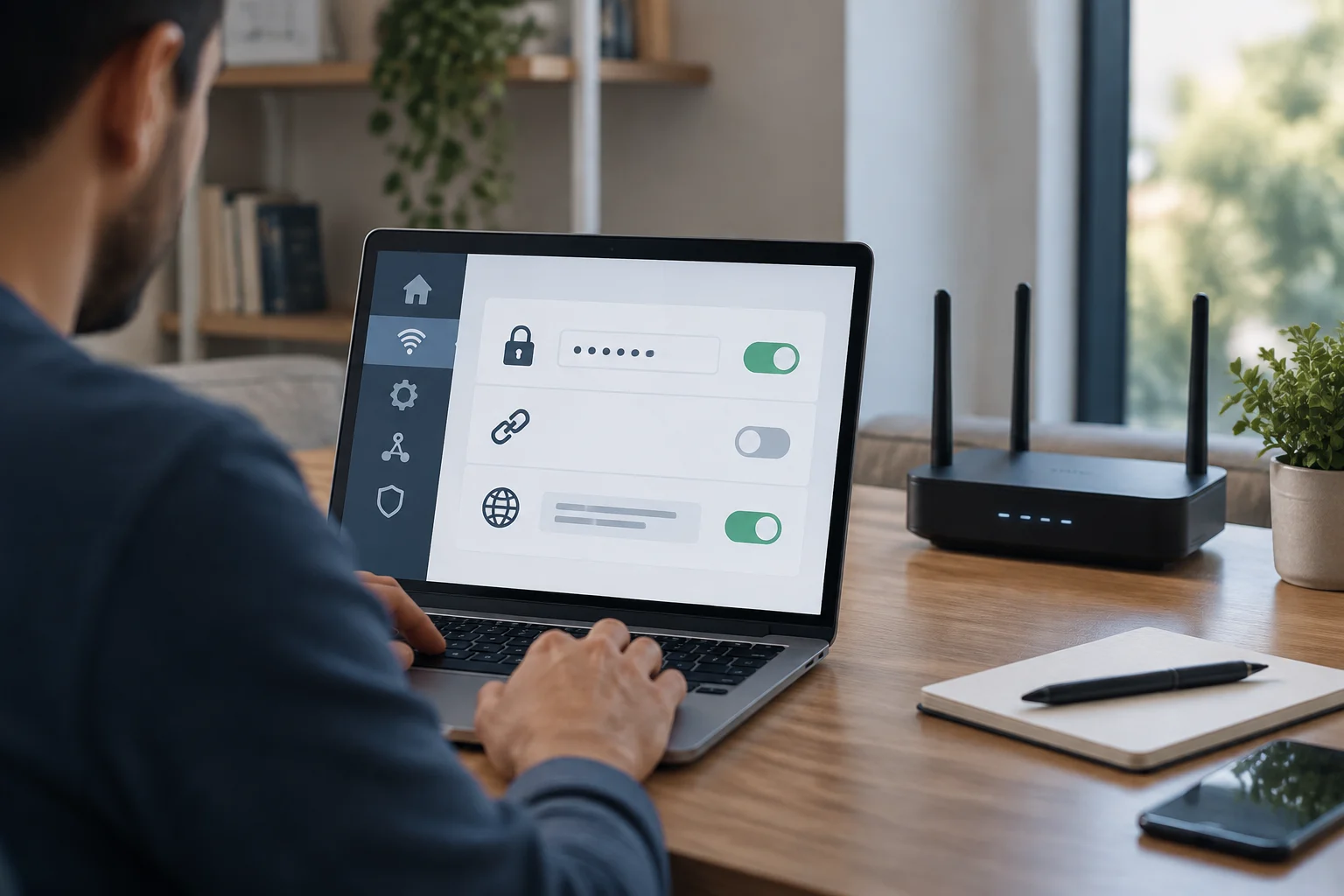
Verifying these three elements does not require advanced networking knowledge, but it does require an orderly method to avoid interrupting service. Below, we break down how to address each point safely and reversibly, using the router's administration interface and external verification tools.
Checking WPA3 Encryption Without Losing Connection
WPA3 is the latest Wi-Fi security standard, designed to replace WPA2, which has been in effect since 2004. Unlike its predecessors, WPA3 introduces Simultaneous Authentication of Equals (SAE) mode, which protects against dictionary attacks and improves protection for weak passwords. To verify if your router has it active, you must access the web administration interface, generally via IP address 192.168.0.1 or 192.168.1.1, and navigate to the wireless configuration or security section.
It is important not to change encryption to WPA3 exclusive if you have older devices that only support WPA2, as this would disconnect them from the network. The practical recommendation is to use WPA3/WPA2 (AES) mode, which allows both protocols to coexist. When saving changes, the router may briefly restart its wireless interface, but it should not cut the connection of already authenticated devices if done correctly. If your router does not support WPA3, ensure it is at least configured in WPA2-AES, avoiding TKIP mode, which is considered insecure and obsolete.
Once configured, you can verify the status from a mobile device. In iOS 14 and later versions, the system displays a "low security level" warning if the network does not use WPA3 or WPA2-AES. This indicator is a useful tool to visually confirm that the change has taken effect without needing to enter the router interface every time.
WPS Risks and How to Disable It Safely
The WPS button and the PIN method are the two ways to activate this protocol. Although the physical button seems safe, the WPS PIN is the true attack vector. Vulnerabilities have been discovered that allow an attacker to guess the 8-digit PIN in hours via brute-force attacks, as the protocol does not effectively block failed attempts. This means that even if you do not share the PIN, an attacker with the right tools can access your network.
To disable WPS, you must enter the router's administration interface and look for the "WPS" or "Wi-Fi Protected Setup" option in the security or wireless section. Disable it and save the changes. However, there is an important nuance: in some router models, especially those provided by telecom operators, disabling WPS in the menu does not always disable the PIN. In these cases, the physical button may still work, but the PIN method remains vulnerable. If you cannot completely disable WPS, the alternative is to change the PIN to a random and complex one, although total deactivation remains the safest option.
If your router does not allow disabling WPS, consider updating the manufacturer's firmware, as many recent versions fix these vulnerabilities. If the update is not available, evaluate the possibility of replacing the router with one that offers more granular control over its security features.
Verifying DNS Configuration
DNS (Domain Name System) is the service that translates domain names (like www.bytepreview.com) into IP addresses. By default, your router uses the DNS servers provided by your internet service provider (ISP). This is functional, but not always the most private or fast option. To verify which DNS you are using, you can access the network or WAN configuration section in the router interface and observe the predefined values.
If you want to switch to a public DNS like 8.8.8.8 (Google) or 1.1.1.1 (Cloudflare), you must do so manually in the WAN configuration. This can improve resolution speed and, in some cases, block ads or malicious sites if you use a filtering DNS. However, it is crucial to understand that changing DNS does not encrypt your queries; standard DNS traffic is sent in plain text, so your ISP and anyone on the network can see the domains you visit. For greater privacy, you would need to implement encrypted DNS (DoH or DoT) or use a VPN.
To verify that the change has taken effect, you can use online tools that show which DNS server is processing your requests. Note that the address appearing in these tools may differ from the one you configured, as large DNS providers use multiple servers. The most reliable way to confirm the configuration is to review the router interface and ensure the saved values are correct.
Firmware Update: What to Do If It Fails
Firmware is the software that controls the router's basic functions, including security protocols. Keeping it updated is essential to fix vulnerabilities and improve performance. Most modern routers allow online updates, but if this process fails, you can resort to manual or local update. This involves downloading the firmware file from the manufacturer's official website and uploading it through the router's administration interface.
If the online update fails, first verify the router's internet connectivity. Ensure the device has network access and that the DNS server is correctly configured, as a misconfigured DNS can prevent the router from contacting update servers. If the problem persists, try switching to a public DNS like 8.8.8.8 or 1.1.1.1 and retry the online update.
If the manual update also fails, verify that the downloaded firmware file is correct for your specific model and not corrupted. Some routers require the file to have a specific format (like .bin or .chk) and not be renamed. If you cannot update the firmware, consider contacting the manufacturer's technical support or, in the case of ISP-provided routers, requesting a replacement or remote update.