Why Your Network Security Degrades Over Time
The initial configuration of a router is usually sufficient for the first month, but home security is dynamic: protocols evolve, vulnerabilities appear in the firmware, and connected devices change. If you do not perform a periodic review, your network may remain exposed to threats that already have available patches or to default settings that facilitate unauthorized access. This degradation can go unnoticed because the digital environment changes continuously, and an adjustment that was appropriate when installing the equipment is not necessarily still appropriate afterwards.
The objective of this guide is not to turn you into a cybersecurity expert, but to give you an actionable checklist that you can execute every six months. By the end, you will know what to review in the router's administration panel and what to leave to automatic updates. The idea is to reduce the attack surface with concrete steps, without turning maintenance into a complex task or sacrificing the usability of the daily connection.
Encryption Verification: WPA3 as the Current Standard
The first step is to check which security protocol your Wi-Fi network uses. WPA3 is the current version of the standard for wireless network protection: it was introduced in 2018 to replace WPA2, which is now considered obsolete due to known vulnerabilities. WPA3 incorporates SAE mode (Simultaneous Authentication of Equals), which better resists dictionary attacks and protects weak passwords during authentication. In practice, this mechanism reinforces the protection of the connection process, not just the choice of a password.
To verify this, access the router's administration panel, usually at 192.168.1.1 or 192.168.0.1, and look for the wireless security section. If only WPA2-PSK options appear, the device does not support WPA3 or may be outdated. If the router is recent, ensure it is configured in WPA3-Personal or in mixed WPA2/WPA3 mode, which maintains compatibility with older devices. If the operator's router does not allow changing the protocol, consider buying your own with WPA3 support; this way you can choose a current configuration when the supplied equipment does not offer that option.
Firmware Update: The Step Most Users Omit
Firmware is the software integrated into the router that manages its functions, from network traffic to security protocols. Keeping it updated is a key measure to fix known vulnerabilities. Most modern routers allow you to check for new versions from the web panel or the manufacturer's mobile app. Reviewing this option matters because an update can resolve security issues even if it does not visibly change the appearance or functions of the device.
In ASUS, for example, you can update from the WebGUI or via the ASUS Router application. In TP-Link, the firmware section is usually found in System > Firmware Update. If your router does not support automatic updates, schedule a manual review every three months. Do not ignore minor updates: although they do not add visible features, they may include important security patches. If the operator's router does not allow updating the firmware, consider replacing it with a consumer model with active support. In any case, use the options and steps indicated by the manufacturer for your device.
Encrypted DNS: DoH and DoT to Protect Your Queries
When browsing, the device queries a DNS server to translate domain names into IP addresses. Without encryption, someone connected to the same network can observe these queries and know which sites you request. DoH (DNS over HTTPS) and DoT (DNS over TLS) encrypt the queries: DoH integrates them into HTTPS traffic, while DoT protects them via a dedicated TLS connection. This way, the DNS query is not exposed as unencrypted traffic on the local network.
Support depends on the model. TP-Link routers from the AX series support both protocols, while those from the AC series only support DoH. To configure it on a TP-Link router, go to Advanced > Network > Internet and select DoH or DoT in DNS Privacy. If the operator's router does not offer encrypted DNS, you can configure it per device: on Android, use Private DNS; on Windows 11, enable native DoH; and in Firefox or Chrome, enable the secure DNS option. Check in each case that the function is active on the device or application you are using.
This per-device alternative is useful when the router does not offer the option in its panel or when you only need to apply the adjustment to certain devices. The protection encrypts DNS queries, but it does not replace other network security measures. It is especially useful if you connect to public Wi-Fi networks or share the network with third-party devices, because it adds protection against observation of queries on the network segment.
Network Segmentation and IoT Device Management
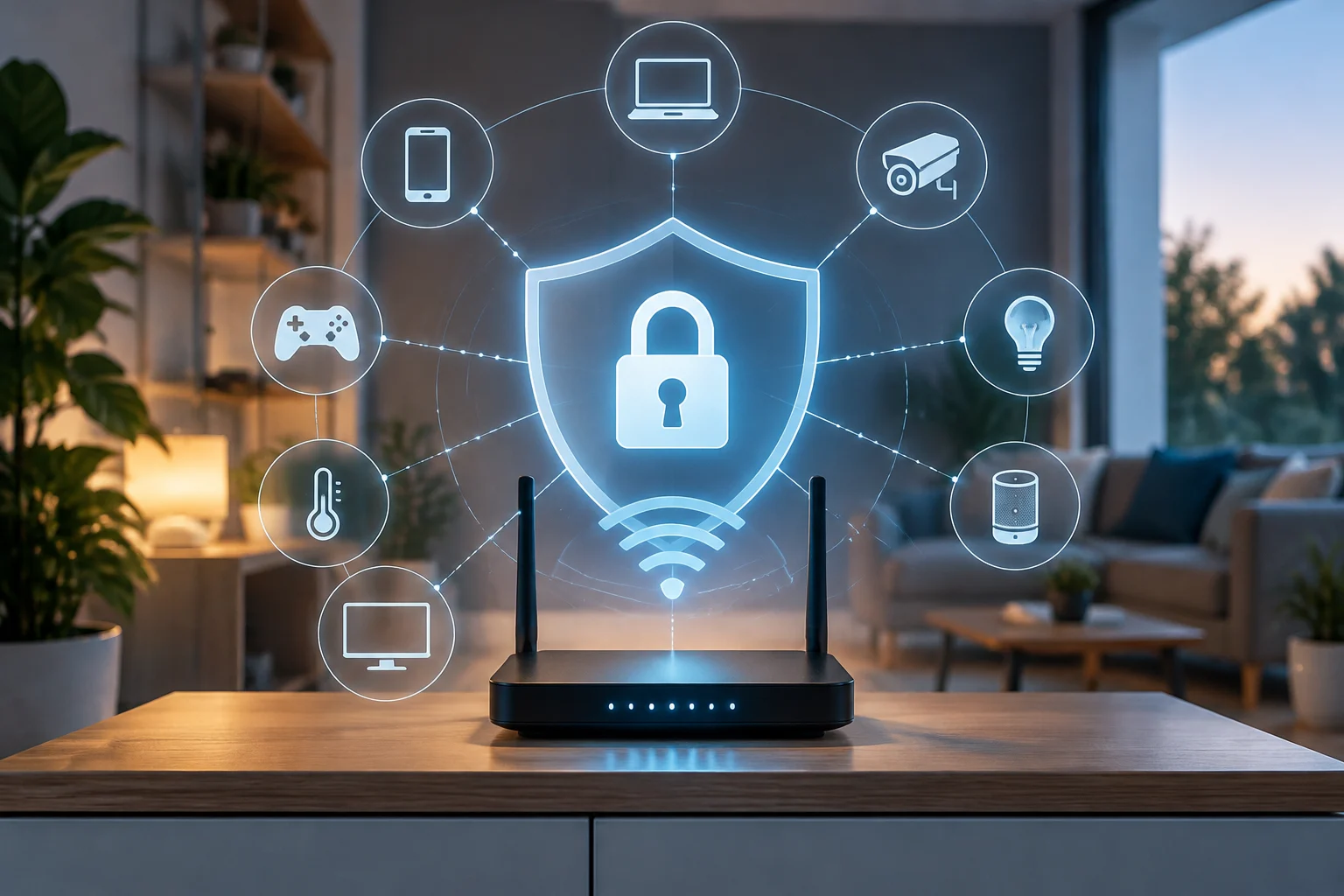
IoT devices, such as smart bulbs, cameras, and voice assistants, usually have limited firmware and do not receive security updates as frequently as a computer. Isolating them on a guest network is a simple way to limit the damage if one is compromised. This network allows devices to access the Internet without communicating with your main equipment, such as computers, mobiles, and NAS. The separation reduces direct connections between smart devices and those you use for your personal tasks.
Activate the guest network in the router panel and assign it a separate password. Connect IoT devices there and keep personal devices on the main network. Also, periodically review the list of connected devices to detect elements you do not recognize. If an unknown one appears, change the network password and disable WPS (Wi-Fi Protected Setup), an unnecessary and vulnerable function. Disabling WPS reduces an avoidable risk and is a quick adjustment that should be included in the router review.
Review Frequency and Summary of Key Actions
Home network security is not a one-time adjustment, but continuous maintenance. We recommend a full review every six months: verify the encryption protocol, check for firmware updates, review the list of connected devices, and confirm that encrypted DNS remains active. Between reviews, enable automatic firmware updates if your router allows it. This way, maintenance combines periodic checks with the automatic installation of available new versions.
To make the review easy to repeat, you can follow this order: check WPA3 or mixed WPA2/WPA3 mode; review firmware and the automatic update option; confirm the status of DoH or DoT, if the device supports them; and review connected devices, the guest network, and WPS. A stable list avoids omissions and allows identifying which options depend on the specific capabilities of your router. Not all models offer the same adjustments, so it is advisable to verify the available functions in the panel or in the manufacturer's documentation.
If the operator's router does not allow changing encryption, updating firmware, or activating encrypted DNS, the most cost-effective option in the long term may be buying a consumer router with WPA3 support, updatable firmware, and segmentation options. Manufacturers like TP-Link, ASUS, and Apple publish recommended configuration guides that you can consult as a reference. Home security does not require advanced knowledge: it depends on maintaining a clear routine and applying the options the equipment allows, rather than configuring functions that are not available.