The Real Impact of the Screen on Daily Work
Choosing a monitor for remote work is not just about finding a large screen or an extensive list of features. The decision must start from usage: reading documents, working with multiple windows, programming, editing images, or regularly connecting a laptop. These tasks do not require the same things, and no single specification guarantees a more comfortable or productive workday on its own.
It is advisable to separate verifiable characteristics from general promises. Size, resolution, connections, and stand movements can be verified in the model's datasheet. In contrast, expressions like "eye care" or "improves productivity" need context: a filter or image mode does not by itself demonstrate a medical benefit or replace proper posture, breaks, or reasonable lighting.
This guide serves to make a decision before buying, not to recommend a specific model. Available evidence allows explaining comparison criteria, but not establishing a universally optimal combination or supporting current prices for an entire category. Compatibility with the laptop and physical fit are two particularly useful checks because they can rule out options before comparing extras.
Size and Resolution: Choosing by Task and Distance
Monitor size is expressed in inches and corresponds to the diagonal. Before choosing, check how much space you have on your desk and at what distance you can sit. A larger screen can display more content, but it also takes up more surface area and will not necessarily be more legible if the resolution and system scale do not match your preferences.
Resolution indicates how many pixels form the image; the physical size, combined with that resolution, influences the apparent size of text and icons. That is why it is useful to compare both data points rather than treating Full HD, QHD, or 4K as absolute quality labels. Resolution does not determine comfort on its own: viewing distance, screen scale, and preferred font size also matter.
To select between options, start with the task. In office work, spreadsheets, and browsing, prioritize clear text and enough space for the windows you use simultaneously. In image or video editing, also value resolution and color capabilities relevant to the workflow. There is no basis in the consulted sources to claim that QHD on 27 inches is the optimal point for everyone, nor that 4K only makes sense in design or large sizes.
In the equipment datasheet, confirm the native resolution and review what resolution and frequency the laptop can transmit through the port you will use. If you use operating system scaling, check that the applications you need display correctly. The combination of screen, distance, and scale is a more reliable practical decision than buying by pixel count without considering the desk.
Panel Types: Understanding Differences Without Shortcuts
IPS, VA, and OLED describe different technologies, but labels do not replace the specific monitor's specifications. As a general guide, the comparative sources consulted attribute good viewing angles and color reproduction to IPS; in VA, contrast and deeper blacks stand out. The result also depends on the model, and the panel name alone is not enough to assess its quality.
In a desk where the screen is viewed from different angles or worked on with another person, IPS viewing angles can be an advantage. If contrast in dark scenes weighs more, it may be worth reviewing a VA option. Compare the published features for the exact model, especially if you need color consistency for visual work; generalizations do not replace specific measurements or appropriate calibration.
OLED can offer very high contrast, but the provided sources are not sufficient to quantify its suitability or retention risk in a specific office use. If you are considering that technology, verify the warranty policy and protection features published by the manufacturer for the specific product. It is not rigorous to discard all OLEDs for work or recommend one without knowing the usage pattern.
For general use, do not automatically pay for a specific panel technology. Decide which attributes matter in your case and confirm that the product documents them. The model datasheet and its usage conditions are more relevant than assuming all IPS is professional, all VA is slow, or all OLED is inadequate for a screen with static elements.
Ergonomics and Visual Health: Verify Before Trusting a Label
In long workdays, being able to place the screen at a comfortable height and angle is a practical criterion. Check in the manual if the stand allows adjusting height and tilt and if it offers lateral rotation; do not assume all monitors include those movements. If the stand does not fit your desk, confirm the VESA compatibility of the monitor and the arm you plan to use, including dimensions and supported weight.
The terms Low Blue Light, "blue light filter," and flicker-free describe features or modes that can vary between manufacturers. They should not be interpreted as proof that a screen prevents diseases or eliminates eye fatigue. The ASUS page, for example, presents its own Eye Care technology, while BenQ's information on blue light is also a manufacturer explanation. A commercial declaration is not equivalent to independent clinical evidence.
If you are concerned about comfort, review the blue light reduction mode, how it affects colors, and if it can be activated or adjusted. In color-critical tasks, a warm tone can alter the image appearance; it may be preferable to adjust brightness and the work environment when possible. The manufacturer's label does not, by itself, provide a comparable measure between brands.
It is also reasonable to look for specific documentation on brightness and flicker behavior. Available sources do not verify a universal rule according to which high-frequency PWM or DC dimming completely eliminates any discomfort. Check the product data and avoid absolute promises; if a visual feature causes you persistent symptoms, buying a monitor does not replace the advice of a health professional.

Connectivity: USB-C Does Not Guarantee All Functions
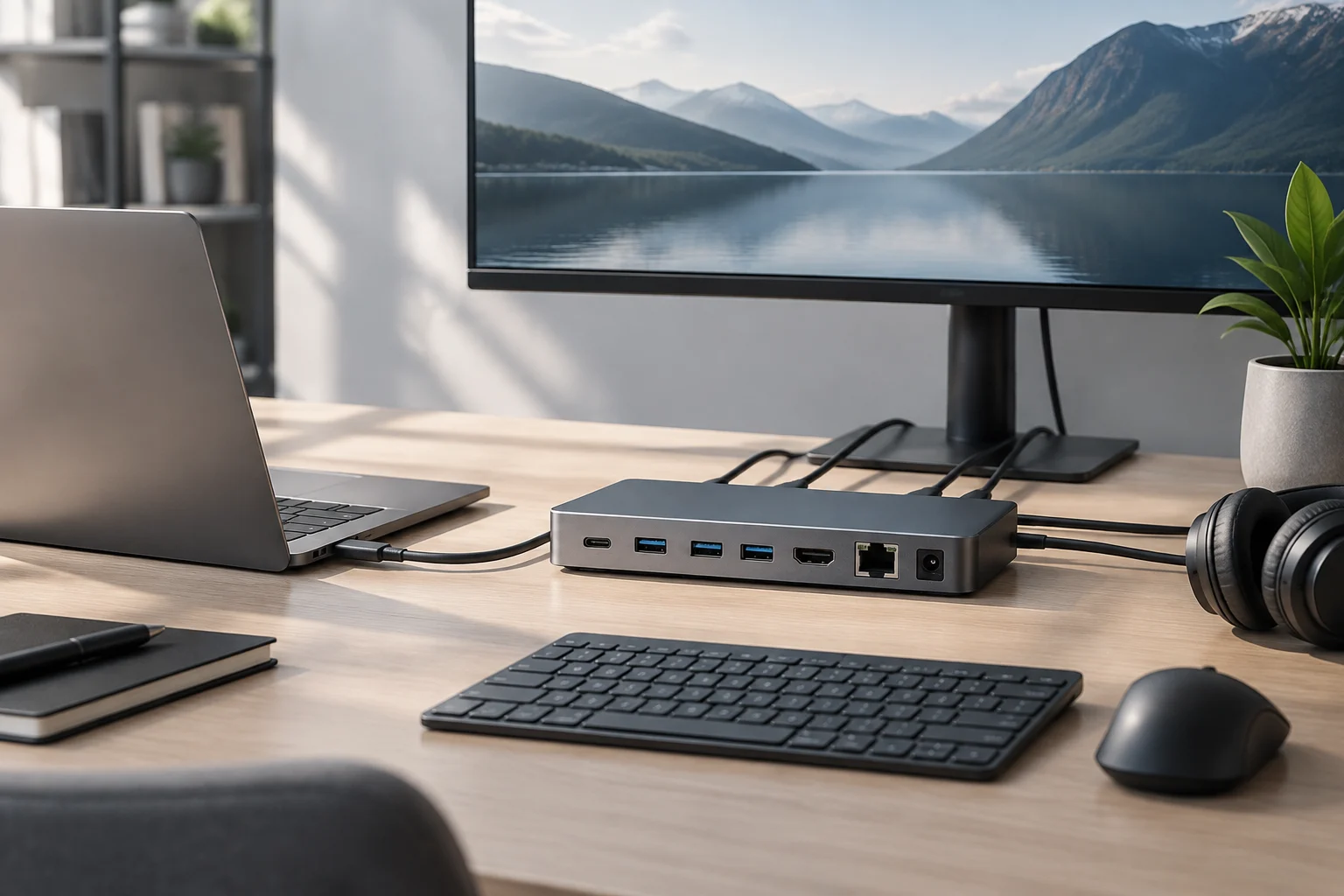
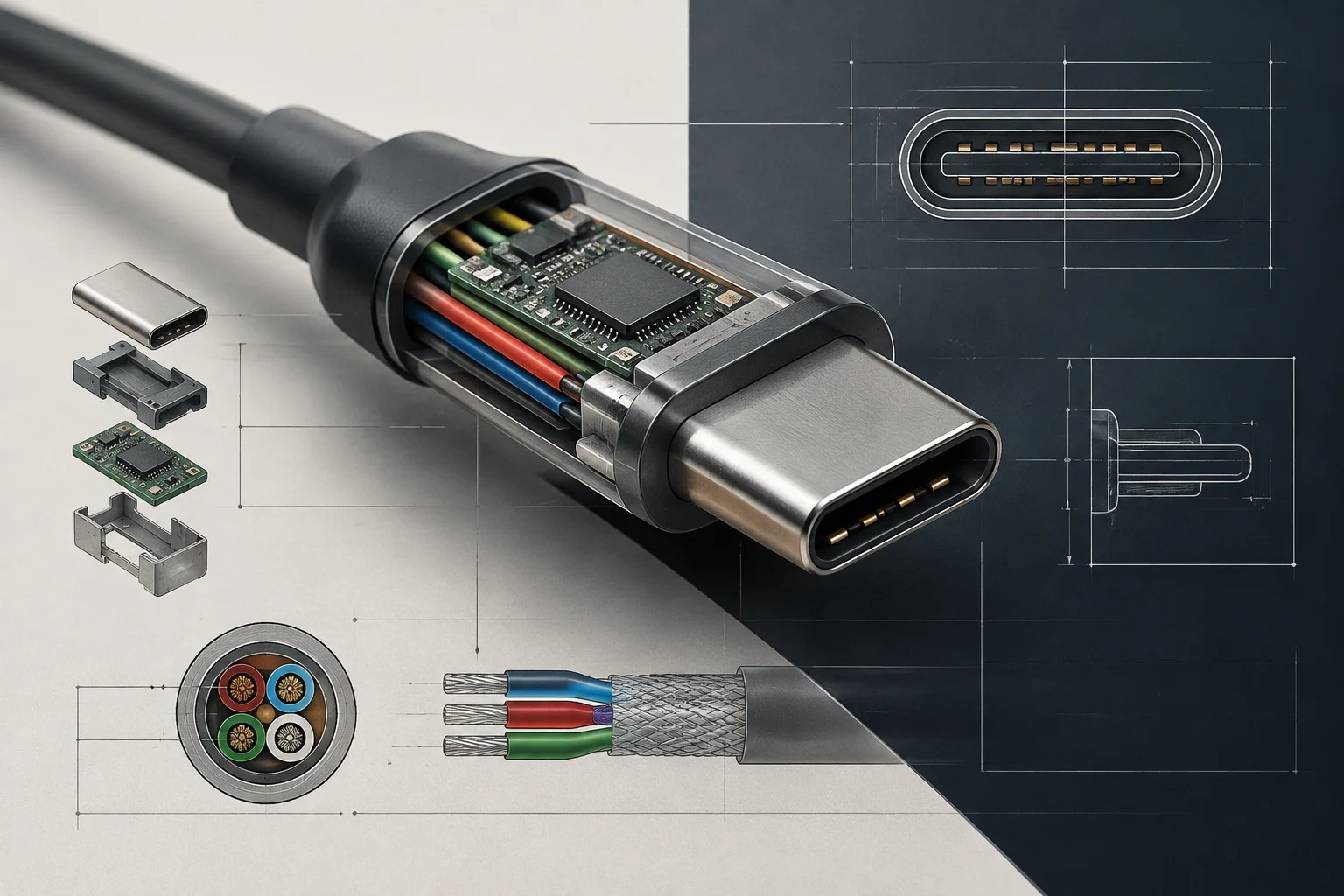
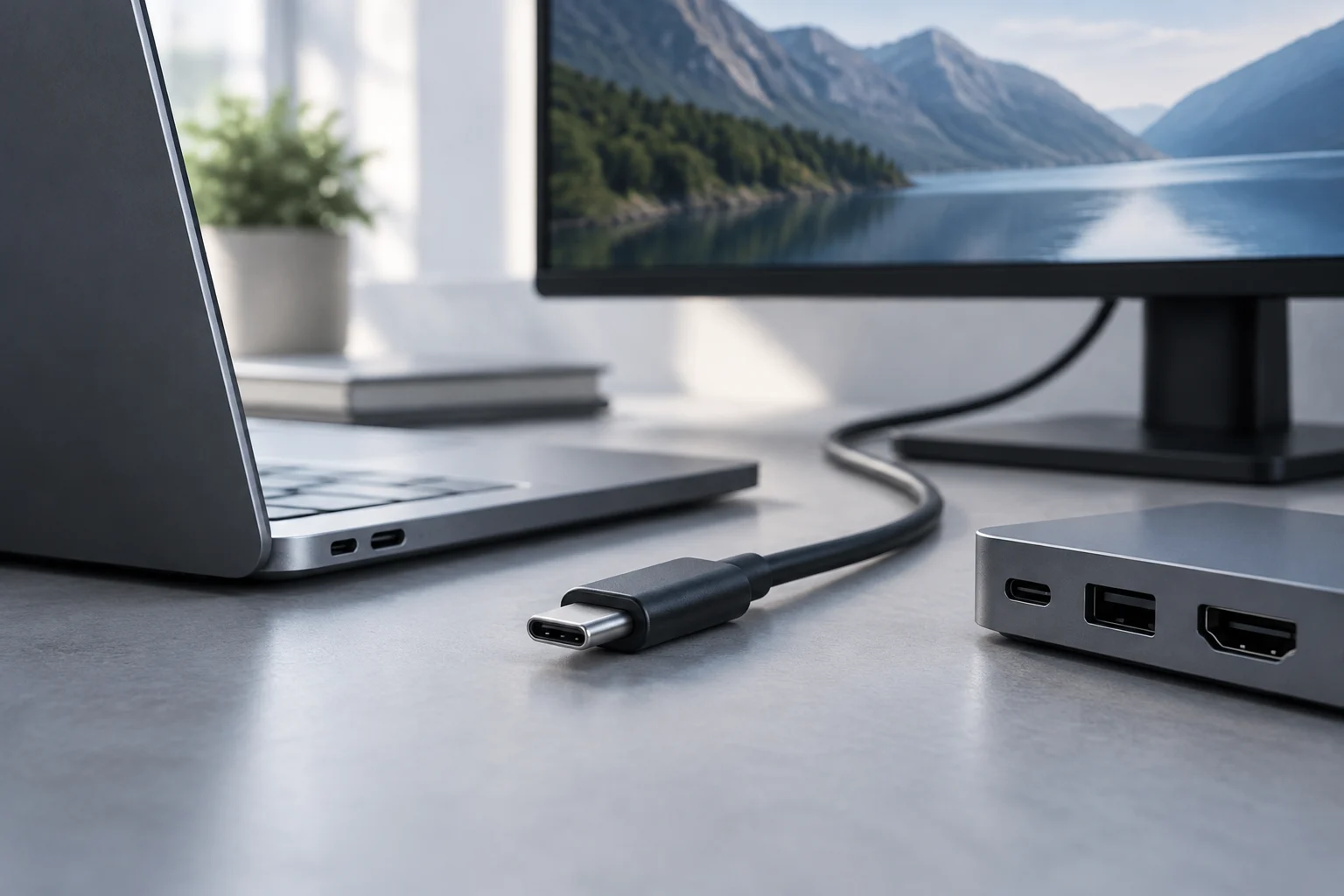
A USB-C connector describes the port shape, not a guarantee that it transmits video, data, and power in all devices. Before choosing a single-cable monitor, confirm in the laptop specifications that the port supports video output and check how much power the monitor can deliver to charge it. Available power is especially important if you want to keep the charger off the desk.
Thunderbolt can also transport video, data, and power, but you must check the version and capabilities of both ends. A port that looks like USB-C is not enough to deduce that Thunderbolt exists or to ensure that charging will cover the laptop's needs. Read the computer and monitor specifications together and confirm which cable is included or which one the manufacturer requires.
DisplayPort and HDMI are common alternatives for video, but the result depends on the version, resolution, and frequency supported by the computer, monitor, and cable. Do not buy an adapter based only on the connector shape: Apple indicates that, to connect certain monitors to a Mac via USB-C or Thunderbolt adapter, it must support DisplayPort Alt Mode or compatible Thunderbolt. Check the specific model documentation before purchasing accessories.
If you need to chain two monitors, explicitly confirm that the laptop, monitor, and connection type support that configuration. BenQ's information points to limitations for certain Macs and connections; it is not prudent to assume that any USB-C, HDMI, or DisplayPort allows daisy-chaining. The port list is not equivalent to a compatibility guarantee: functions depend on the implementation and the source device.
Physical Adjustments and Screen Mounting
Ergonomics starts by adapting the screen to the desk and the person, not by buying a stand with many labels. Measure the available space, consider the desk height, and verify if the monitor allows raising or lowering the panel. If you will share the screen or use more than one, rotation and tilt can be useful, provided they are included in the model's stand.
An articulated arm can provide more placement margin, but only if the monitor and arm are compatible. Verify the VESA pattern specified by the manufacturer and the stand's weight limit; do not assume all monitors use the same anchor. Physical adjustment must be confirmed in the manual, not inferred by price or the appearance of the base.
When installing it, test the position with your usual tasks: reading, video calls, and work with side windows. The appropriate height depends on the person, the chair, and the posture; therefore, a single rule about always aligning a specific point on the screen does not replace individual adjustment. The most useful purchase is the one that allows adapting the screen without straining the neck or shoulders.
Budget: Paying for Functions You Will Actually Use
There is no universal price figure supported by available sources for a work monitor: the amount depends on the market, seller, date, and model. Therefore, be skeptical of ranges presented as current reference if they do not indicate where and when they were observed. To compare offers, gather the final price and specifications of the same model and variant.
Make a short list of essential requirements before comparing: resolution compatible with your work, adequate video input, USB-C charging if you need it, adjustable stand or VESA mounting, and warranty conditions. Then decide which extras add value in your case. Paying for a function you will not use does not improve the purchase, while omitting a necessary connection may force you to buy accessories or change monitors.
Annual cost can serve as a budgeting tool, but not as a lifespan prediction: divide the price by the years of use you estimate and treat the result as a personal comparison, not a durability guarantee. No lifespan data, spare parts availability, or warranties for specific models have been verified here. Check those terms in the seller's and manufacturer's documentation.
Before buying, contrast this final list:
- Does the size fit the desk and can it be viewed at a comfortable distance?
- Are the native resolution and laptop video output compatible?
- Does USB-C transmit video and offer the charging power you need, if you seek a single cable?
- Does the stand have the required adjustments or support the planned VESA arm?
- Are color, blue light, and flicker features described for the exact model?
- Do the price, warranty, and return correspond to your market and chosen seller?
The best choice is the one that solves your verifiable needs: not the one that accumulates more acronyms or general promises.