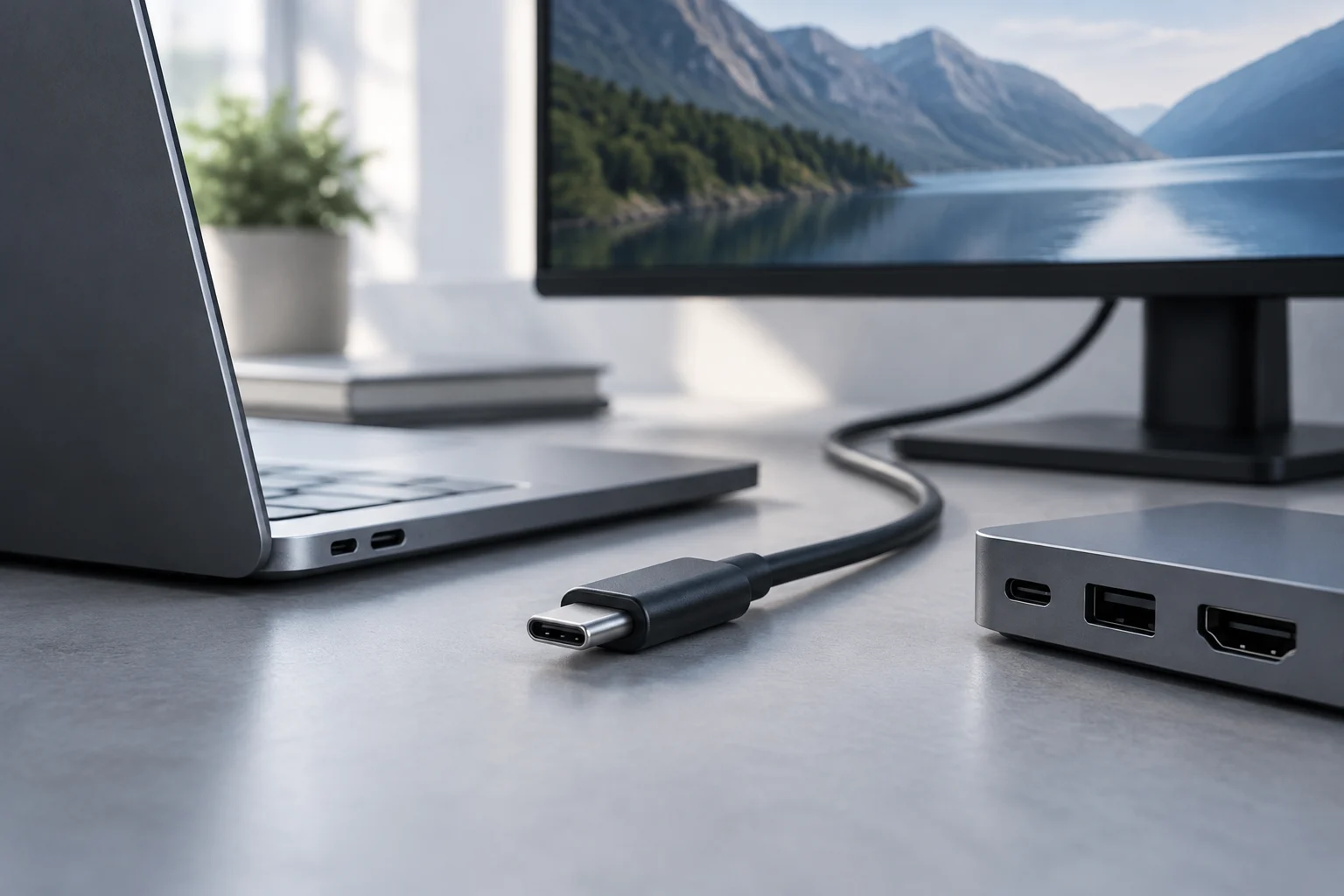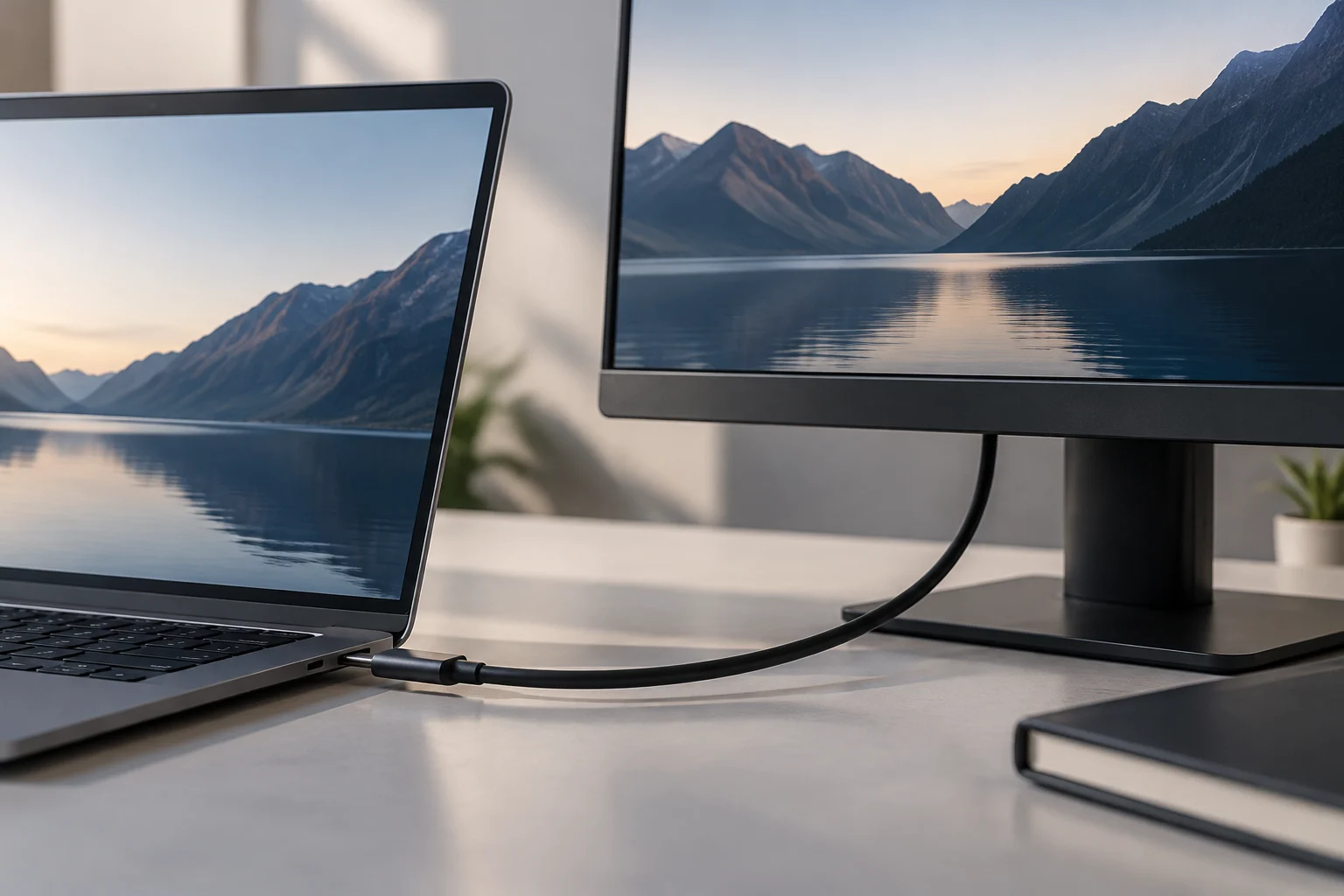
USB-C is not synonymous with video
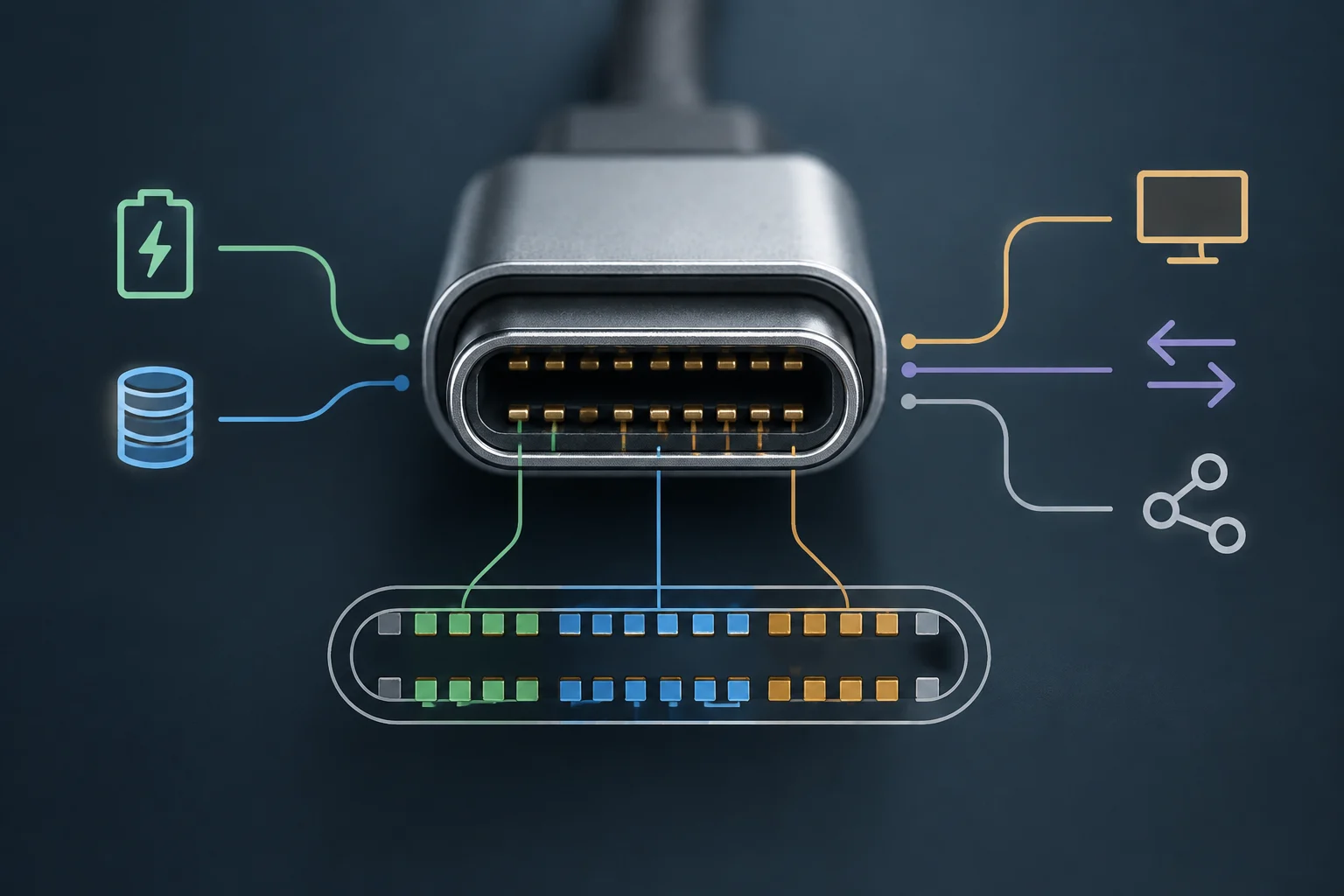
USB-C identifies the physical connector format, not a guarantee that all ports have the same functions. Depending on the device design, a port may serve for data, charging, video, or a combination of these capabilities. Therefore, seeing the same connector on the laptop and monitor does not confirm they can transmit images between them. [1]
The video function usually depends on whether the port supports DisplayPort Alt Mode, a mode that allows carrying a DisplayPort signal through the USB-C connector. The laptop port must offer this output and the monitor input must be able to receive it. If the device port only offers data or power, connecting a USB-C cable will not add the missing capability. [2]
This explains a potentially misleading case: the laptop and monitor may exchange energy via the cable, but not video. Charging and image output are distinct checks. Before buying, it is advisable to look for the documentation of the exact laptop model, rather than deducing its capabilities from the port shape or the fact that another USB-C from the same manufacturer supports video. [1]
How to check laptop capabilities
Start by noting the full name of the laptop and its variant; within the same family, the board, processor, or port functions may change. Consult the technical sheet or the manufacturer's support page and locate the specific description of the port you want to use. Look for explicit mentions of DisplayPort Alt Mode, DisplayPort output over USB-C, Thunderbolt, or USB4. Compatibility guides recommend checking system specifications instead of inferring capabilities from the connector. [2] [3]
Do not confuse data speed with video output
A mention like USB 3.2 or a speed expressed in Gbps describes data link capabilities, but by itself does not prove that the port delivers video. Similarly, a USB-C port charging the laptop does not prove it includes Alt Mode. If the documentation only indicates the connector type or data speed, look for the detailed technical sheet, manual, or model support information and confirm the specific port. The absence of a mention in a summary sheet is not definitive proof that there is no video; it is a signal to keep verifying, not to assume. [1] [3]
Do not rely solely on the Intel or AMD graphics processor, or on the laptop having a dedicated GPU. The useful information for purchase is the documented capability of the port in the finished device: manufacturers may implement connections and port functions differently. If the sheet does not clarify if the USB-C delivers DisplayPort, ask the manufacturer or consult specific technical documentation before buying. There is no need to deduce the internal GPU path if the output capability is directly specified.
What to check in the monitor sheet
On the monitor, identify which input you will use and what signal it accepts. A USB-C input can receive video via DisplayPort Alt Mode, but this must be confirmed in the model specifications; the presence of the connector is not enough on this end either. If you plan to connect via HDMI, check what outputs the laptop has and what cable or adapter is required. Compatibility depends on the specific pair of output, input, and connection, not on both devices generally announcing USB-C. [1] [2]
Next, check the combination of resolution and refresh rate you expect to use. It is not enough to read the maximum highlighted on the monitor's commercial page: locate the technical table and verify what resolution and refresh rate the chosen input supports, as well as applicable conditions. On the laptop side, look for the output limit indicated by the manufacturer. If the sheets do not publish that combination for the link you want to use, do not assume the monitor will work at its maximum. The information available in this research does not allow fixing a universal table of resolutions by DisplayPort version, so the decision must be based on the specifications of the two models. [3]
USB-C versus HDMI
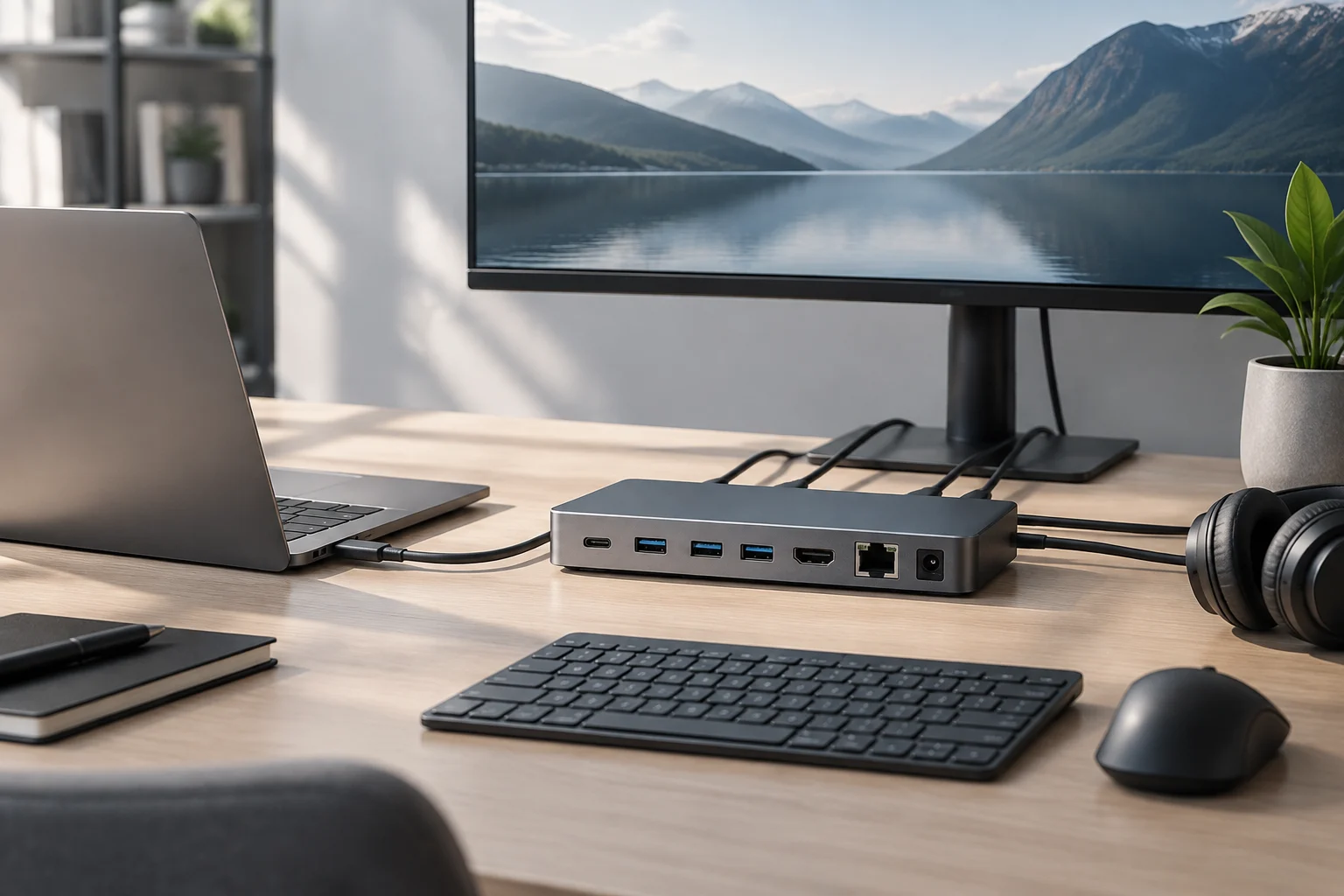
A monitor with HDMI and USB-C offers more than one connection path, but each requires checking its own output, input, and cabling. If the laptop does not transmit video via USB-C, it may be able to connect via an HDMI output or a compatible adapter; this depends on the ports present in both devices and cannot be guaranteed without knowing their models. Do not buy the monitor assuming an adapter will convert a USB-C data port into a video output: first verify what signal the laptop can generate.
Video and charging: two separate verifications
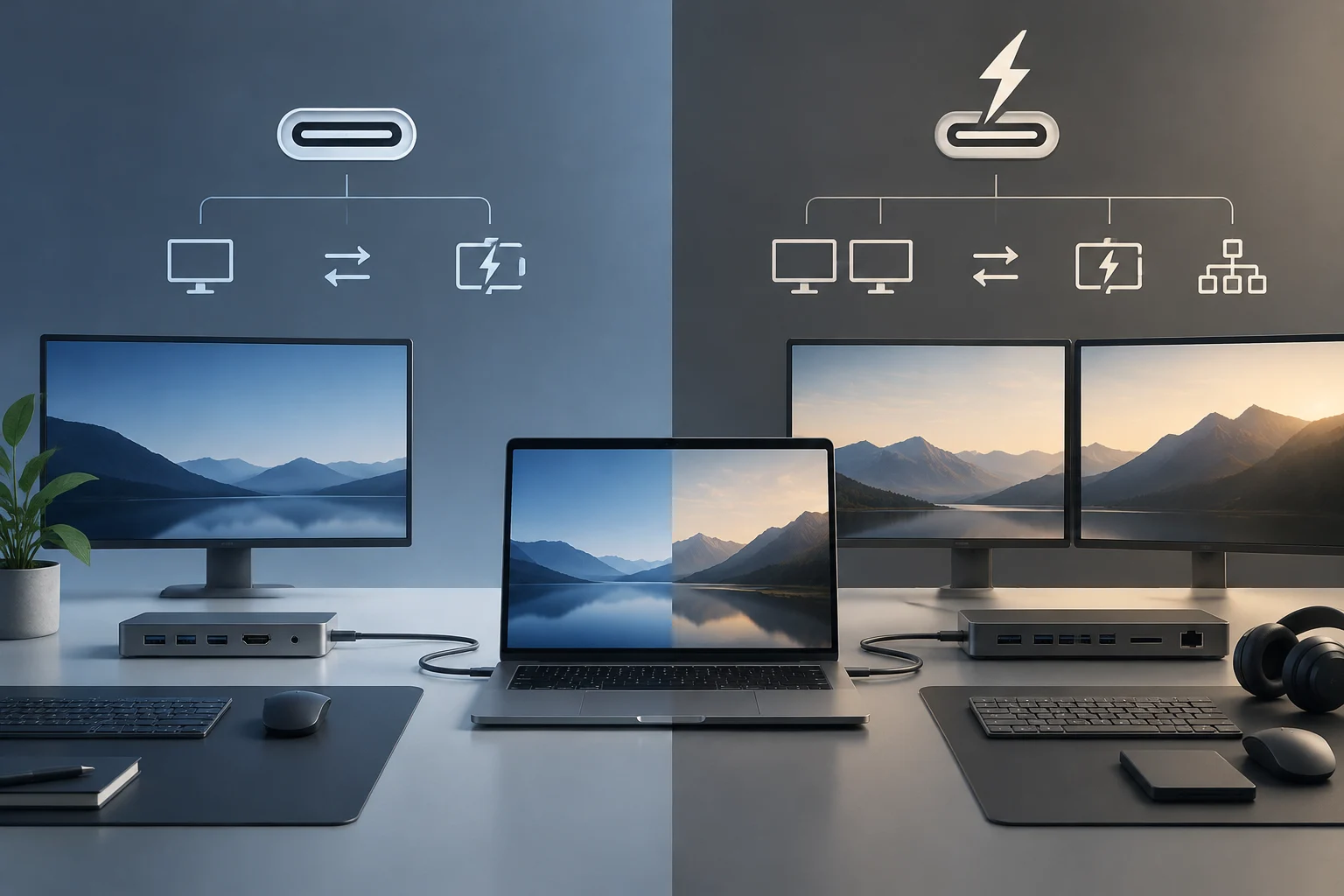
Some USB-C monitors can supply power to the laptop via the same cable that carries the image. For this charging, the monitor must offer compatible power output and the laptop must accept the corresponding input. The power indicated in watts allows comparing capabilities, but does not by itself prove that any combination will charge as expected. Check the monitor's output power and the laptop's input requirements, as well as the conditions indicated by each manufacturer. [4]
USB Power Delivery (PD) relates to energy negotiation between devices; it should not be treated as a synonym for video or as a guarantee that the monitor will function as an adequate charger for all laptops. Documentation from a monitor manufacturer illustrates that insufficient power or voltage output can prevent charging or limit it. Their examples are not a rule for all models: compatible figures and profiles must be verified in the sheets of the two specific products. [4]
If the monitor does not deliver enough power for the usage situation, the image might work even if charging is slow, limited, or non-existent. In that case, you can use the laptop charger separately, provided the device allows that configuration. Do not sacrifice a confirmed video connection for an unverified charging promise: first decide if you need a single cable and treat that convenience as an additional requirement.
Thunderbolt, USB4, and cables: what can be concluded
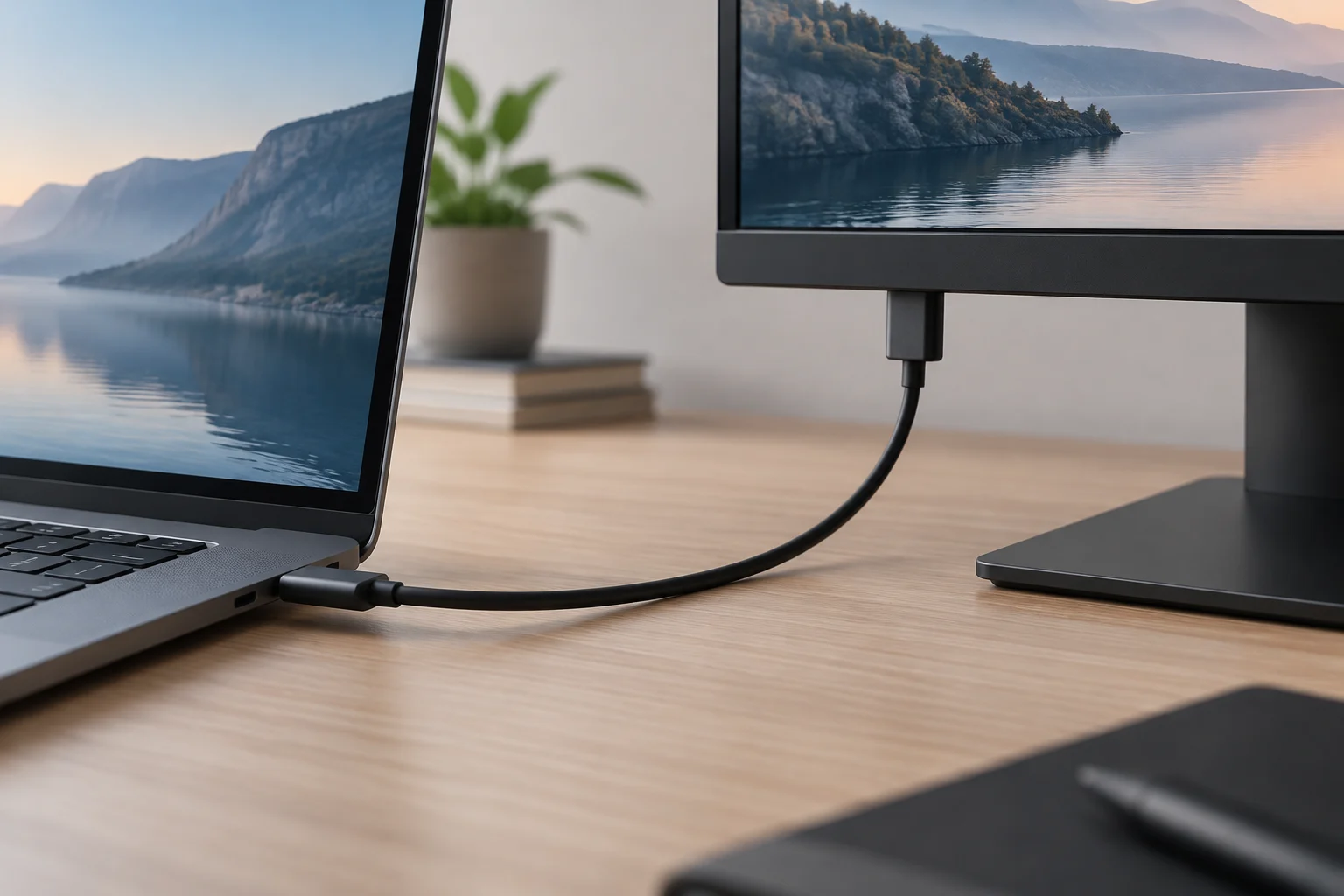
Thunderbolt and USB4 often appear in laptop and monitor specifications, but their names do not replace the check of specific functions. Look in the laptop sheet for what video output the port supports and in the monitor sheet for what input it accepts. The BenQ guide describes USB4 as a technology that can carry data and video, but that general information does not determine the resolution limits of a particular combination. [5] Confirm the video mode and its limits in the specific models before assuming you will get the maximum resolution or refresh rate.
The cable also matters. Check that the supplied cable or the one you plan to buy is specified for the required connection, including video transmission if applicable. A high-speed data cable cannot compensate for a laptop port lacking video output; and the acceptable charging power may depend on cable characteristics and the device combination. The cable sheet, the laptop sheet, and the monitor sheet must describe a compatible path. [2]
If the documentation leaves doubts, consult the manufacturer's support indicating the full model numbers and the port you want to use. It is more useful to ask for confirmation of a specific combination—for example, video via USB-C at a certain resolution and refresh rate, plus charging at a certain power—than to ask if the product is simply “compatible with USB-C”. A precise answer reduces the risk of buying based on an ambiguous label.
Checklist before buying
Before choosing, verify separately the four parts of the connection: laptop video output, monitor input, desired resolution and refresh rate, and charging power if you want to use the monitor as a source. Save links or screenshots of the exact model specifications; this allows you to contrast commercial claims with technical documentation and resolve discrepancies with the manufacturer. [1] [3] [4]
- Identify the exact laptop and the port you will use; do not generalize from other models in the same range.
- Confirm the video output: look for DisplayPort Alt Mode, Thunderbolt, USB4, or another explicit description of image output in the manufacturer's documentation.
- Review the monitor input and the resolution and refresh rate it supports via that input.
- Check charging separately: contrast the power delivered by the monitor with the laptop's input requirements.
- Verify the cable or adapter for the required signal and power; do not assume a cable change resolves the lack of video output.
If any of those specifications are not available, the responsible conclusion is that compatibility is not yet confirmed. You can ask the manufacturer for clarification, look for the technical manual, or choose an alternative connection documented by both devices. The practical decision is not to guess by the connector, but to buy when the complete path is backed by specifications.