What is a security update and how it differs from a patch
A security update is a software change intended to fix a vulnerability or reduce the risk of it being exploited. It can modify the operating system, an application, a browser, a driver, or firmware. It does not necessarily imply installing a completely new version: often, replacing or adjusting specific components is enough. INCIBE recommends keeping systems and applications updated, as both can contain security flaws.
In Microsoft terminology, a security update is a fix widely distributed for a specific product vulnerability. In common usage, patch usually refers to that fix or the package containing it. Terms are not always applied the same way across manufacturers; it is advisable to focus on the purpose and description of each release, not just the name on the screen.
A feature update, by contrast, adds capabilities or product changes that do not necessarily resolve a vulnerability. Some releases combine security fixes and other changes, so categories describe objectives, not necessarily separate packages. Having a version that the manufacturer still supports does not mean it is the newest version: the key is that it continues to receive relevant fixes.
Update types: security, features, and cumulative packages
Labels help anticipate what changes, but they do not alone allow deducing the size, urgency, or scope of a download. Microsoft distinguishes, among other terms, security updates from critical non-security updates and definition updates, which expand databases used to recognize elements like malware.
| Type | Main Objective | What It Can Modify | Frequency |
|---|---|---|---|
| Security | Fix a product vulnerability | Vulnerable code and related components | When the manufacturer publishes a fix; calendar depends on the product |
| Features | Add or change capabilities | Product features and components | According to the manufacturer's version cycle |
| Definition | Expand detection data | Security product definition databases | Can be frequent |
| Cumulative | Deliver multiple fixes in one package | Components included in the set | Depends on the system and release channel |
The table summarizes categories and objectives, not a universal calendar guideline. Cumulative describes how fixes are grouped or delivered, not a guarantee that every package contains only security. To decide whether to install a specific release, review the manufacturer's notice, affected products and versions, and whether a device restart is required.
In practice, an update notification may include more than one type of change. The home user usually benefits from keeping automatic installation active when possible; those managing devices must identify which systems and applications each tool covers. Updating the operating system does not automatically update all installed software: third-party applications may have their own mechanism.
From vulnerability to patch: what CVE means
The cycle usually begins when a vulnerability is discovered, communicated to the manufacturer, or investigated by a security team. The provider analyzes the defect, determines which products and versions are affected, prepares a fix, and publishes information to help decide who should install it. Not all vulnerabilities are disclosed or fixed at the same time, and there is no single calendar applicable to all providers.
CVE is an identifier used to refer consistently to disclosed vulnerabilities. A CVE identifier is not the patch nor does it certify that a device is fixed: installation depends on the manufacturer publishing a solution for the specific product and version, and on the device receiving and applying it. The provider's security information is usually necessary to relate the identifier to affected versions and the available fix.
When an alert appears, check the exact product name, its version, and official instructions. A vulnerability may affect only certain versions or configurations. If the notice indicates a temporary mitigation, this can reduce exposure, but it should not be confused with installing a definitive fix.
Distribution and verification: how to know the package is authentic
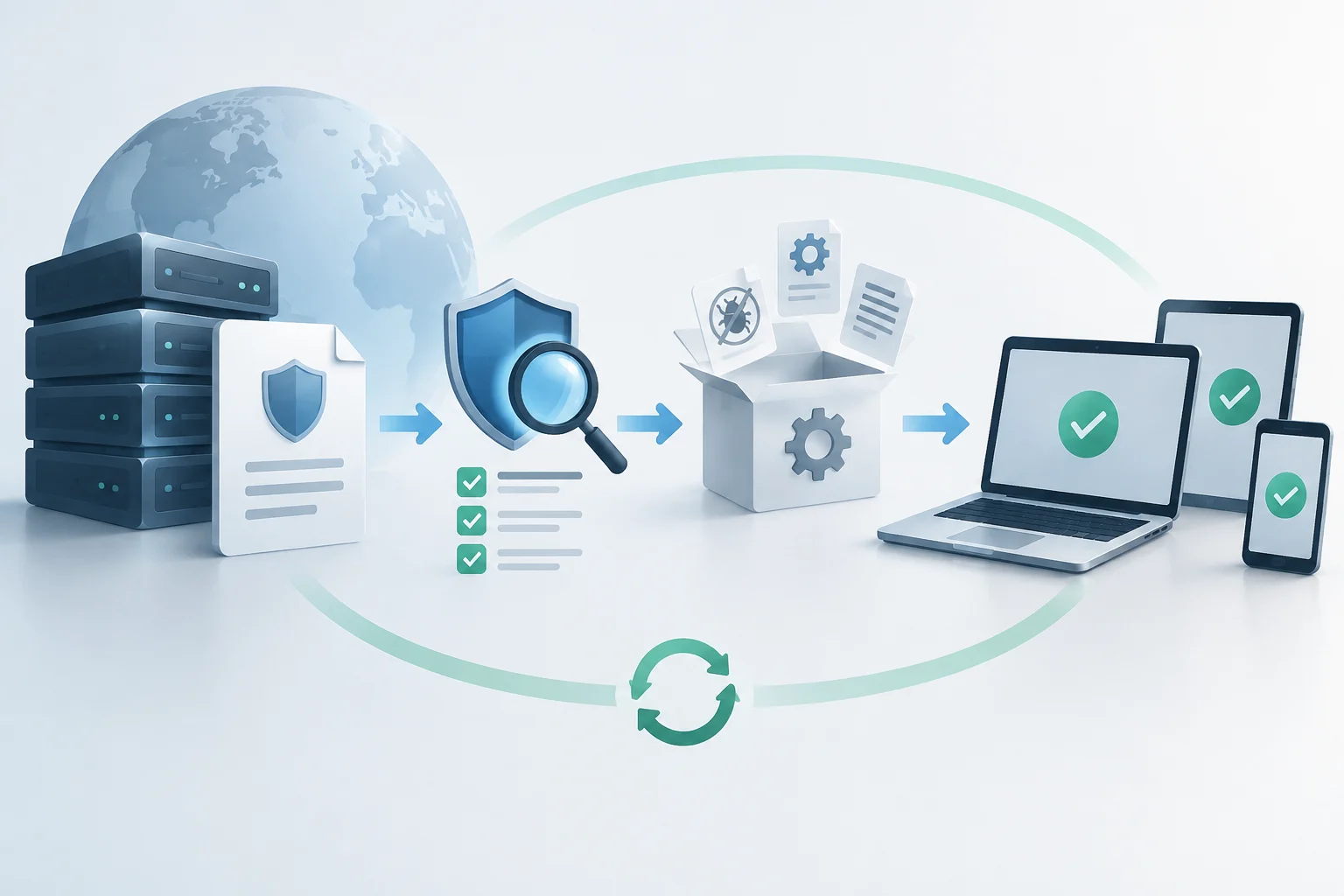
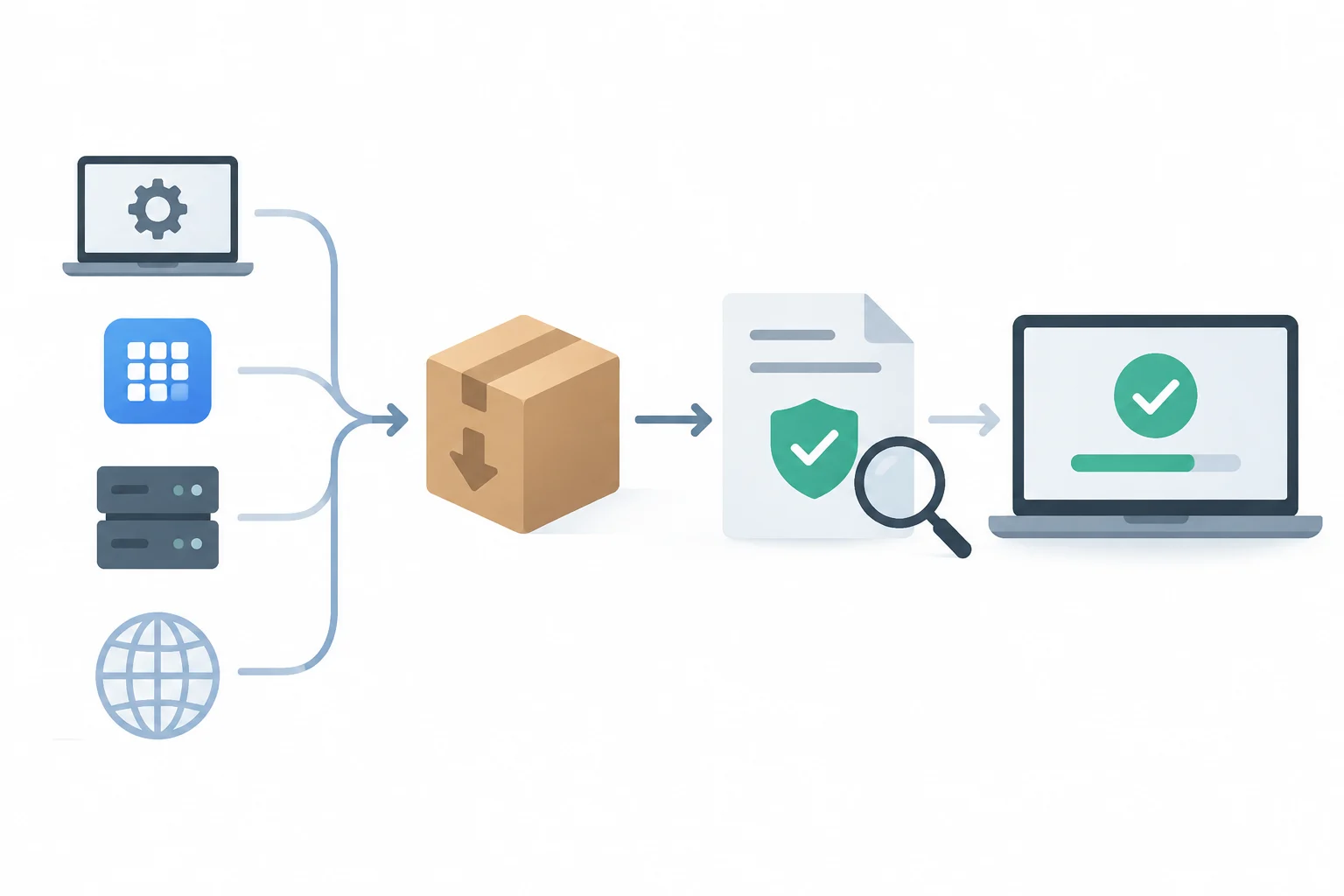
Manufacturers distribute updates through different channels: integrated system tools, app stores, management services, or official downloads. The channel can vary by platform, device, and region. The practical recommendation is to start the search from the device settings or application, or go to the manufacturer's official site, rather than following unexpected links received by message.
Integrity is the guarantee that the received software corresponds to the expected artifact and has not been altered. Distribution systems may rely on digital signatures and other cryptographic checks; a signature allows validating the associated origin and that the signed content has not changed since it was signed. An isolated checksum does not prove authenticity: for the comparison to be useful, the reference value must also come from a reliable source. OWASP warns of the risk of treating updates or artifacts as reliable without verifying their integrity.
If a check fails, the installer may reject the package or stop the installation. Do not disable that protection to force the update. Retry from the official channel, verify that the device has connection and sufficient space, and consult support instructions. In managed devices, inform the responsible area: a repeated failure may be due to distribution, configuration, storage, or compatibility issues, and does not alone conclude that an attack occurred.
Apple documents security measures for the operating system and updates; OWASP, for its part, addresses integrity failures as a software and data risk. These are complementary perspectives: package authentication protects the installation path, but does not replace product support, secure configuration, or control of third-party applications and components.
End of support: why the lifecycle matters
When a manufacturer ends support for a product or version, it may stop publishing security fixes for that environment. The device may keep working, but vulnerabilities discovered afterwards may not receive a solution. INCIBE advises avoiding old software that no longer has security updates.
The practical risk depends on what software it is, how it is used, what information it handles, and whether it is exposed to external networks or files. Therefore, end of life does not necessarily mean the device stops turning on; it means the user should no longer assume the provider will fix new problems. Continuing to use an unsupported product increases exposure to known or future flaws, although the specific risk cannot be summarized in a universal figure.
If a secondary application stops receiving support, consider replacing it with a maintained alternative and migrate data carefully. If it is the main system and you cannot change it immediately, limit its exposure, avoid sensitive tasks, and plan a transition. These measures reduce the risk surface, but they do not turn an unsupported product into an updated one.
Practical checks on Windows, Android, and iOS
The most reliable way to check status is to open the system's own update section and see if it reports a pending installation, an up-to-date version, or an error. The name and location of menus can vary by version, manufacturer, and configuration; avoid relying on outdated instructions that describe a different screen.
- Windows: open Settings and check Windows Update. Review if there are pending updates and if the system requests a restart. In work devices, the organization may manage the installation calendar or channel.
- Android: open Settings and look for the system update section. Also check application updates in the official store. Availability may depend on the manufacturer, model, and region.
- iPhone or iPad: open Settings, go to General, and check Software Update. Applications are updated separately from their distribution channel.
Manual review is not limited to pressing 'check'. Ensure the download finished, the installation is not pending, and no error requires intervention. If a restart is requested, save work and follow the instruction. In some enterprise configurations, there are special methods, such as Windows security updates that Microsoft documents for compatible and managed devices; they should not be assumed available for all devices.
To maintain a reasonable routine, enable automatic updates when the device allows, periodically review applications that update separately, and confirm the manufacturer still offers support. If you receive a notice with an urgent link, do not use that link to install anything: open the settings or official channel yourself. A message saying 'pending update' does not prove the notice is authentic.